|
VOOZH | about |
|
VOOZH | about |
Windows Defender is a built-in security solution for Windows. It offers real-time protection from malware, threats or any other vulnerability. Since it's an in-built feature of Windows & is recommended to keep it enabled throughout the time but, sometimes (like during any software installation) you may need to turn off the Windows Defender and as soon as the work is done, you will be required to turn it back on. Well, here are some of the best methods to turn Windows On or Off.
👁 How-to-Turn-Windows-Defender-On-or-Off
You can use Windows Settings to turn off or on Windows Defender. Here's are some quick actions to perform:
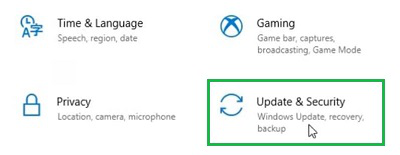
Open Settings & go to the Update & Security.
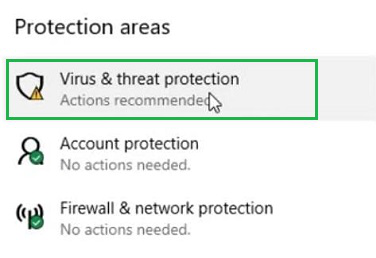
On the left-hand side, find out the Virus & Threat Protection. Click on that.
👁 2--Virus-&-Threat-Protection
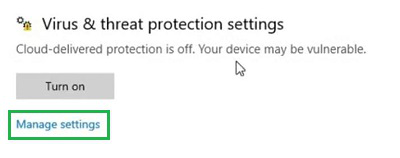
Scroll down a bit to find Virus & Threat Protection Settings. Click on the Manage Settings option.
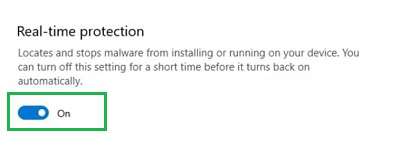
Under the Real-Time protection, toggle on or off to turnoff Windows Defender
Hence, we have successfully turned Windows Defender On and Off using the Settings of the Device.
Alternatively you can also use Windows Registry Editor to turnoff Windows Defender. Below is te detailed steps to perform this action.
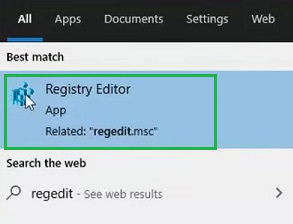
In the Search Bar, Search for the "regedit". And go with the best available option to open the Registry Editor.
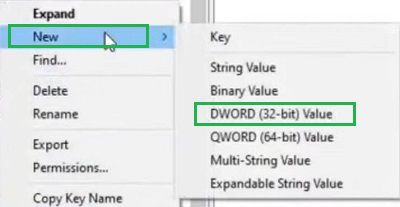
Follow the path HKEY_LOCAL_MACHINE > SOFTWARE > Policies > Microsoft > Windows Defender. Right-click on the option. Click the Next option, and later go for the DWORD (32-bit) Value.
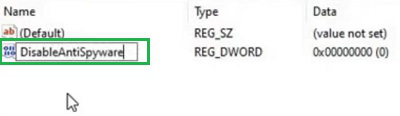
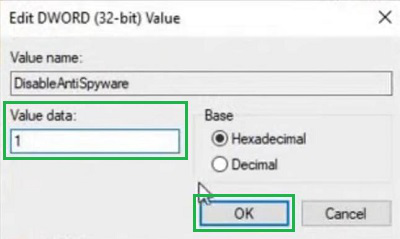
Provide the name DisableAntiSpyware for to turn off the Windows Defender. And to turn on the Windows Defender again, the name will be changed to EnableAntiSpyware.
Double-click over it to open a new small window. Provide the Value Data as 1 to make the key functional.
Hence, we have successfully turned Windows Defender On and Off using the Registry Editor.
For advanced method, you can use Windows Group Policy to turnon or off Windows Defender.
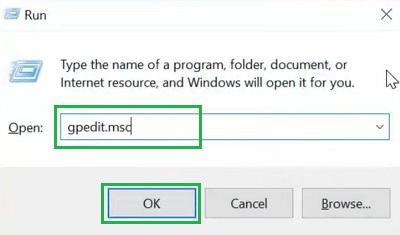
Open the Run Window by pressing the Windows + R keys. Now, write the command 'gpedit.msc' there and click OK.
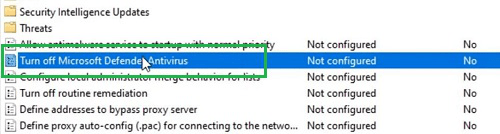
Follow the path Computer Configuration > Administrative Templates > Windows Components > Microsoft Defender Antivirus. On the right-hand side, click on the Turn Off Microsoft Defender Antivirus option.
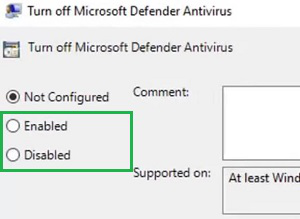
Now, you will get two options, Enabled or Disabled. Choose what you want. If you choose Enable, the Windows Defender for Windows 10 will be On. if you choose Disable, it will be Off.
Hence, we have successfully turned Windows Defender On and Off using the Group Policy.
While Windows Defender offers a tight and a real-time security, there are some of the handful reasons to make it disable (temporary and permanently). Keep this in mind that all te security measures are being taken before trying to get you hands on Windows Defender settings.