|
VOOZH | about |
|
VOOZH | about |
If you're looking to ungroup taskbar icons on Windows 11, you're not alone. Windows 11 automatically groups similar application windows together in the taskbar, but many users prefer the old way of seeing each window as a separate icon. In this article, we'll show you how to separate taskbar icons on Windows 11 by customizing the Windows 11 taskbar icon settings. Whether it's for convenience or personal preference, you can easily disable this feature and enjoy ungrouped icons on Windows 11.
Table of Content
Step 1: Right-click on the taskbar and select “Taskbar Settings”.
Step 2: Scroll down to the bottom and click on “Taskbar Behaviors”.
Step 3: Under “Taskbar Behaviors”, look for the setting that reads “Combine Taskbar Buttons and Hide Labels”.
Step 4: In the dropdown menu, select “Never”.
👁 How-to-Ungroup-the-Taskbar-in-Windows-11-Using-Taskbar-Settings
Step 1: Download and install Start from this link.
👁 How-to-Ungroup-Taskbar-Icons-in-Windows-11-Using-Start11-1
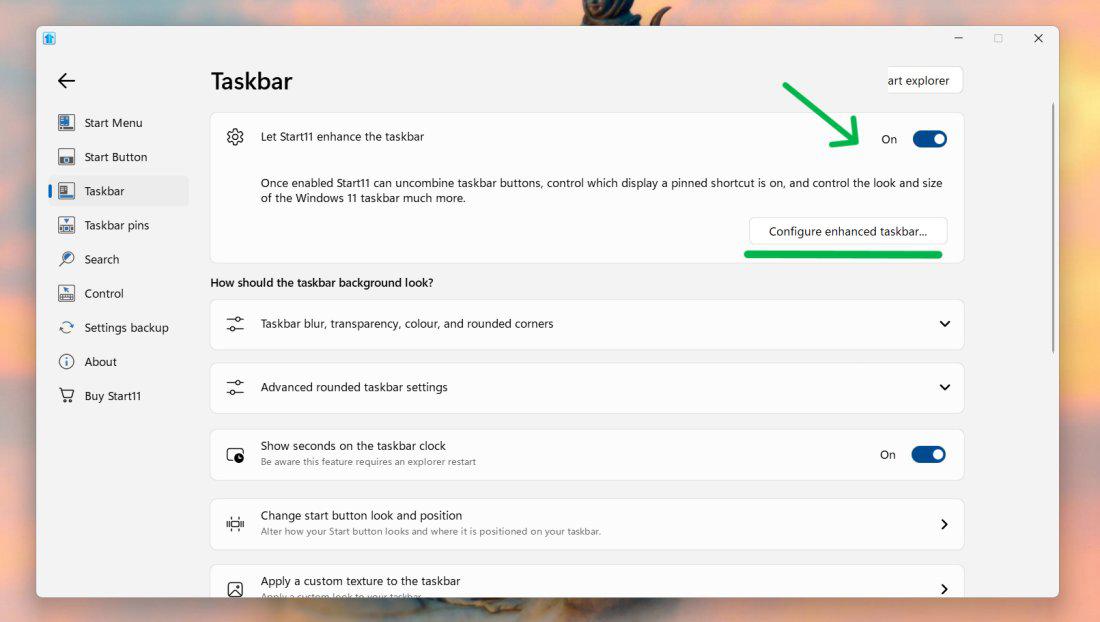
Step 2: Install and Launch Start11 and click on the “Taskbar” tab.
Step 3: Toggle the "Let Start11 enhance the taskbar" slider to the On position, and it will automatically ungroup your taskbar items. For more customization click on "Configure enhanced taskbar"
👁 How-to-Ungroup-Taskbar-Icons-in-Windows-11-Using-Start11
Step 4: Then from the dropdown select "Never combine taskbar buttons".
Step 1: Visit the StartAllBack website and download the installation file.
Step 2: Run the installer and follow the on-screen instructions.
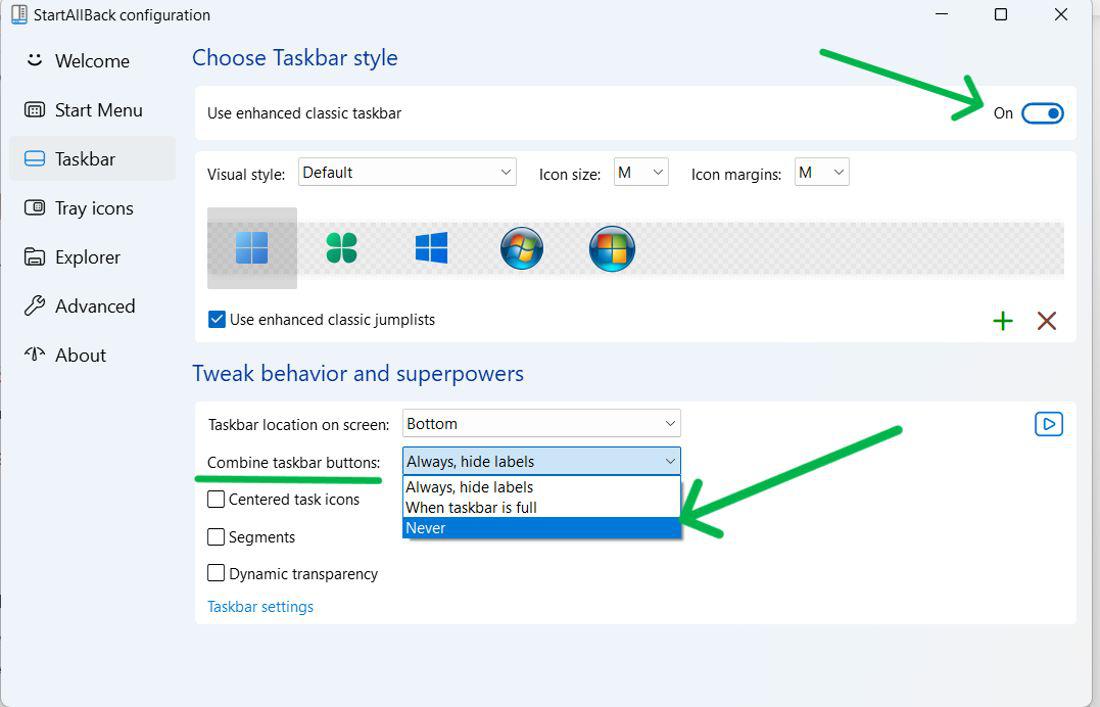
Step 3: In the StartAllBack window, choose "Taskbar" from the left sidebar.
Step 4: Under "Tweak pre-installed and superpowers," locate the "Combine taskbar buttons" dropdown menu.
👁 How-to-Ungroup-Taskbar-Icons-in-Windows-11-Using-StartAllBack
Step 5: Select "Never" to ungroup your taskbar icons.
Customizing your taskbar to ungroup taskbar icons on Windows 11is a simple way to enhance your multitasking experience. By following the steps to disable taskbar grouping in Windows 11, you can regain control over your workspace and have each open window displayed as a separate icon. Explore more Windows 11 taskbar customization options to optimize your desktop for your workflow.