|
VOOZH | about |
|
VOOZH | about |
The system tray icon windows, also called the notification area or window taskbar, is the portion of the taskbar that contains some icons indicating programs and system functions. Windows 11 by default shows only a few icons in the system tray, leaving the rest hidden away in a pop-up menu. But perhaps you'd like to see all icons in the system tray so you can access them easily and monitor their behavior.
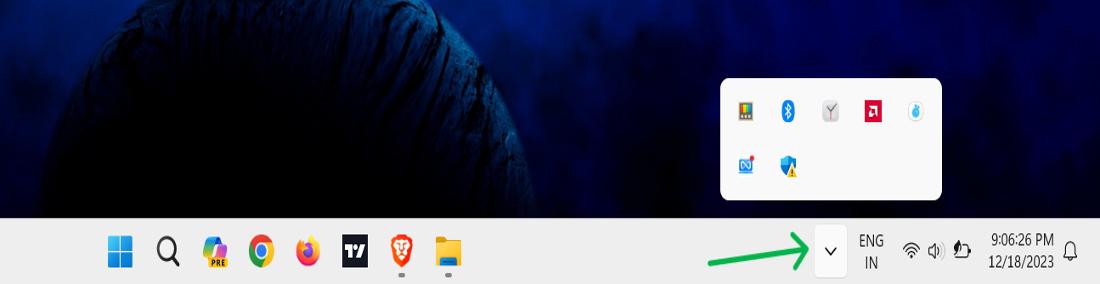
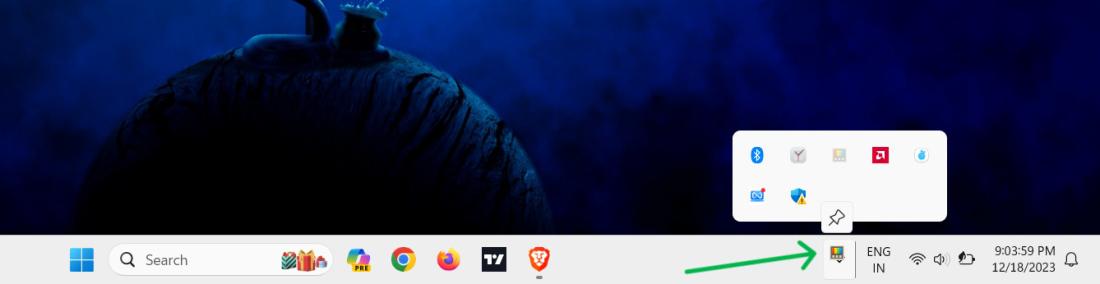
It's a very hands-on way of controlling everything. Just click and drag any icon from the overflow menu to the main system tray. Put them in whatever order you like.
👁 Drag-and-Drop-Your-Icons-in-Your-Windows-11-System-Tray-1
👁 Drag-and-Drop-Your-Icons-in-Your-Windows-11-System-Tray
This method works on all Windows 11 versions.
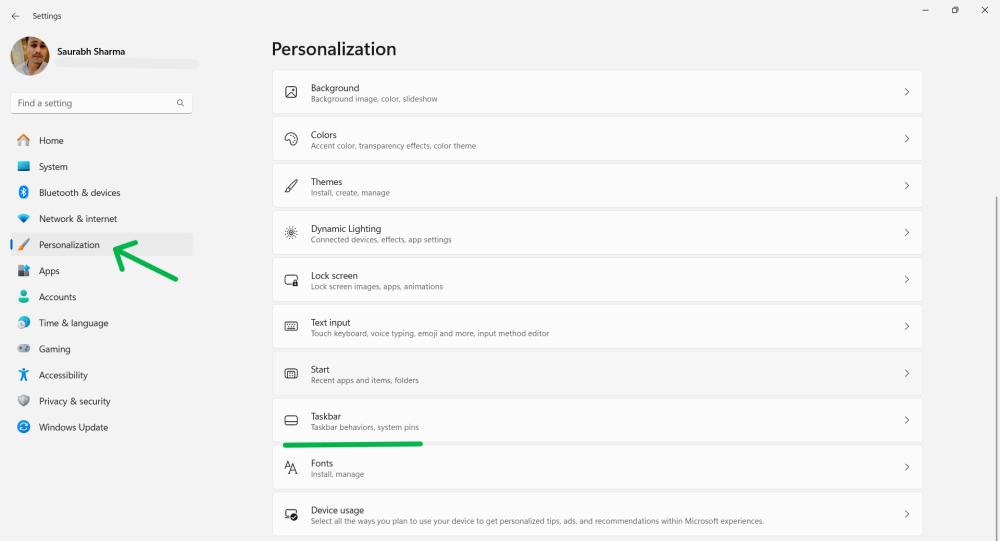
👁 How-to-Always-Show-All-the-Icons-in-Notification-Area-of-Windows-11-Using-Taskbar-Setting
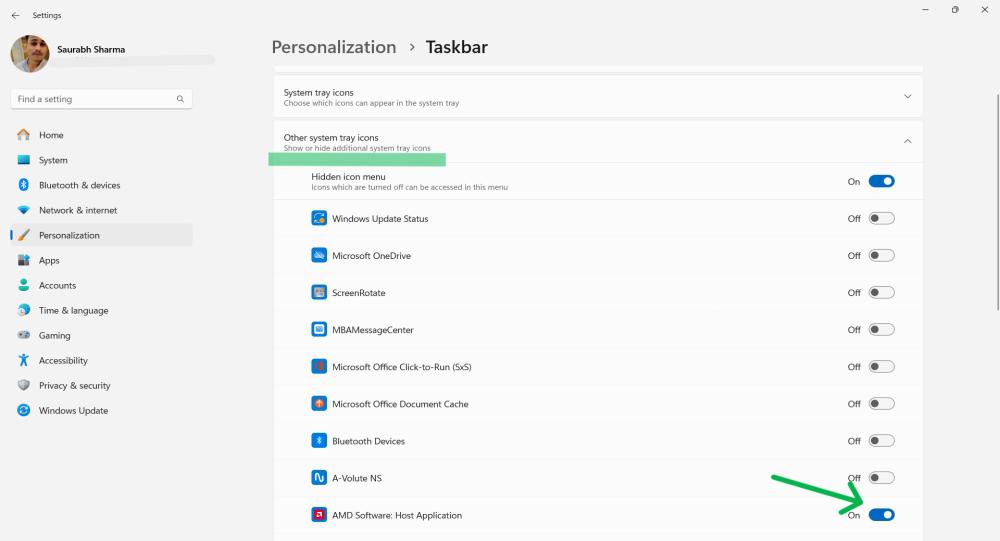
👁 How-to-Always-Show-All-the-Icons-in-Notification-Area-of-Windows-11-Using-Taskbar-Setting-1
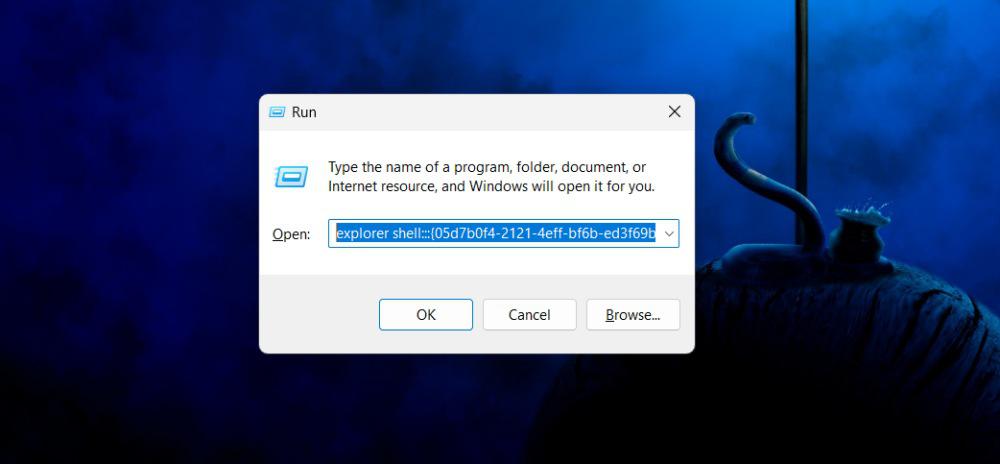
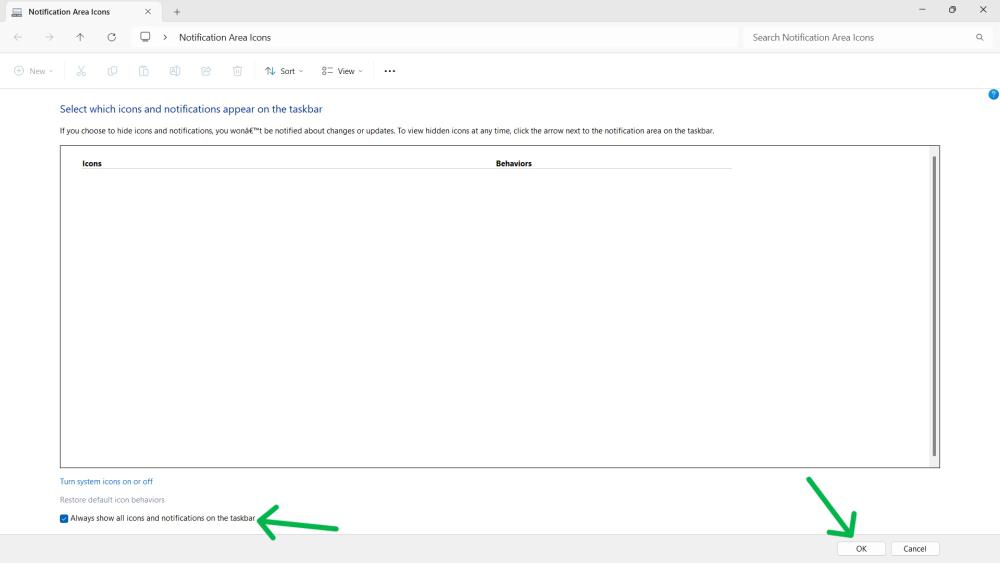
For those who prefer the familiar, the Control Panel still provides a way to control your system tray icons. It's a bit roundabout, but it works fine.
explorer shell:::{05d7b0f4-2121-4eff-bf6b-ed3f69b894d9}
👁 How-to-Show-All-Icons-in-System-Tray-on-Windows-11-Using-Control-Panel
Note: this method no longer works in recent Windows 11 versions (23H2/24H2). Microsoft has partially removed support for this Control Panel feature.
If the setting no longer affects your tray icons, use Method 1 or Method 2 instead.
Also Read: