|
VOOZH | about |
|
VOOZH | about |
If you are facing performance issues with your PC or laptop and thinking about fixing them, then reinstalling your operating system is the best solution to fix any lagging and performance issues. But the question is, did you lose your data while performing the reinstallation of your Windows?
Well, the answer is no! You will reinstall your Windows 10 without losing a bit of data. And through this guide, you will learn various built-in methods to reinstall Windows 10 without losing data.
Table of Content
After applying multiple techniques to fix the system's internal difficulties, and none of them have truly worked, it could be time to completely reinstall Windows 10 to resolve all the internal issues without losing the required data. Here, we'll see 3 easy methods to reinstall Windows 10 without losing any internal data or files.
Users can reinstall Windows 10 without losing internal data or programs if the system can boot up and they think everything that is installed is working. Now we'll see some easy steps to repair and install Windows 10 without losing internal data.
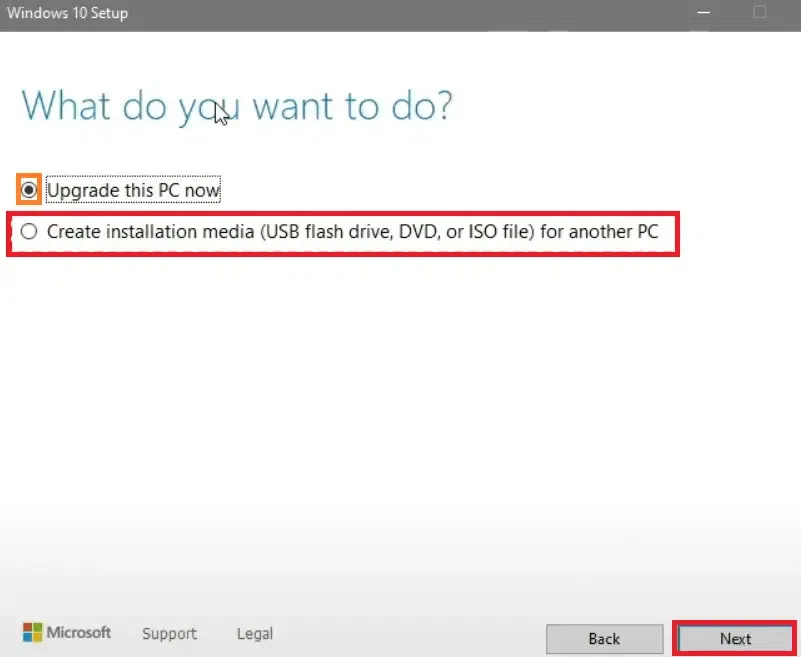
Download the Windows Media Creation tool > Create an Installation ISO file.
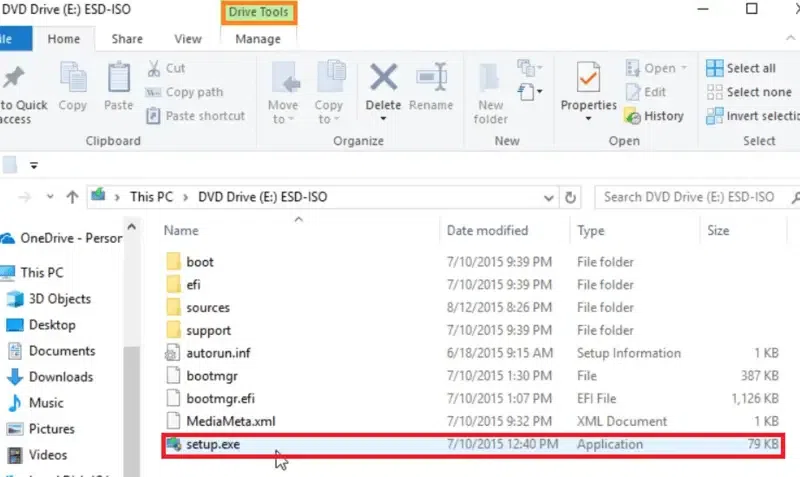
Double-click on mount the ISO File > Double-click on run the Setup.exe file.
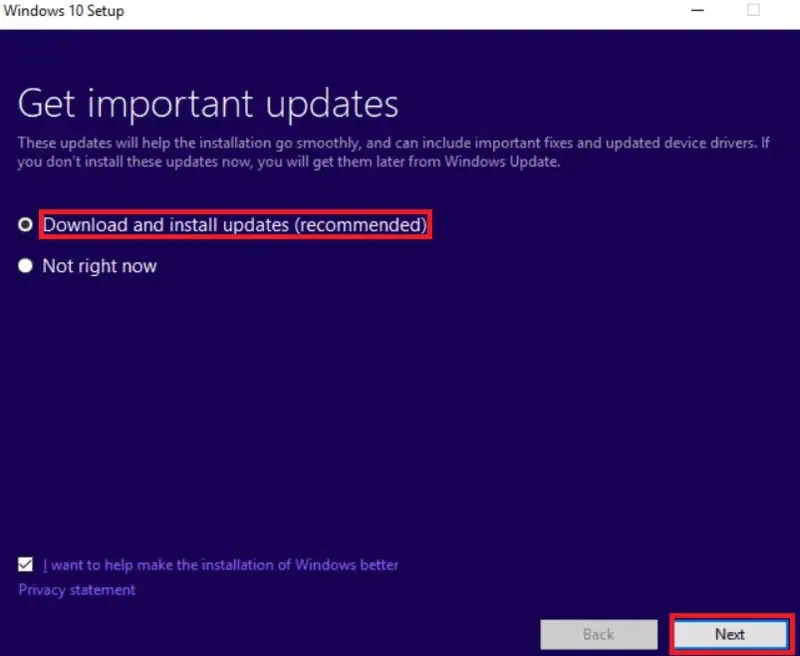
Windows 10 setup is ready > Download Updates.
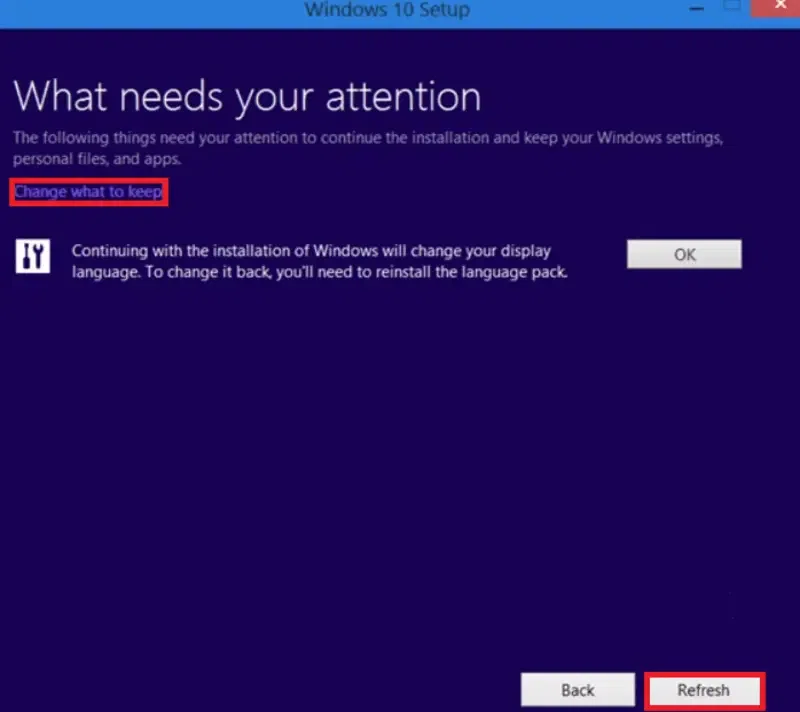
Click on Change what to keep option and select an option as per your preference, which shows "Keep personal files, apps, and Windows settings", "Keep personal files only", or "Nothing". Confirm the selected option > Click on Refresh.
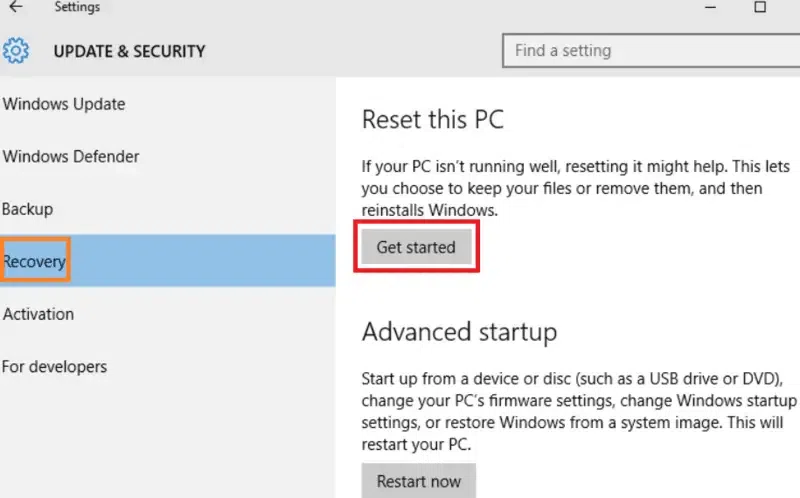
With Windows 10, users may use the "Reset this PC" tool to help fix system issues by returning the internal system to its original configuration and properties. Now, we'll see the required steps to install Windows 10 without losing personal files or data.
Go to Settings > Update & Security > Recovery > Reset your PC > Get Started.
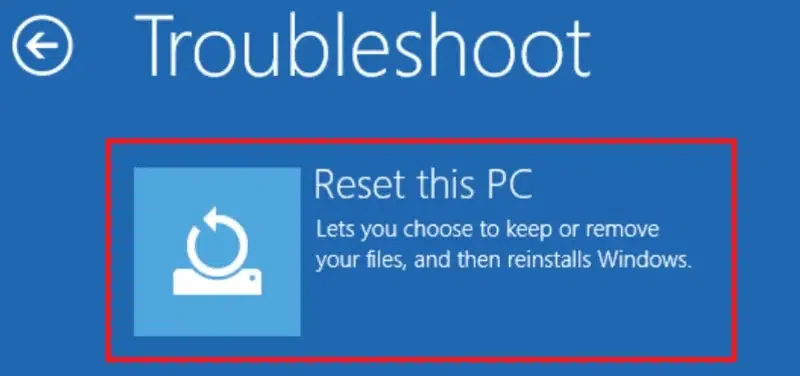
Another way, Create a Recovery Drive > Choose Keyboard Layout> Select Troubleshoot > Reset your PC.
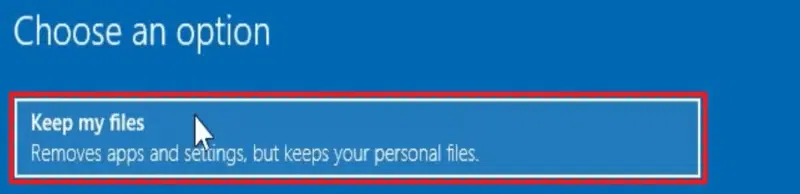
When users select the Reset PC option, they can see two options "Keep my Files" and "Remove Everything" > Select the "Keep my Files" option and click to "Reset".
This method can be used to upgrade Windows 10 if users would rather not lose internal games or other important data from USB drives or installation disk management. Now we'll see some easy steps to clean and install Windows 10 without losing personal files.
Insert Installation disc > Boot from it (If not present, user can install Windows media creation tool)
Select Language & Keyboard > Click on Next. Now, Click on "Install Now" > Type user Product Key (or skip it).
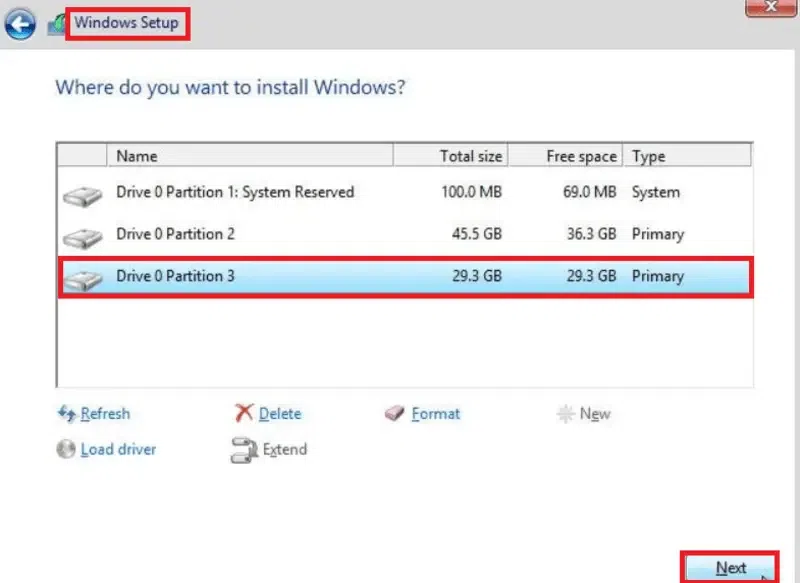
Select the installation type as "Custom" > Select the C: proceed Drive > Click Next to proceed.
While reinstalling Windows 10 without a CD or USB is generally straightforward, users may encounter some issues during the process. Below are some of the most common problems and troubleshooting tips to help you resolve them:
When attempting to reset or reinstall Windows 10 via the "Reset this PC" option, you may see an error message or the process may fail to start.
Possible Causes:
Troubleshooting Tips:
sfc /scannowThis will check for any corrupted files and attempt to fix them.During the reset process, you might encounter the error message, "There was a problem resetting your PC," preventing the reinstallation.
Possible Causes:
Troubleshooting Tips:
DISM /Online /Cleanup-Image /RestoreHealthThe reinstallation process may get stuck or freeze during certain stages, such as "Preparing" or "Installing."
Possible Causes:
Troubleshooting Tips:
While trying to reinstall Windows 10, you may see an error message that says, "Windows cannot be installed" or "The installation cannot proceed."
Possible Causes:
Troubleshooting Tips:
diskpart
list disk
select disk 0
clean
exit
After cleaning the disk, try the reinstallation again.After reinstalling Windows 10, some drivers (like for graphics, Wi-Fi, or sound) may be missing or not functioning properly.
Possible Causes:
Troubleshooting Tips:
After reinstalling Windows 10, your PC might fail to boot up properly or enter into a boot loop.
Possible Causes:
Troubleshooting Tips:
bootrec /fixmbr
bootrec /fixboot
bootrec /rebuildbcdReinstalling Windows 10 without losing your data is not only possible but also straightforward when you follow the correct procedures. By using the three methods explained above can help user also, you can address system issues, improve performance, and ensure a clean installation while keeping your files and applications safe. Regularly backing up your data and staying up to date about the latest Windows 10 features can further enhance your experience and prevent future bugs or problems.
Also Read