|
VOOZH | about |
|
VOOZH | about |
The Sensors tool in the Microsoft Edge Developer Tools is an essential feature for developers who want to simulate and test how their website or web app interacts with device sensors. These sensors include things like geolocation, device orientation, and motion sensors. By using the Sensors tool, developers can test their sites in real-world scenarios, such as checking how a website behaves when a device is rotated or simulating different geographic locations. This tool is especially useful for building and testing mobile-first or location-based web applications.
The Sensors Tool in Microsoft Edge is part of the Developer Tools suite that allows web developers to emulate physical sensors of devices for testing purposes. With this tool, you can simulate geolocation changes, device orientation, touch events, and more, directly from your desktop. This helps developers test how their websites or web applications respond to changes that occur on mobile devices without needing actual mobile devices.
This tool is especially useful when developing responsive websites and web applications that must adapt to different devices, screen sizes, and user behaviors, including orientation changes or geolocation shifts.
There are many sensors used in the device, but out of them, only some are usable or are allowed by the browsers for any usage. Some of the commonly used sensors in web technology are:
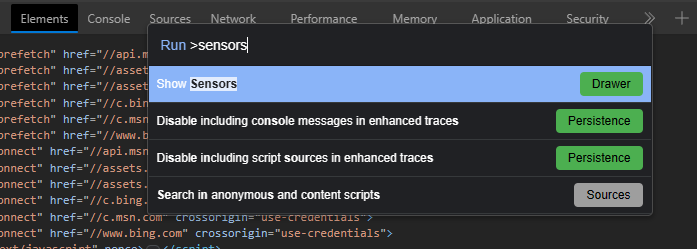
Before we dive into the features of the Sensors Tool, let's first go over how to access it in Microsoft Edge.
Once you open the Sensors panel, you can begin using the various simulation options available.
The Sensors Tool in Microsoft Edge lets you emulate a variety of physical device sensors, which can be crucial for testing specific web application features.
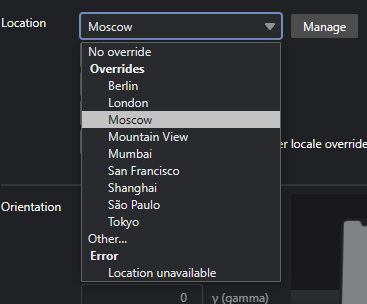
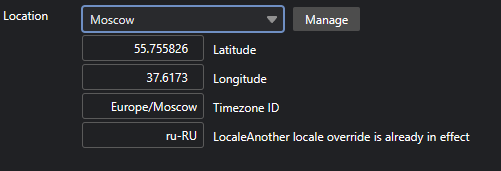
With the geolocation override feature, you can simulate the geographical location of a device. This is particularly useful for testing location-based services or content that changes based on where the user is located.
This feature is ideal for testing apps that provide maps, location-based services, or tailored content based on the user's location.
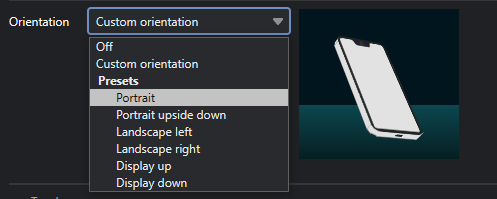
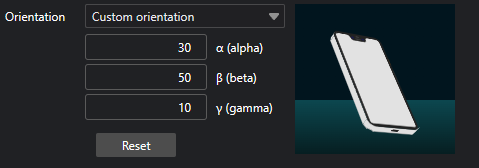
The Device Orientation tool allows you to test how your website responds to changes in the device's orientation, such as rotating a mobile device from portrait to landscape mode.
Testing this feature is critical for web applications that support mobile devices or responsive design elements.
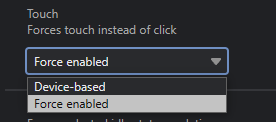
If your website has interactive touch-based features, the Sensors Tool allows you to simulate touch events, which can be crucial for testing mobile-specific interactions.
This feature is perfect for web developers working on mobile-first or touch-enabled web apps.
We can change the user state to active or idle and the screen state to locked or unlocked using the Sensors tool. This helps to check if the site makes changes depending on the state of the screen or the user.
The Emulate Idle Detector State provides a drop-down list of various options:
With the increasing popularity of foldable and dual-screen devices like the Microsoft Surface Duo and Samsung Galaxy Z Fold, it's essential to test how your app behaves on these unique form factors.
This is particularly useful for developers building apps that support Windows 11's dual-screen capabilities or any foldable device features.
For applications that rely on the user’s location, such as mapping apps or location-specific content, the Sensors Tool is a great way to simulate different geographic locations without needing physical devices.
For websites that adapt based on device orientation (portrait vs. landscape), the orientation simulator allows you to test how the website layout changes with different screen rotations.
If your application supports touch-based interactions, you can emulate touch gestures like swipes and taps using the Sensors Tool. This helps test touch-based features on a desktop browser, even if the device is not touch-enabled.
With foldable and dual-screen devices becoming more popular, the device posture simulation is essential for ensuring your website or app is optimized for these new form factors. Testing on a single screen and switching to dual-screen mode allows you to ensure seamless user experiences across different devices.
The Sensors tool in Microsoft Edge provides a powerful way for developers to test and optimize their websites for mobile and location-based functionalities. By using this tool, developers can simulate various device sensor data like motion, orientation, and geolocation, ensuring their applications work smoothly across different devices and environments. It’s an invaluable tool for any developer looking to build responsive and location-aware web applications.