
Use Cycle Tracking on Apple Watch
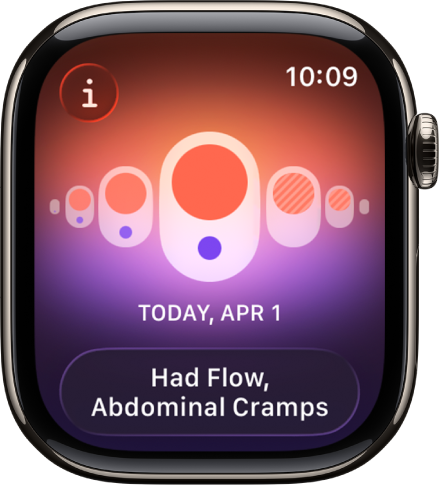
Use the Cycle Tracking app to log details about your menstrual cycle. You can add flow information and record symptoms such as headaches or cramps. Using information you’ve logged, the Cycle Tracking app can alert you when it estimates that your next period or fertile window is about to start. In addition to using data you’ve logged, Cycle Tracking can also use heart rate data to improve predictions. If you wear Apple Watch to sleep each night, the app can use wrist temperature (on supported models) to improve period predictions and provide retrospective ovulation estimates. For more information, see Log menstrual cycle information in Health in the iPhone User Guide and the Apple Support article Track your period with Cycle Tracking.
Siri: On supported models, ask Siri something like, “Log that my period started today.” (Not available in all languages or regions.) See Keep track of your health and fitness with Siri.
Note: The Health app is designed to protect your information and enable you to choose what to share. Learn more about how the Health app is built to keep your data secure and protect your privacy.
Set up Cycle Tracking on iPhone or iPad
Go to the Health app 👁 Image
on your iPhone or iPad.Do one of the following:
On iPhone: Tap 👁 the Search button
, then tap Cycle Tracking.On iPad: Tap the sidebar, then tap Cycle Tracking.
Tap Get Started, then follow the onscreen instructions to set notifications and other options.


To add or remove options after setting up Cycle Tracking, go to the Health app on your iPhone, tap 👁 the Search button
, tap Cycle Tracking, then tap Options next to Cycle Log.
Log your cycle on Apple Watch
Go to the Cycle Tracking app 👁 Image
on your Apple Watch.Do any of the following:
Log a period on a specific day: With the day showing in the timeline, tap Log. Tap Period, tap a flow level, then tap .👁 the Done button
.Log symptoms, spotting, or other information: With the day showing in the timeline, tap Log. Tap a category, choose an option, then tap 👁 the Done button
.


The observations you provide appear in the Cycle log on iPhone. If you’ve turned on Period Notifications and Fertility Notifications in the Health app on iPhone, you receive notifications on Apple Watch about upcoming periods, fertile window predictions, and retrospective ovulation estimates (on supported models).
Manage cycle factors on iPhone or iPad
On iPhone, you can also log factors in the Health app that could impact your cycle, such as pregnancy, lactation, and contraceptive use.
Go to the Health app 👁 Image
on your iPhone or iPad.Do one of the following:
On iPhone: Tap 👁 the Search button
, then tap Cycle Tracking.On iPad: Tap the sidebar, then tap Cycle Tracking.
Scroll down, tap Factors, then do any of the following:
Add a factor: Tap Add Factor, select a factor, tap Started if you need to change the start date, then tap Add.
Change the end date for a current factor: Tap the factor, tap Ended, select a date, then tap Done.
Delete a current factor: Tap the factor, then tap Delete Factor.
Depending on the factors you select, your period predictions, fertile window predictions, and retrospective ovulation estimates may be turned off on iPhone and Apple Watch (supported models only).
Important: The Cycle Tracking app should not be used as a form of birth control. Data from the Cycle Tracking app should not be used to diagnose a health condition.