
Translate text and voice on Apple Watch
In the Translate app, you can translate text and voice into any supported language. And on supported models, you can also download languages to translate entirely on a device, even without an internet connection.
When you travel to a location with a language that’s different from your Apple Watch, Translate appears as a suggested widget in the Smart Stack.
Note: Translation is available for supported languages. See the iOS and iPadOS Feature Availability website.
Translate text or your voice
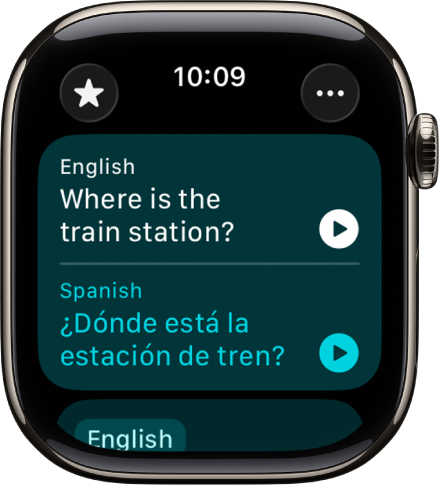
Open the Translate app 👁 Image
on your Apple Watch.Tap the language you want to translate your selected text to.
To swap languages, tap 👁 the Swap button
.Tap 👁 the Microphone button
, then say a phrase.To translate with the keyboard, tap 👁 the More button
, scroll down to Mode of Input, then tap Keyboard.Note: Words are translated as you type or speak.
When the translation is shown, do any of the following:
Play the audio translation: Tap 👁 the Play button
.To automatically hear the translation, tap 👁 the More button
, then tap Play Translations.Save the translation as a favorite: Swipe left, then tap 👁 the Favorite button
.Delete the translation: Swipe right, then tap 👁 the Delete button
.


View your favorite translations
Open the Translate app 👁 Image
on your Apple Watch.Tap 👁 the Favorites button
, then turn the Digital Crown to view your saved translations.To remove a translation from your favorites, swipe left, then tap 👁 the Unfavorite button
.


Note: You can see your favorite translations in the Translate app on your iPhone, iPad, or Apple Watch where you’re signed in to your Apple Account.
Review words with multiple meanings
When translating a word that has several meanings, you can choose the one you want. You can also select feminine or masculine translations for words that have grammatical gender variations.
Note: When gender hasn’t been specified, translations automatically default to the gender-neutral form of a word.
Go to the Translate app 👁 Image
on your Apple Watch.Tap 👁 the Microphone button
, then say a phrase.To translate with the keyboard, tap 👁 the More button
, scroll down to Mode of Input, then tap Keyboard.Note: Words are translated as you type or speak.
When available, do any of the following:
Choose a different meaning: When available, tap the light-colored word to select the intended meaning.
Choose grammatical gender translations: When available, tap the light-colored word to select a feminine or masculine translation.
Download languages
To enable offline translation on supported models, you need to download both the input and output languages.
Note: When using Apple Watch with cellular service, cellular data charges may apply.
Go to the Translate app 👁 Image
on your Apple Watch.Tap 👁 the More button
, then tap Downloaded Languages.Tap a language you want to download.
Change Translate settings
Open the Translate app 👁 Image
on your Apple Watch.Tap 👁 the More button
, then do any of the following:Automatically play translations: Tap Play Translations.
Change the playback speed: Tap a speed.
Change the mode of input: Tap voice or Keyboard.