
Set timers on Apple Watch
The Timers app on Apple Watch can help you keep track of time. You can set multiple timers that track time for up to 24 hours.
Siri: Ask Siri something like, “Set a timer for 20 minutes.” See Use Siri for your daily routine.
Quickly set a timer
Go to the Timers app 👁 Image
on your Apple Watch.To quickly start a timer, tap a duration (like 1, 3, or 5 minutes) or tap a timer you’ve recently used.

When a timer goes off, you can tap 👁 the Repeat Timer button
to start a timer of the same duration.

Note: On supported models, when you turn on Always On Display, timers update once a second when your wrist is down. To turn on Always On Display, go to the Settings app 👁 Image
, tap Display & Brightness, then turn on Always On Display.

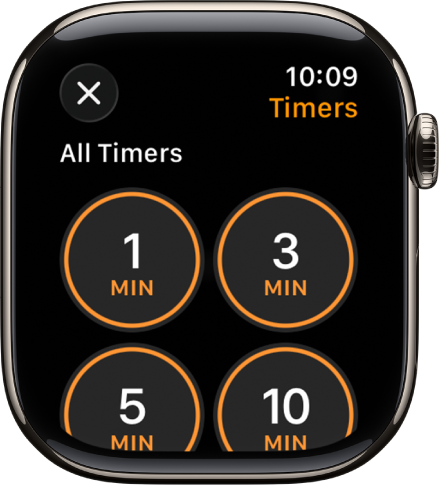
Create a custom timer
Go to the Timers app 👁 Image
on your Apple Watch.Scroll down, then tap 👁 the Add button
.Tap hours, minutes, or seconds; turn the Digital Crown to adjust.
Tap Start.

Pause or end a timer
With a timer running, go to the Timers app 👁 Image
on your Apple Watch.Tap 👁 the Pause button
to pause, tap 👁 the Play button
to resume, or tap 👁 the End button
to end.


Create multiple timers
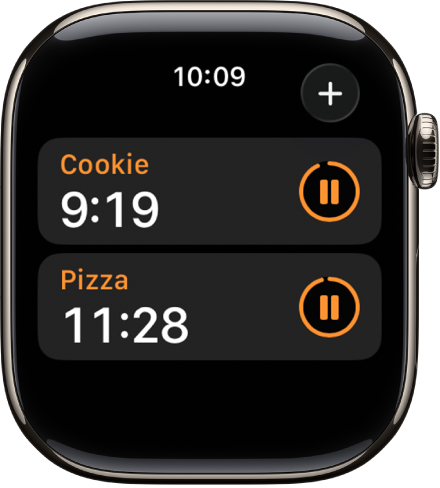
Go to the Timers app 👁 Image
on your Apple Watch.Create and start a timer.
Tip: To assign a label such as “Pizza” to a timer, use Siri to create the timer. Raise your Apple Watch, then say something like “Set a 12 minute pizza timer.”
Tap 👁 the Add button
to return to the Timers screen, then create and start another timer.
Tap 👁 the Back button
to display your running timers on the Timers screen. Tap 👁 the Pause button
to pause a timer, and tap 👁 the Play button
to resume.

To delete a running or paused timer that appears on the Timers screen, swipe left, then tap 👁 the Delete button
.

Edit the Timers screen
You can pin your favorite timers and delete custom timers from the Timers screen.
Go to the Timers app 👁 Image
on your Apple Watch.Scroll down, then tap Edit.
Do any of the following:
Pin a timer: Tap 👁 the Pin button
.Unpin a timer: Tap 👁 the Unpin button
.Delete a timer: Tap 👁 the Delete button
.
When you’re finished, tap Done.


