
Apple Watch User Guide
- Welcome
- What’s new
- Run with Apple Watch
-
- Alarms
- Audiobooks
- Blood Oxygen
- Calculator
- Calendar
- Camera Remote
- ECG
- Medications
- Memoji
- Music Recognition
- News
- Now Playing
- Remote
- Shortcuts
- Siren
- Stocks
- Stopwatch
- Tides
- Timers
- Use the Tips app
- Translate
- Vitals
- Voice Memos
- Walkie-Talkie
- World Clock
- Copyright and trademarks
Organize notes on Apple Watch
Keep your notes organized and accessible by pinning important notes and deleting notes you don’t need anymore.
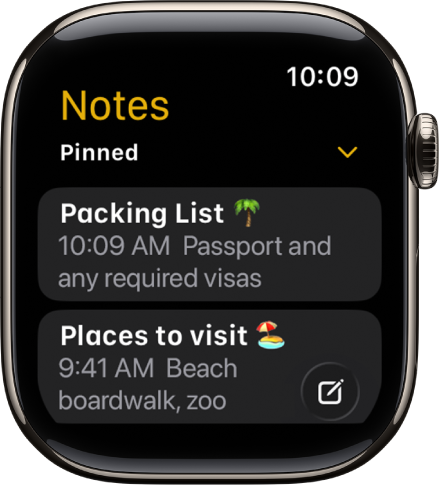
Pin a note at the top of the list
If you reference a note frequently, you can keep it at the top for convenient access.
Go to the Notes app 👁 Image
on your Apple Watch.Swipe right on the note, then tap 👁 the Pin button
.


Delete a note
Go to the Notes app 👁 Image
on your Apple Watch.Swipe left on the note you want to remove, then tap 👁 the Delete button
.

If you change your mind, you can recover the note. Deleted notes remain in Recently Deleted for 30 days. On your iPhone, open the Notes app, go to the Recently Deleted list, swipe left on the note, then tap Move and choose a folder.
Thanks for your feedback.