VOOZH about

URL: https://www.geeksforgeeks.org/python/adding-value-labels-on-a-matplotlib-bar-chart/

⇱ Adding value labels on a Matplotlib Bar Chart - GeeksforGeeks


  • Courses
  • Tutorials
  • Interview Prep

Adding value labels on a Matplotlib Bar Chart

Last Updated : 23 Jul, 2025

A Bar Chart is a graphical representation of data using bars of different heights. It is widely used for comparing different datasets visually. However, by default, Matplotlib does not display value labels on each bar, making it difficult to analyze the exact values represented by individual bars. In this article, we will explore how to add value labels on a Matplotlib bar chart to improve readability and make data interpretation easier.

Methods to add value labels on a bar chart

Matplotlib provides multiple methods for adding value labels to a bar chart. We will primarily use the following two:

  • Creating a Bar Chart using plt.bar()
  • Adding Text Labels using plt.text()

Creating a Bar Chart

plt.bar() function is used to plot a bar chart.

Syntax:

plt.bar(x, height, color)

Parameters:

  • x: Data values plotted on the X-axis.
  • height: Data values plotted on the Y-axis (bar heights).
  • color: Sets the color of the bars.

Adding value labels

To add text labels on top of the bars, we use the plt.text() function.

Syntax:

plt.text(x, y, s, ha, bbox)

Parameters:

  • x, y: Coordinates where the text will be displayed.
  • s: The string (value label) to be displayed.
  • ha: Horizontal alignment ('center', 'left', or 'right').
  • bbox: A rectangular box surrounding the text for better visibility.

Steps to add value labels

Step 1. Import the necessary libraries

To begin, import the required Matplotlib library:

import matplotlib.pyplot as plt

Step 2. Define a function to add value labels

To place numerical values above each bar, a helper function is created. This function:

  • Iterates through the list of x-axis values (categories) and their corresponding y-axis values (bar heights).
  • Uses Matplotlib’s text() function to position the labels at appropriate heights.
  • Supports customization, such as placing labels at the top of the bars or in the middle.
  • Optionally, encloses the labels within a highlighted box for better visibility.

Step 3. Create the Main Function

In this step:

  • A dataset is defined, consisting of categories (e.g., course names) and corresponding numerical values (e.g., number of students).
  • A figure is created with a defined size to ensure proper visualization.
  • A bar chart is plotted using Matplotlib’s bar() function, with a chosen color scheme.
  • The previously defined function is called to add value labels above the bars.
  • Additional chart elements such as title, x-axis label, and y-axis label are included to improve.

Example 1: Adding value labels on top of bars(default setting).

Output:

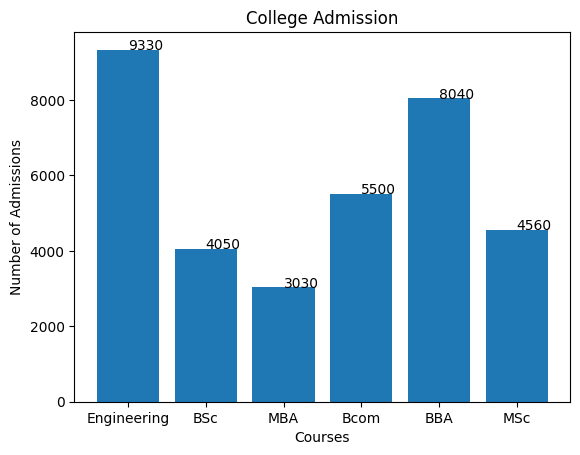
👁 Output13

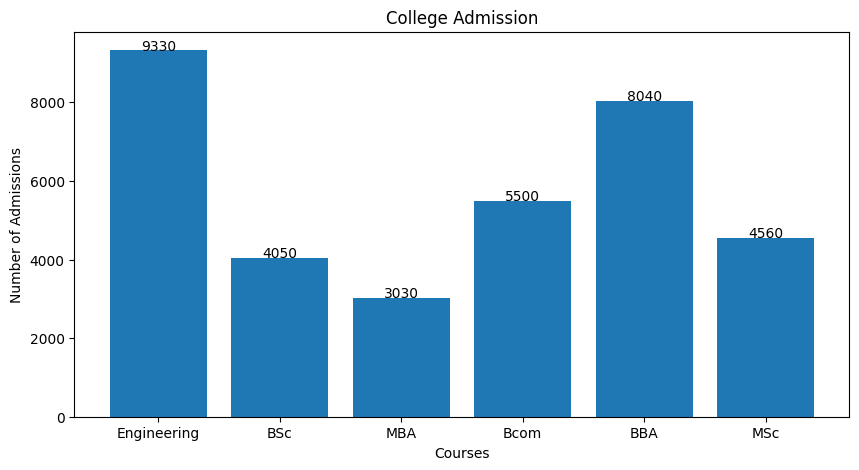
Explanation: add_labels(x, y) function adds numerical labels above each bar by iterating through the data and using plt.text(i, y[i], y[i]) to position values at their respective heights. By default, labels are center-aligned for clarity.

Example 2: Centering Value Labels on Top of Bars

Output:

👁 Output14

Explanation: add_labels(x, y) centers numerical labels above bars using ha='center' for readability. plt.figure(figsize=(10, 5)) sets chart size and plt.bar(x, y) plots the bars. Labels are positioned at their heights via plt.text(i, y[i], y[i]), ensuring clarity.

Example 3: Displaying Value Labels Inside a Rectangular Box

Output:

👁 Output15

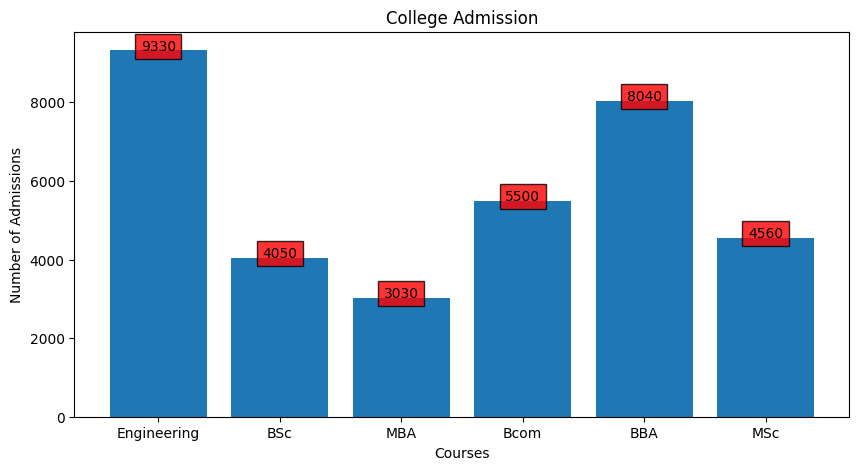
Explanation: add_labels(x, y) adds numerical labels in red-bordered boxes for visibility. plt.bar(x, y) creates the chart and plt.figure(figsize=(10, 5)) adjusts its size. Labels are centered with ha='center'.

Example 4: Placing Labels at the Center of Each Bar

Output:

👁 Output16

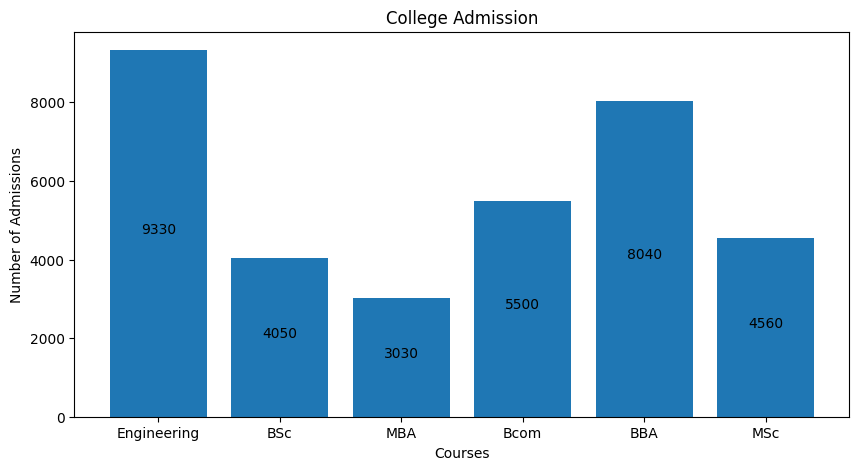
Explanation: add_labels(x, y) positions numerical labels at half the bar height using y[i] // 2 for better alignment. plt.bar(x, y) generates the chart and plt.figure(figsize=(10, 5)) adjusts its size. Labels are centered with ha='center'.

Example 5: Centered Labels Inside a Rectangular Box

Output:

👁 Output17

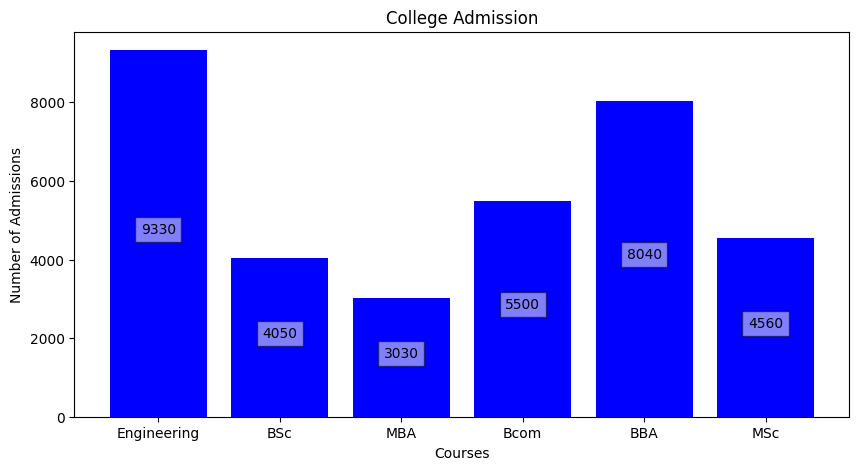
Explanation: add_labels(x, y) centers labels at half bar height in a semi-transparent white box. plt.bar(x, y, color='blue') creates blue bars and plt.figure(figsize=(10, 5)) adjusts the chart size.

Comment
Article Tags: