|
VOOZH | about |
|
VOOZH | about |
In this article, we are going to see how to make a skier game in Pygame. In this game, a skier character skins on a snowy slope while avoiding obstacles and collecting flags to score points. The skier can move left and right to navigate the slope and must avoid colliding with trees and stones.
Modules Required
There are some trees and stones as obstacles and flags to increase the score and the speed of the skier increases for every 100 points.
A scoreboard will display the score and when the score reaches less than "0" the player is out and a dialog box appears to "Quit" or "Restart" the game. ( check out the video at the end)
We will be using PyGame(a Python library) to create this Skier game. PyGame is an open-source library that is designed for making video games. it helps us to create fully functional games and multimedia programs in Python.
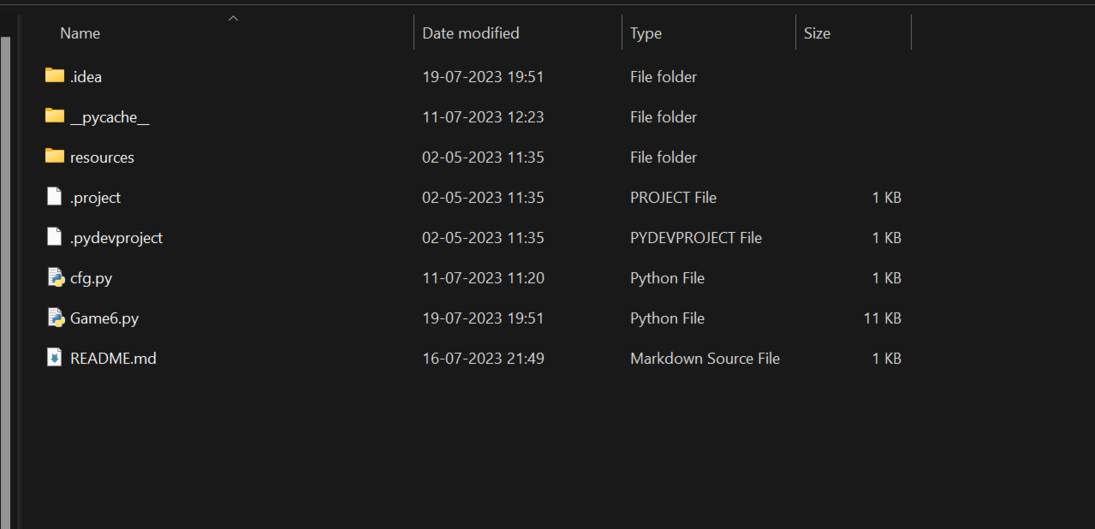
File Structure
This is how your repository structure should look in the end after walking through the entire article.
Download the necessary images, font, and music from here resources.
FULL SOURCE CODE : GitHub Link (click here)
Step 1: Represents the skier character in the game, allowing movement, turning, and handling collisions with obstacles.
The 'SkierClass' represents the skier character in the game. The __init__ method initializes the skier's attributes, such as 'direction', 'imagepaths', 'image', 'rect', 'speed', 'flag_count', and 'score'. The 'turn' method allows the skier to change direction by updating the 'direction' attribute and loading the appropriate skier image. The 'move' method updates the skier's position by moving it horizontally based on the current speed. The 'setFall' method sets the skier's image to a falling image when the skier hits an obstacle (tree or stone). The 'setForward' method sets the skier's image to a forward image after the skier recovers from a fall.
Step 2:Represents individual obstacles in the game and collision detection.
This class represents an individual obstacle in the game
Step 3: Creating Obstacles
This function creates a group of obstacles based on the given parameters.
The function generates random locations for the obstacles within the specified row range. The obstacles can be trees or stones, which are distributed based on the value of `i` modulo 4. The obstacle's image path, location, and attribute are set accordingly. An instance of the ObstacleClass is created for each obstacle and added to the 'obstacles' group. Finally, the function returns the group of obstacles.
Step 4: Combines two sets of obstacles into one group
Step 5:Displays the player's score on the screen
This function displays the score on the screen. It creates a font object using 'pygame.font.Font' with a specified font path and size. The rendered score text is then blitted onto the screen at the specified position using 'screen.blit'.
Step 6:Shows the game's start interface with instructions.
This function displays the start interface of the game.
Rect objects are obtained for the title and content text using 'get_rect()'.The positions of the title and content text are set using 'trect.midtop' and 'crect.midtop', respectively. The rendered title and content text are then blitted onto the screen at their respective rect positions using 'screen.blit'.If a key press event occurs, the function returns, indicating that the start interface should be closed.
Step 7: Updates and displays the game frame on the screen
This function updates the game frame on the screen.
The obstacles are drawn on the screen using 'obstacles.draw(screen)'.The skier's image is blitted onto the screen at its current position using 'screen.blit(skier.image, skier.rect)'.The score is displayed on the screen by calling showScore(screen, skier.score).
1.Game Initialization:
Initializes the Pygame library, mixers for sound, and loads the background music.Sets the volume and plays the background music.Creates the game window with a specific size using pygame.display.set_mode() and sets the window caption.
2.Start Interface and Game Loop:
Calls the ShowStartInterface() function to display the start interface and waits for a key press event to start the game.Enters the main game loop, which continues until the game is restarted or quit.
3. Game Initialization and Loop:
Initializes the necessary game objects, such as the skier and obstacles.Checks for key press events to restart the game or quit.Updates the skier's position and the distance traveled. Updates the frame by calling updateFrame() to display the obstacles and the skier.Controls the game's frame rate using clock.tick(cfg.FPS).
4. Game Termination
Breaks out of the main game loop if the game should quit.Exits the program if the game window is closed.
Combine all the steps code and put them in one file (Game.py)
Complete Code
In the below code have the full implementation of the game integrated in one code file involving the function of game functionality.
This file can be described as a configuration file for the game. It defines various constants and paths used in the game, such as the frame rate, screen size, paths to image and audio resources, and font path.
Terminal:
And finally, run the below command to start the game.
python Game.pyOutput:
View the game here : Skiing Adventure