|
VOOZH | about |
|
VOOZH | about |
We will build a Django app that lets users enter book details and download them as a formatted PDF. We’ll use Django for the form and data handling and ReportLab to generate the PDF file. Step-by-step, we will learn how to set up the project, create models and views and output a downloadable PDF catalog.
Prerequisites:
Run the Following Command:
django-admin startproject test_project
cd test_project
python manage.py startapp testapp
In test_project/settings.py, add your app to INSTALLED_APPS:
INSTALLED_APPS = [
...
'testapp',
]
testapp/models.py:
This code represents a simple Django model for storing information about books, including their title, author and publication year.
testapp/forms.py:
This code sets up a Django form, BookForm, that is connected to the Book model and includes specific fields for creating or editing book instances with title, author and publication year attributes.
testapp/views.py: Here is the code explanation of the views:
testapp/urls.p: This is to set in the URLs of the app.
test_project/urls.py: This is to set in the Urls of the project folder.
Directory structure:
testapp/
└── templates/
└── testapp/
└── create_user_profile.html
Create the template:
testapp/templates/testapp/create_user_profile.html
By the following commands you can migrate the data into the database.
python manage.py makemigrations
python manage.py migrate
python manage.py runserver
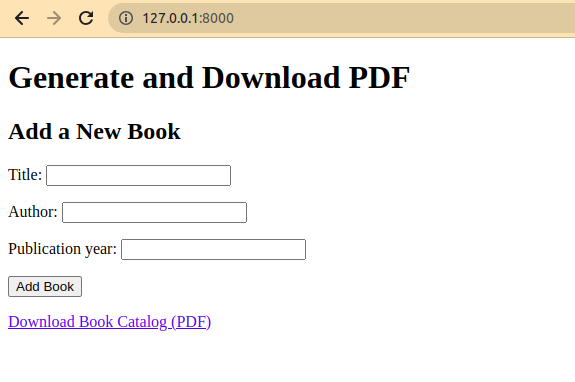
Output:
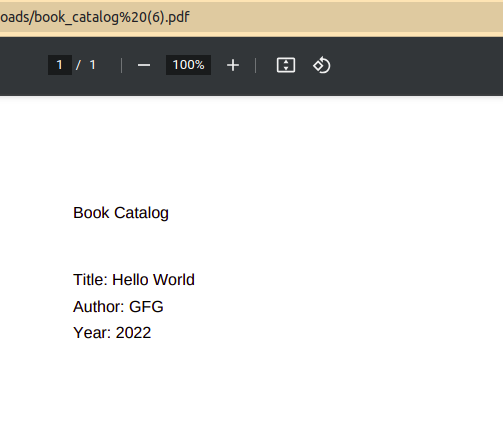
The downloaded PDF: