|
VOOZH | about |
|
VOOZH | about |
Web scraping is a data extraction method that collects data only from websites. It is often used for data mining and gathering valuable insights from large websites. Web scraping is also useful for personal use. Python includes a nice library called BeautifulSoup that enables web scraping. In this article, we will extract current stock prices using web scraping and save them in an excel file using Python.
In this article, we'll look at how to work with the Requests, Beautiful Soup and Pandas Python packages to consume data from websites.
Note: The HTML structure of stock data websites may change frequently.
- Before running this script, inspect the webpage and update the element IDs, classes or XPath selectors accordingly.
- Use browser developer tools (F12 - Inspect Element) to find the correct elements for price, change and volume.
We import the modules for Pandas, Requests and Beautiful soup. Add a user agent and a header declaration. This makes sure that the target website for web scraping won't automatically classify the traffic as spam and end up being blacklisted. Many user agents are available at https://developers.whatismybrowser.com/
We’ll assign the URL of the required stock web pages, www.groww.com in the list of URLs:
urls = [
'https://groww.in/us-stocks/nke',
'https://groww.in/us-stocks/ko',
'https://groww.in/us-stocks/msft',
'https://groww.in/stocks/m-india-ltd',
'https://groww.in/us-stocks/axp',
'https://groww.in/us-stocks/amgn',
'https://groww.in/us-stocks/aapl',
'https://groww.in/us-stocks/ba',
'https://groww.in/us-stocks/csco',
'https://groww.in/us-stocks/gs',
'https://groww.in/us-stocks/ibm',
'https://groww.in/us-stocks/intc',
'https://groww.in/us-stocks/jpm',
'https://groww.in/us-stocks/mcd',
'https://groww.in/us-stocks/crm',
'https://groww.in/us-stocks/vz',
'https://groww.in/us-stocks/v',
'https://groww.in/us-stocks/wmt',
'https://groww.in/us-stocks/dis'
]
We identify the element by looking at the rendered web page, but it's impossible for a script to determine that. To find the target element, get its element ID and enter it into the script. Getting the ID of an item is pretty easy. Let's say you want the item id for the stock name. All we have to do is go to the URL and see the text in the console. Get the text next to the class
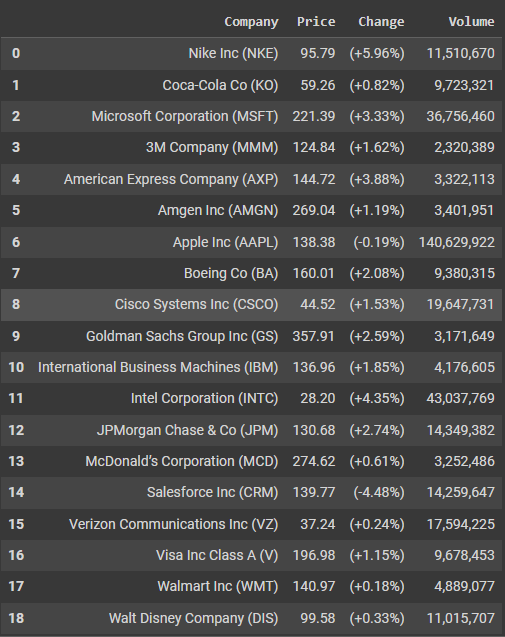
Let's iterate through the list of stocks we need and use soup.find() to find the tag with the specified id and print the company, current stock price, change in percentage of stocks and volume of stocks.
company = soup.find('h1', {'class': 'usph14Head displaySmall'}).text
price = soup.find('span', {'class': 'uht141Pri contentPrimary displayBase'}).text
change = soup.find('div', {'class': 'uht141Day bodyBaseHeavy contentNegative'}).text
volume=soup.find('table', {'class': 'tb10Table col l5'}).find_all('td')[1].text
As we can see the price and change has the same Class Id. So let's fund all the span tags and use the find_all('span')[tag number] and extract the text.
Basically, during the extraction of data from a web page, we can expect AttributeError (When we try to access the Tag using BeautifulSoup from a website and that tag is not present on that website then BeautifulSoup always gives an AttributeError). To handle this error let's use Try and except the concept. Also, you can use the code in Google collab as it has all the updated versions.
How does try() work?
When the try block is executed we are going to extract data from the individual stock and store the data in the variables
We will use a list and store the company name, price of a stock, change in stock and volume of each stock and store them in a list that consists of the stock data of all individual stocks.
Let's declare the column names and using pandas create a Dataframe with columns: Company, Price, Change and Volume.
Syntax:
Column_names = [list of column names]
dataframe = pd.DataFrame(columns = column_names)
Next, we will iterate through the list and fill each data frame's each row with the details of each company by using built-in functions loc( ). The loc() function is label based data selecting method which means that we have to pass the name of the row or column which we want to select. The df.loc[index] = i, assigning the data to that row after that we will update the index in the Data Frame. The reset_index() is used to reset the index of the Data Frame from 0.
To save the data as a CSV file we can use the built-in Function to_excel.
Here is the entire code: