|
VOOZH | about |
|
VOOZH | about |
As modern web applications evolve, they become increasingly dynamic and interactive. Testing such applications requires sophisticated techniques to simulate complex user behaviors. Selenium WebDriver, a powerful tool for automating browsers, includes a class called Actions that enables testing advanced user interactions.
These include:
In traditional web automation, simpler tasks like clicking buttons or typing in text fields are straightforward. However, modern applications often require simulating more complex user actions. Advanced interactions in Selenium WebDriver allow testers to handle these complexities, such as:
The Actions Class in Selenium simplifies these tasks, providing methods to perform complex interactions easily.
The Actions Class belongs to the org.openqa.selenium.interactions package and provides a variety of methods for simulating mouse and keyboard actions. These actions can be chained together to execute multiple operations in sequence.
1.1 Hover Over Elements (moveToElement)
This method moves the mouse pointer over a specified element on the page.
Actions actions = new Actions(driver);
WebElement menu = driver.findElement(By.id("menu"));
actions.moveToElement(menu).perform();
1.2 Right Click (Context Click)
Perform a right-click (context click) on a specified element.
WebElement element = driver.findElement(By.id("right-click-element"));
actions.contextClick(element).perform();
1.3 Drag and Drop
Move an element from one location to another on the page.
WebElement source = driver.findElement(By.id("source"));
WebElement target = driver.findElement(By.id("target"));
actions.dragAndDrop(source, target).perform();
1.4 Click and Hold
Press and hold a mouse button down on an element (useful for interacting with sliders).
WebElement slider = driver.findElement(By.id("slider"));
actions.clickAndHold(slider).perform();
2.1 Send Keys
This method simulates pressing a specific key (or a sequence of keys) on the keyboard.
WebElement inputField = driver.findElement(By.id("input"));
actions.sendKeys(inputField, "Hello World").perform();
2.2 Key Down and Key Up
These methods simulate pressing (keyDown) and releasing (keyUp) modifier keys like Ctrl, Shift, and Alt, which are useful for performing keyboard shortcuts.
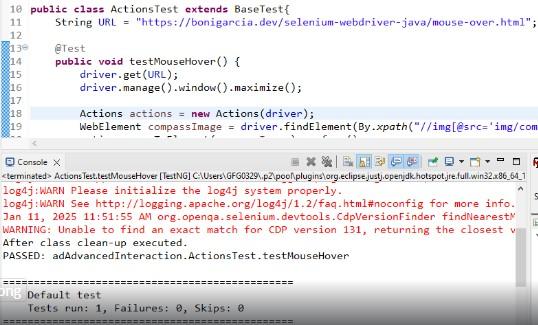
actions.keyDown(Keys.CONTROL).sendKeys("a").sendKeys("c").keyUp(Keys.CONTROL).perform();Hovering over elements is a common interaction, especially when dealing with dropdown menus or revealing hidden elements on hover.
Output:
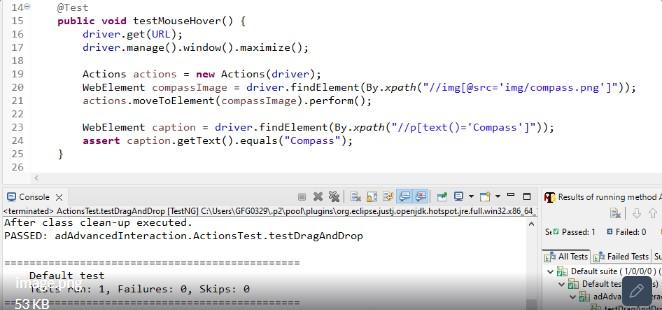
Drag-and-drop operations are frequently used in applications where users can rearrange elements or upload files.
Output:
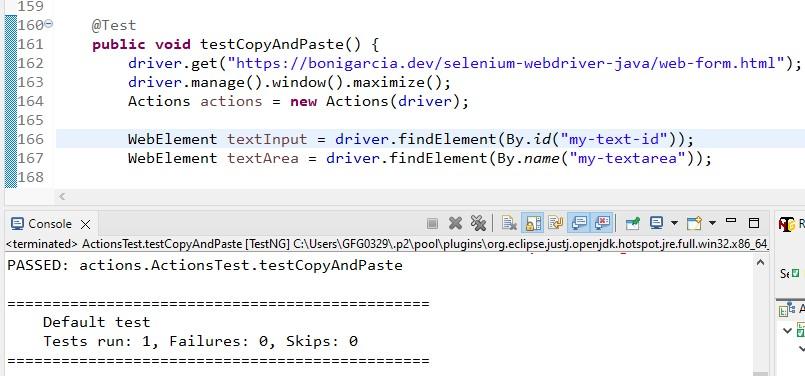
Automating keyboard shortcuts like copy and paste is a common task when dealing with forms and text fields.
Output:
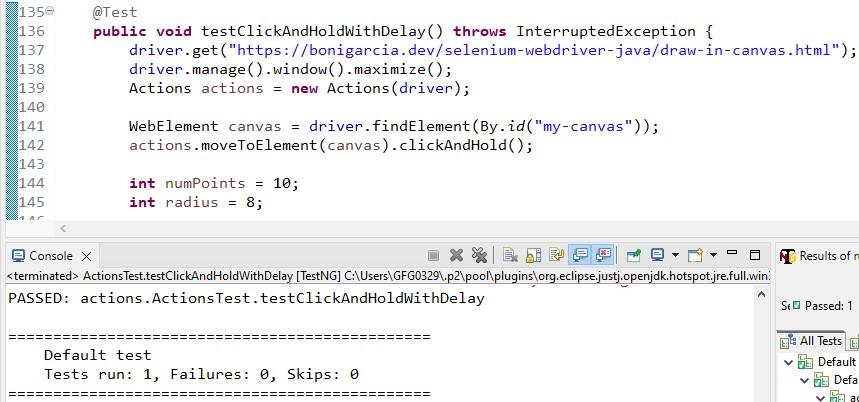
Using clickAndHold() and moveByOffset(), you can simulate drawing shapes or patterns on canvas elements.
Output:
perform() at the end: Always ensure to call perform() after chaining actions to execute them.WebDriverWait to ensure that elements are visible and interactable before performing actions, avoiding unnecessary delays.try-catch blocks to handle potential exceptions, such as stale element references or timeout errors.