|
VOOZH | about |
|
VOOZH | about |
In Selenium WebDriver, handling alerts is a common requirement for automating interactions with web applications. An Alert is nothing but a small message box that appears on the screen to give some kind of information and give a warning for a potentially damaging operation or permission to perform that operation.
These alerts classified into three types:
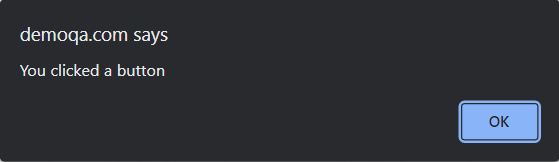
The simple alert in selenium shows some information or warning on the window.
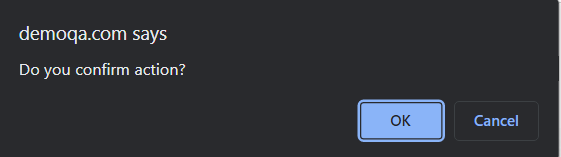
The confirmation alert asks for the permission to do some type of operations.
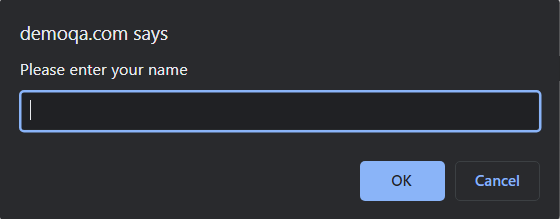
👁 Confirmation alertPrompt Alert asks some input from the user.
👁 Prompt AlertThere are the four methods that we would be using along with the Alert interface.
The void dismiss method is used to click on the ‘Cancel’ button of the alert.
The void accept method is used to click on the ‘OK' button of the alert.
The void accept method is used to capture the alert message..
It is used to send some data to the prompt alert.
Before Handling alerts please download and make sure you have setup the below dependency for the automation of alerts.
let's first set up a basic Selenium test environment with Java. Below is a basic structure of how to set up a WebDriver instance for running the tests.
BaseTest.java
In BaseTest setup, the ChromeDriver is initialized, and the WebDriver is configured to open and close the browser automatically for each test.
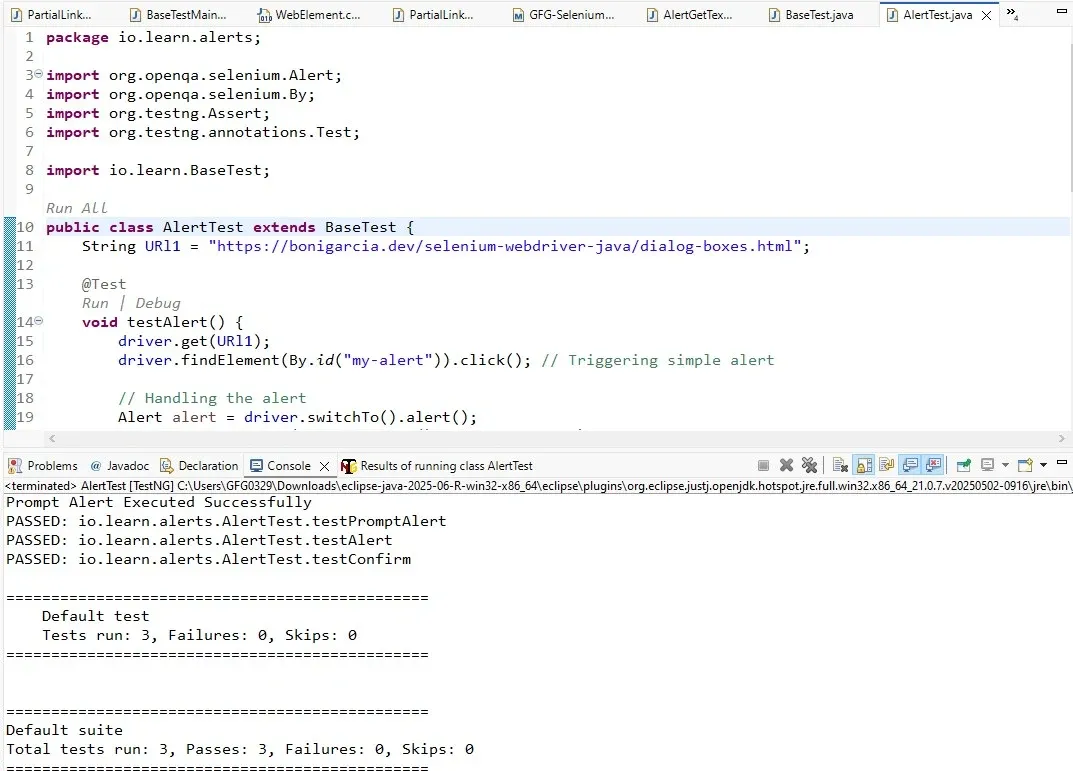
Create class AlertTest.java, and combined the three types of alerts:
AlertTest.java
Output
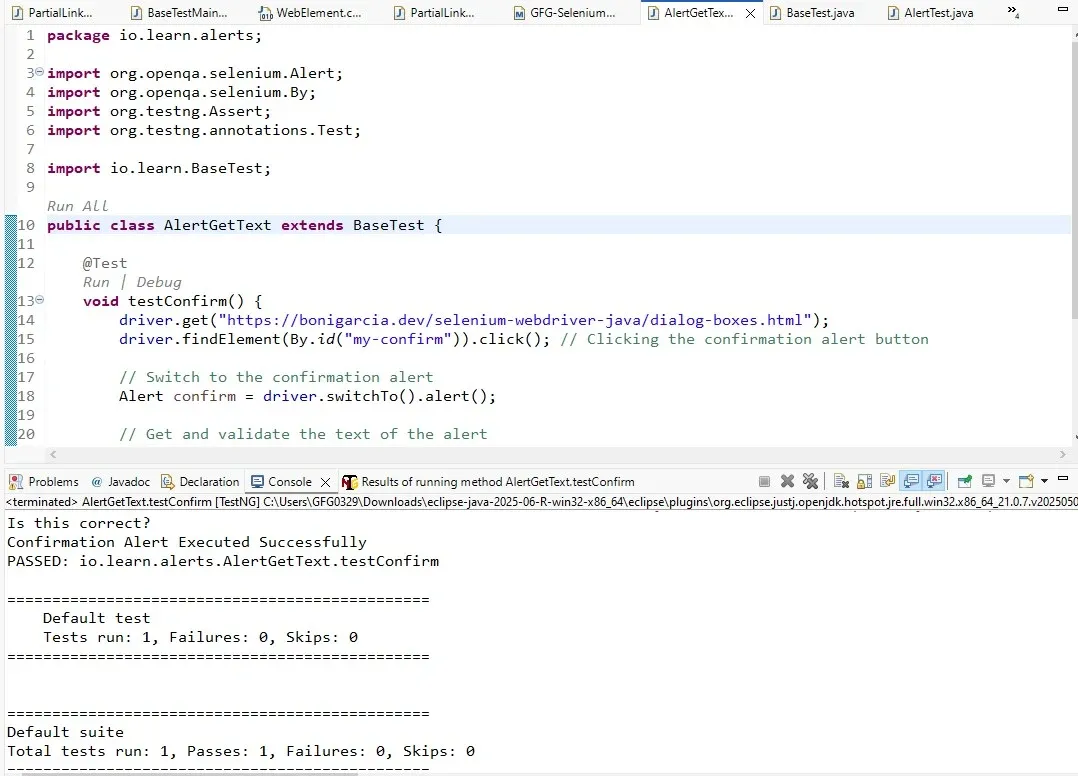
In many scenarios, you may need to get the message of an alert to perform some validation. Selenium provides the getText() method for this purpose.
AlertGetText.java
Handling alerts is a fundamental skill for any Selenium WebDriver user. Whether it's a simple message alert, a confirmation alert, or a prompt requiring user input, Selenium offers straightforward methods to interact with them effectively in the automation testing.