VOOZH about

URL: https://www.geeksforgeeks.org/software-testing/how-to-read-data-from-formula-cell-in-excel-sheet-using-selenium-and-apache-poi/

⇱ How to Read Data From Formula Cell in Excel Sheet using Selenium and Apache POI? - GeeksforGeeks


  • Courses
  • Tutorials
  • Interview Prep

How to Read Data From Formula Cell in Excel Sheet using Selenium and Apache POI?

Last Updated : 23 Jul, 2025

The Apache POI is one of the most popular java libraries for selenium data-driven testing. It is mainly used for handling all types of Microsoft documents such as MS Word, and MS Excel. MS word and others. Apache POI is an open-source library and POI stands for "Poor Obfuscation Implementation".

Getting Started with Apache POI

We need to download the Apache POI to get started with the Apache POI library.

  • Create the Maven project and install the Selenium driver  

Geeks, for creating a maven project with seleniumcheck this article How to Create a Selenium Maven Project with Eclipse to Open Chrome Browser?

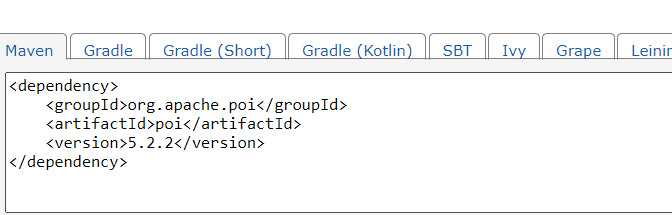
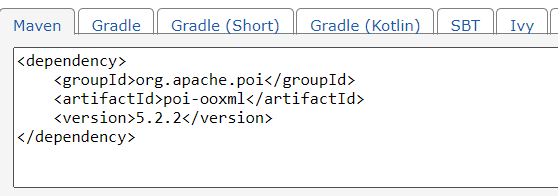
  • Add the Apache POI dependency mvn repository 
  • Go to https://mvnrepository.com/ and search for Apache POI and select the latest stable version, also install the poi-OOXML dependency.
👁 Image
 
👁 Image
 
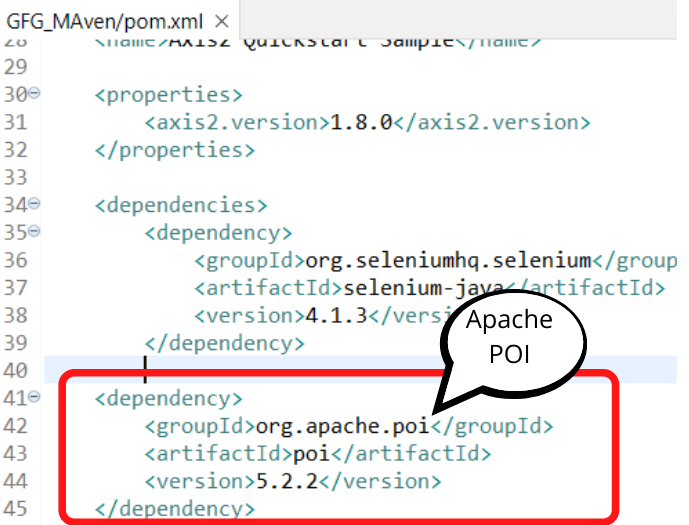
  • Copy the dependency and paste it into the pom.xml file in the maven project.
👁 Image
 

Creating Excel Sheet for Testing

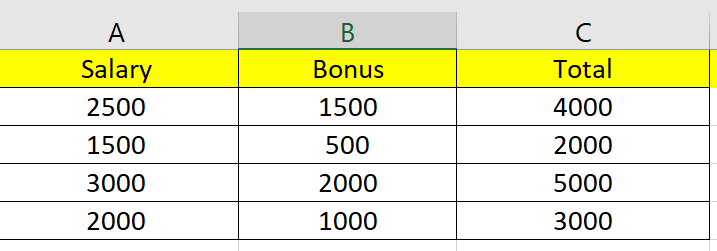
Now create the Excel sheet with two columns Salary and bonus and calculate the Total using the Formula. If we try to read the data from the Formula table we usually occur errors. So we try to read the data in the formula data type itself.

👁 Excel Sheet
 

Save the Excel File and paste the location in the file input stream in the code.

Code

Output

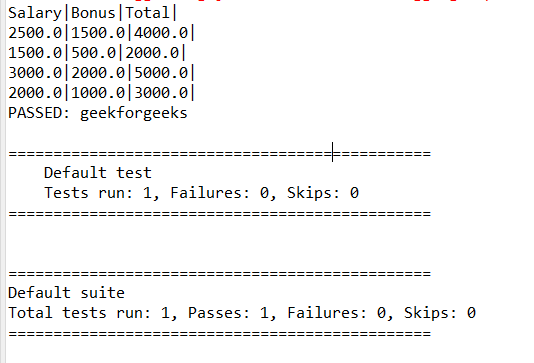
After Executing the program, we will get the all data from Excel.

👁 Output
 

Code Explanation

  • Creating the file input stream paste the location of the Excel file.

FileInputStream file = new FileInputStream("file location");

  • Now open the file in the XSSFworkbook and open get the sheet1.
  • Get the number of rows and columns.
  • Iterate and get each cell value.
  • Check the type of data in the switch case.
  • Here we are given the FORMULA type for reading the cell value in the Formula column.

case FORMULA:
       System.out.print(cell.getNumericCellValue());

Comment
Article Tags:

Explore