Jenkins, a leading automation server, empowers developers to efficiently build, test, and deploy software. Properly configuring Jenkins is essential for smooth operation and effective management of pipelines, plugins, and tools.
Jenkins Server Initialization
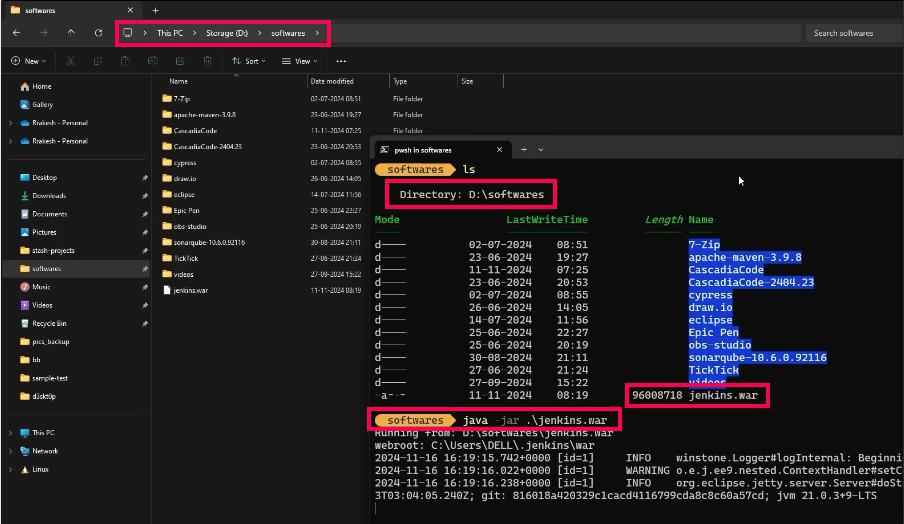
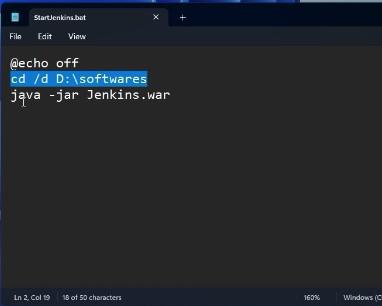
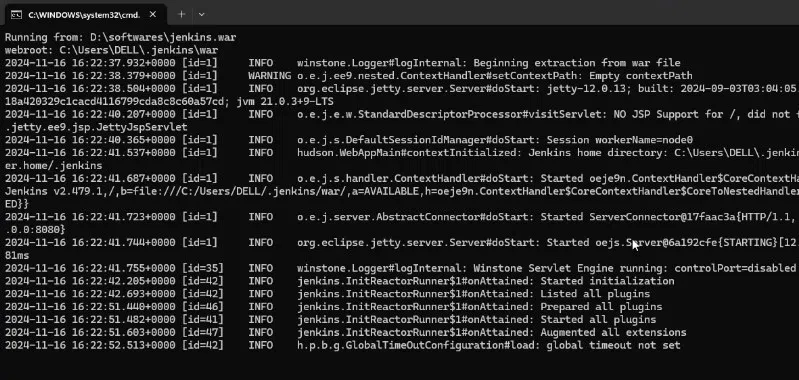
With the help of These bellow command, we can start the Jenkins server with redirection to the folder where our jenkins.war file is present, and run the command which is shown in the CMD.
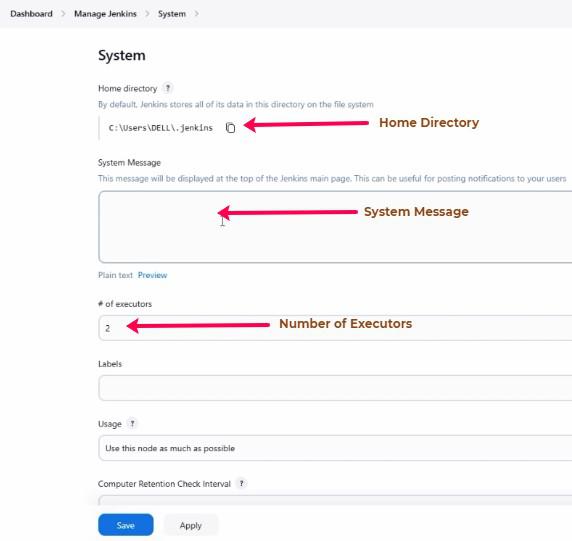
Home Directory: Jenkins stores all build-related data here. By default, this is located under C:\Users\[username]\.jenkins on Windows. It contains jobs, workspaces, plugins, and configuration files.
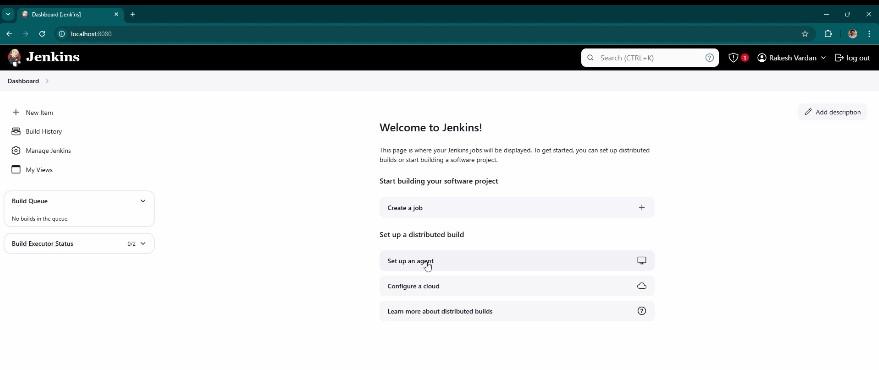
Jenkins URL: Defaults to http://localhost:8080. You can change this to a custom domain or IP address if needed.
System Message: Use this to notify users about system updates or downtimes.
Number of Executors: This setting defines how many parallel builds Jenkins can handle. The default is 2, but it can be adjusted based on your system’s resources.
Configuring Global Tools
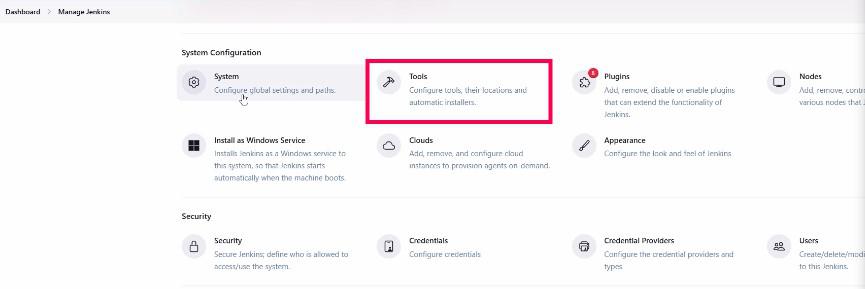
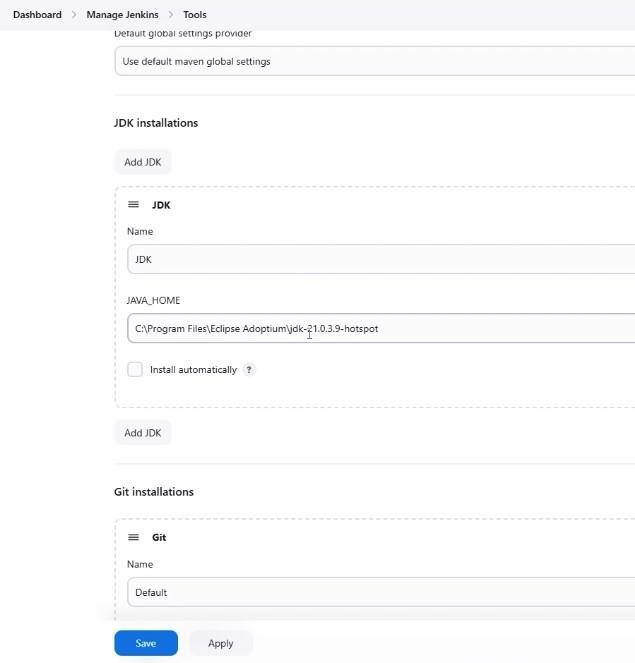
Jenkins supports a variety of tools required for automation pipelines, such as JDK, Maven, and Git. Configuring these tools ensures smooth execution of your pipelines.
JDK: Specify the installation path of your Java Development Kit. It's better to use an existing installation path rather than letting Jenkins install it.
Maven: Similarly, define the path for Maven. Ensure your settings.xml file is configured for proxy settings if applicable.
Git: Provide the path to the git.exe file on your machine.
Additional Tools: Jenkins supports other tools like Gradle, Ant, Node.js, and Python. Configure them based on project requirements.
Managing Jenkins Plugins
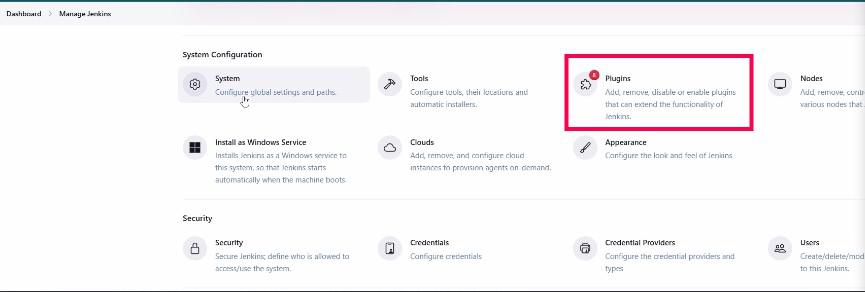
Plugins are a cornerstone of Jenkins, enabling extended functionality.
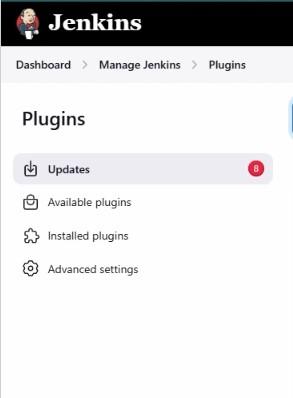
Install or remove plugins as needed. Commonly used plugins include Maven, Git, and email notifications.
Tip: Always keep plugins updated for improved security and performance.
Other Configurations
Setting up email notifications ensures stakeholders are informed about build statuses. To configure email notifications:
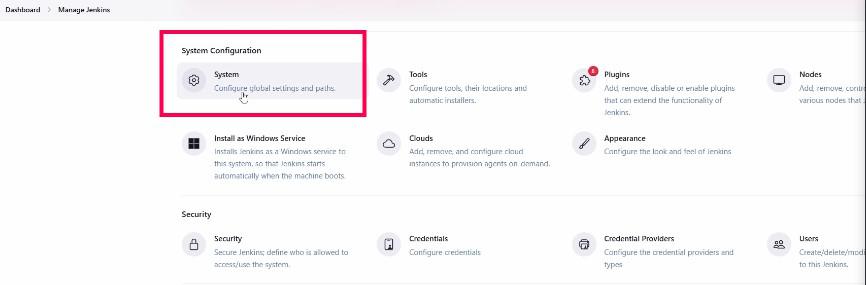
Under System Configuration, find the SMTP server settings.
Provide server details (e.g., Gmail or enterprise email).
Test the configuration by sending a test email.
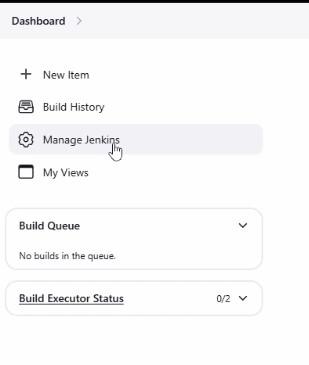
Jenkins also allows you to view system logs for troubleshooting and performance monitoring. Use the System Log section in Manage Jenkins to review logs.
Advanced Configurations
While not always necessary for beginners, advanced users can explore:
Master-Slave Architecture: Configure nodes to distribute workloads across multiple systems.
Cluster Setup: Add nodes (Linux, Mac, Windows) to a Jenkins cluster for larger environments.
Custom Home Directory: Change the default home directory by defining a custom JENKINS_HOME environment variable.