Selenium IDE is an open-source tool used for automated web testing and browser automation. It allows testers and developers to record, edit, and execute test cases for web applications through a simple browser-based interface.
Records and plays back user actions performed on web applications.
Requires little or no programming knowledge, making it beginner-friendly.
Helps create, edit, and run automated test cases quickly and efficiently.
Architecture of Selenium IDE
The architecture of Selenium IDE is designed to provide a simple record-and-playback environment for web test automation. It consists of several components that work together to create, manage, and execute test cases directly within the browser.
Main Components of Selenium IDE Architecture
Record Engine: Captures user interactions performed on a web application and automatically converts them into Selenium commands.
Test Case Editor: Allows users to view, edit, and manage recorded test cases and test steps.
Playback Engine: Executes recorded test cases and verifies whether the actual results match the expected results.
Command Processor: Interprets Selenium commands and sends the corresponding instructions to the browser.
Browser Interface: Facilitates communication between Selenium IDE and the web browser to interact with web elements.
Test Suite Manager: Organizes multiple test cases into a test suite and enables their execution as a group.
Features of Selenium IDE
The future of Selenium IDE looks promising as it continues to evolve with modern web technologies and automation needs. Ongoing enhancements aim to make test automation simpler, faster, and more accessible to both beginners and experienced testers.
Improved Automation Features: Selenium IDE is expected to include more advanced commands and better support for complex test scenarios.
Enhanced Browser Compatibility: Future updates will continue to improve compatibility with modern browsers and web applications.
Better Integration: It is likely to offer stronger integration with CI/CD tools, testing frameworks, and cloud-based testing platforms.
AI-Assisted Testing: Emerging AI capabilities may help in automatic test generation, maintenance, and self-healing of test scripts.
Increased Adoption: Its ease of use and record-and-playback functionality will continue to make it a popular choice for beginners and rapid test prototyping.
How to Install Selenium IDE?
Selenium IDE works with Chrome Browser and Mozilla Firefox. Follow these steps to install Selenium IDE:
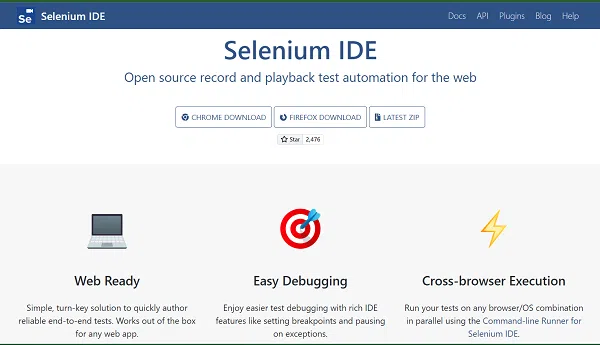
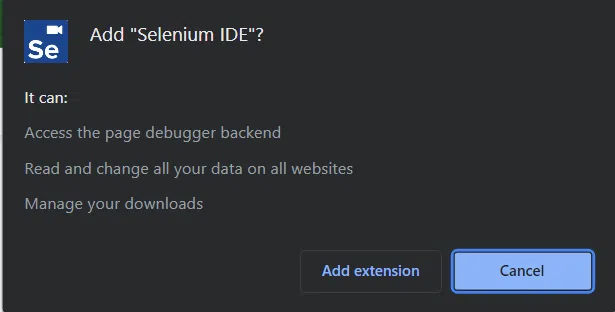
Step 1: Open your browser and visit Selenium's website or use this link to add the extension.
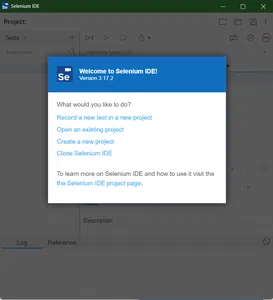
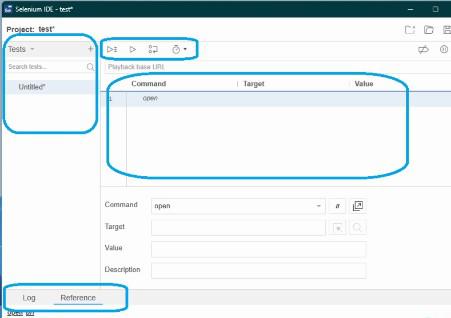
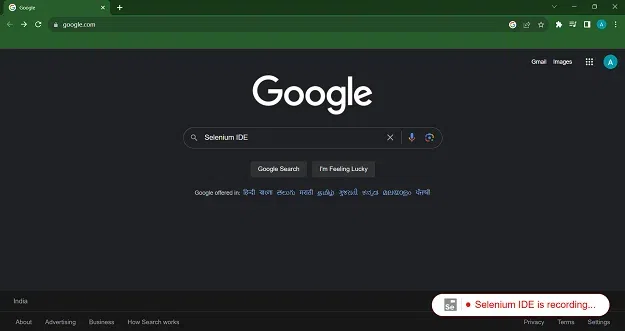
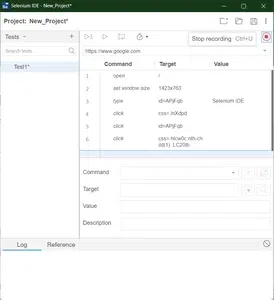
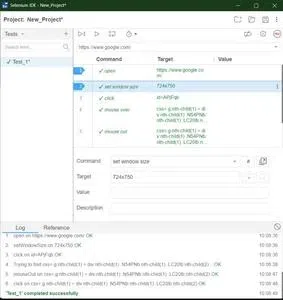
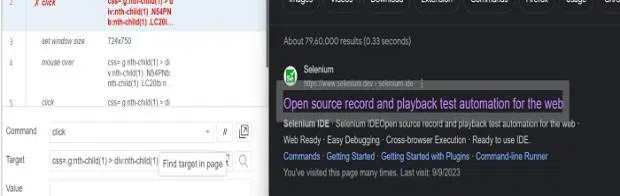
Step 6: Click the first site that will redirect you to the Selenium IDE webpage. Then, open the Selenium IDE dialog box and pause the recording. You will see all the commands you performed are saved.
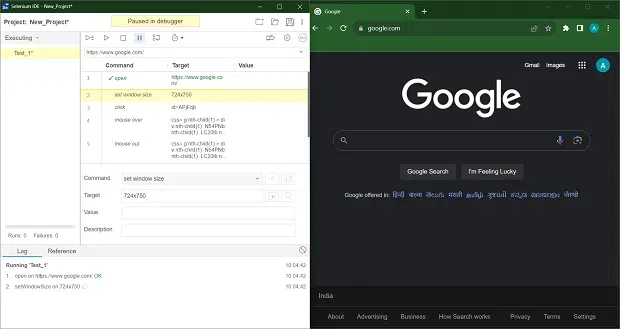
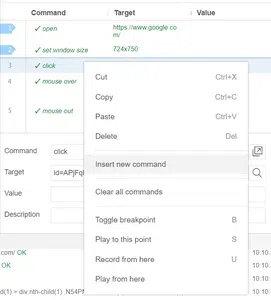
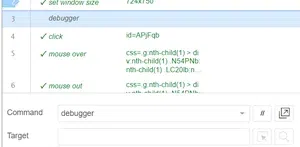
3. Adding Debug Command: You can debug your test case by inserting a new command, clicking right on a step where you want to programmatically pause the debugger, and clicking on insert a new command.
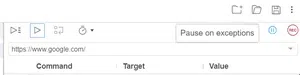
4. Pause on Exception: You can click on the "Pause on Exception" option and then run the test to figure out what is wrong. With this option, you can update your test cases easily.
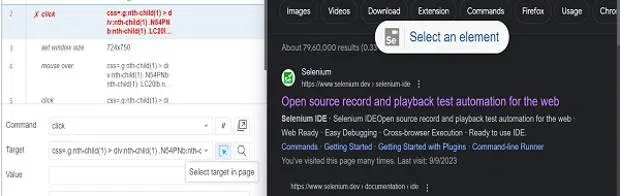
Click on the 'Find target in page' button to see if the required command exists on your page, if it doesn't highlight anything on your page, it means the command does not exist.
Now that your new target is added to your command, you can click on the 'Find target in page' button and it will highlight the element that you selected.