VOOZH about

URL: https://www.geeksforgeeks.org/software-testing/understanding-jenkins-jobs-and-builds/

⇱ Understanding Jenkins Jobs and Builds - GeeksforGeeks


  • Courses
  • Tutorials
  • Interview Prep

Understanding Jenkins Jobs and Builds

Last Updated : 29 Jan, 2026

Jenkins, a popular automation server, plays a critical role in automating software development processes like building, testing, and deploying. At its core, Jenkins relies on jobs and builds to manage these tasks efficiently. This guide breaks down the concepts of Jenkins jobs and builds, explains their lifecycle, and provides a practical example to get started.

What Are Jenkins Jobs?

A Jenkins job represents a series of tasks or processes you want Jenkins to automate. These can include:

Each job is customizable and allows you to specify the steps Jenkins needs to perform. For example, a job might compile code using Maven compile, execute tests with Maven test, or deploy artifacts using Maven deploy.

πŸ‘ what_are_jenkins_jobs_

Different types of Jenkins Jobs

1. Freestyle Project

  • The most basic and flexible job type in Jenkins.
  • Suitable for simple automation tasks with minimal configuration.

2. Pipeline Job

  • Uses a Jenkinsfile with declarative or scripted pipelines.
  • Ideal for implementing complex workflows and continuous delivery pipelines.

3. Multibranch Pipeline

  • Executes pipelines for different branches in a repository automatically.
  • Perfect for managing multiple development branches in projects.

4. Multi-Configuration Project

  • Supports testing across multiple environments or configurations.
  • Useful for scenarios like cross-browser or platform testing.

5. External Job

  • Tracks the execution of jobs that run outside of Jenkins.
  • Commonly used for monitoring externally executed tasks or processes.

6. Folder

  • Organizes jobs and pipelines into folders for better management.
  • Simplifies the handling of large projects with numerous jobs.

What Are Builds in Jenkins?

A build is a single execution instance of a Jenkins job. When you run a job, Jenkins creates a build to execute the defined tasks. Builds are typically triggered by:

  • Manual initiation.
  • Code changes (via web-hooks or polling).
  • Scheduled intervals.

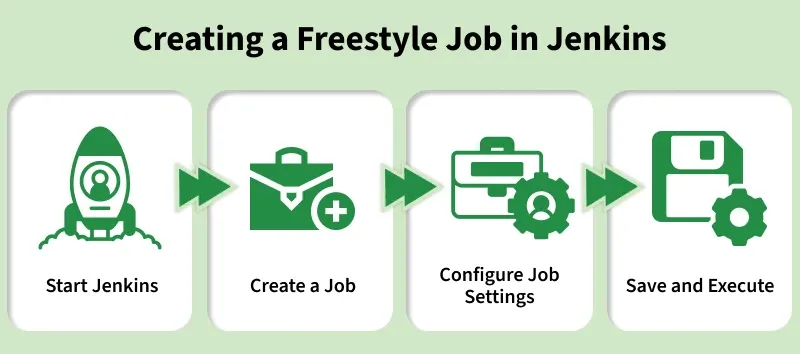
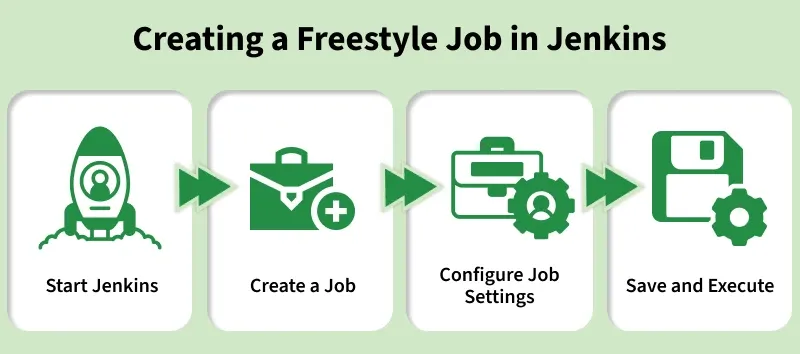
Creating a Freestyle Job in Jenkins

Let’s walk through creating a simple freestyle job:

πŸ‘ creating_a_freestyle_job_in_jenkins

Step 1: Start Jenkins

Ensure Jenkins is running. Navigate to the Jenkins dashboard.

Step 2: Create a New Job

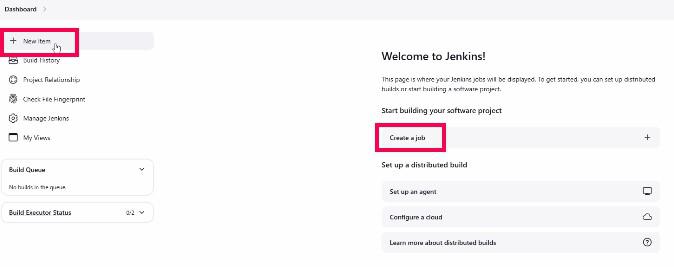
  1. Click New Item.
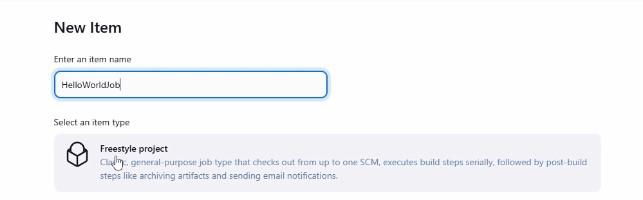
  2. Enter a name for the job (e.g., "Hello World Job").
  3. Select Freestyle Project as the job type and click OK.

Step 3: Configure the Job

  1. Source Code Management:
    If your code is stored in a repository like GitHub, configure the repository URL and authentication details here.
  2. Build Triggers: Define when the job should run. Options include:
    • Manual trigger.
    • Code changes (via polling or webhooks).
    • Scheduled intervals (using cron expressions).
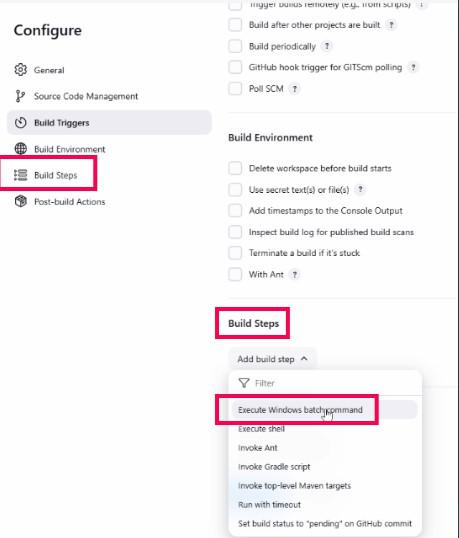
  3. Build Steps: Add steps that Jenkins will execute during the build. For example:
    • Click Add Build Step.
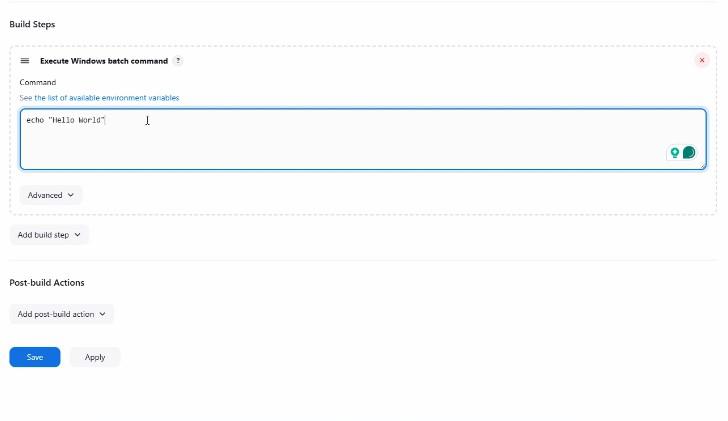
    • Select Execute Windows Batch Command.
    • Enter echo Hello World.
  4. Post-Build Actions: Define actions to perform after the build, such as:
    • Archiving artifacts.
    • Sending notifications (e.g., via email or Slack).
    • Triggering other jobs.

Step 4: Save and Run the Job

  1. Click Save to create the job.
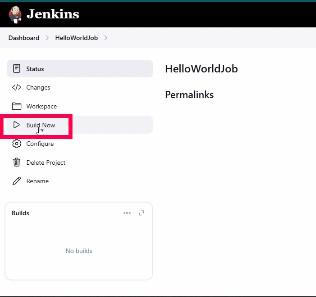
  2. On the job's page, click Build Now to trigger the build.

Jenkins Build Lifecycle

The lifecycle of a build includes the following steps:

  1. Triggering: Builds can be triggered manually, by source code changes, or on a schedule.
  2. Source Code Checkout: Jenkins fetches the latest code from the repository.
  3. Execution: Jenkins executes the defined build steps (e.g., compiling code, running tests).
  4. Post-Build Actions: Notifications, artifact archiving, or downstream job triggers are executed.
  5. Build Completions: Builds are marked as:
    • Success: All steps completed without errors.
    • Unstable: Some tests failed or warnings occurred.
    • Failed: Critical errors occurred during execution.
    • Aborted: The build was manually stopped.

Configuring Build Triggers

  • Manual Trigger: Trigger builds manually from the Jenkins dashboard.
  • SCM Polling: Jenkins checks the source code repository at specified intervals for changes.
  • Webhook/Push Notification : Automatically triggers builds when changes are pushed to the repository using webhooks.
  • Scheduled Builds: Define specific intervals or times to trigger builds using cron-like expressions.

Jenkins Build Statuses

  • Success: The build completed without errors, meeting all defined conditions.
  • Unstable: The build finished but with warnings, such as failed tests or minor issues.
  • Failure: The build failed due to errors in compilation, tests, or scripts.
  • Aborted: The build was manually stopped or terminated before completion.
  • Not Built: The build did not start, often due to conditions not being met or dependency issues.

Monitoring Builds and Build History

Jenkins provides tools to monitor and analyze builds:

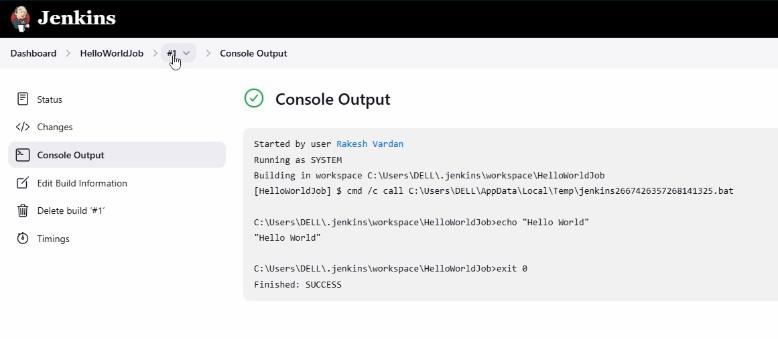
  • Build Console Output: View real-time logs during the build for debugging.
  • Build History: Access previous builds and their statuses.
  • Trend Reports: Use plugins to visualize build success rates and failure trends.

Post-Build Actions in Jenkins

1. Archiving Artifacts

  • Store build outputs (e.g., logs, binaries) for future reference.
  • Configure which files to archive in the job settings.

2. Send Notifications

Notify team members about the build status via:

  1. Email
  2. Slack
  3. Microsoft Teams

Helps keep teams informed about project progress.

3. Trigger Other Builds

  • Launch downstream jobs or pipelines upon completion of the current build.
  • Configure triggers based on build statuses (success, unstable, etc.).

4. Publish JUnit Test Results

  • Display test reports within Jenkins by parsing test result files.
  • Provides detailed feedback on passed and failed tests.

5. Deploy Applications

  • Deploy build outputs to a staging or production environment automatically.
  • Often integrated with tools like Kubernetes, Docker, or Ansible.

6. Cleanup Workspace

  • Delete unused files or artifacts from the workspace to free up disk space.

Practical Example: Hello World Job

This example demonstrates a basic freestyle job:

  • Create Job: Name it "Hello World Job" and select the freestyle project type.
πŸ‘ Screenshot-2024-12-03-111932
Create Job
πŸ‘ Screenshot-2024-12-03-112057
Select freestyle project
  • Add Build Step: Use the batch command echo Hello World.
πŸ‘ Select any one build steps which you want
Select any one build steps which you want
πŸ‘ Execute windows batch command
Execute windows batch command
  • Save and Run: Trigger the job manually by clicking Build Now.
πŸ‘ Screenshot-2024-12-03-113018
Build Now
  • View Output: Check the console output to see the "Hello World" message.
πŸ‘ Screenshot-2024-12-03-113150
Console Output

Advanced Features

  • Webhooks: Efficiently trigger builds on code changes.
  • Pipeline Jobs: Define complex workflows in a Jenkinsfile.
  • Notifications: Configure email or messaging platform alerts for build status.
Comment
Article Tags:

Explore