|
VOOZH | about |
|
VOOZH | about |
Booting into Safe Mode on Windows 11 is a crucial troubleshooting step that allows you to diagnose and fix issues with your computer. Safe Mode starts Windows in a basic state, using a limited set of files and drivers, which can help you identify problems that are causing your system to malfunction. In this article, we will provide a comprehensive overview of how to boot into Safe Mode on Windows 11, along with detailed steps and tips. Understanding how to enter Safe Mode can be invaluable for maintaining your system’s health and resolving various issues.
In this article, We will show you how to boot into safe mode on Windows 11.
Table of Content
Once you install Windows in your PC, Safe mode comes along with it that allows Windows users to access an altered version of Windows and fix any issues that prevent Windows from booting normally. Safe Mode differs from Normal Mode in that it uses default drivers and settings at startup and loads only system-required software programs.
Booting into safe mode can help you troubleshoot and fix various issues with your Windows 11 PC, such as:
There are several ways to boot into safe mode on Windows 11, Here are some of the most common methods:
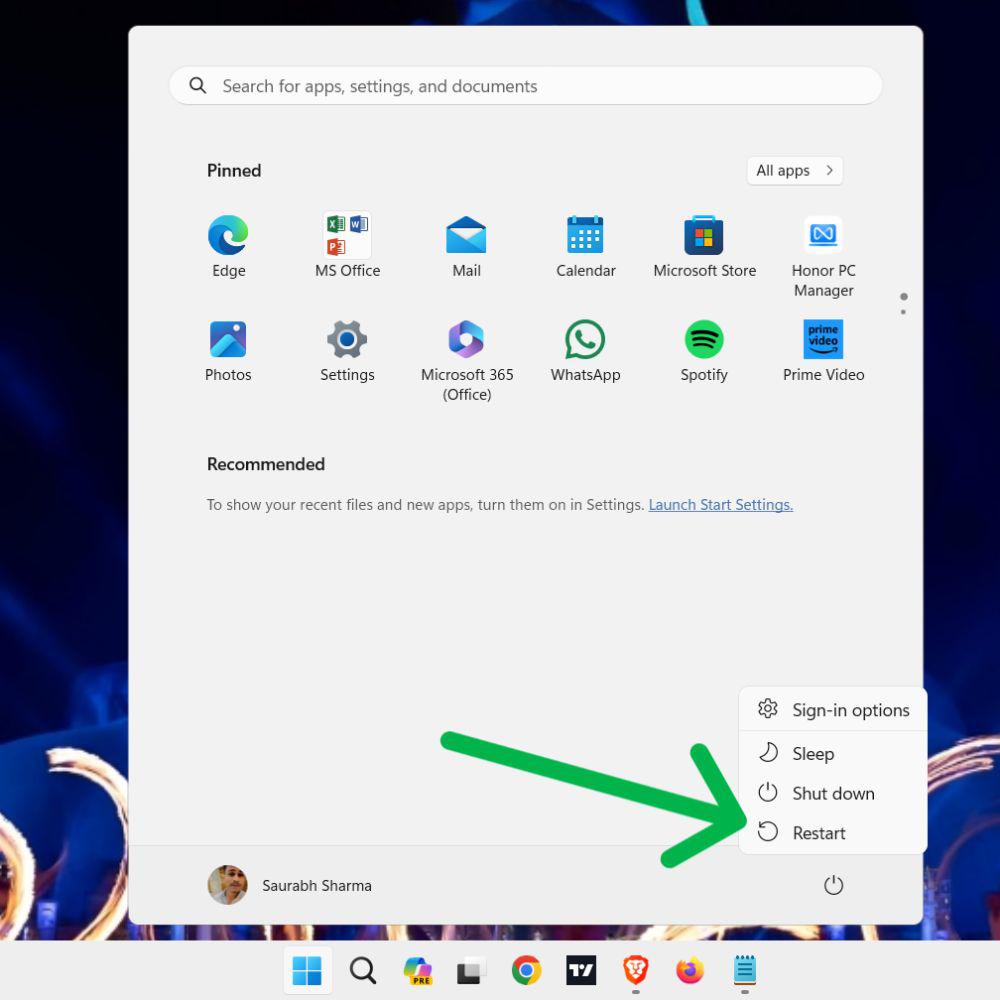
Step 1: Click on the Start button and select the Power icon.
Step 2: Hold down the Shift key and click on Restart.
Step 3: Your PC will reboot and take you to the Choose an option screen.
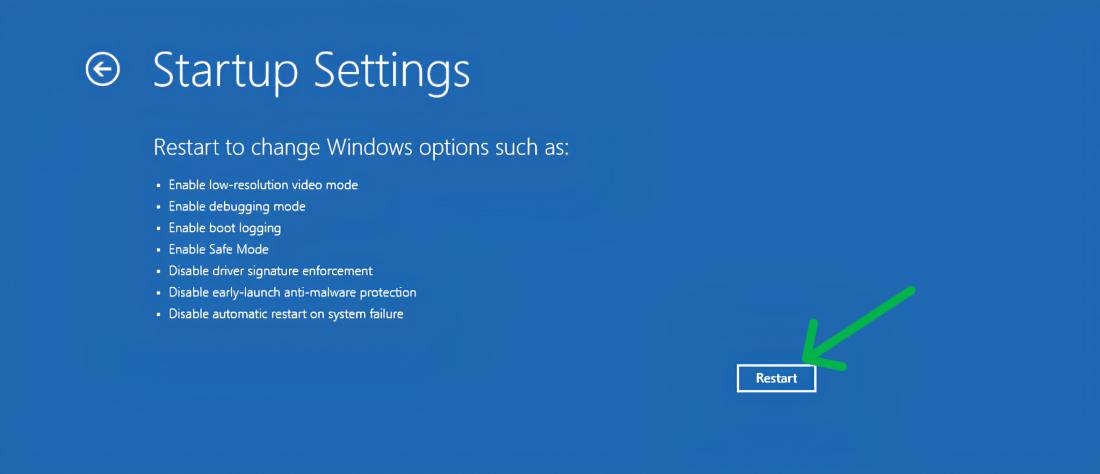
Step 4: Select Troubleshoot > Advanced options > Startup Settings > Restart.
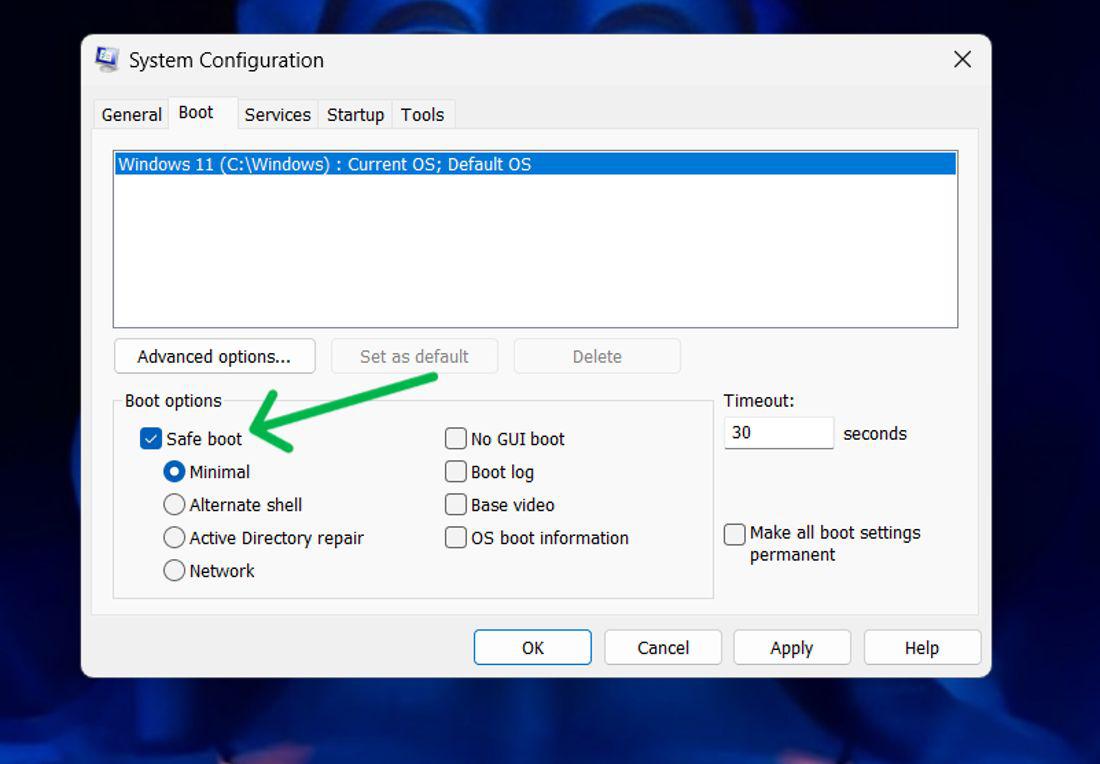
Step 1: Press Win + S on the search bar and type "System Configuration"
Step 2: In the System Configuration Window, Navigate to the "Boot" tab
Step 3: Under the boot options, check the Safe boot box
Step 4: Click OK and restart your computer.
Step 1: Open the Settings app (Windows key + I ) then navigate to System > Recovery.
Step 2: Next to Advanced Startup, click on Restart now.
Step 3: Again click on Restart Now after restart, Navigate to Troubleshoot > Startup Settings > Restart > Choose safe mode type to boot into.
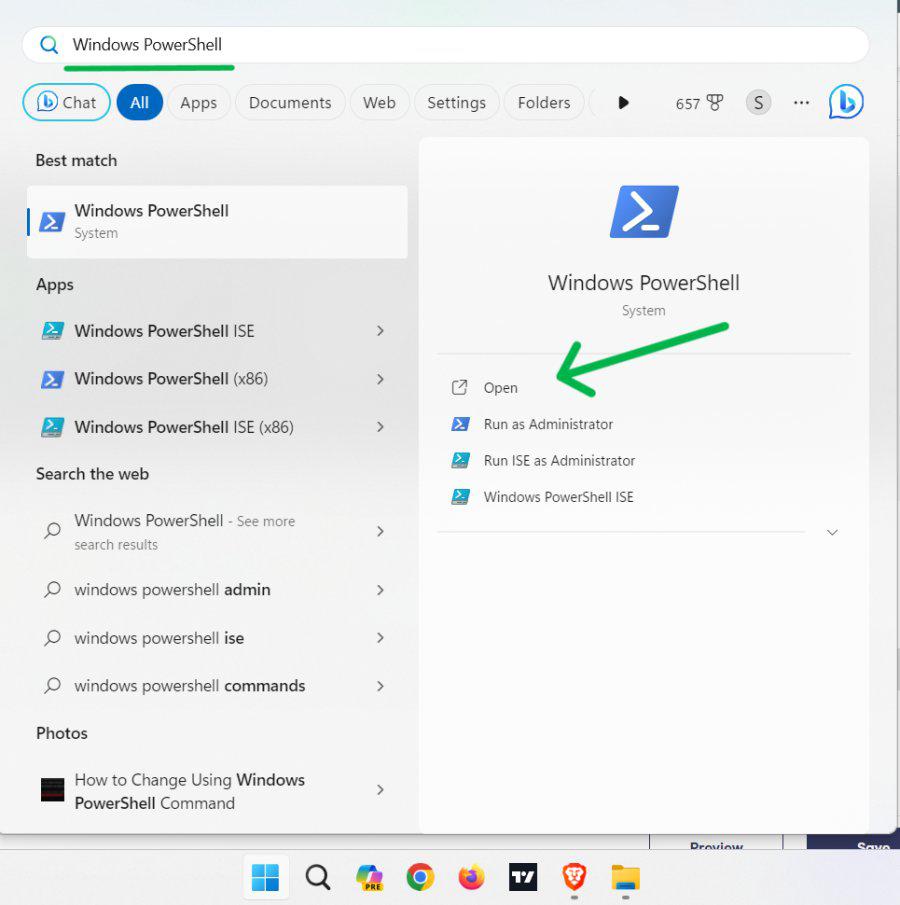
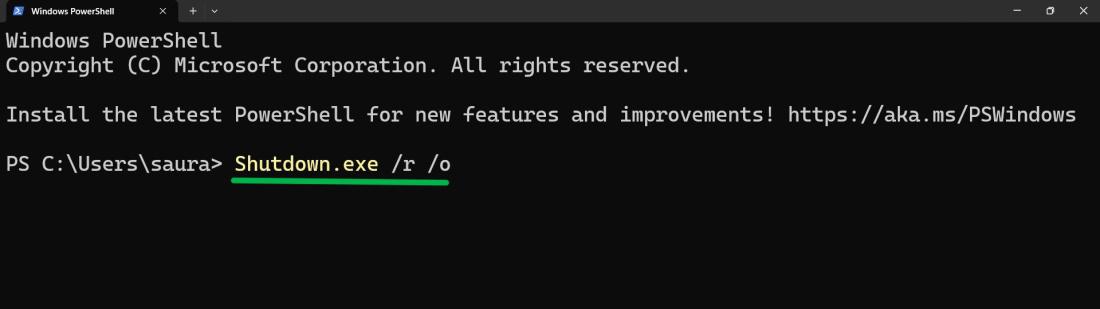
Step 1: Press Win + S then on search bar type "PowerShell" then open it
Step 2: In PowerShell, type this command
Shutdown.exe /r /oRecovery drive is a Windows-based tool that can be used to recover the previous system from critical errors, malware attacks, and other problems through the usage of Windows Recovery Environment.
Step 1: Start computer with bootable USB.
Step 2: Choose keyboard layout.
Step 3: Click on the Troubleshoot > Startup Settings > Restart
To exit safe mode and return to the normal mode of Windows 11, you can use any of the following methods: