|
VOOZH | about |
|
VOOZH | about |
Safe Mode is a diagnostic mode in Windows 10 that helps enable system diagnostic and troubleshooting. Safe Mode has been designed to use minimal drivers and services and spot the issues caused by any software, virus or hardware. In addition to this, you must know how to turn on safe boot mode in Windows 10 when you encounter any issue with your Windows computer.
In this guide, we’ll explore various methods to easily boot your Windows 10 in Safe Mode, ensuring you can get back to a fully functioning state as quickly as possible.
Table of Content
Windows 10 grants you multiple pathways to reach Safe Mode. Familiarise yourself with these techniques to select the one that aligns with your specific situation:
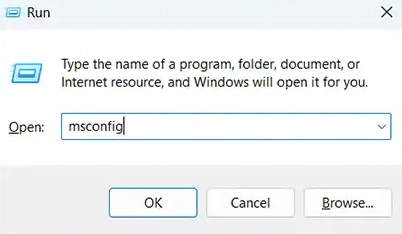
You can use the default method to boot your Windows PC safely in just a few steps. Here's how you can boot Windows 10 in Safe Mode using msconfig:
Open the Run dialog by pressing Win + R and type msconfig and hit Enter.
👁 use-system-config-to-boot-windows-in-safe-mode
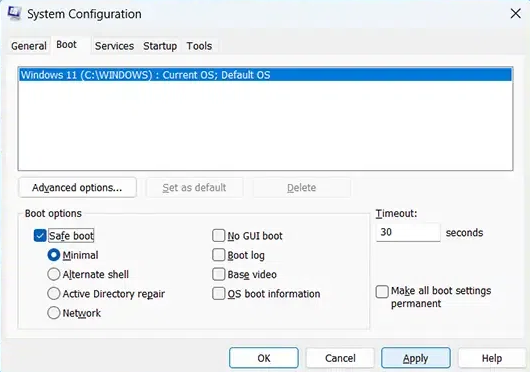
Go to the Boot tab and check the Safe boot option.
👁 use-system-config-to-boot-windows-10-in-safe-mode
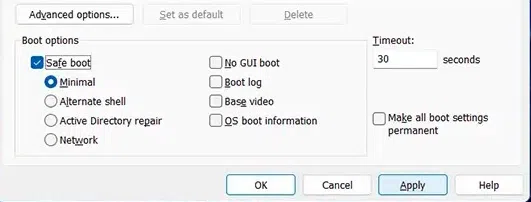
Check the "Safe boot" option in the Boot options section. Pick your preferred Safe Mode variant (Minimal, Network, etc.)
👁 use-system-config-to-boot-windows-10-in-safe-mode01
You can use the Windows Settings to boot your Windows PC during startup. Here's how you can boot Windows 10 in Safe Mode using Windows Settings option:
Tap the Start button and select Power.
Press and keep the Shift key down as you click on Restart.
👁 boot-system-using-shift-and-restart-button
Your PC will reboot, under the Advanced Startup Options.
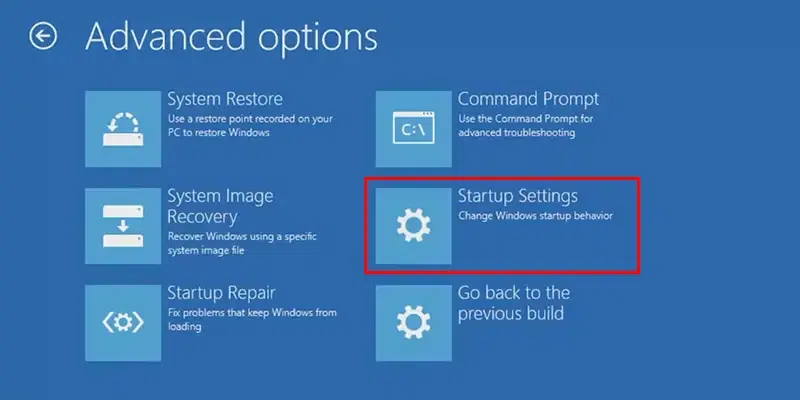
Navigate to Troubleshoot > Advanced options > Startup Settings > Restart
After the reboot, press 4 or F4 to Enable Safe Mode.
Windows Sign-in Screen can be the best method to perform a Safe boot for Windows 10 users as it does not require any additional technicality. Here's what you need to do to for Windows 10 Safe Mode booting:
Click the Power button from the sign-in screen of Windows 10 PC.
Keep the "Shift" key pressed while you click on "Restart."
Navigate to Troubleshoot > Advanced options > Startup Settings > Restart
After the reboot, press 4 or F4 to Enable Safe Mode.
This is an uncommon method to slide your Windows 10 PC into the Safe mode option. Here's what you can do in this method:
Make a force interrupt during Windows Startup (up to 3 times) & this will automatically land your Windows System into the Safe Mode option.
Navigate to Troubleshoot > Advanced options > Startup Settings > Restart
After the reboot, press 4 or F4 to Enable Safe Mode.
If none of these methods works, then you might consider to use Windows 10 Installation media to fix this error. Here's what you need to do:
Use the Windows 10 Media Creation Tool to create a bootable USB.
Insert the USB drive and restart the computer and boot from the USB.
Navigate to Troubleshoot > Advanced options > Startup Settings > Restart
After the reboot, press 4 or F4 to Enable Safe Mode.
Exiting the Safe Mode is as important as entering it & that's why once you're done with the troubleshooting, you can get follow the below outlined steps to exit from the Safe Mode.
Following these simple steps will take your computer out of Safe Mode and bring it back to normal mode, allowing you to resume your regular tasks.
Booting Windows 10 into the Safe Mode is a powerful and the most effective method of resolving and troubleshooting system related issues. Whether your system encounters any malware issue, or having any conflicts with software or driver, choosing the Safe Mode option is always the best method to encounter such issues. By following the above-mentioned 5 steps, you can easily boot into the Safe Mode and make your system smooth and secure.