|
VOOZH | about |
|
VOOZH | about |
Lockscreen ads in Windows 11 can be an intriguing feature for some users, providing a glimpse of new content and apps. However, if you find these ads distracting or unnecessary, you can easily disable them. Whether you want to enable or disable these ads, this guide will walk you through the straightforward steps to customize your Windows 11 lock screen settings according to your preferences.
Microsoft's most recent operating system, Windows 11, gives your computer a new design, better functions, and increased security. Disabling lock screen advertisements can improve your experience, but if you prefer personalized content, you might want to make sure these ads are enabled.
You may wish to turn off these advertisements if you'd rather have a neat and uncluttered lock screen. However, if you value personalized content, you may want to make sure that these advertisements are turned on.
Now, see the below-mentioned steps and implement them to Enable Windows 11 Lock Screen Ads.
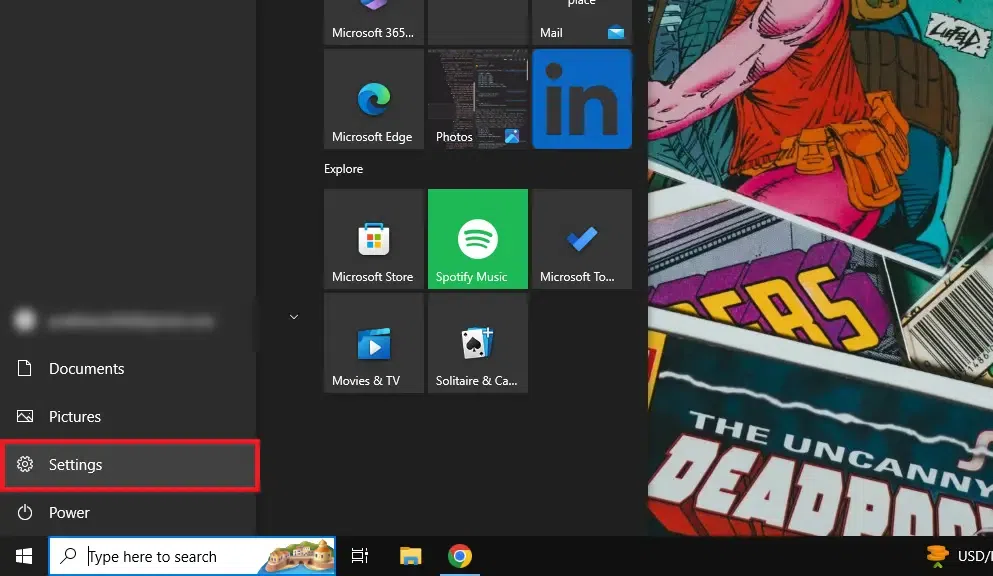
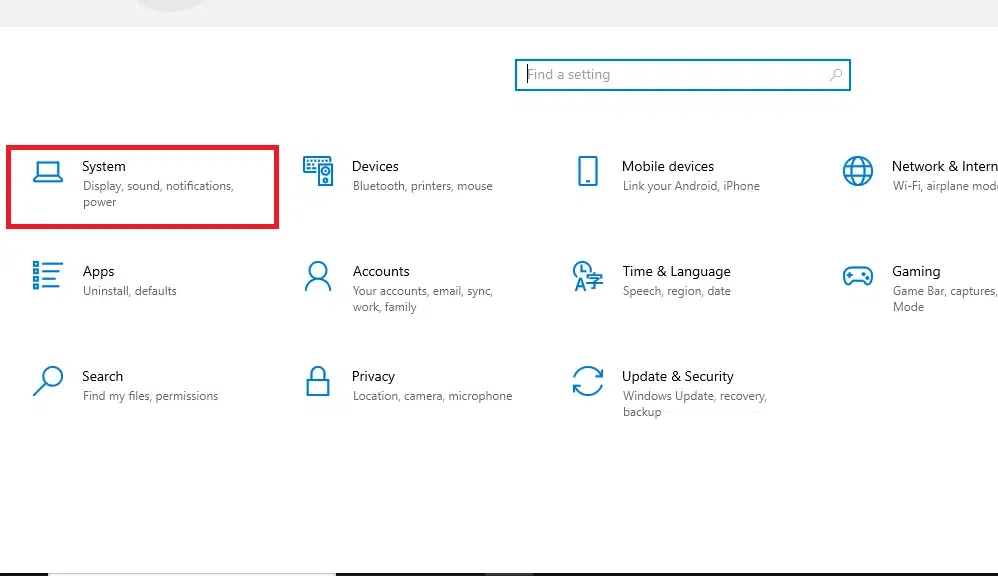
Step 1: Move to the Settings by clicking on the Setting icon from the Start.
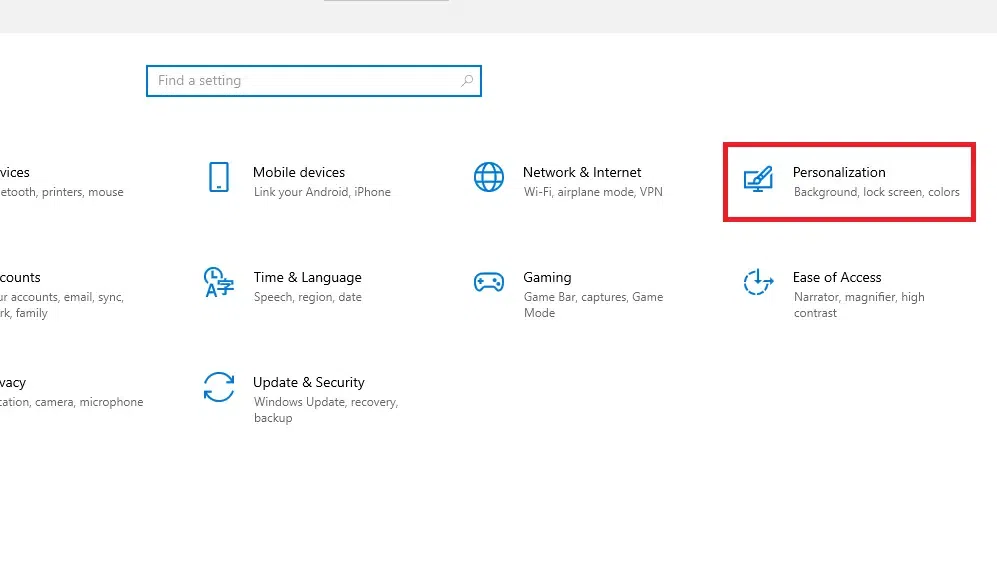
Step 2: Click on the Personalization option to move to the Personalization area of your system.
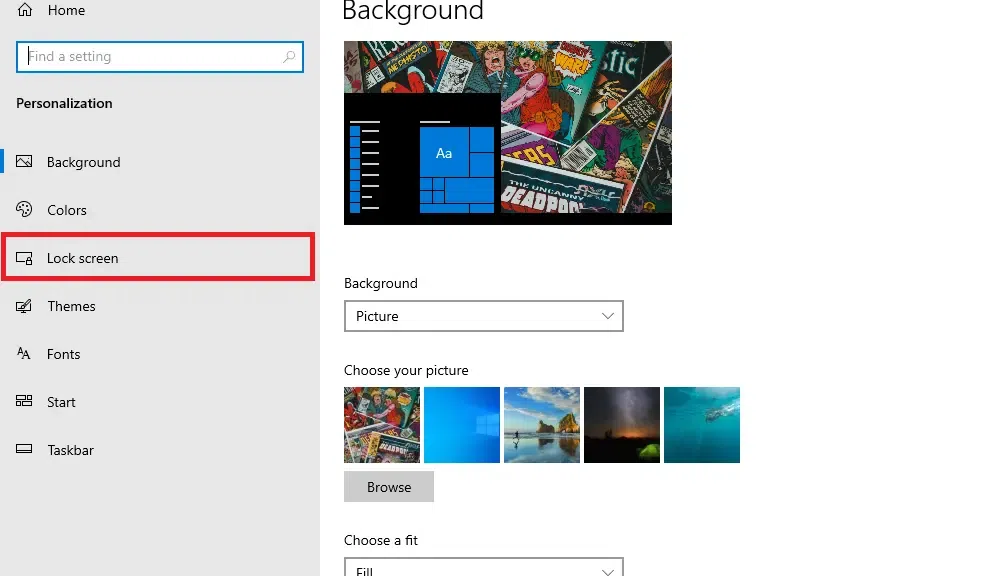
Step 3: From the Left pane click on the Lock Screen Option
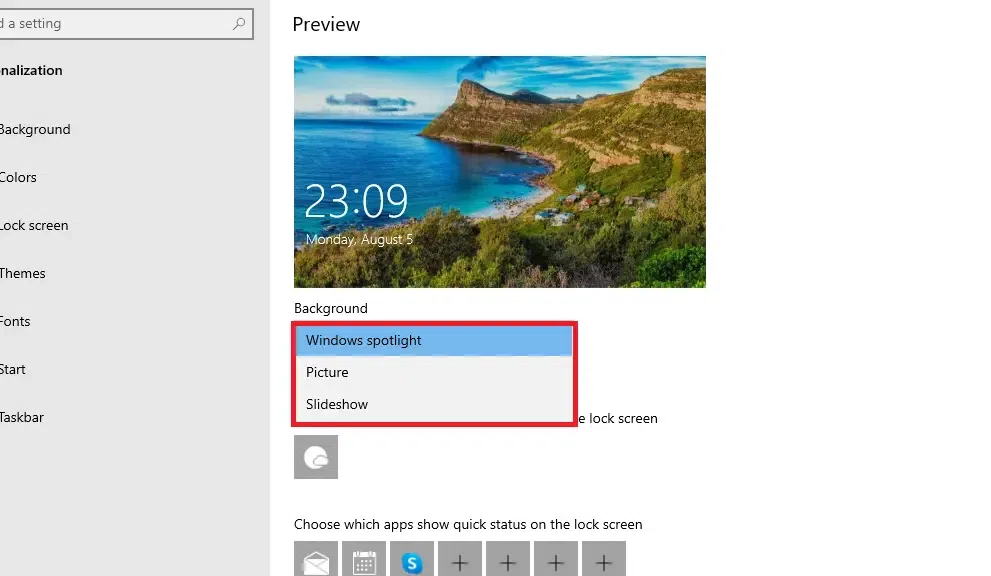
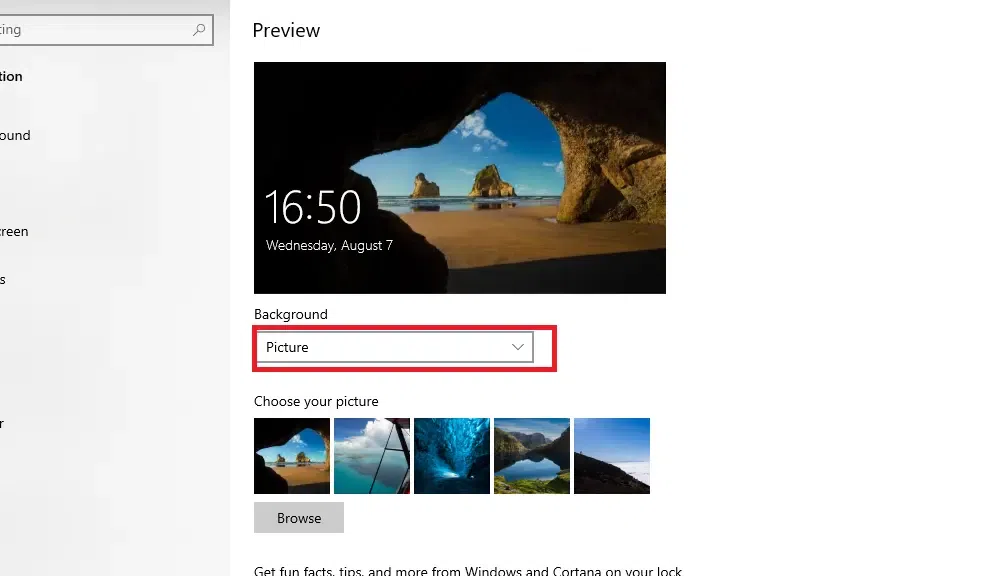
Step 4: Now select Picture from the background section to start the Adds
You may also want to disable any other notifications that could clutter your lock screen if you've turned off Windows Spotlight.
Now, see the below-mentioned effective steps and implement them properly to Disable Windows 11 Lock Screen Ads.
Step 1: Move to the Settings by clicking on the Setting icon from the Start.
Step 2: Click on the Personalization option to move to the Personalization area of your system.
Step 3: From the Left pane click on the Lock Screen Option
Step 4: Now select Picture or Slide Show from the options and your Ads will be stopped.
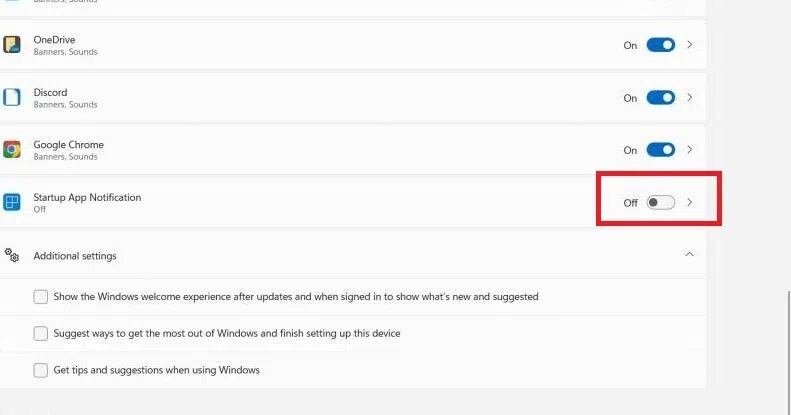
Step 5: You can also disable notifications to avoid the ads, if the notifications are disabled then automatically ads will be disabled.
In the final analysis, dealing with lock screen ads in Windows 11 becomes very easy, enhancing your personalization and user experience. You can switch on or off Windows Spotlight, which allows pictures and hence ads to be displayed through the personalization settings after selecting the preferred background type. In addition, turning off tips, tricks, and suggestions will also help in keeping an environment without ads. These are customizations that help you better control the lock screen, so you can configure it the way you want it to be and remove unwanted ads in Windows.
Also Read