|
VOOZH | about |
|
VOOZH | about |
Experiencing Wi-Fi connection issues on your Windows computer can be incredibly frustrating, especially when you're in the middle of important work or trying to enjoy some leisure time online. Whether your Wi-Fi connection is slow, keeps dropping, or isn't connecting at all, there are several steps you can take to resolve these problems. This guide will explore 5 ways to fix Wi-Fi connection issues on Windows using practical solutions and tips. By understanding how to troubleshoot Wi-Fi on Windows, you can improve your network performance and maintain a stable internet connection.
Let's check a few things to fix wi-fi connection issues in the Windows System try restarting your router and reconnecting. Make sure the password's right. Check out these methods and let's figure it out together.
Table of Content
Restarting the modem and router can resolve many connectivity issues. This refreshes network settings and often restores lost connections.
Also Check:How To Install a Modem?
The router's location impacts Wi-Fi strength. When obstacles or interference separate your device and router, the signal may weaken. If the router is distant, connectivity could suffer.
Also check: How To Set Up a Router?
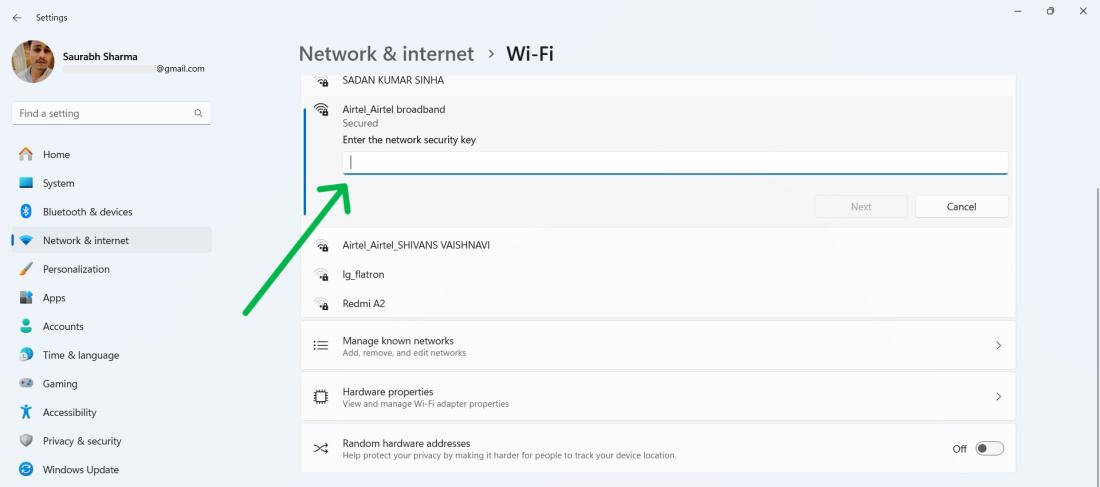
Incorrect password entry is a common issue when connecting to Wi-Fi.
Step 1: Find the Wi-Fi name (SSID) and password on your router.
Step 2:Double-check the password for correct capitalization when entering it on your device.
Also check: Tips For Setting Home Wi-Fi Password
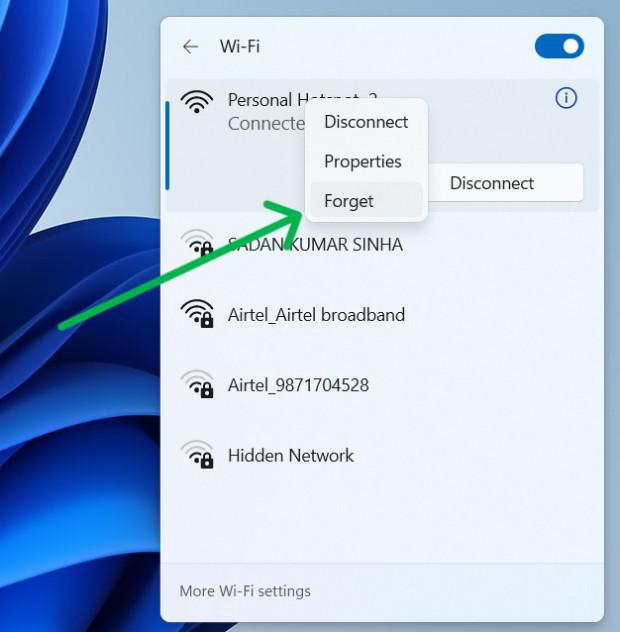
Step 1: Go to your device’s Wi-Fi settings.
Step 2: Select your network and choose the option to forget the network.
👁 Forget-the-Wi-Fi-Network-and-Try-Again
Also Check:How to Find WiFi Password In Windows 11?
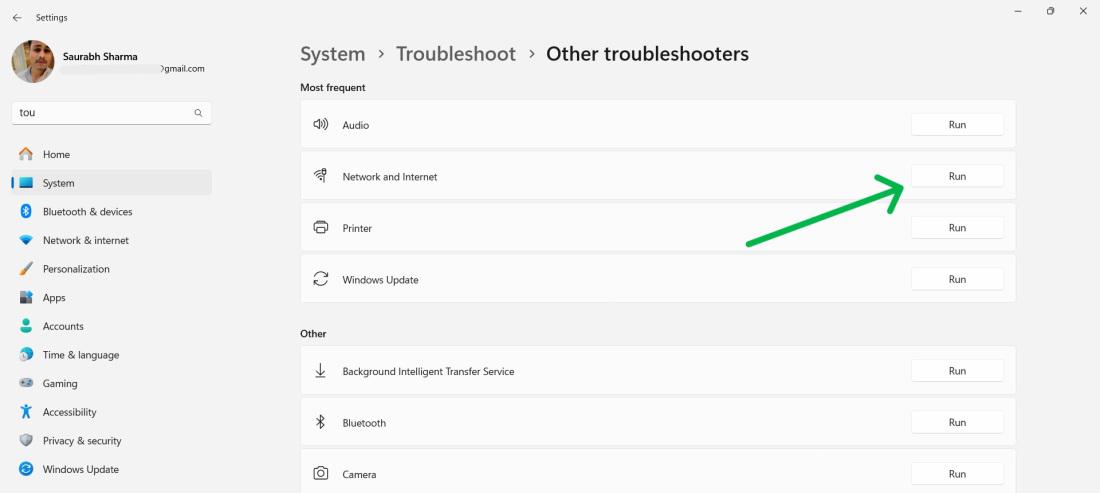
Step 1: Open the Windows Settings app by pressing Win + I
Step 2: Navigate to System > Troubleshoot > Other troubleshooter
Step 3: Click on the "Run" button Next to "Network & Internet"
👁 Run-the-Windows-network-troubleshooter
Outdated Wi-Fi adapter drivers can cause connection issues. Here are the following steps to update your WI-FI adapter Drivers :
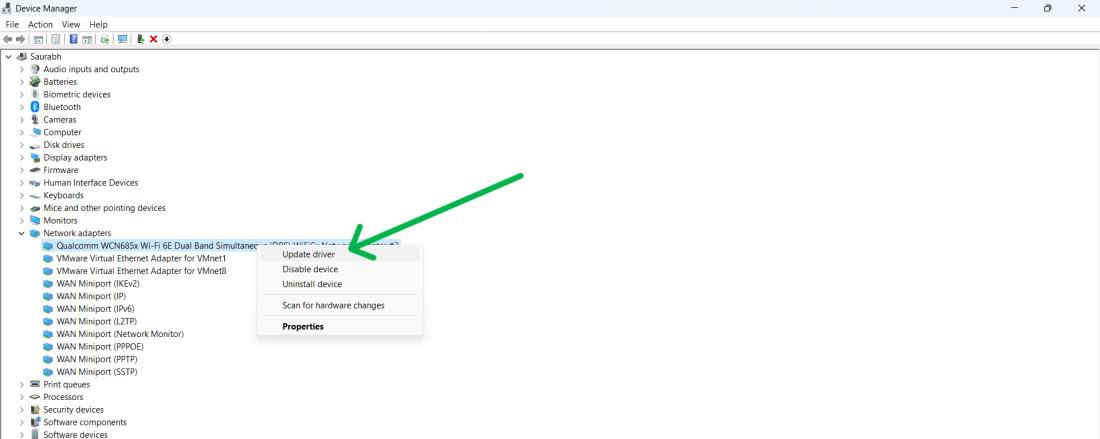
Step 1: Open Device Manager on your computer.
Step 2: Locate your Wi-Fi adapter and right-click it.
Step 3: Select Update driver and follow the prompts.
If none of the above methods work, your Internet Service Provider (ISP) might be experiencing an outage or there could be an issue with their equipment.
Also Check: Tips to Protect Your Home Wi-Fi Network
Wi-Fi connection issues on Windows can disrupt your productivity and online activities, but they can often be resolved with a few simple steps. By following the methods outlined in this guide, you can fix Wi-Fi connection issues on Windows and ensure a reliable internet experience. Regular maintenance and updates to your network settings and drivers can prevent future connectivity problems, keeping your system running smoothly. Stay proactive with your Wi-Fi troubleshooting to enjoy uninterrupted online access.