|
VOOZH | about |
|
VOOZH | about |
Incognito Mode or Private Browsing modes are designed to protect user privacy to avoid any tracking. Today, over 20% of the users are relying on the Incognito Mode for their usage. However, there are certain fields such as Schools, Universities, or Businesses where disabling Incognito Mode becomes a necessity for better transparency and enforcing proper usage policy.
This guide aims to provide detailed methods for disabling incognito mode on popular browsers along with tips and troubleshooting pointers that will enhance your productivity.
Note: This article tends to provide guidance for the below niche category of users:
- Parental Control
- Educators
- Business Owners
- IT admin
- and for some General Users as well.
If you want to disable Incognito Mode on Windows 7, 8, 10 or 11,macOS, or even Android and iOS devices, follow the detailed steps below.
Let us see step-by-step guidance on how to disable Incognito mode on Chrome, follow these steps:
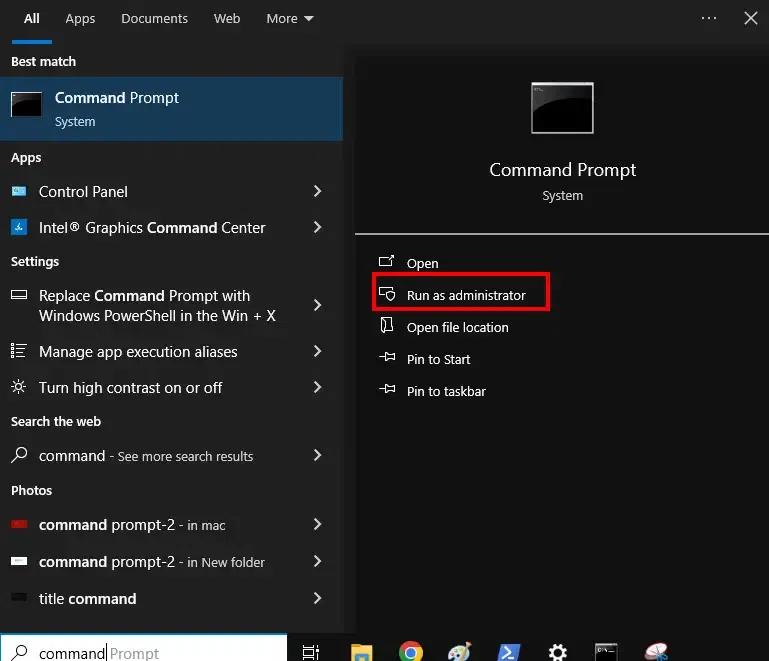
Go to Start and type "CMD" or "Command Prompt" or use Win + R to open "Run" and type "CMD" or "Command Prompt"
Note: Open CMD as ADMIN to perform the further action.
Now, once you open the command prompt, type the following command:
REG ADD HKLM\SOFTWARE\Policies\Google\Chrome /v IncognitoModeAvailability /t REG_DWORD /d 1Note: Once you execute the command, restart Google Chrome and you'll notice that you've successfully deleted incognito mode.
Alternative Method - Disable Incognito Mode in Chrome on Windows
- Open Group Policy Editor - (Press Win + R & type "gpedit.msc, hit the enter button
- Navigate to Computer Configuration > Administrative Templates > Google > Google Chrome.
- Find and double-click on “Incognito Mode Availability”. Set it to Enabled and select "Incognito mode disabled".
- Click OK and restart for changes to take effect.
Let us see step-by-step guidance on how to disable Incognito mode on Chrome, follow these steps:
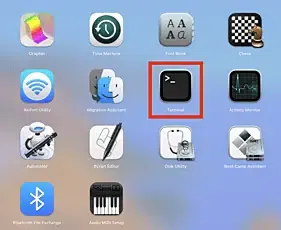
Go to Applications >Utilities > Terminal or use Spotlight Search on the top of the Menu bar and type "Terminal" and press Enter.
Note: There are different methods to open Terminal in MacOS, so you can perform it as per your preference.
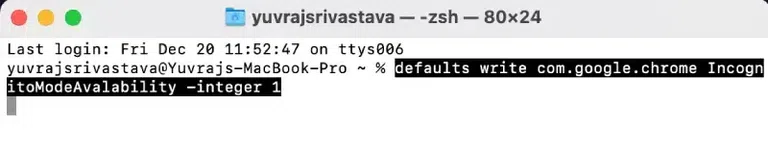
Now type the following command to delete incognito mode from your MacOS:
defaults write com.google.chrome IncognitoModeAvalability -integer 1Note: Once you execute the command, restart Google Chrome and you'll notice that you've successfully deleted incognito mode.
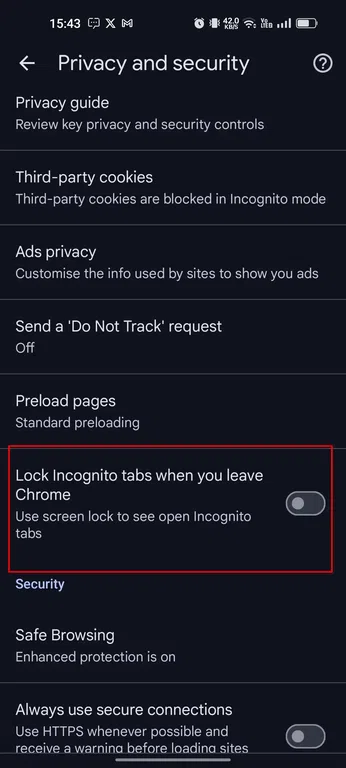
Android Phones do not have any built-in feature to remove incognito mode because it is designed in such a way that it offers privacy and control to users.
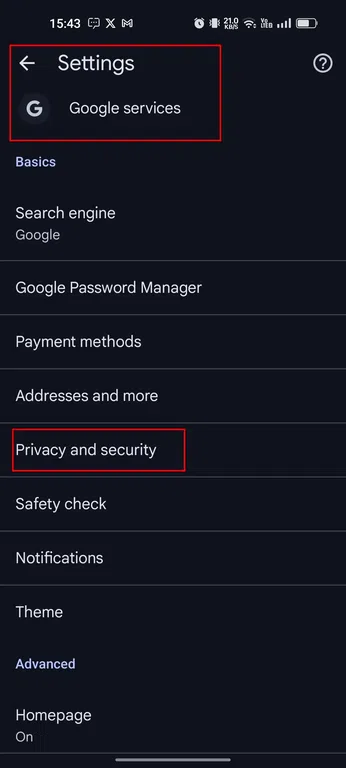
However, you can choose to disable or lock your Incognito Mode by following these steps:
For Samsung Device:
- Enable Samsung Kids Mode (from Quick Settings)
- Navigate to Settings > Digital Wellbeing > Parental Controls
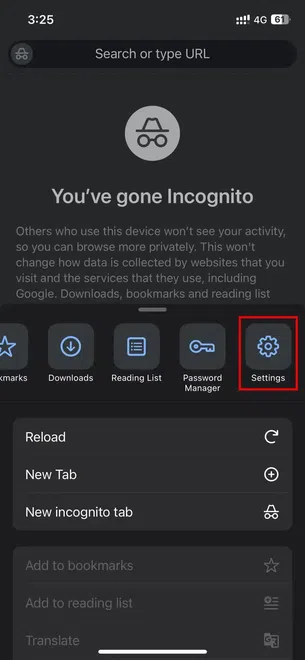
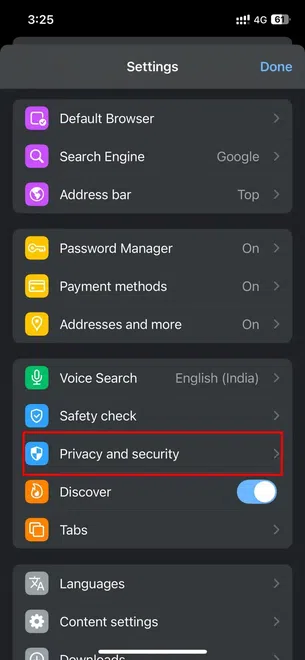
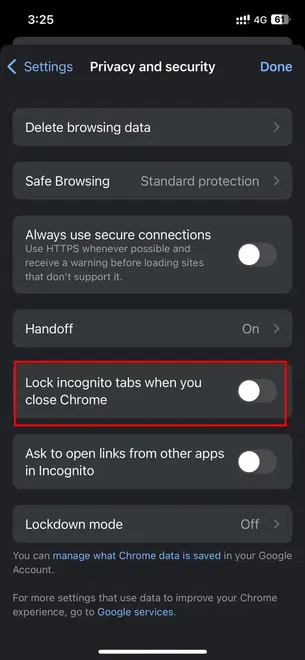
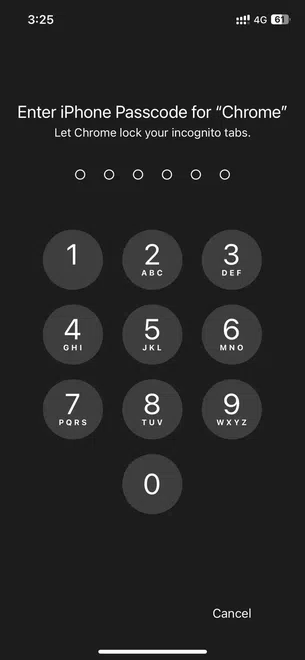
You can enable authentication to block Google Chrome from usage on your iOS device. Here's how you can turn off the incognito mode on iPhone:
Now, from next time, whenever you will try to enter the Incognito Mode, it will ask for the device password. By doing this you can disable usage of incognito mode in your iOS device.
You can prevent unauthorized usage of Incognito Mode in Google Chrome on iPhone or Android and Windows/MacOS at certain level but you can cannot choose to block it. By following the above methods, whether editing te Windows Registry , using Group Policy, or applying enterprise policies in Firefox- you can block Incognito Mode across all devices.
Whether you're a parent shielding kids from watching explicit content or an employer enforcing company policies, these methods to disable Incognito Mode among various devices works like a charm. This ensures maximum security, combine browser restrictions as well.