|
VOOZH | about |
|
VOOZH | about |
Since installing the beta version on the iPhones as soon as it was made available for the users, beta testers or developers have been playing with the features of iOS 17. With so many new features and internal enhancements, testing out the most recent iOS beta may be thrilling for the system's configuration. Beta versions, however, may be unreliable and result in various types of problems with the device protocol. Internal data loss is possible while downgrading from an iOS beta to a stable version safely in a proper manner.
In this article, we'll explore the initial steps to safely downgrade from iOS Beta to a stable version without any data losses.
Users can use iTunes or iCloud to fully back up their devices to process many applications. This is essential if the downgrading process encounters an issue to resolve the overall operation. A computer running the most recent or updated version of iTunes is required to configure the system. Here, we'll see the easy steps to safely downgrade from iOS Beta to a stable version.
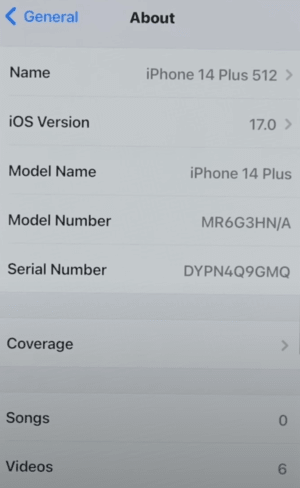
First, we need to connect our device to iTunes for Windows or Finder for macOS. Let's see the steps to connect -
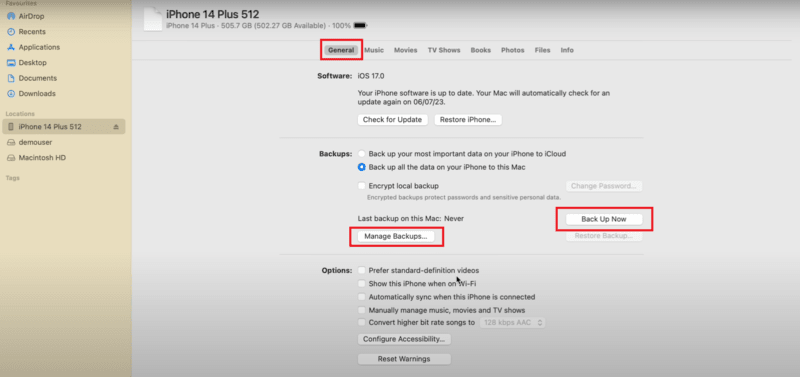
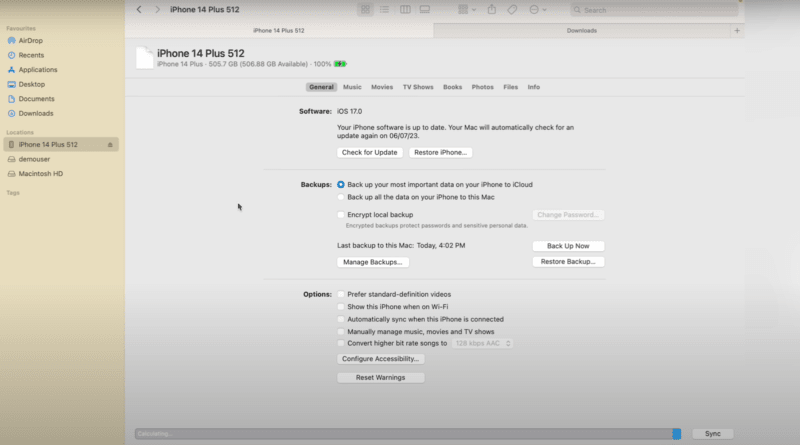
Now, the backup process should be started to implement the further process and backup all the required data efficiently.
After the backup process, we need to put our device into recovery mode to implement the downgrade process.
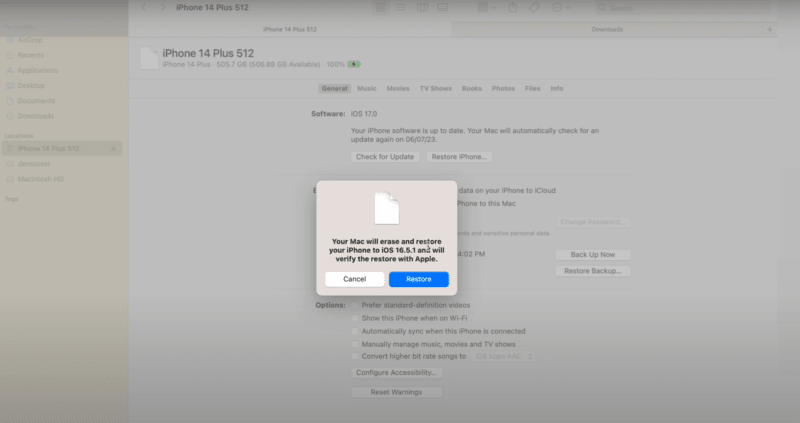
Now, we can restore our device to sign in with the Apple ID and activate the device properly.
We can restore all the device information from the previous backup settings by installing iOS or iPadOS to back up the created data.
If you're having problems, downgrading from an iOS beta to a stable version can save your life. Data loss is possible while downgrading from an iOS beta to a stable version. Making a backup of your device is crucial before continuing. You will not be able to reapply the beta profile to install any more iOS beta versions after you downgrade.
Also Read