|
VOOZH | about |
|
VOOZH | about |
Running out of space on your Windows 11 PC? You’re not alone! Whether it’s a forgotten movie download, an old backup, or a massive game installation, large files can quietly eat up your storage and slow down your system. The good news? Windows 11 makes it easier than ever to track down these space hogs and reclaim your disk space.
In this section, we have listed the top 3 easy methods to help you find large files on your Windows system. So keep reading the guide to find the best one.
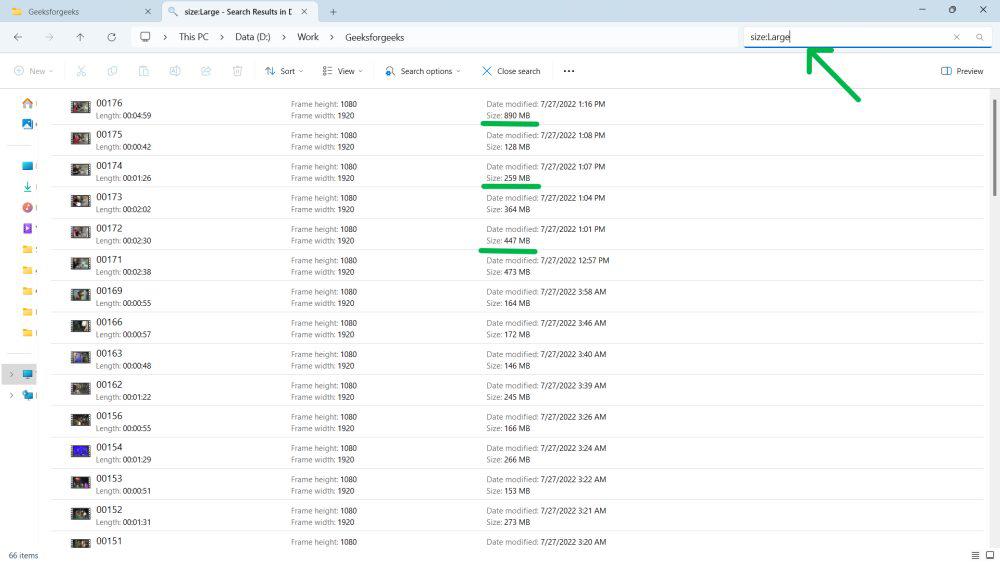
👁 method-1-how-to-find-large-files-on-windows-11-using-file-explorer
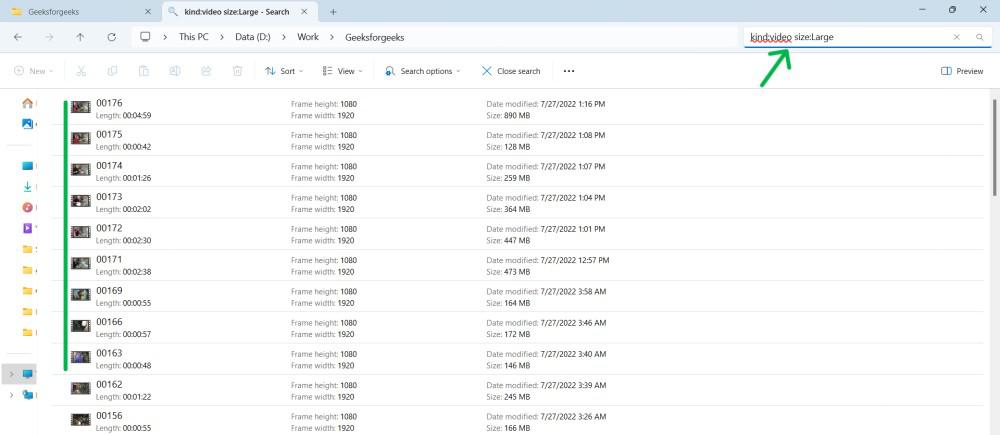
👁 how-to-find-large-files-in-windows-11-by-file-type
Tip: Use file types for targeted searches: type *.iso for ISOs , * .mp4 for videos , etc.
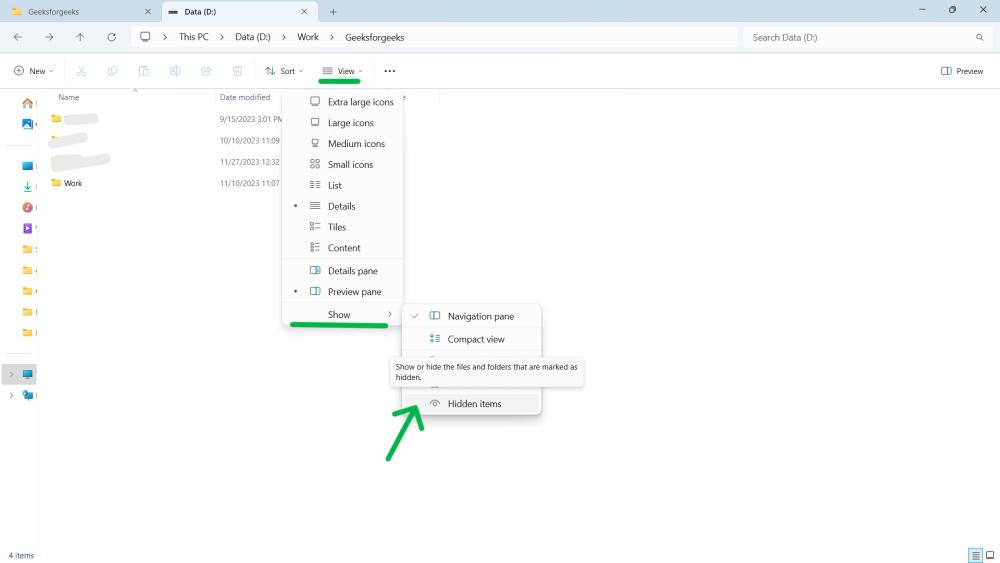
Click on the View tab, select Show from the dropdown menu and ensure that Hidden items is checked.
👁 how-to-use-the-hidden-files-feature
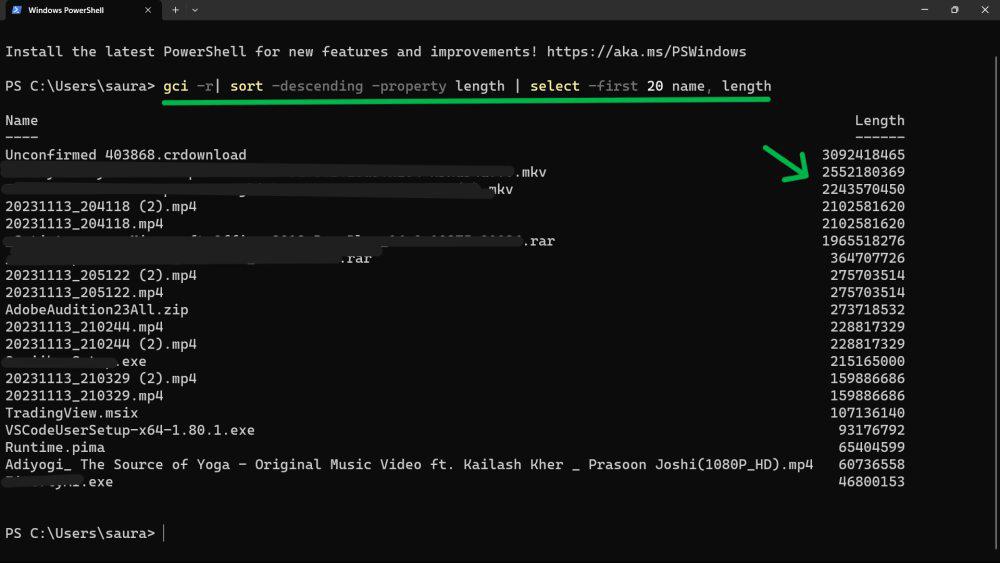
gci -r| sort -descending -property length | select -first 20 name, length
👁 Method-2-How-to-Find-Large-Files-on-Windows-11-Using-PowerShell
Command displays the 20 top files in descending order, replace 20 with the number of files to see.
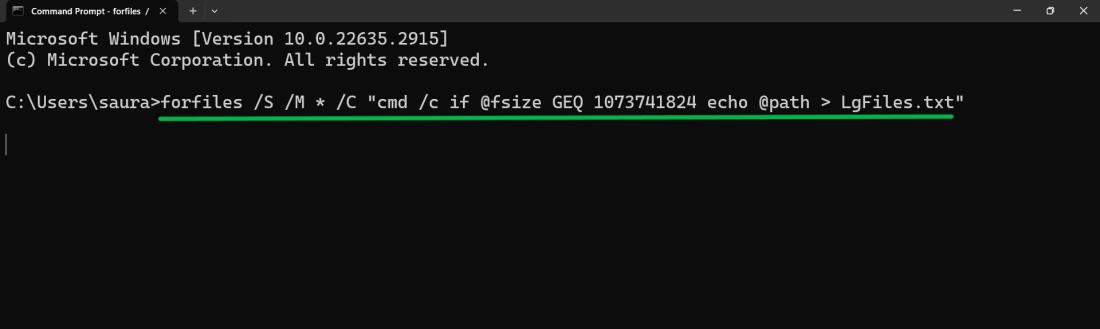
To find by length use this command:
forfiles /S /M * /C "cmd /c if @fsize GEQ 1073741824 echo @path > LgFiles.txt
Replace size(bytes) with your desired size threshold in bytes (e.g., 1073741824 for 1GB).
👁 method-3-how-to-find-large-files-on-windows-11-using-command-prompt