|
VOOZH | about |
|
VOOZH | about |
The DNS_PROBE_STARTED error in Google Chrome appears when the browser begins querying the DNS server for domain name resolution but has not yet received a response. It indicates that the DNS probing process has started but not completed. On the other hand, DNS_PROBE_FINISHED_NXDOMAIN is a Chrome-specific error that occurs when the DNS query fails. It means that the domain name cannot be resolved to an IP address either because the domain does not exist, the DNS server is misconfigured, or there are network-related issues preventing proper resolution.
Follow these steps to resolve these DNS-related errors in Google Chrome:
Clearing Chrome’s internal DNS cache can fix temporary resolution issues.
1. Open Google Chrome.
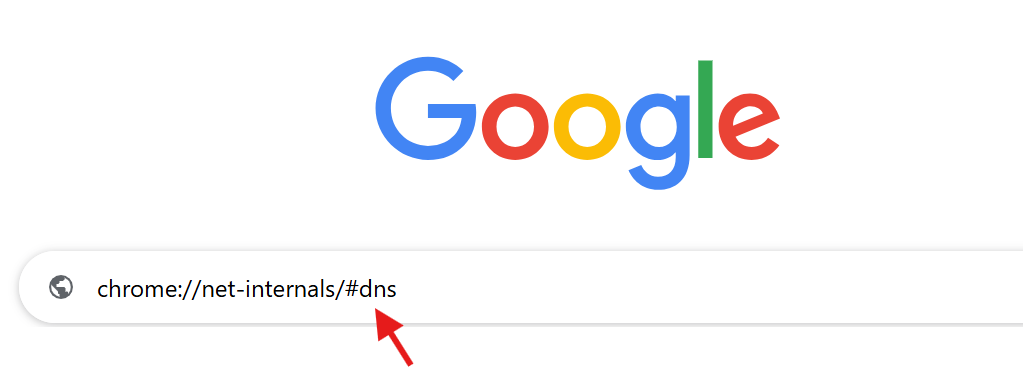
2. In the address bar, type chrome://net-internals/#dns and press Enter.
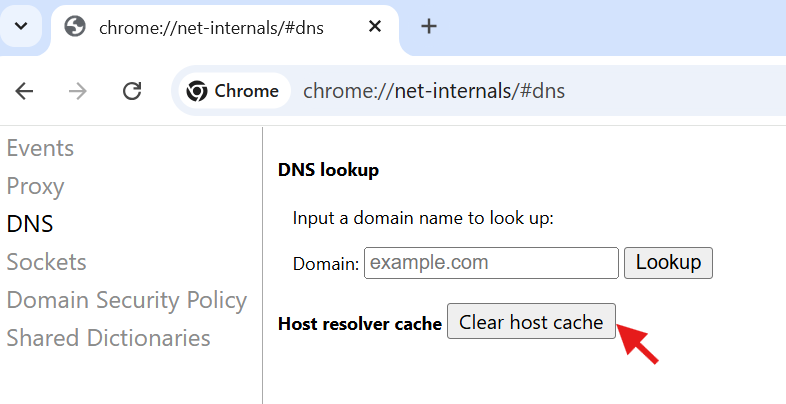
3. Click on Clear host cache.
4. Restart Chrome and check if the issue persists.
Read in detail about how to clear DNS cache using chrome://net-internals/#dns.
Sometimes, a simple restart can resolve DNS issues.
Switching to a public DNS server (like Google DNS or Cloudflare) can often fix DNS resolution errors.
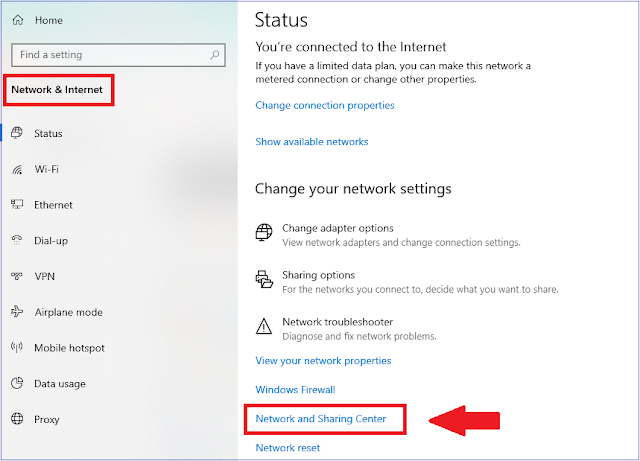
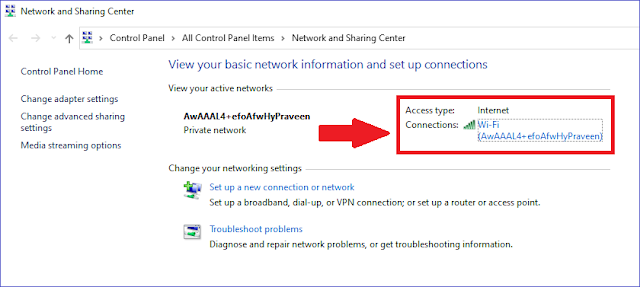
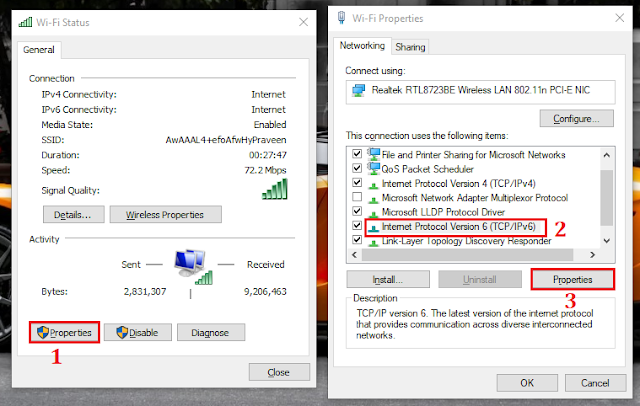
1. Open Control Panel → Network and Internet → Network and Sharing Center.
2. Click on Change adapter settings on the left.
3. Right-click on your active network and select Properties, then select Internet Protocol Version 4 (TCP/IPv4) and click Properties.
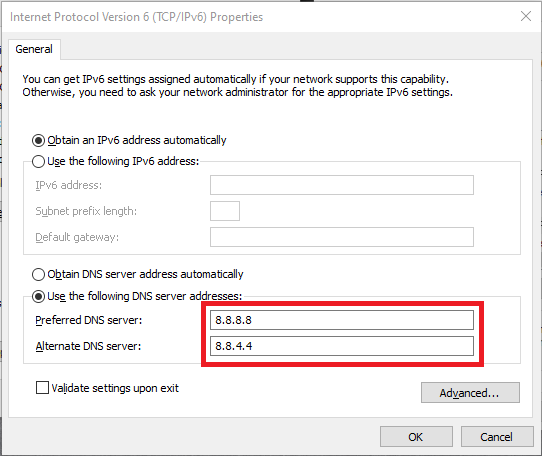
4. Enter both numerical sequences for either Cloudflare or Google (for example, Google's DNS servers are 8.8.8.8 and 8.8.4.4) in the ‘Preferred DNS server’ and ‘Alternate DNSserver boxes, then click OK
For macOS:
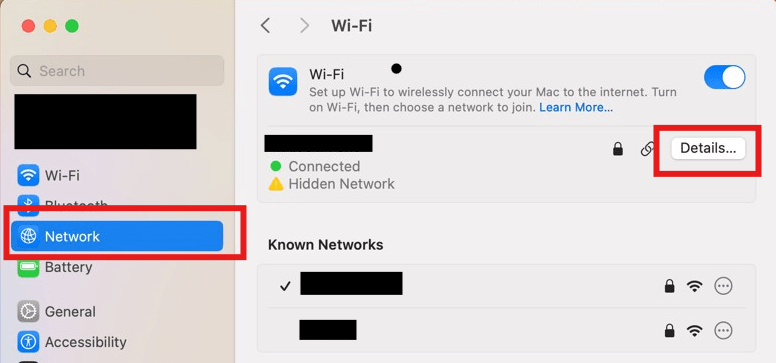
1. Go to System Settings → Network.
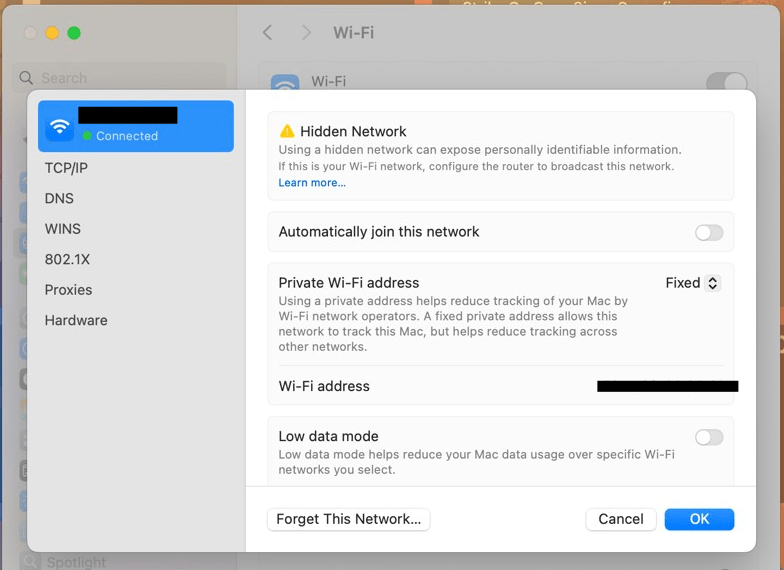
2. Select your active network connection then select Details.
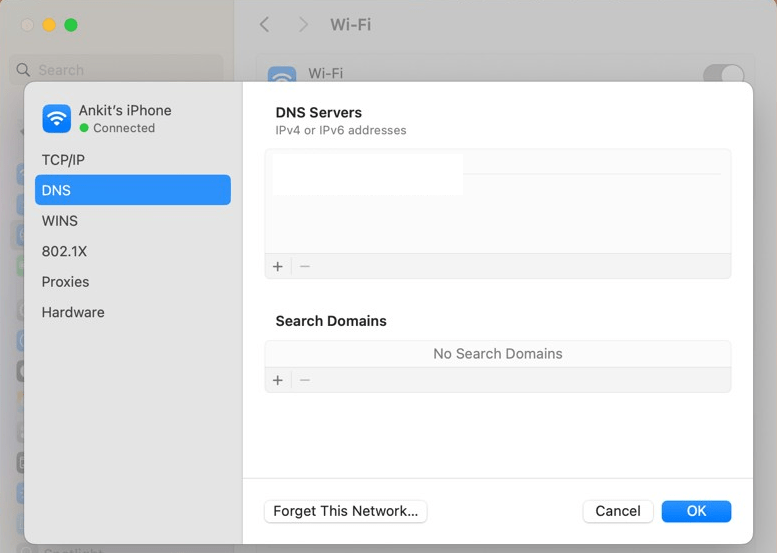
3. Select DNS from the left-most list.
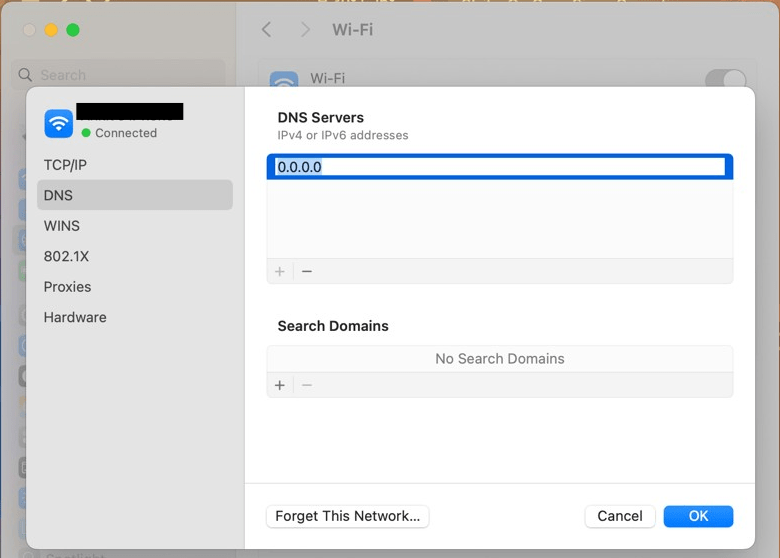
4. Click + and add Enter the new DNS server address (for example, Google's DNS servers are 8.8.8.8 and 8.8.4.4). If you want to remove old DNS servers, select the address and click the - button.
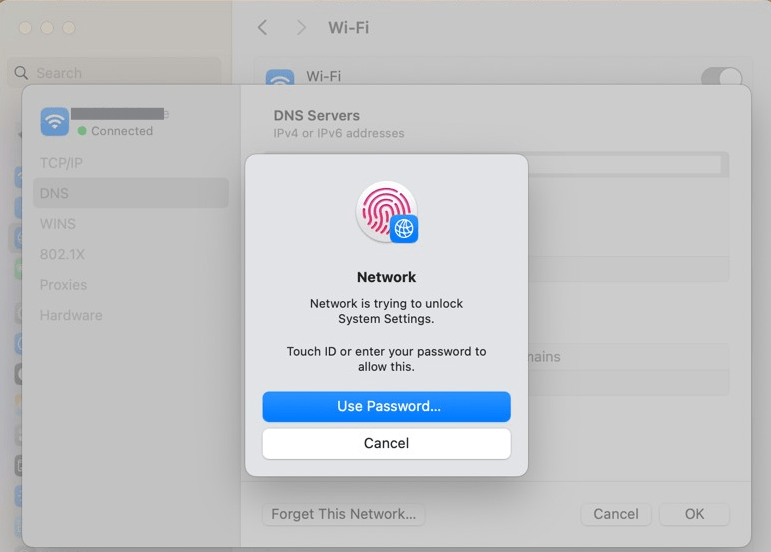
5. After adding or removing DNS servers, click OK to save your changes. You may be prompted to enter your administrator username and password to apply the changes. Enter the required credentials and click OK.
Read in detail about How to Change Your DNS Server.
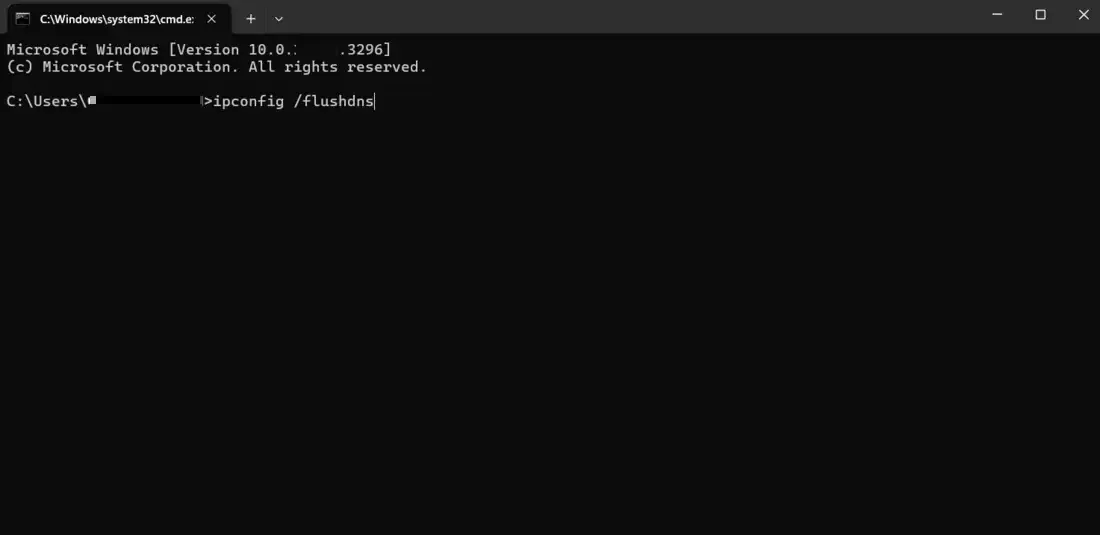
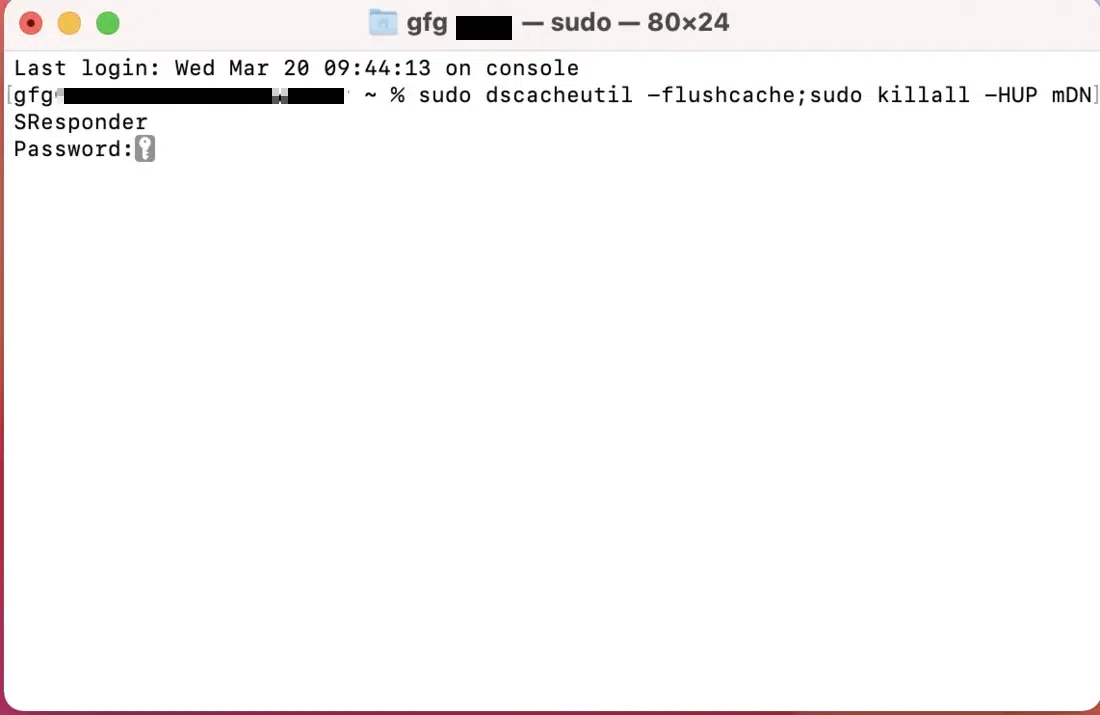
If changing the DNS server didn’t work, try flushing your system's DNS cache.
ipconfig /flushdnssudo dscacheutil -flushcache; sudo killall -HUP mDNSResponderRead in detail about How to Flush DNS Cache [Windows, Mac, and Linux].
If you're using a VPN, proxy, or firewall temporarily disable it and check if the issue is resolved. Some security software blocks DNS queries causing errors like DNS_PROBE_FINISHED_NXDOMAIN.
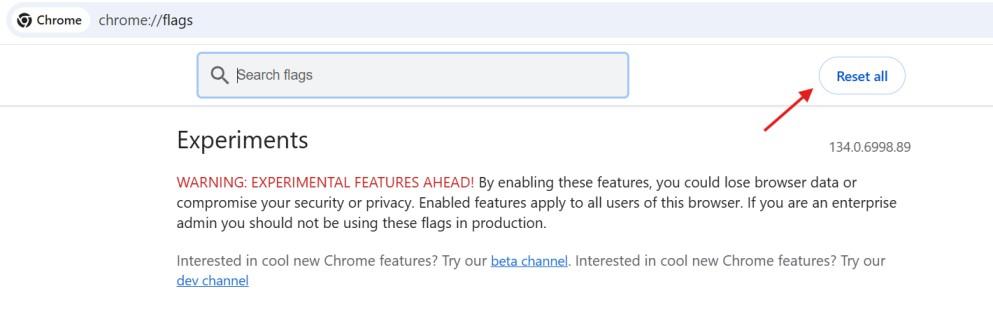
If you have modified Chrome’s experimental features, they might interfere with DNS resolution.
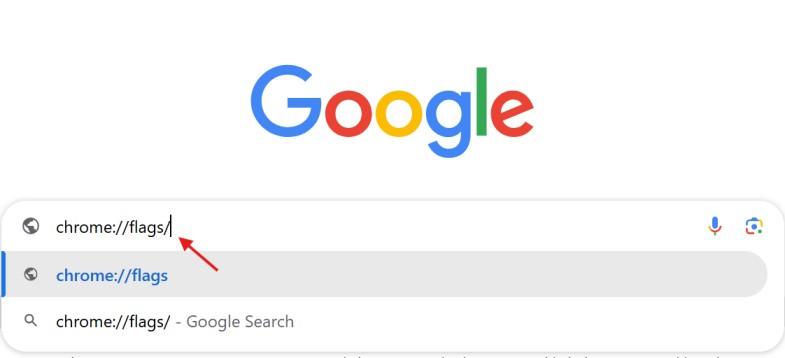
1. Open Chrome and type chrome://flags/ and press enter.
2. Reset all to default.
3. Restart Chrome.
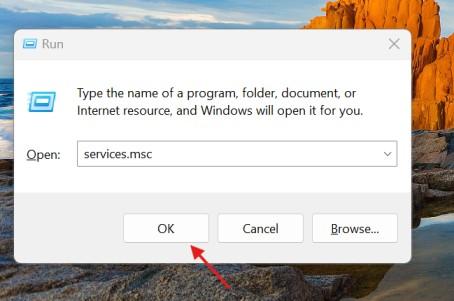
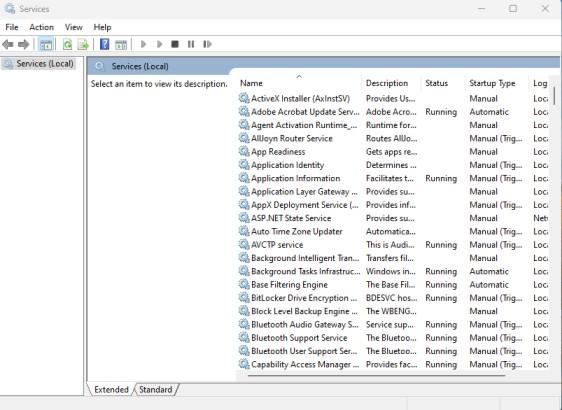
1. Open Run (Win + R) and type services.msc.
2. Find DNS Client in the list.
3. Right-click and choose Restart.