|
VOOZH | about |
|
VOOZH | about |
Save Location on Google Maps - Quick Steps
- Locate the Spot: Search for a specific place or tap on a marker on the map.
- Click "Save": Press the "Save" button, represented by a bookmark icon at the bottom of the screen.
- Select a List: Choose an existing list or create a new one for saving the location.
- Confirm: Tap "Done" to complete the saving process.
Google Maps is a widely used navigation app that helps people to find places and routes easily. Knowing how to save location on Google Maps is incredibly useful for keeping track of important spots. If you're using Google Maps on Android or iPhone, you can save your current location with just a few taps and access it later, even when you're offline.
Adding places to your Google Maps saved places list allows for easy navigation in the future. In this article, we'll show you how to save your location on Google Maps, including steps for both Android and iPhone and how to do it offline for uninterrupted access.
👁 How-To-Save-Location-On-Google-Maps
Table of Content
Learning how to save location in Google Maps is a quick and convenient way to keep track of important places for future reference. Whether you're using Google Maps on Android or iPhone, saving your current location ensures easy access, even offline, making navigation smoother. Let's start exploring the article to know how to save location in Google Maps.
By adding a pin to your current location you will be able to Mark your Current Location on Google Maps
Note: Make sure that you have updated version of Google Maps
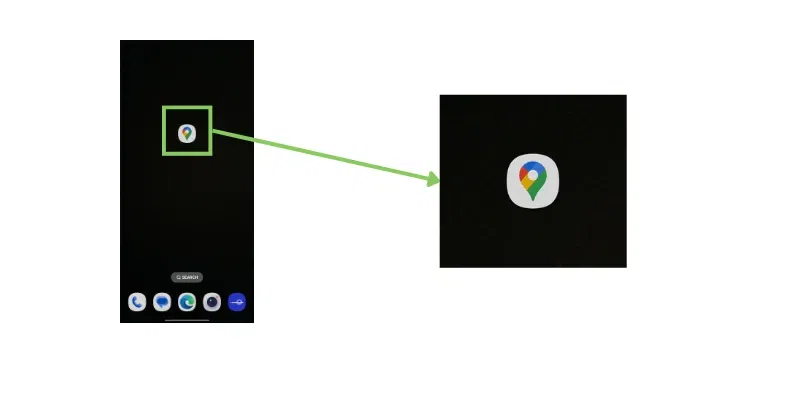
Open the Google Map application on your device
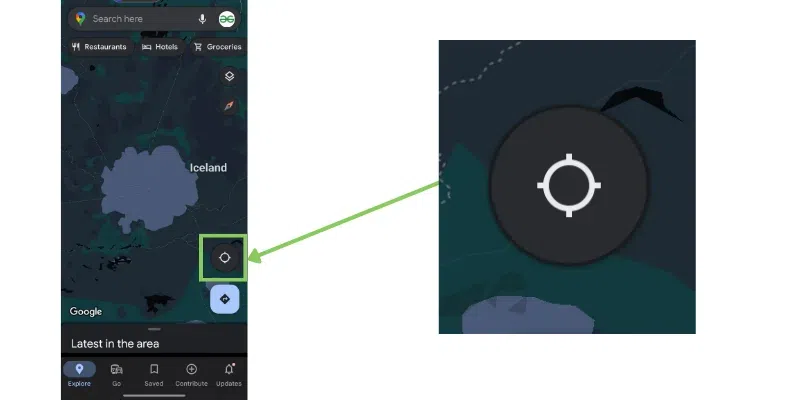
Click on the location Button as shown below and check your current location
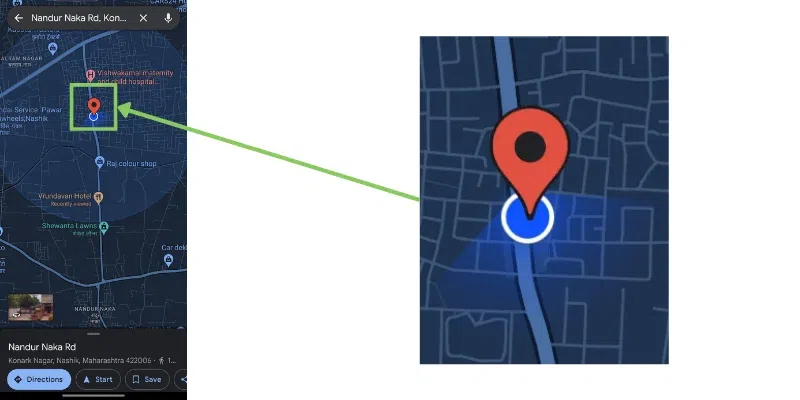
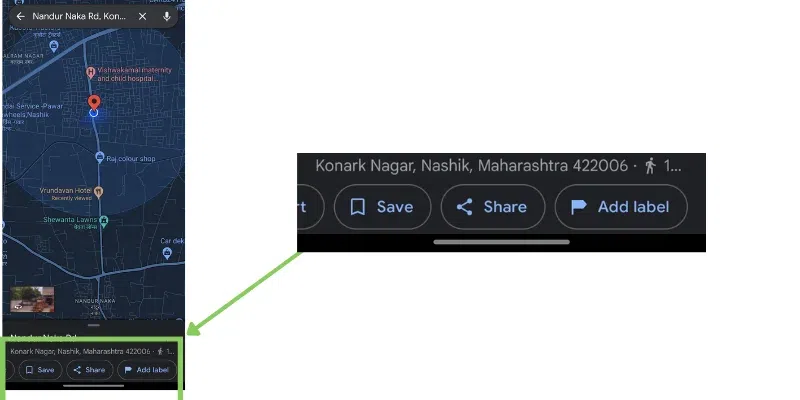
Press and hold on to your current location(Blue Dot ) on the map until a red pin appears.
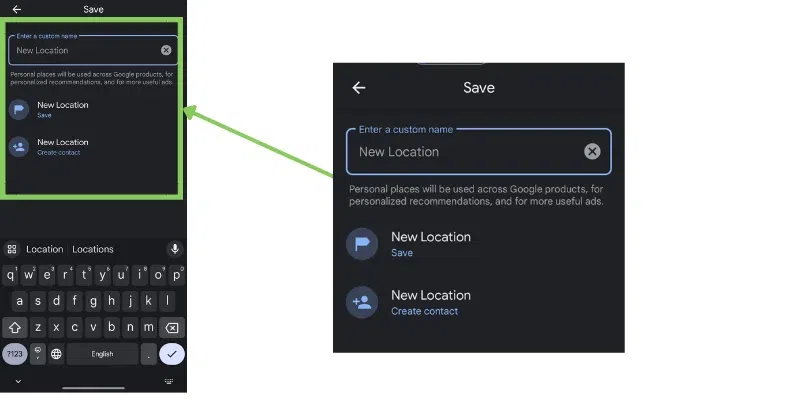
Now at the bottom, you will able to see the options like "Direction", "Start", "Save", "Share", and "Add label" form that select the option named "Add Label".
Tip: Here you can save your current location also by selecting the "Save Option "
Enter the name of the location and save the location.
Here we will learn how to add a location on Google Maps on Android and iPhone as well.
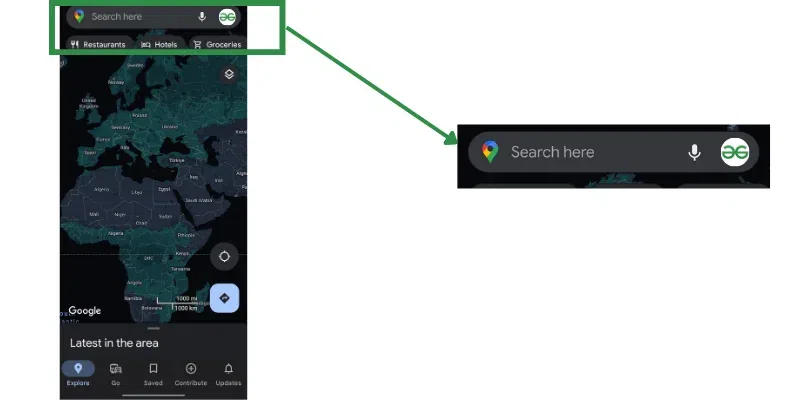
Open the Google Maps application on your device.
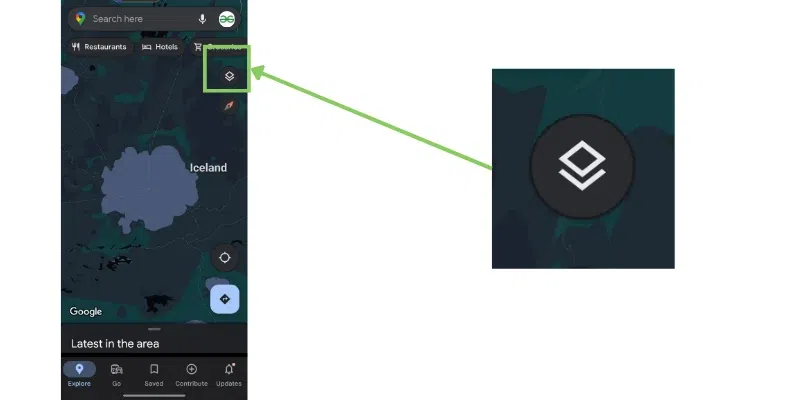
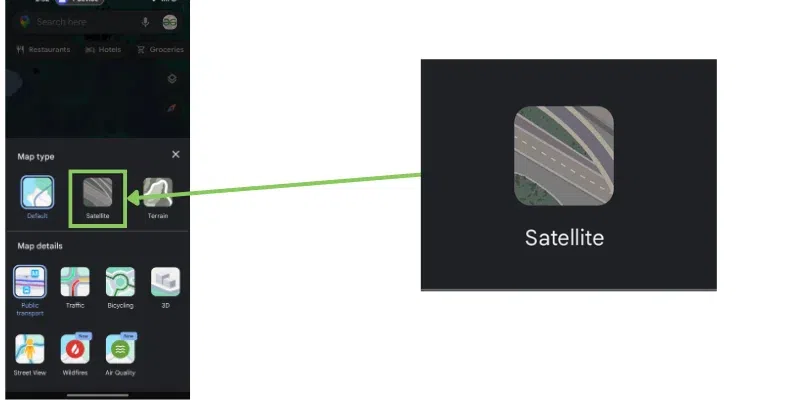
To get a satellite for the Proper and accurate view click on the square icon and click on the Satellite button.
Satellite View is selected
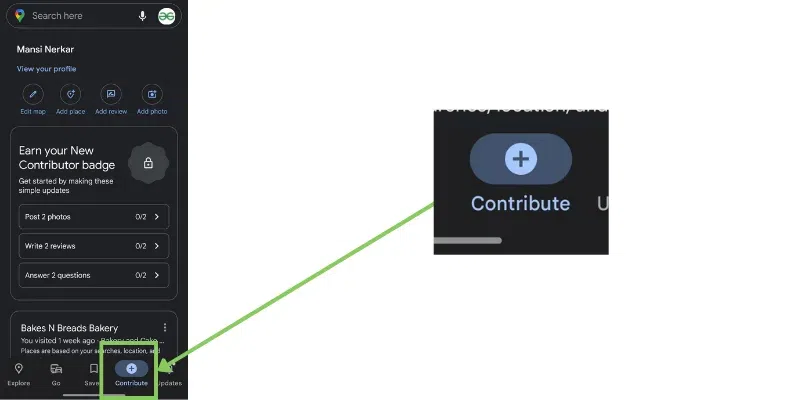
On the bottom of the screen, there is the option to contribute click on that option.
👁 How To Save Location On Google Maps
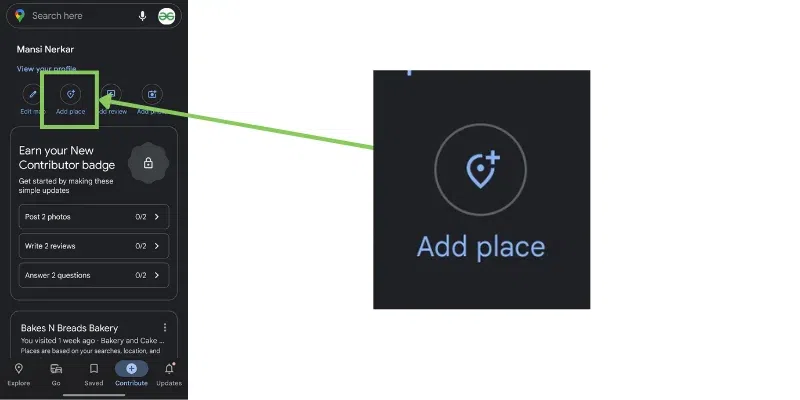
To add the place just click on the "Add place" button.
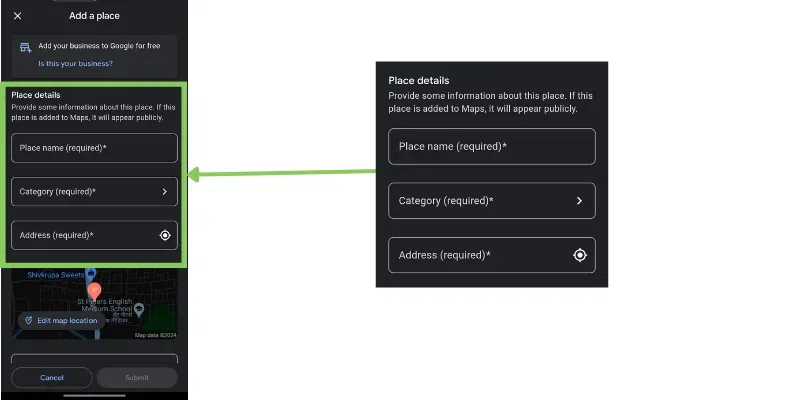
Add Place Name, Category, and Address, and click on the submit button.
👁 How To Save Location On Google Maps
Note: Edit map location by set ting proper location and then click on submit button.
You can save a location on Google Maps on mobile devices and desktops. Below are the steps for all three ways.
Here are the steps on how to save location on Google Maps android.
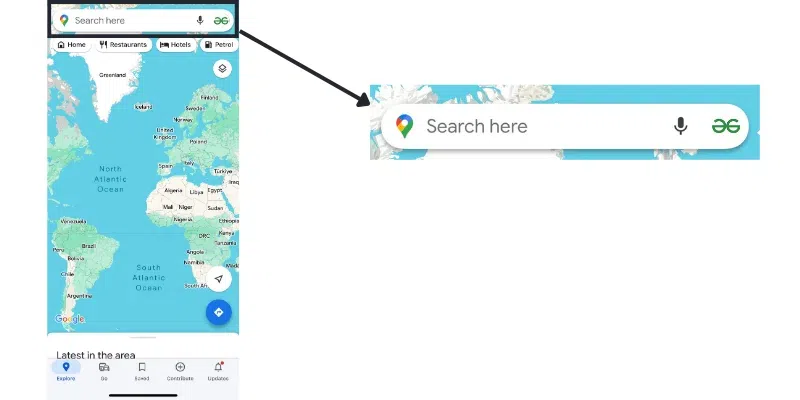
Open the Google Maps application on your device.
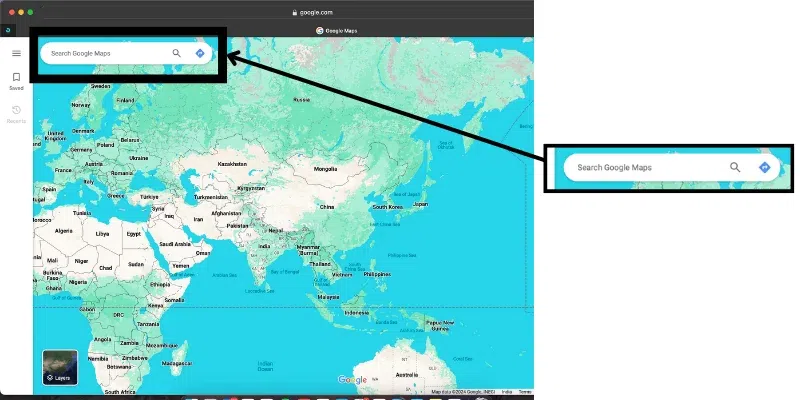
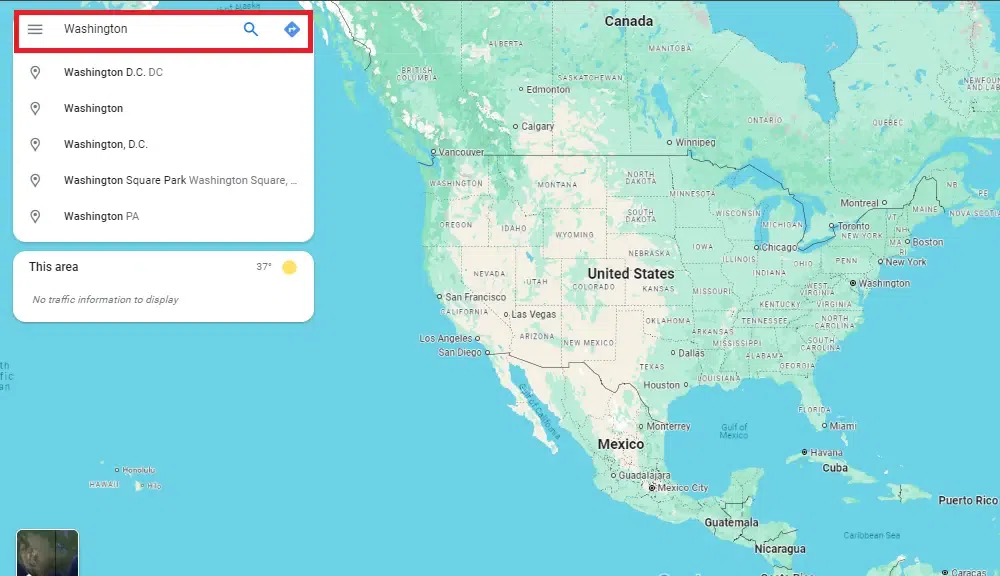
Search any location which you want to want to save.
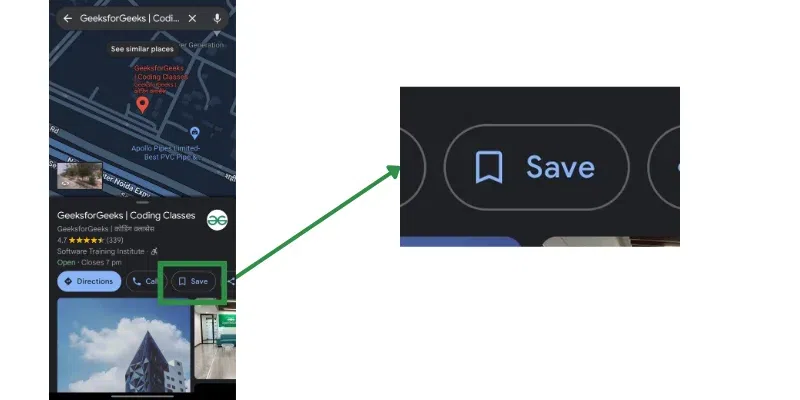
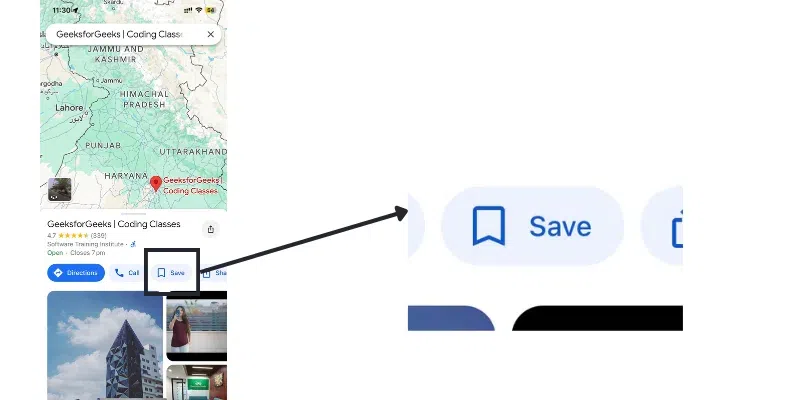
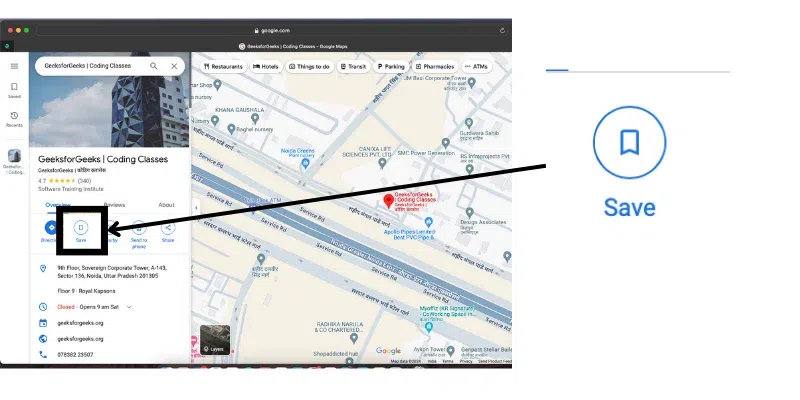
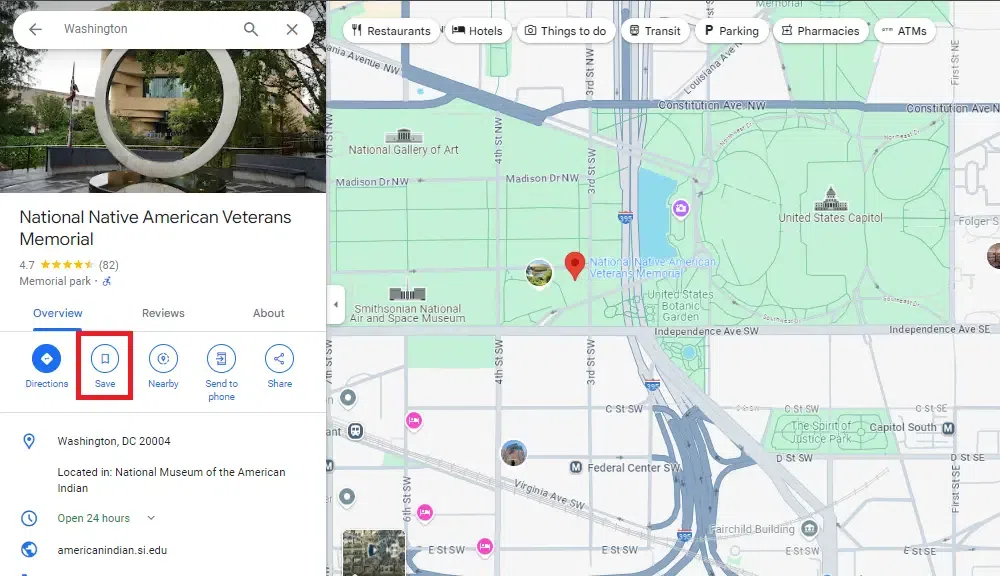
After searching the appropriate location you will be able to see the location below on screen. Click on the "Save" button.
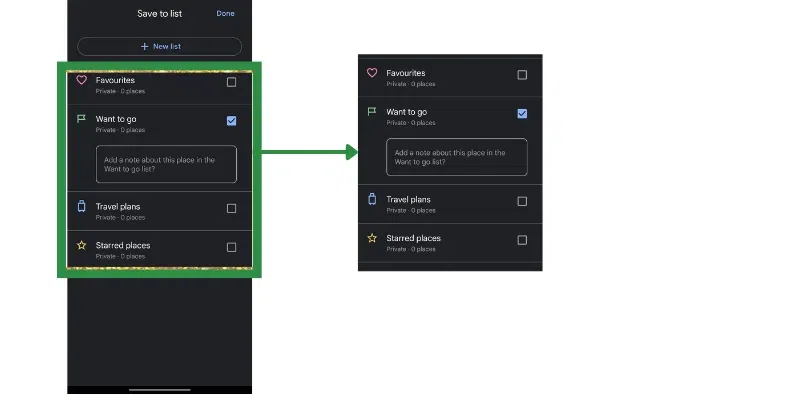
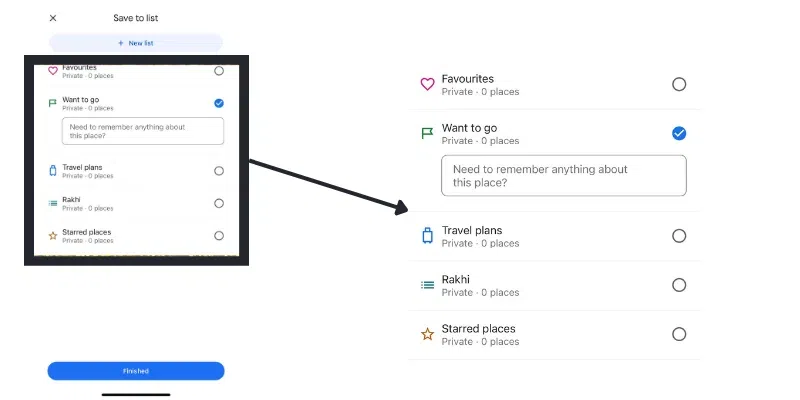
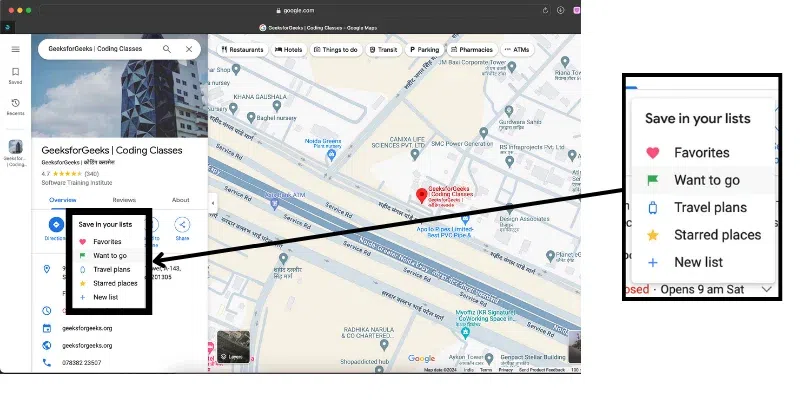
Add tags like favorites, want to go, travel plans, Starred places or you can add new tags by clicking the "+ New List" Button and adding name and then clicking on the "Done" button available on the top right corner.
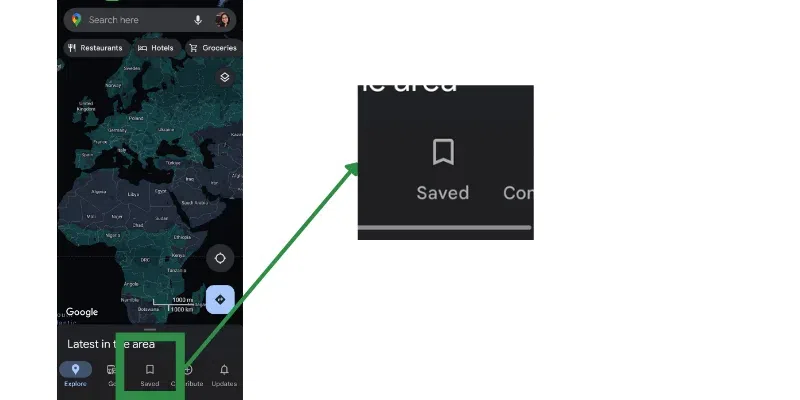
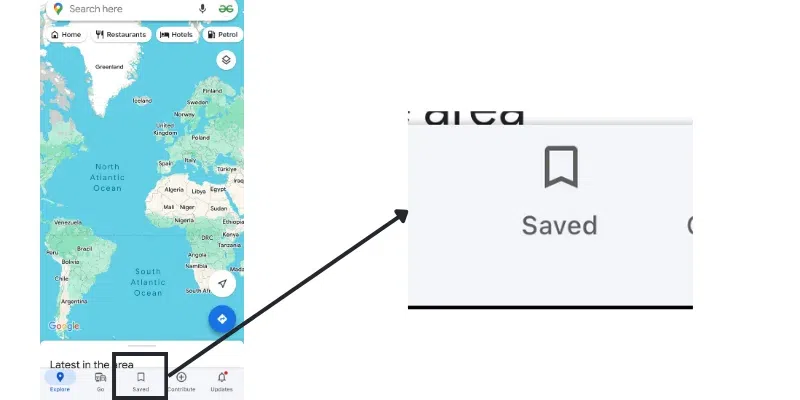
You can see the saved location on the save screen.
Now we will learn how to save location on Google Maps iPhone. Follow the steps given below:
Open the Google Maps application on your device.
Search any location which you want to want to save.
After searching the appropriate location you will be able to see the below screen. and then click on the "Save" button.
You can save that particular location by adding a tag or you can add a new tag also by clicking the "+ New List" Button adding the name and then clicking on the "Finish" button.
You can view your saved location in Google Maps in the saved section.
Saving location on Google Maps includes some easy steps, follow these steps save a location on Google Maps.
Open the Google Maps application on your device.
Search any location which you want to want to save.
After searching the appropriate location you will be able to see the below screen. and then click on the "Save.
as shown below you can save that particular location by adding tags like favorites, want to go, travel plans, or Starred places or you can add a new tag also by clicking the "+ New List" Button and adding a name and then clicking on "Finish" button which is available at the bottom of the screen
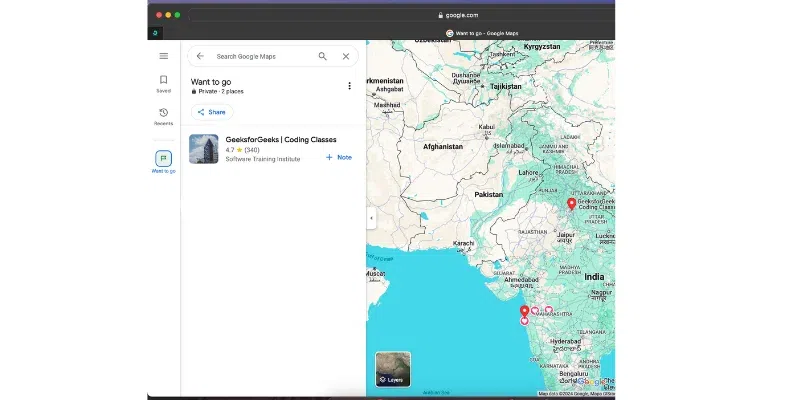
Now you can see that saved location on the same screen as shown below. To see the saved location click on the save button and See the location which you have saved.
Google Maps also allows you to save location offline, to do so you need to download the location map first. Here is how to save location on Google Maps Offline:
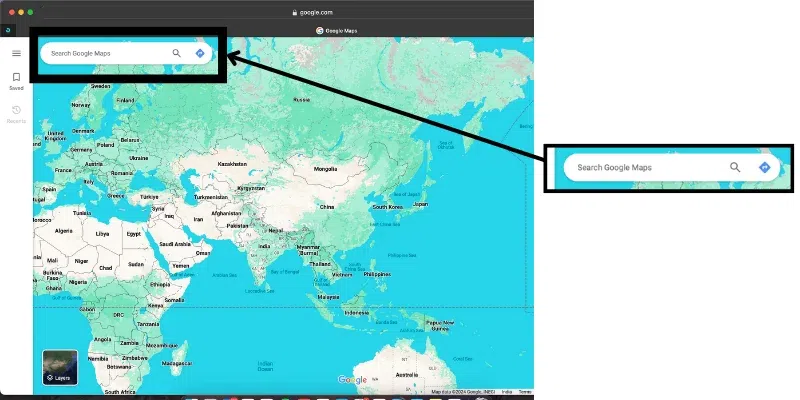
Visit Google Maps and search for the google maps save offline location.
Now click on the Share button and download the map through the link.
Now save the location by clicking on the Save button.
Also Read:
Knowing how to save your location on Google Maps is an essential skill for convenient navigation. Whether you're using Google Maps on Android or iPhone, the process is simple and ensures you can easily find your saved places later, even when you're offline. By adding locations to your Google Maps saved places list, you ensure quick access to frequently visited spots, making travel and daily commutes hassle-free. With these steps, you can efficiently save your current location and keep track of important places with ease.