How to List all Files in a Directory using CMD in Windows
Last Updated : 11 Nov, 2025
Are your files buried deep in folders and hard to find? While File Explorer is good for browsing visually, the Windows Command Prompt (CMD) offers a faster and more powerful way to manage and list files. Whether you're troubleshooting, creating backup lists, or writing scripts, the dir command gives you complete control.
Prerequisites to Access Directory in Win
Windows PC (11, 10, 8 or 7)
Administrator Rights
Familiar with Command Prompt actions (or knowing how to open it, i.e. Win + R & type CMD)
1. Dir Command in CMD
The "dir" command is a fundamental in the Windows Command Prompt, which is used to list the contents of a directory, including files and subfolders. This command is especially useful when working with large folders, hidden files, or when automating tasks. Here's a closer look at how it works.
Basic Syntax: dir [options] [path]
1. Basic Usage
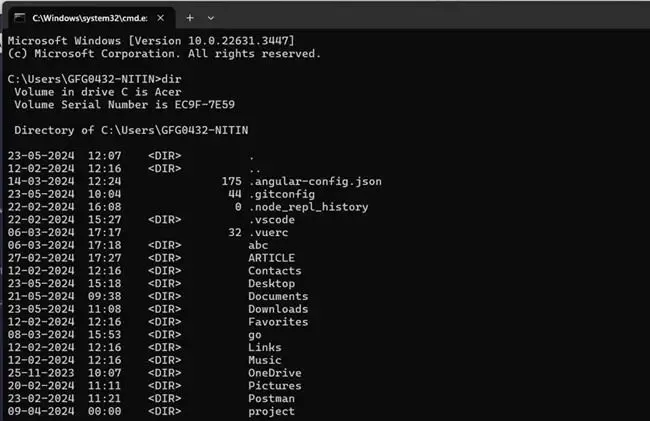
When you type dir and press Enter in the Command Prompt, it lists all the files and directories in the current directory.
By default, it displays the file name, size, and modification date and time.
2. Options
/A: This option displays files with specified attributes. For example, /A: H displays hidden files.
/B: Uses a bare format with no heading information or summary. It simply lists the names of files and directories.
/O: Specifies the order in which files are sorted. For instance, /O: N sorts files by name.
/S: Displays files in the specified directory and all subdirectories.
/P: Pauses after each screenful of information.
/W: Uses wide list format, displaying as many as five file names in each row.
3. Example Usage
dir /A: Lists all files including hidden files in the current directory.
dir /B: Displays a bare list of files and directories without any additional information.
dir /O:N: Sorts files by name.
dir /S: Lists files in the specified directory and all subdirectories.
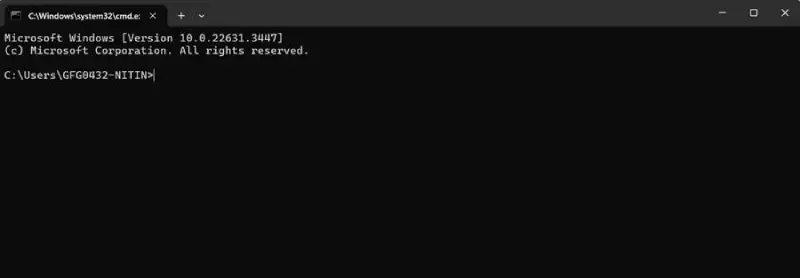
First things first, let's open the Command Prompt. You can do this by searching for "Command Prompt" in the Start menu or by pressing the Win + R keys, typing "cmd" in the "Run" dialog, and hitting Enter.
Once you have the Command Prompt open, you need to navigate to the directory whose files you want to list. To do this, use the cd command followed by the path of the directory. For example, if you want to list files in a directory named "Documents" located in your user folder, you would type:
cd Documents
Press Enter after typing the command to change the directory.
Step 3: List Files
Now that you're in the desired directory, it's time to list all the files it contains. To do this, simply type the "dir" command and press Enter. This command displays a list of files and directories in the current directory.