|
VOOZH | about |
|
VOOZH | about |
Setting up an email client, on Windows 11 is a task that allows you to efficiently manage all your emails from a place. Whether you opt for the default Mail program or choose a third-party client such, as Outlook or Thunderbird! Using an email client can boost your productivity. Streamline communication efforts significantly. Throughout this article guide, we will assist you in configuring and utilizing an email client on Windows 11 to help you stay connected effortlessly.
Table of Content
The first step to use the Mail app is to add your email account to it. You can do this by following these steps:
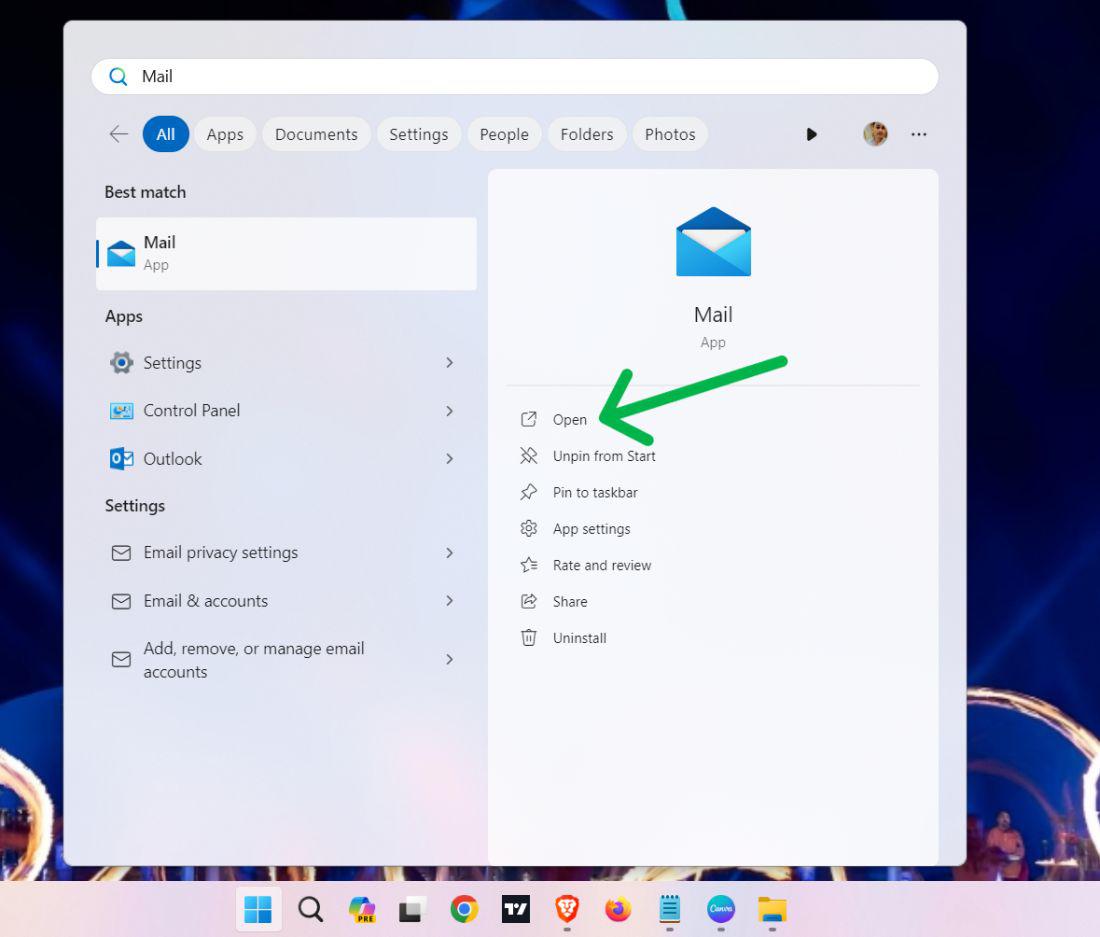
Step 1: Press Win + S then on the search bar type "Mail' then open it
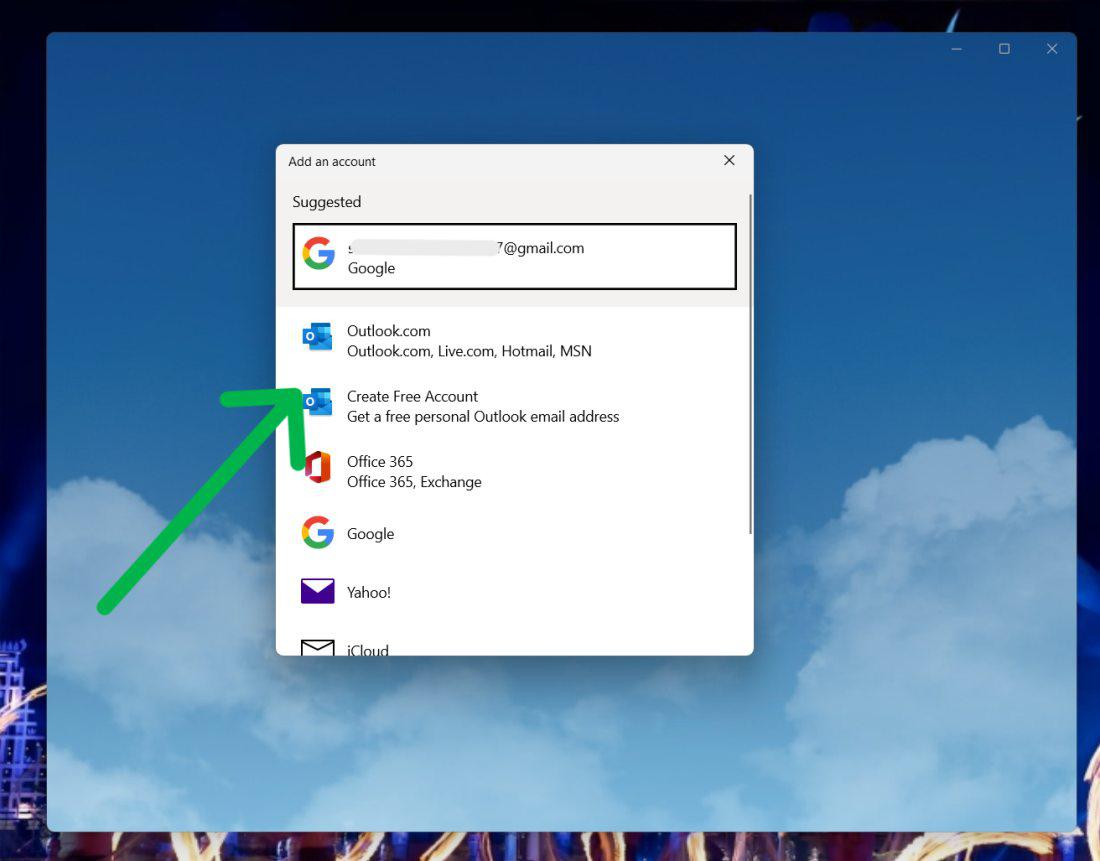
After opening the Mail application you will see a list of ways to sign like google Gmail, outlook, yahoo, etc. Choose any method and enter the email and password
If you have already signed in with another account now you want to add one more account then follow these steps:
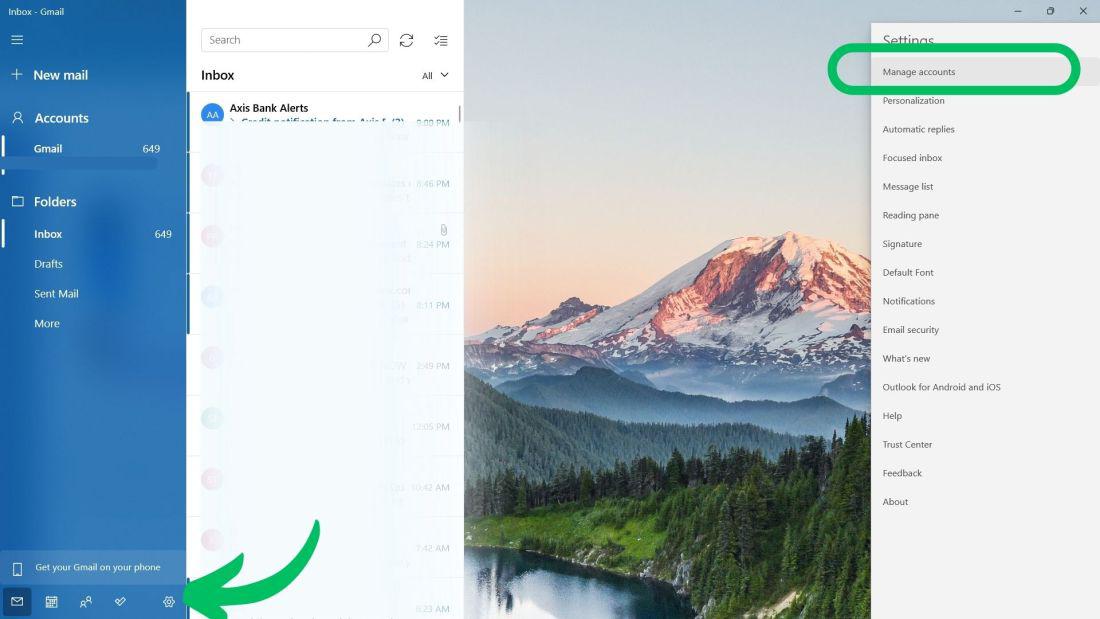
Step 1: Open the Mail App then click on the settings Icon on the the left side panel
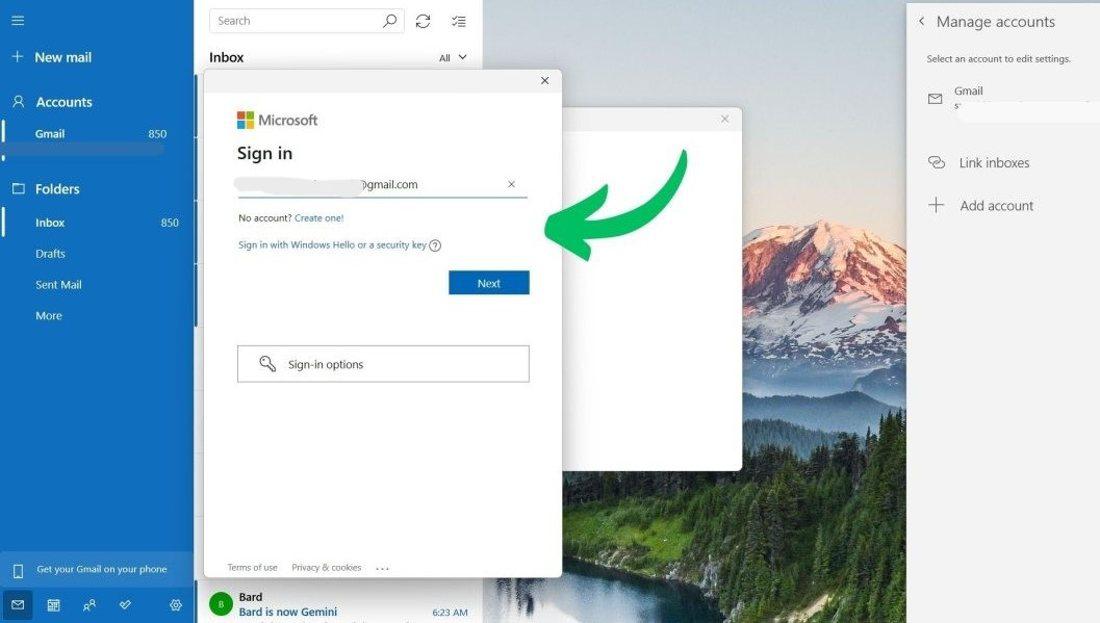
Step 2: On the right side pane click on "Manage Account" then click on "Add Account"
Step 3: A window will pop up from the options list you can choose any like Gmail, Outlook, or Yahoo, and then click on sign in
You may need to enter a verification code or permit the Mail app to access your account.
After your account has been added you can see your inbox and other folders on the left pane. You can also change between accounts by clicking the the account name.
Step 1: Press Win + S then on the search bar type "Mail' then open it
Step 2: On the right side pane click on "Manage Account" then click on "Add Account"
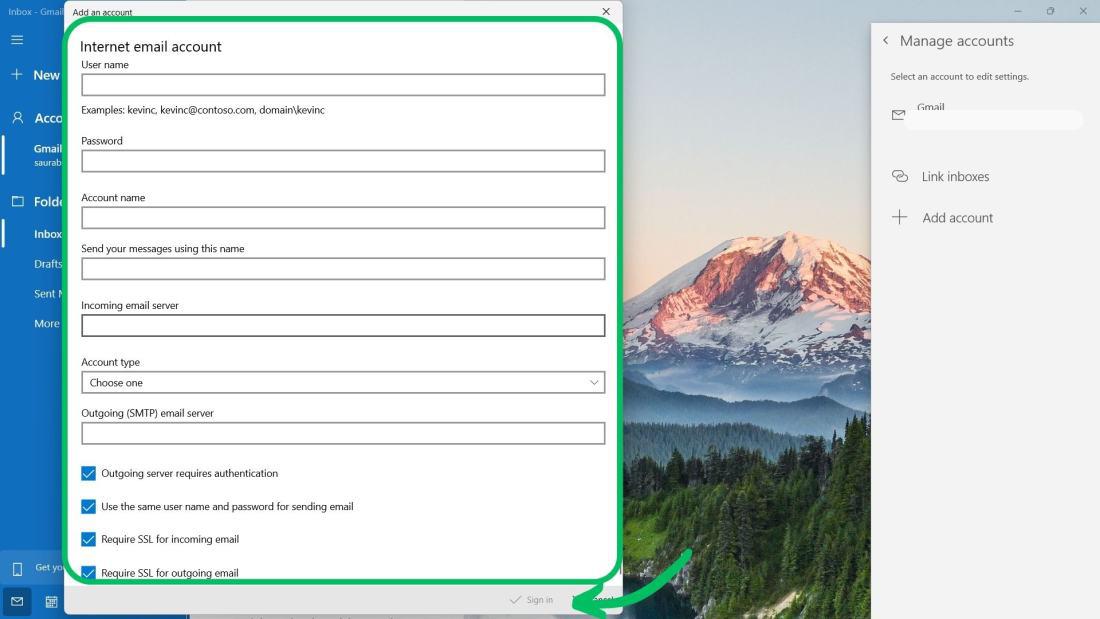
Step 3: A window will pop up from the options list Click on "Advanced setup"
Step 4: After clicking on "Advanced setup" you will see two options "Exchange ActiveSync", and "Internet email". You can choose any of them
Step 5: Under the Advanced setup windows type the following information
Step 6: After entering all the information click on the "Sign In" button
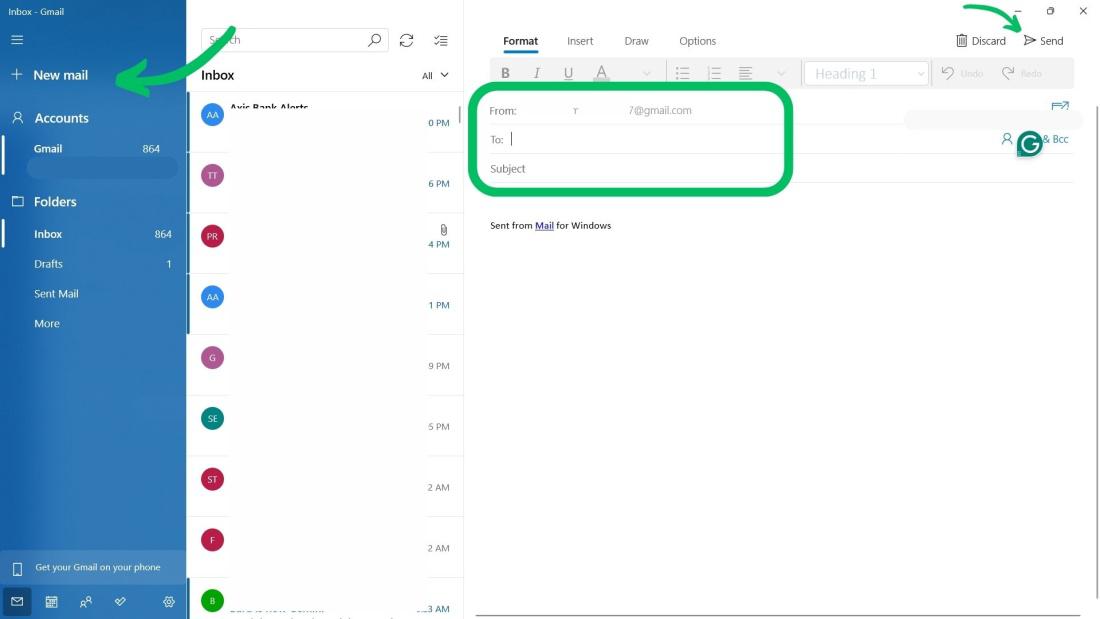
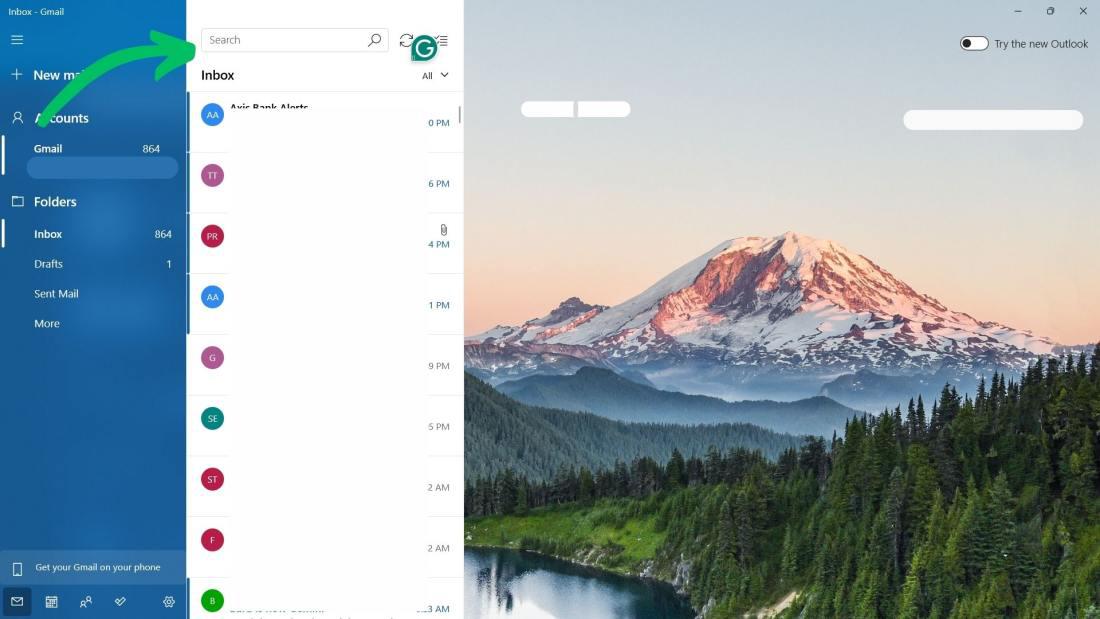
Once you have added your email accounts to the Mail app, you can start to send and read emails, manage your contacts, and organize your emails. Here are some tips on how to use the Mail app in Windows 11:
Installing an email app on Windows 11 not only makes handling your emails easier but also boosts your productivity. By stick to the instructions provided, you can effortlessly install your chosen email app, personalize its settings, and begin sending and receiving emails quickly. Dive into the different functionalities your email app provides to optimize your email communication experience.
Also Read