Google Colab is a cloud-based, interactive notebook platform that combines code, text, images, equations, and more in a single document. It’s designed to make data science, machine learning, and collaborative Python programming accessible for everyone, not just developers. It is widely used by data scientists, analysts, and machine learning enthusiasts due to its unique features and advantages.
Why Google Colab?
Cloud-based notebook interface: Users can access Google Colab from a web browser.
Pre-installed Libraries: Google Colab comes with several pre-installed libraries and packages, such as NumPy, Pandas, Matplotlib.
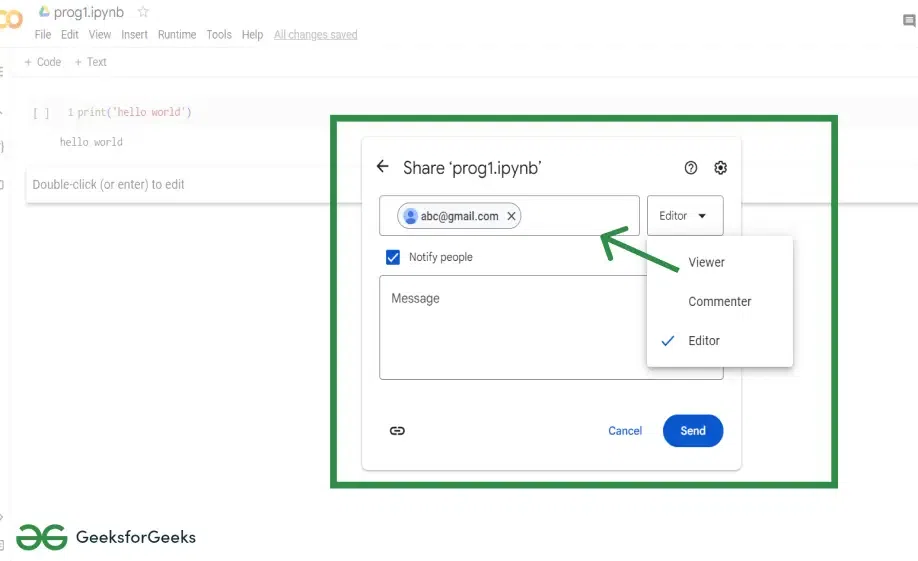
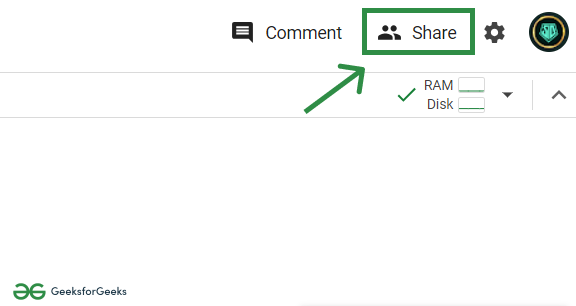
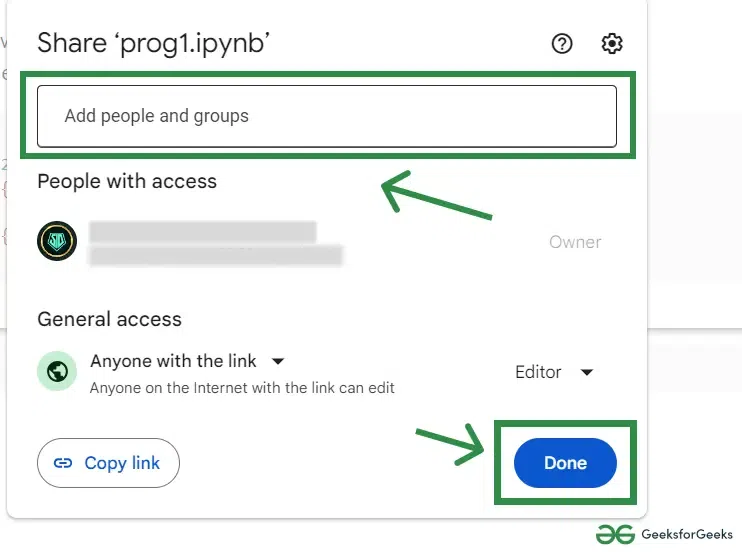
Real-time Collaboration: It offers a collaborative environment for individuals and teams to work on projects, data analysis, machine learning tasks, and more.
Free Computing Resources : It provides access to powerful resources such as GPUsand TPUs making it ideal for or running computationally intensive tasks without relying on your local machine's hardware.
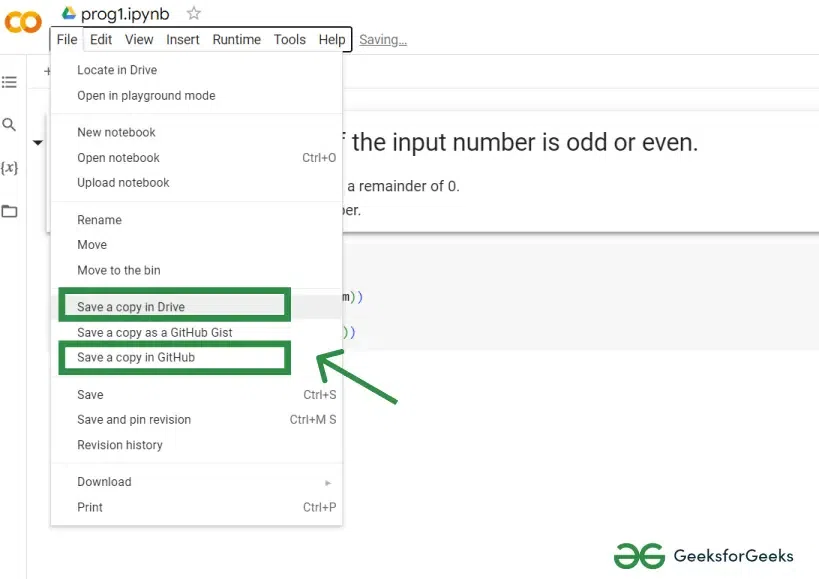
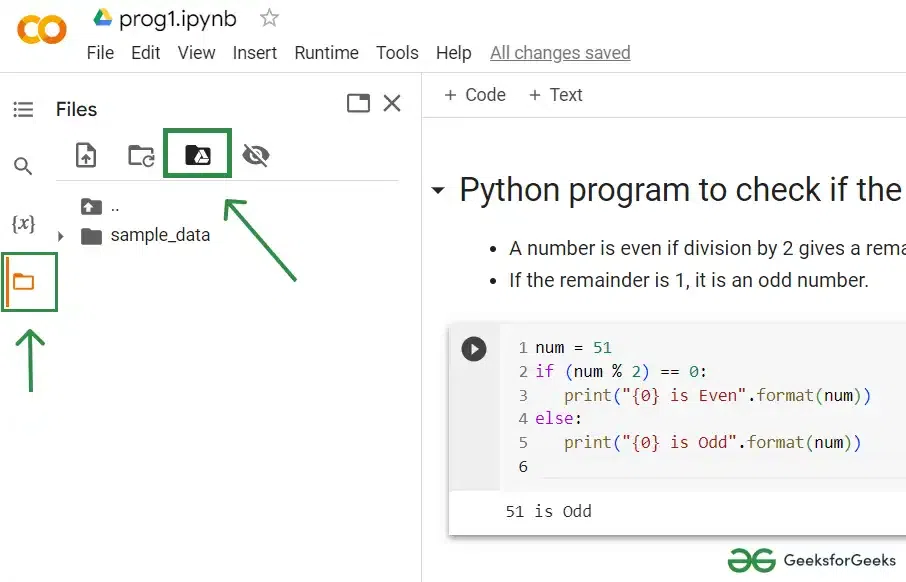
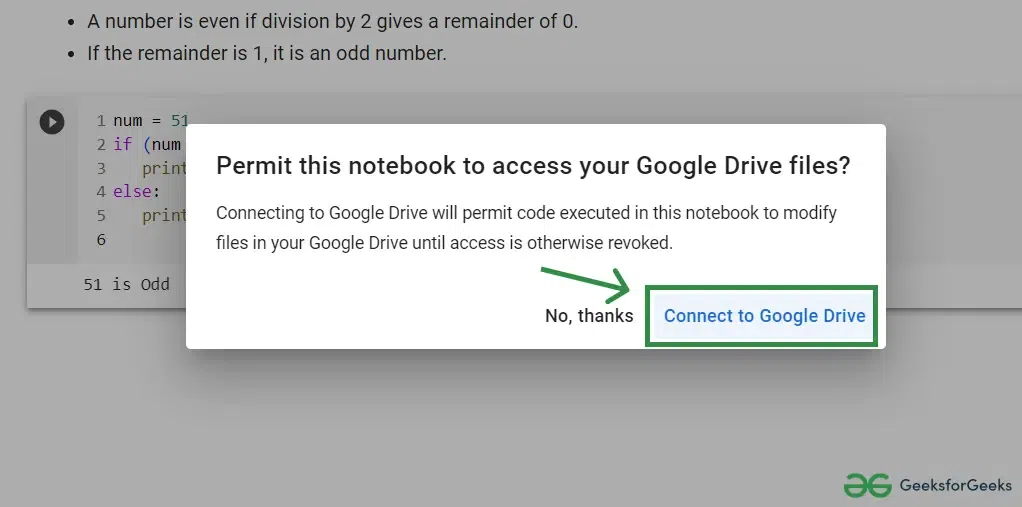
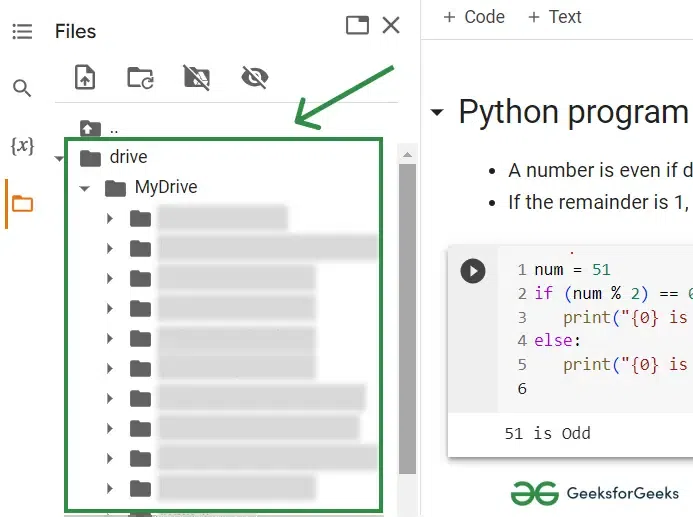
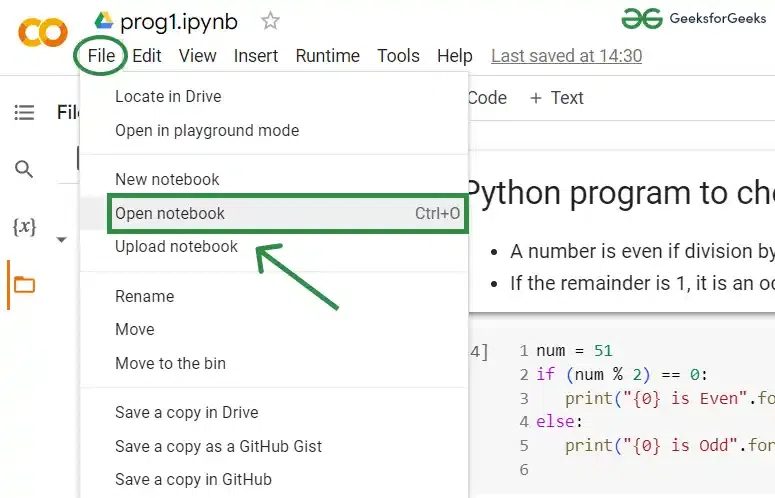
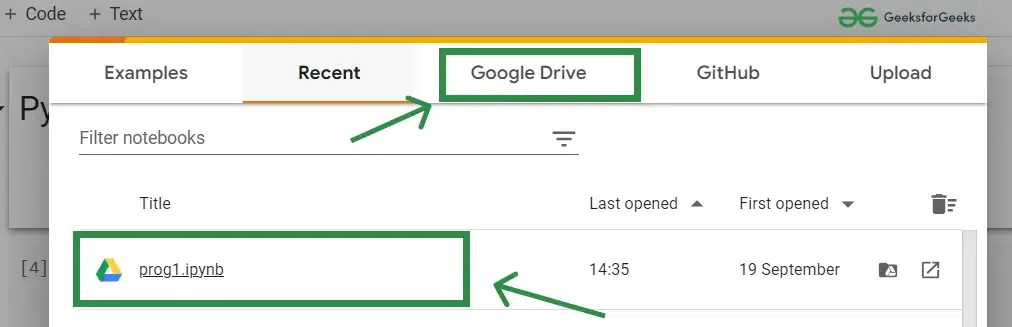
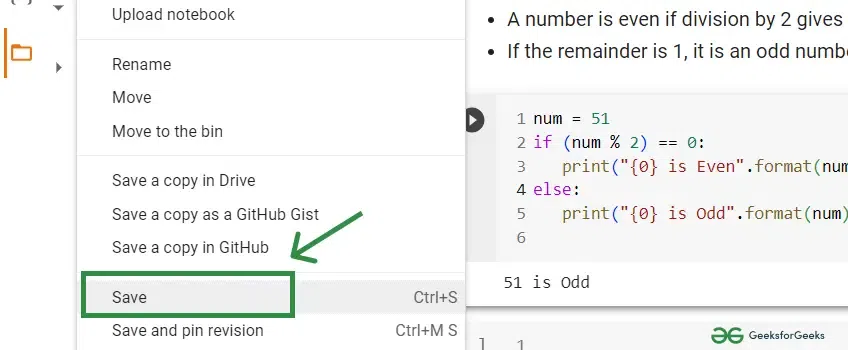
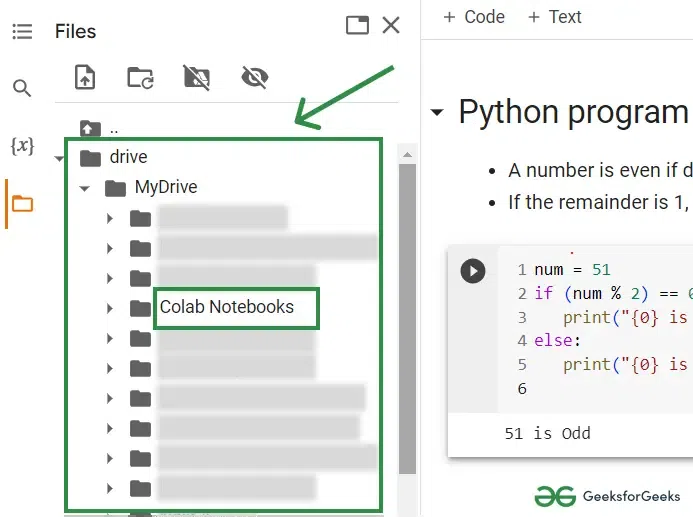
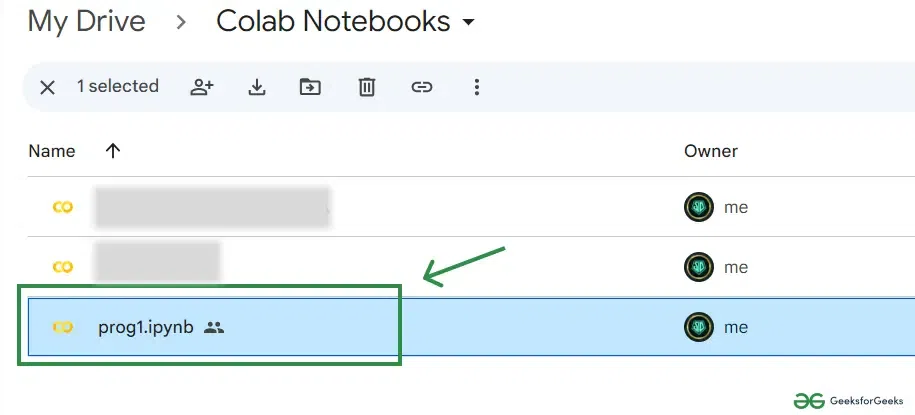
Integration with Google Drive and Github : It allow users to save, share and store their Colab notebooks directly in the cloud.
The editor is where you write your code. It also includes a number of features to help you write and debug your code, such as code completion, syntax highlighting and error messages.
Code cells
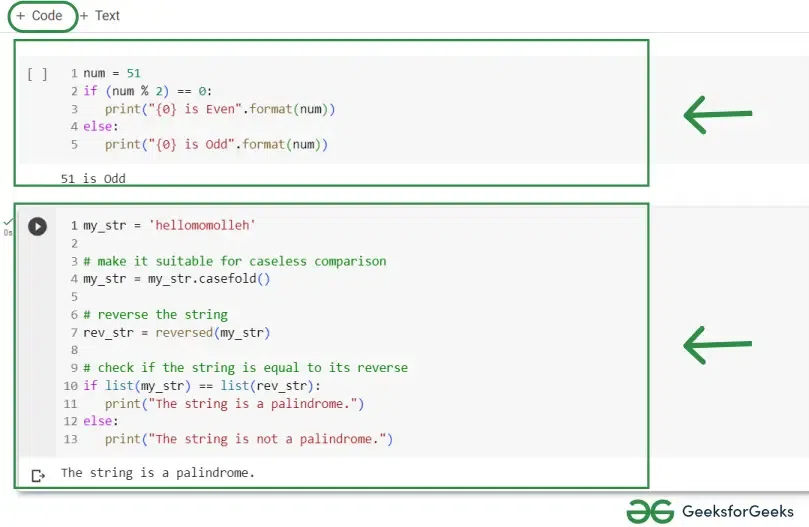
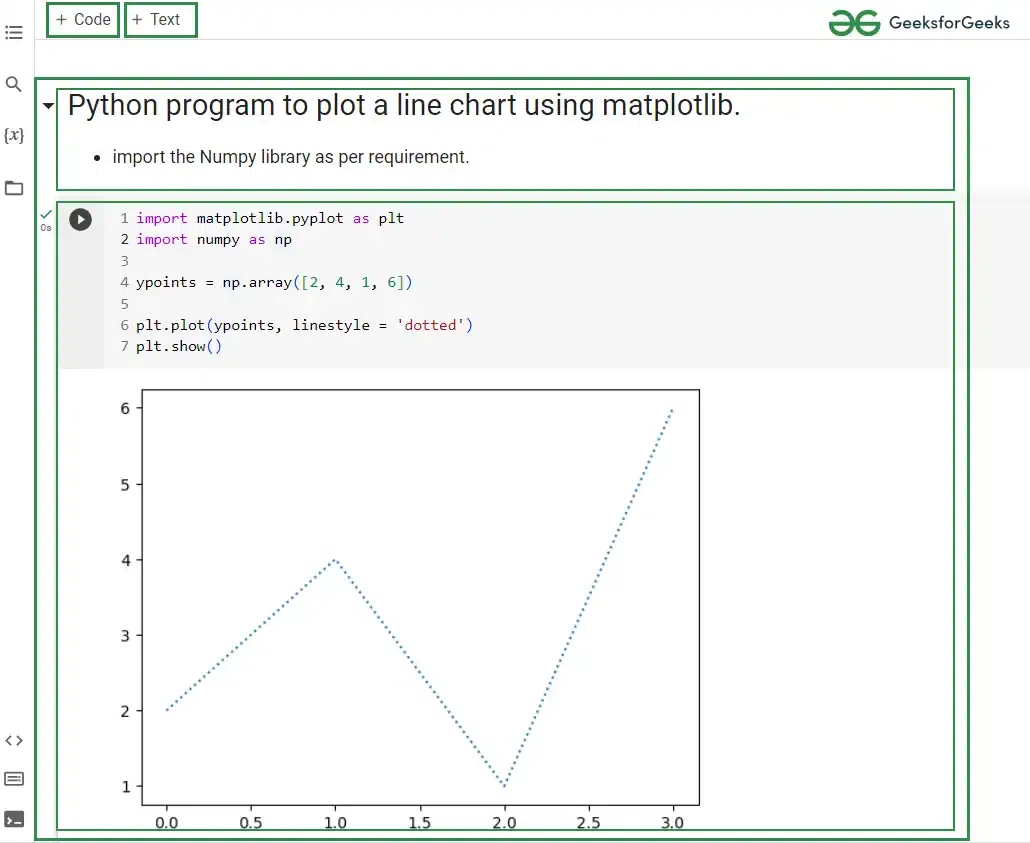
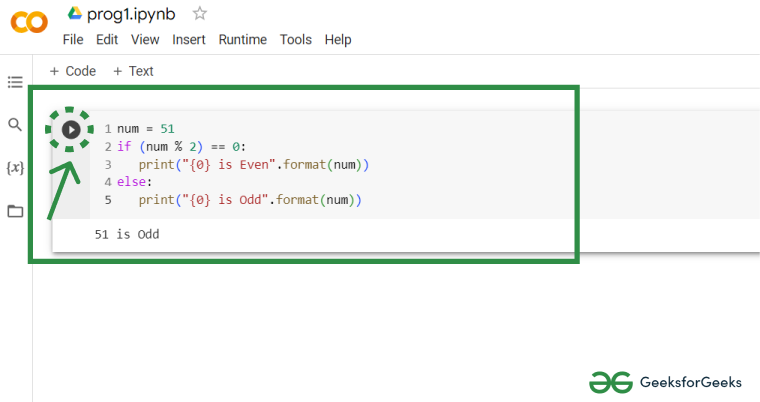
The area where you can able write and execute the program.
Click the Play icon in the left gutter of the cell;
Type Cmd/Ctrl+Enter to run the cell in place;
Type Shift+Enter to run the cell and move focus to the next cell (adding one if none exists); or
Type Alt+Enter to run the cell and insert a new code cell immediately below it.
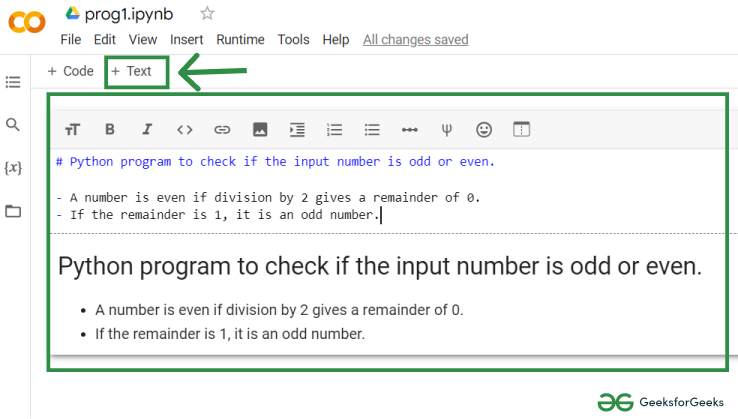
You can also add math to text cells using LaTeX to be rendered by MathJax. Just place the statement within a pair of $ signs. For example:$\sqrt{3x-1}+(1+x)^2$ becomes √(3x-1) + (1+x)2.
Additionally you can add new cells by using the + CODE and + TEXT buttons that show when you hover between cells. These buttons are also in the toolbar above the notebook where they can be used to add a cell below the currently selected cell. This makes your code well organized and proof helpful for other people whom you share.
👁 colab-overview Adding & moving cells using top toolbar in Google colab2. Runtime
The runtime is where your code is executed. It includes a number of features to help you run your code.
Colab runtimes are servers that are used to execute your code such as :
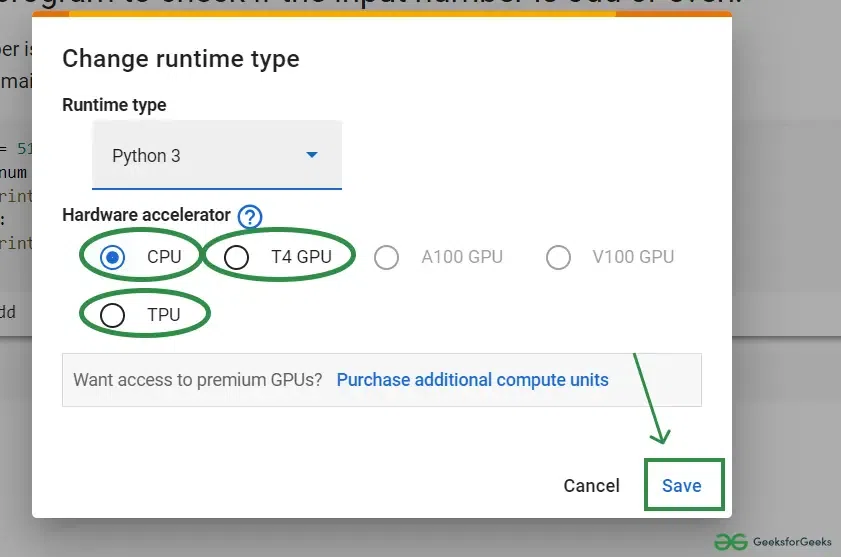
GPU: Graphical Processing Unit(Capable of enhancing your graphical interface.)
TPU: Tensor Processing Unit(Much powerful powerful custom-built processors to run the project made on a specific framework, i.e. TensorFlow.)
CPU: Central Processing Unit(It manage all your functions such as calculations and input/output of the computer.)
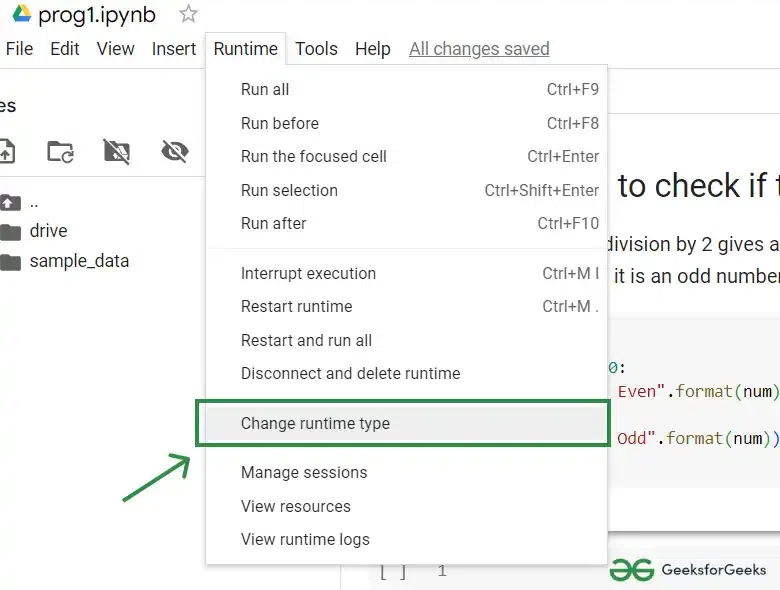
To select runtime, navigate to the Runtime menu and select Change runtime type according to the usability.
It Supports all three programming languages including Python 3,R and Julia.
Geeting Started with Google Colab
It is a cloud based interface as specified earlier; you can simply get started by the following:
1. Accessing Google Colab
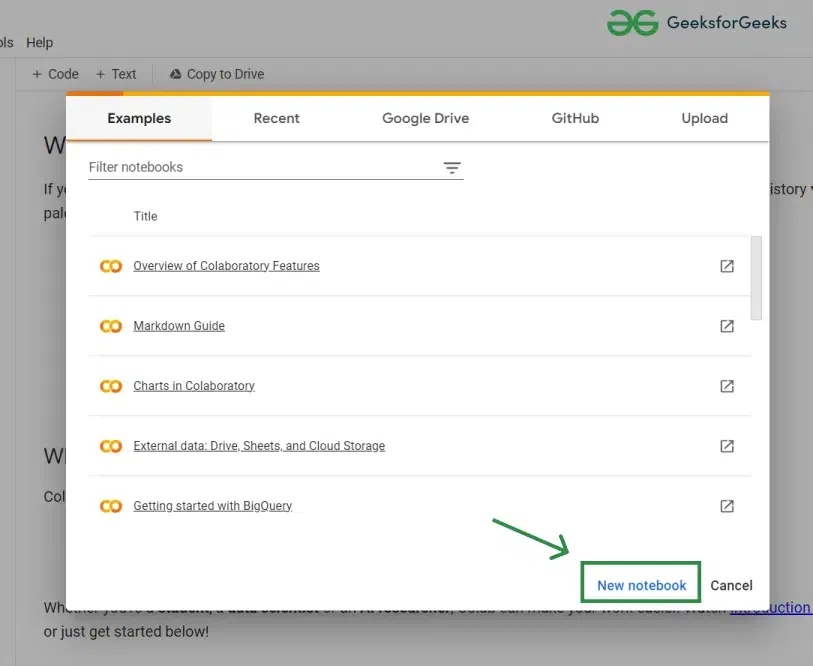
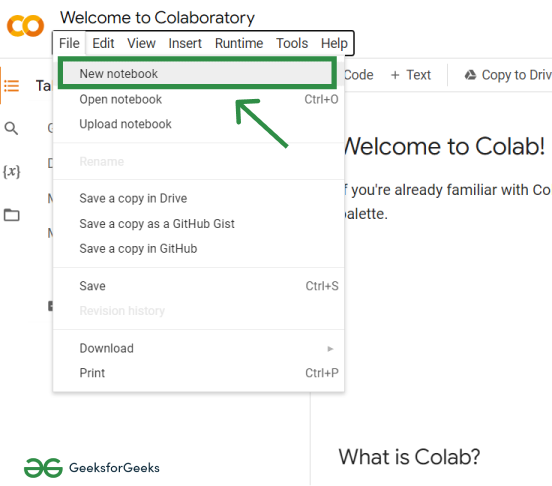
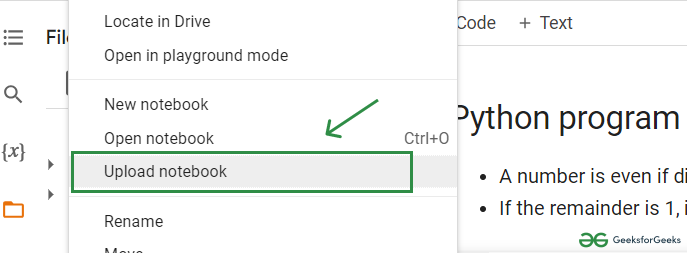
Open your web browser and search for google colab and then simply click the first link provided which will redirect you to the Google Colab's welcome page.
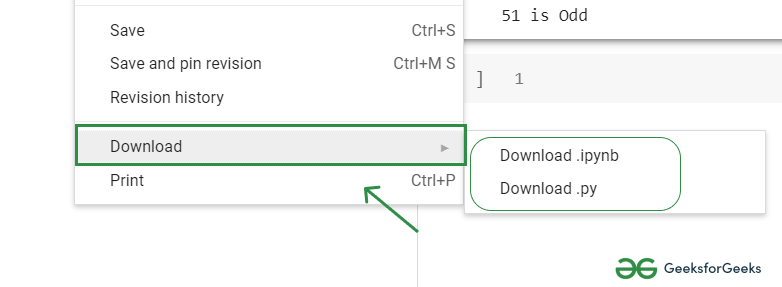
Under the File menu you will aslo find the Download your file in .ipynb and .py formats.
👁 Image download your colab notebook from file menu
Gemini in Google Colab?
As you Gemini is an AI-powered assistant, and it is embedded in Colab that helps you write, debug and understand code, automate data science workflows and generate insights all through conversational prompts and natural language instructions. It’s designed to make coding, analysis and collaboration easier for everyone, from beginners to experts.
Key Features of Gemini in Colab:
1. Conversational Coding Assistant
Code Generation: Describe what you want like “load and plot this CSV” and Gemini writes the code for you.
Code Completion: As you type, Gemini suggests code completions, making prototyping and learning faster.
Code Explanation: Select any code cell and ask Gemini to explain it in plain language.
Debugging: When errors occur, Gemini diagnoses issues and suggests or applies fixes.
2. Data Science Agent
Automated Analysis: Upload a dataset and describe your goals. Gemini generates code for data cleaning, visualization, modeling and more.
Insight Summaries: Gemini can summarize findings, highlight key features and create visualizations based on your data.
Workflow Automation: Gemini can handle multi-step tasks—like building and evaluating machine learning models without manual intervention.
3. Visualizations and Reporting
Instant Charts: Ask Gemini to “plot this data” or “show a correlation matrix,” and it generates clean, ready-to-use visualizations.
Automated Reports: Gemini can produce summary reports with key findings, charts and recommendations.
4. Refactoring and Code Transformation
Code Refactoring: Describe changes like “convert this regression to classification” and Gemini updates your code accordingly.
Multi-step Reasoning: Gemini can plan and execute complex workflows from start to finish.
5. Seamless Integration and Accessibility
Easy Activation: Gemini is available via the Gemini spark icon in Colab notebooks.
Collaboration: All collaborators in a notebook can use Gemini, ensuring consistent guidance and results.
Enterprise Support: Gemini features are available in both standard and enterprise Colab editions.
How to Use Gemini in Google Colab
Go to Google Colab and open or create a notebook.
Click the Gemini icon (spark) in the notebook interface.