|
VOOZH | about |
|
VOOZH | about |
JSON (JavaScript Object Notation) is a lightweight data exchange format. We can interchange data from one application to another from client to server. We have many data interchange formats available in the market. Like properties files, XML files, YAML files, JSON files, etc. But when compared to others JSON has some special advantages for java related frameworks. In this article, we will learn about How to use JSON Parameters with Spring MVC.
JSON parameters in Spring MVC facilitate standardized, flexible, and readable communication between clients and servers, especially in the context of building RESTful APIs and modern web applications. It simplifies data exchange, enhances interoperability, and aligns with industry best practices.
In this tutorial, we are going to understand how we can use JSON in Spring MVC. We are using the Spring Boot project to demonstrate the JSON Param with Spring MVC
In Spring Boot, we can handle JSON parameters in various ways. Here, we will understand a simple example using the @RequestBody annotation to map JSON data to a Java object. Let's take the below sample JSON format acts as an input for Spring Boot Rest Controller.
{
 "name": "John Doe",
 "age": 25,
 "email": "john@example.com"
}
Now, we need to create a Java bean to represent the above JSON structure.
public class Person {
 private String name;
 private int age;
 private String email;
 // Getters and setters
}
Then we need to create a Spring MVC Controller And take one POST API. Which can take the Person java class as input.
In this example, the @RequestBody annotation is used to bind the incoming JSON data to the Person object. The addPerson method receives a Person object as a parameter, and Spring automatically converts the incoming JSON data to this object.
In the above sample example, we are using Spring Boot. And this is the industry-recommended framework. Will see the same in the below example in detail.
As mentioned above, we will create one sample spring boot app with a POST endpoint. Which takes the Person JSON file as input.
We can create a spring boot application by using the below-
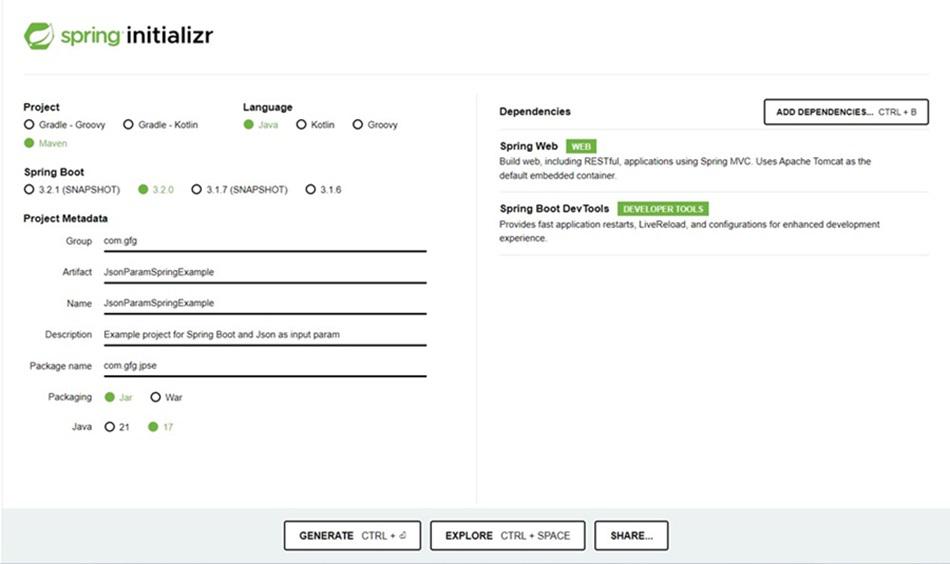
Here I am using the simplest way to create a Spring Boot app using Spring Initializer.
Go to website, then it will display in build form with many options. See the below screenshot.
Check the following code as a pom.xml file.
Check the following code in the PersonController.java file
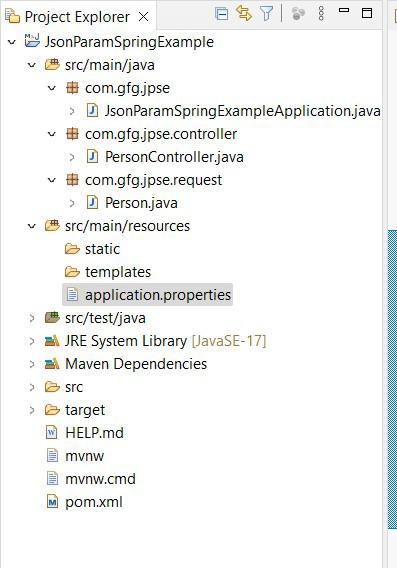
Here Person.java class is a Java class that is the same as our JSON file. This class has three variables name, age, and email same as JSON keys. This class just holds the values of JSON keys.
Check the following code in JsonParamSpringExampleApplication.java file
Check the following code in the application.properties file
server.port=8081Note:
1. property server.port=8081 has changed the tomcat port to 8081. By default it will run in 8080.
2. If nothing run on 8080 port then no need to add this in application.properties file. Automatically app will take 8080 port to run.
3. If you already run any app in 8080 then you have to modify your port as below.
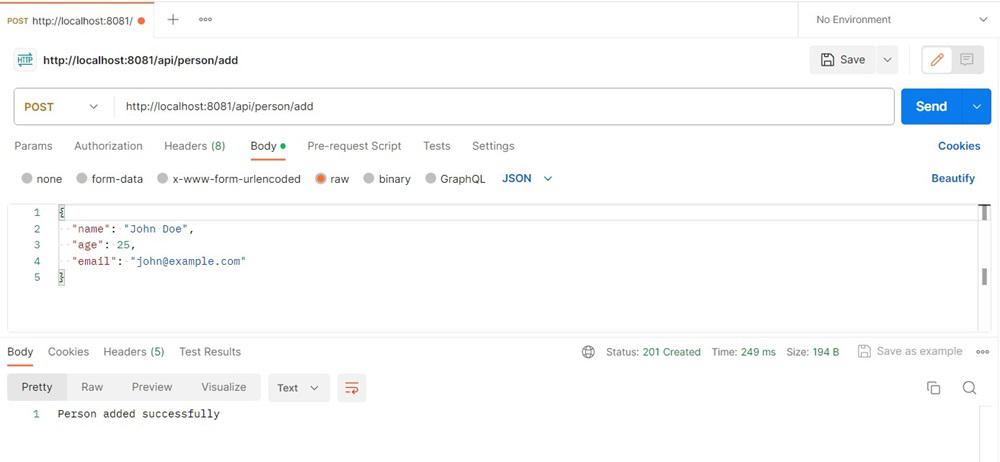
Since we created the POST API, we need to test it by using the Postman tool. You can download the Postman tool and install it on your system. Or you can test the API by using curl. I will provide both here.
curl --location 'http://localhost:8081/api/person/add' \
--header 'Content-Type: application/json' \
--data-raw '{
 "name": "John Doe",
 "age": 25,
 "email": "john@example.com"
}'
In IDE open the console and you will be able to see the printing Person object.
Person [name=John Doe, age=25, email=john@example.com]
Now in this example, we will change the input JSON format and add more types. And will return the same Person JSON object as a response.
We will send this JSON as @RequestBody. Let's assume the below changed JSON request as input.
{
 "name": "John Doe",
 "age": 25,
 "email": "john@example.com",
 "address": {
 "street": "XYZ Main St",
 "city": "Test City",
 "zip": "12345"
 },
 "hobbies": [
 "reading",
 "coding",
 "traveling"
 ]
}
Let us modify PersonController.java File
In the above, we are using the same API, but instead of returning a String, we are returning a Person object. So we mentioned the return type as ResponseEntity<Person>
Lets add Address.java file under com.gfg.jpse.request package.
As above new JSON, we had an address block. So we need to create a separate class as Address with three variables street, city, and zip. This will incorporate with the Person class.
Let's modify the Person.java file
Now Person class has been updated with name, age, email, Address class object, and hobbies collection. That's all, remaining as it is. Then test your code using the Postman tool or as a curl command.
You can test API by using the below curl.
curl --location 'http://localhost:8081/api/person/add' \
--header 'Content-Type: application/json' \
--data-raw '{
 "name": "John Doe",
 "age": 25,
 "email": "john@example.com",
 "address": {
 "street": "XYZ Main St",
 "city": "Test City",
 "zip": "12345"
 },
 "hobbies": ["reading", "coding", "traveling"]
}'
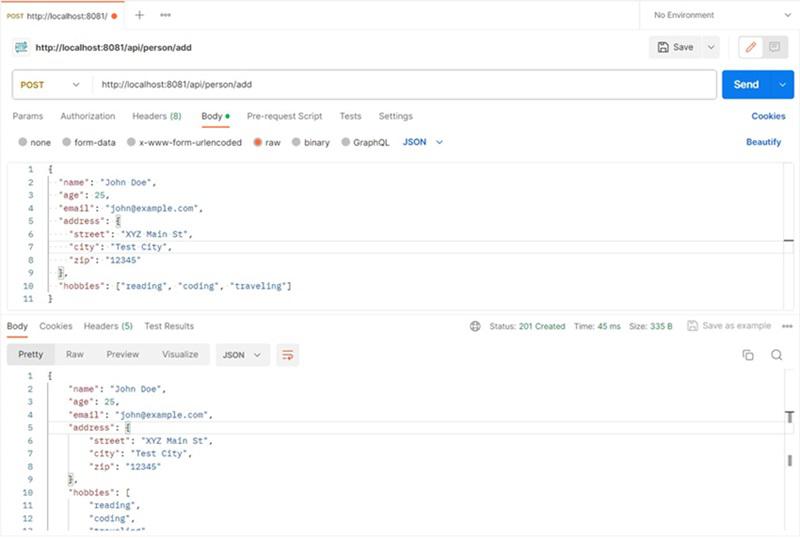
You can use the Postman tool to test the above example. Follow the below steps to test the above example.
 {
 "name": "John Doe",
 "age": 25,
 "email": "john@example.com",
 "address": {
 "street": "XYZ Main St",
 "city": "Test City",
 "zip": "12345"
 },
 "hobbies": [
 "reading",
 "coding",
 "traveling"
 ]
}
If you can observe your IDE console. The person's object will print like below.
Person [
 name=John Doe,
 age=25,
 email=john@example.com,
 address=Address [street=XYZ Main St,
 city=Test City,
 zip=12345],
 hobbies=[reading, coding, traveling]
 ]
In the above examples, parsing will be taken care of by Spring @RequestBody annotation. Now will take another scenario. If you want to take JSON data as a String input using @RequestParam and then parse it into an entity for both GET and POST requests, you can follow the examples below.
Note: 1. @RequestParam for larger JSON payloads might not be suitable due to URL length limitations.
2. JSON data has confidential data like usernames and passwords or any secret keys, better use @RequestBody
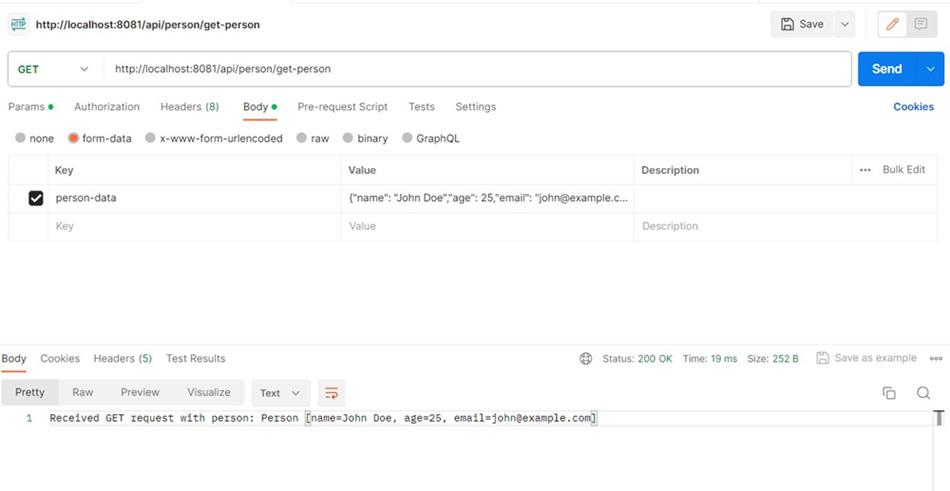
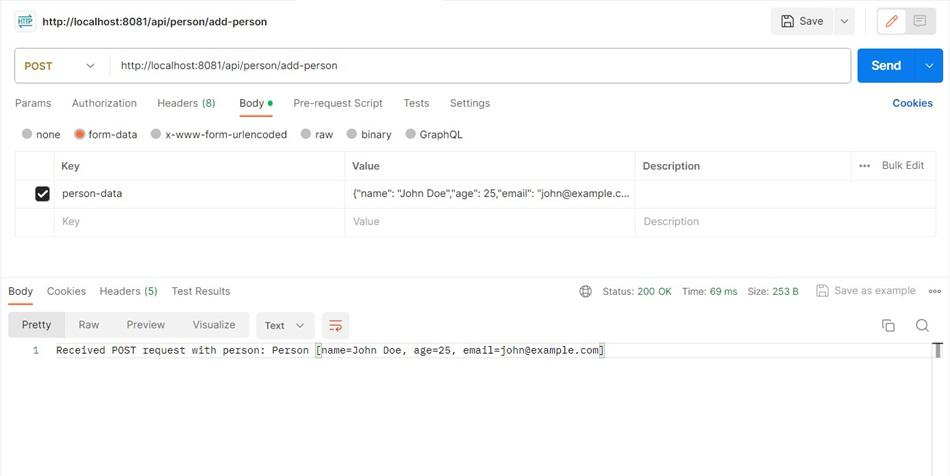
Let's take the same JSON we are going to pass as part of the request param to the GET and POST APIs.
{
 "name": "John Doe",
 "age": 25,
 "email": "john@example.com"
}
We will test the above scenario by using the Postman tool. Follow the below steps.
Key: person-data
Value: {
 "name": "John Doe",
 "age": 25,
 "email": "john@example.com"
 }
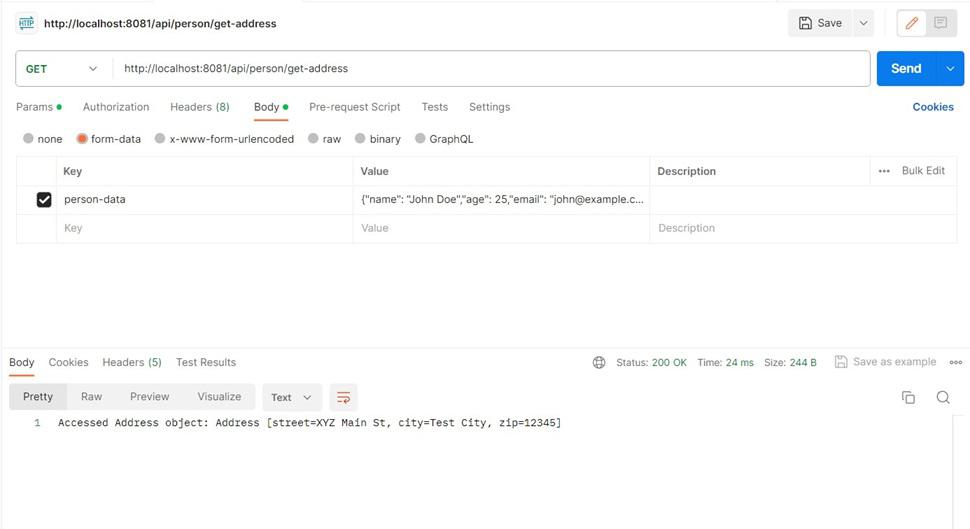
In this example, we will learn about how to access address and street fields directly from passed JSON string as Request Param.
Follow the below steps to test the above code from the Postman tool.
 Key: person-data
 Value: {
 "name": "John Doe",
 "age": 25,
 "email": "john@example.com",
 "address": {
 "street": "XYZ Main St",
 "city": "Test City",
 "zip": "12345"
 },
 "hobbies": [
 "reading",
 "coding",
 "traveling"
 ]
 }
This is about JSON Parameters with Spring MVC. This example assumes that you are using Spring Boot. If you are using a traditional Spring MVC setup, you might need to configure a MappingJackson2HttpMessageConverter in your XML configuration file.