|
VOOZH | about |
|
VOOZH | about |
MySQL server control is essential for managing databases in development and production environments.
There are three ways to start MySQL on Windows: using services.msc, Command Prompt (mysqld) and MySQL Workbench.
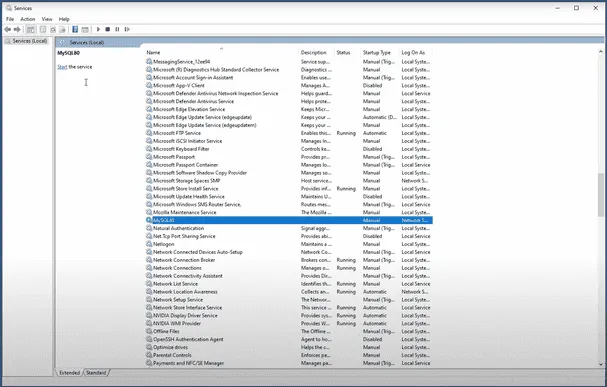
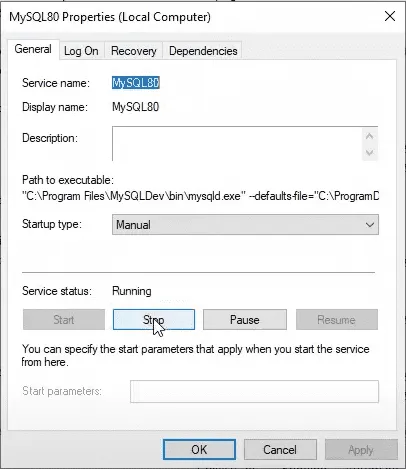
Step 1: Open the Services tab by typing services.msc in the Windows Run dialog.
Step 2: Search for the MySQL service in the list.
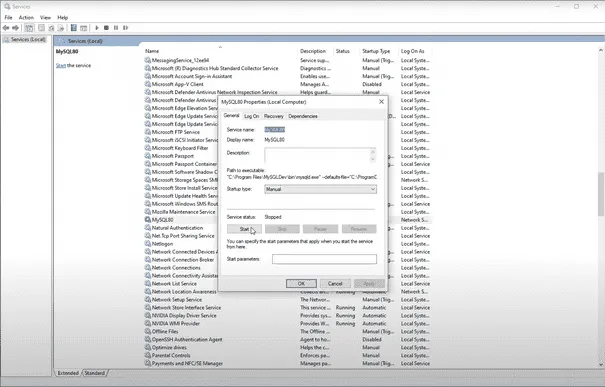
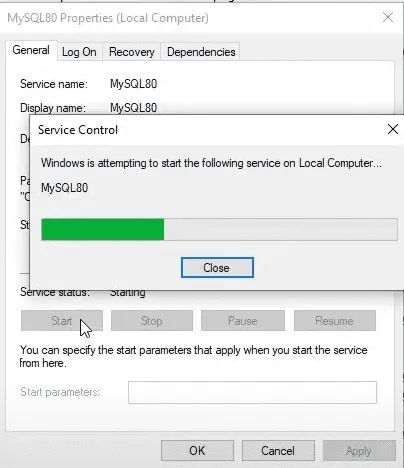
Step 3: Click on the "Start" or "Restart" button to start the MySQL Server
2. Using Command Prompt:
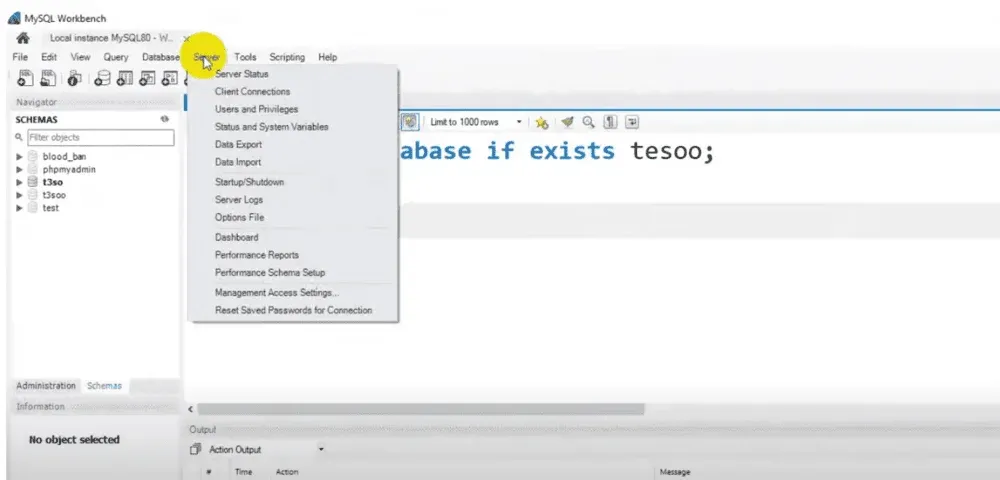
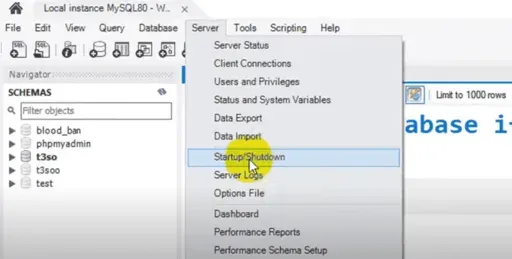
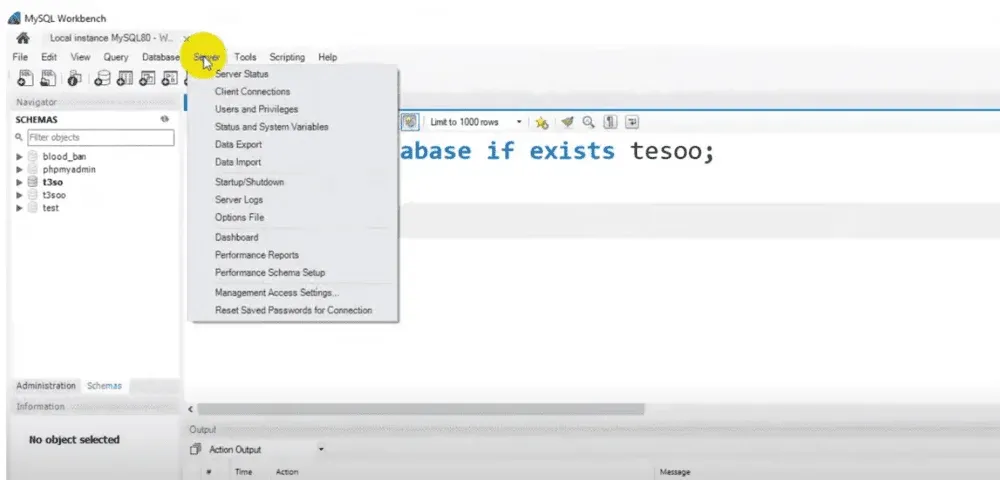
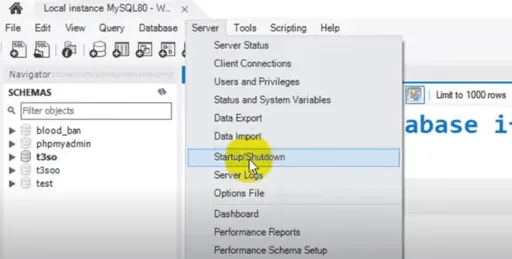
mysqld and hit Enter.Step 1: Open MySQL Workbench, which is included in the MySQL complete package. Go to the top menu bar and click on Server.
Step 2: Now Navigate to the "Startup/Shutdown" tab in the list
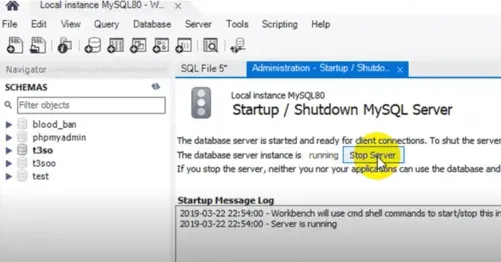
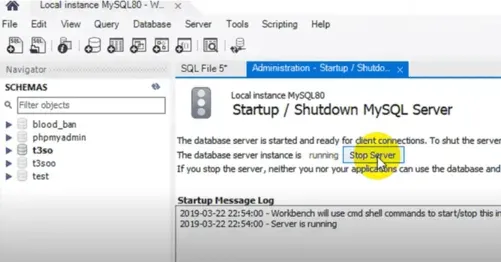
Step 4: In the window that appears, click Start Server if it's not already running.
There are three ways to stop MySQL on Windows:
1. Using services.msc:
You can stop the MySQL service the same way you started it, by accessing the Services tab and clicking "Stop."
2. Using mysqladmin:
Execute the following command in the Command Prompt:
mysqladmin -u <username> shutdown3. Using MySQL Workbench:
Go to the "Startup/Shutdown" tab under the Administration section in MySQL Workbench and click "Stop" to shut down the server.
MySQL server can be started using services.msc, mysqld, MySQL Workbench or sudo service mysqld start on Linux.
1. Using the Command Line:
mysqld start2. Using the service command (specific Linux distributions):
sudo service mysqld startStopping the Server:
1. Using the Command Line:
To stop the MySQL server, you can use either of the following commands:
mysqld stopor
sudo service mysqld stop2. Using mysqladmin:
You can also stop the server by running this command:
mysqladmin -u <username> shutdown3. Using MySQL Workbench:
Step 1: In MySQL Workbench, click the Server menu on top.
Step 2: Click Startup/Shutdown from the drop-down.
Step 3: In the Startup/Shutdown tab, click Stop Server to stop the MySQL service