|
VOOZH | about |
|
VOOZH | about |
Facing issues while logging into your Windows Computer is a serious challenge because you cannot access your system. And if you are getting the "The User Profile Service failed the logon", then the problem is quite serious.
However, without entering into the Windows System, the User Profile Login Problem can be resolved. This article will discuss the methods to Resolve the User Profile Service Failed Problem on Windows OS.
To Fix "The User Profile Service Failed the Logon" on Windows OS, the following methods should be used. Let us start with the Scanning Process with Command Prompt.
Step 1: First, Enter into Safe Mode.
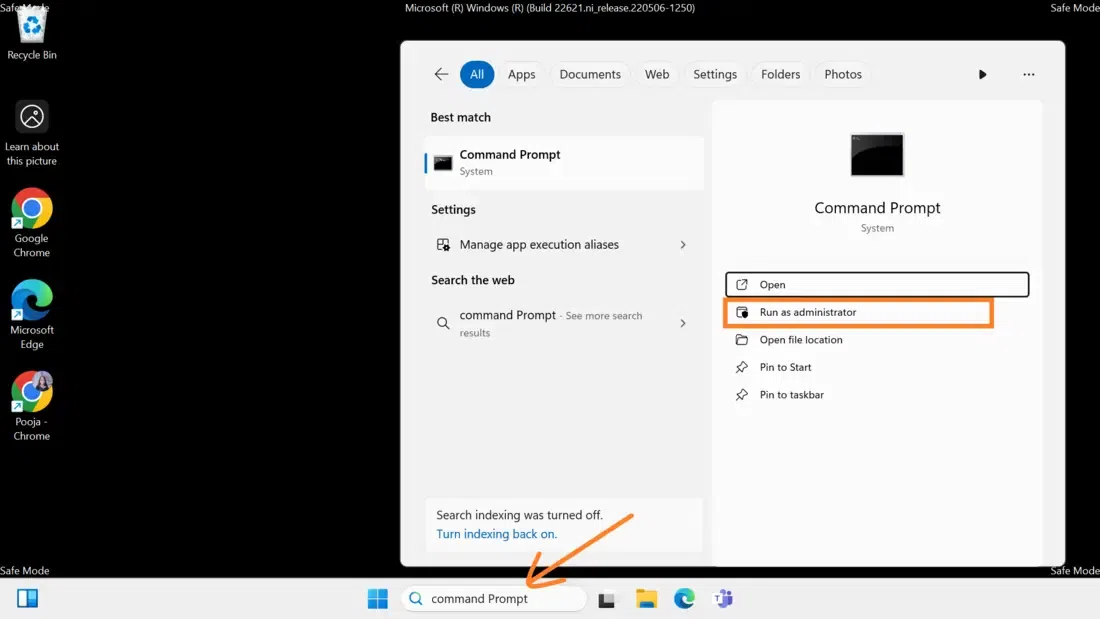
Step 2: Run Command Prompt as an administrative.
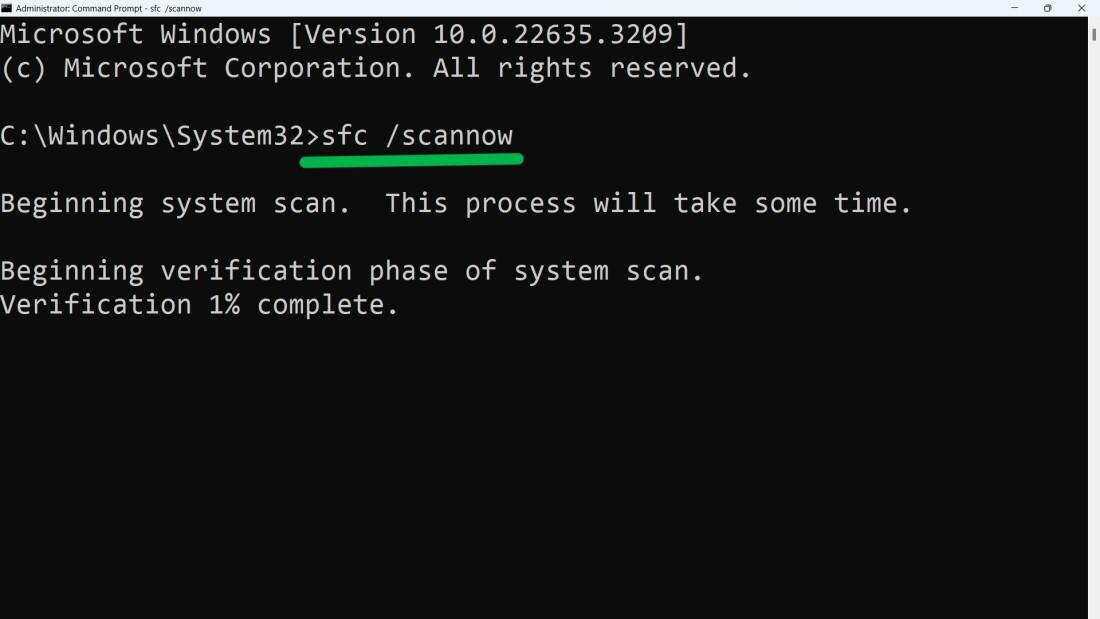
Step 3: Type the below-mentioned command > Press Enter.
Command: Sfc /scannowStep 4: After the scan is completed 100%, restart your computer and try logging in again.
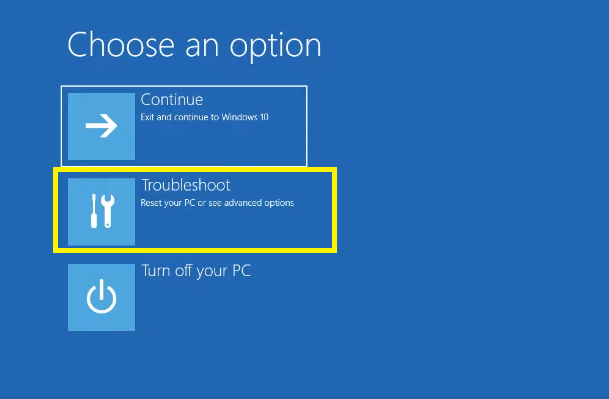
Step 1: Click the Power icon, then press and hold Shift and click Restart.
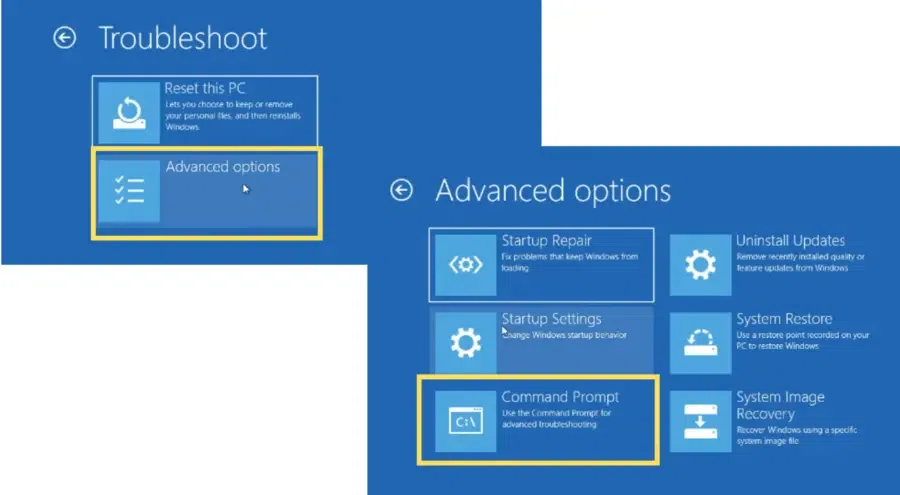
Step 2: After restart, select Troubleshoot.
👁 Enable-built-in-admin-account_1
Step 3: Open Command Prompt from Advanced Options.
👁 Enable-a-built-in-Admin-account_2
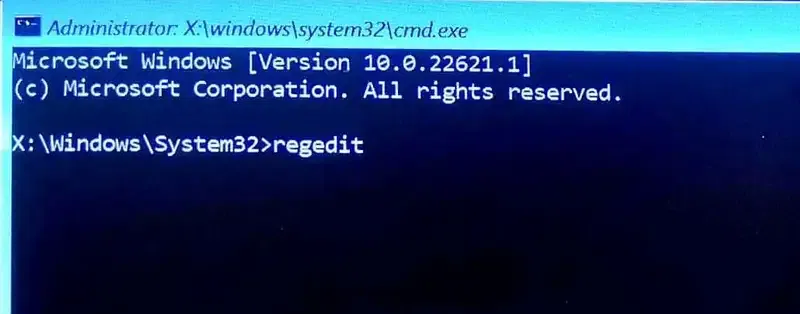
Step 4: Type regedit and press Enter.
👁 Enable-Built-in-Admin-Account_2
Step 5: Navigate to HKEY_LOCAL_MACHINE > Load Hive > This PC > Windows > System32.
Step 6: Find and double-click on the config folder.
Step 7: Find the SAM file and double-click on it.
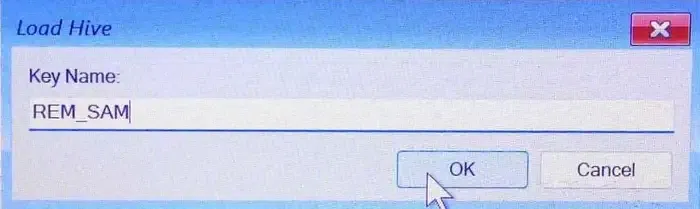
Step 8: In the dialog box, write Key Name - REM_SAM and click OK.
👁 Enable-Built-in-Admin-Account_1
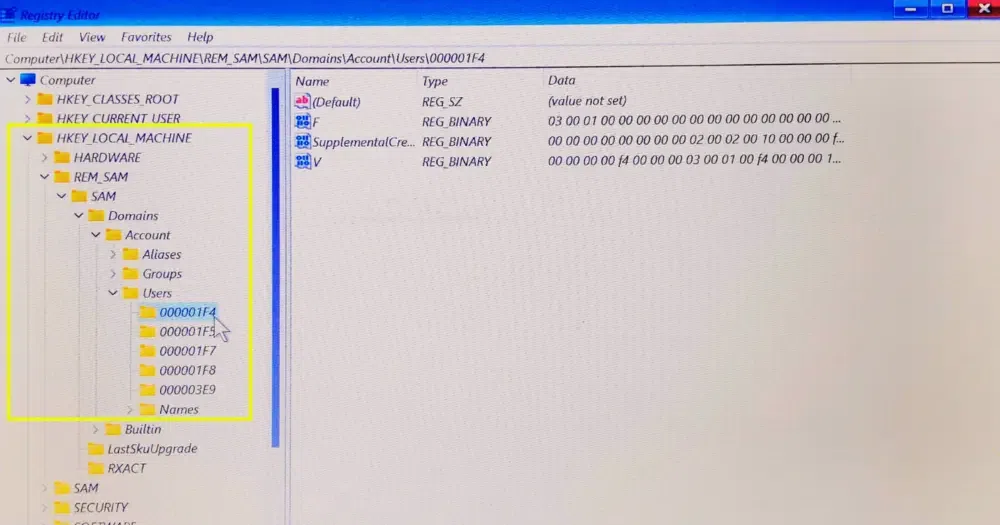
Step 9: Navigate to "HKEY_LOCAL_MACHINE\REM_SAM\SAM\Domains\Account\Users\000001F4" in the registry editor.
👁 Enable-Built-in-Admin-Account
Step 10: Double-click on the "F" binary value.
Step 11: Go to the "00000038" entry in the first row.
Step 12: Modify the value "11" in the second column to "10".
Step 13: Click OK to save the changes.
👁 Enable-Built-in-Admin-Account_3-(2)
Step 14: Exit the registry editor window.
Step 15: Close the Command Prompt.
Step 16: Click "Continue" to boot to the lock screen. After enabling the built-in admin account, don't log in directly to this account. Instead, first boot Windows in Safe Mode to ensure it functions properly. Then, log in to the built-in administrator account and proceed with the next methods.
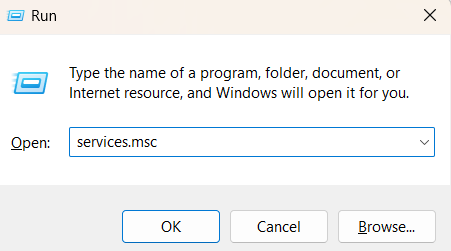
Step 1: Press Win + R and type services. the msc in the Run dialog box.
👁 Replace-the-corrupt-NTUSERDAT-File_1
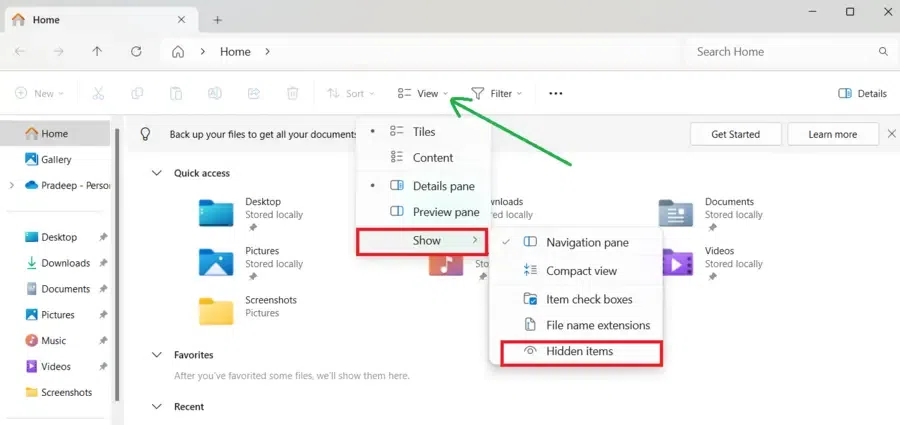
Step 2: Now, click Views > Shows > Hidden items
👁 Replace-the-corrupt-NTUSERDAT-File_2
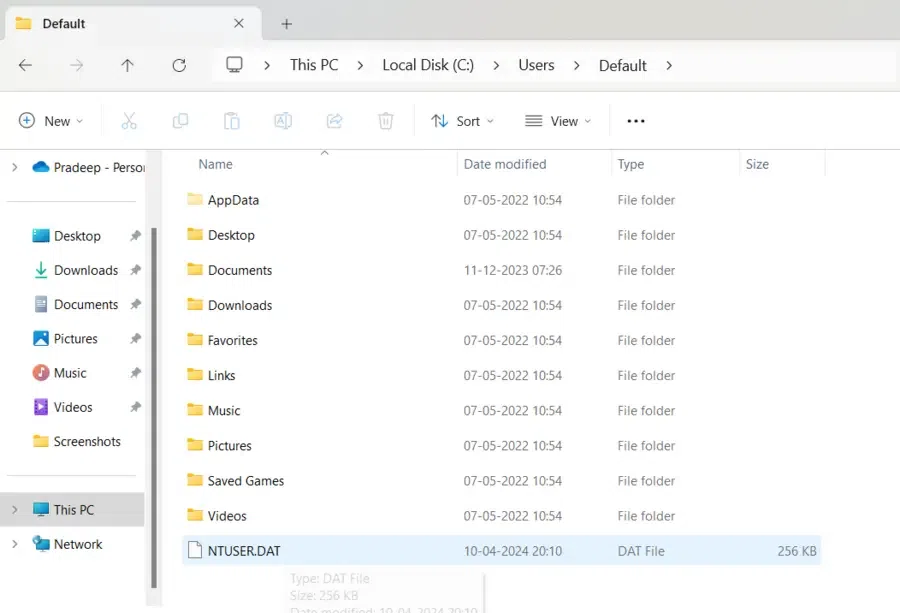
Step 3: Navigate to This PC > Local Disk (C:) > Users > Default.
Step 4: Rename the NTUSER.DAT file to NTUSER.DAT.OLD.
👁 Replace-the-corrupt-NTUSERDAT-File-3
Step 5: Now, Paste the copied file into the Default folder
Step 6: To implement the changes, restart your computer.
Note: Please ensure that your user profile files are backed up before continuing.
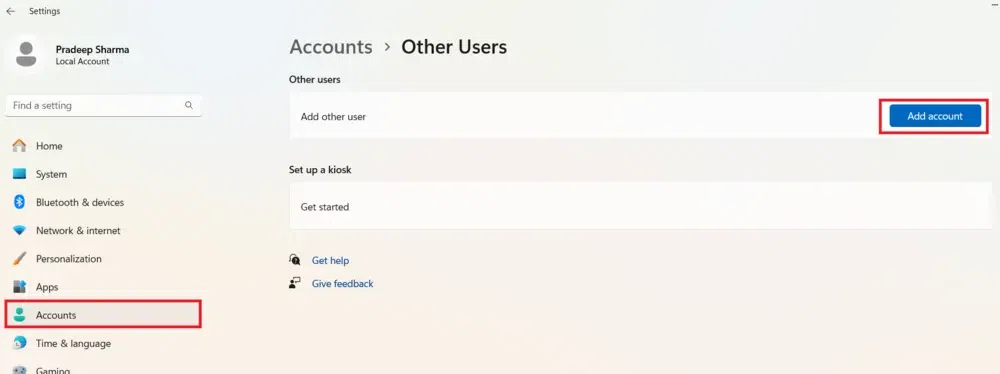
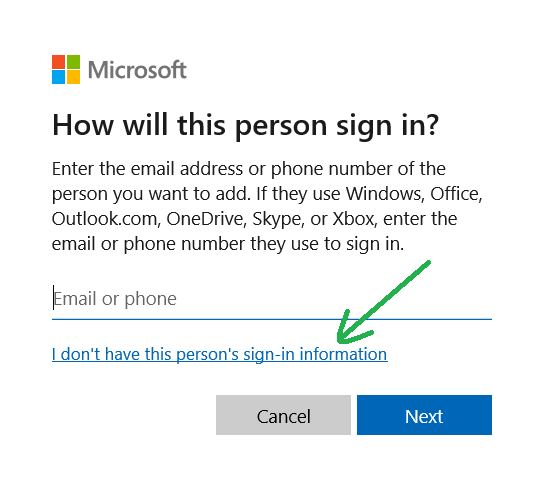
Step 1: Open Windows Settings choose Accounts > Other Users and click Add account
Step 2: Now click I don't have this person's sign-in information.
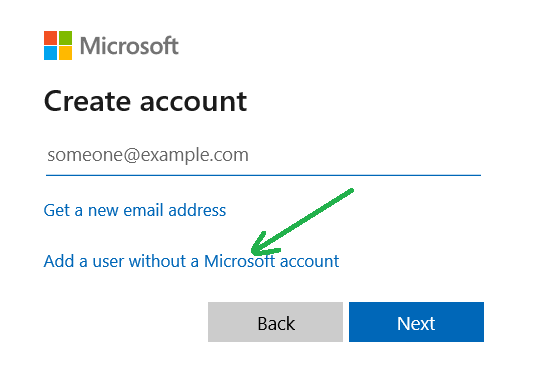
Step 3: Click Add a user without a Microsoft account.
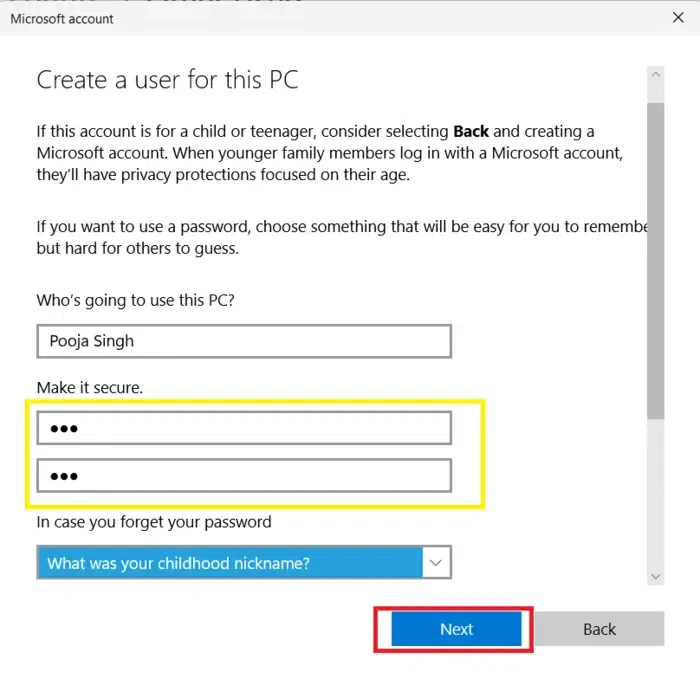
Step 4: Enter User Name, Password, Confirm Password and Security Hints. Click the indicates button.
Step 5:Restart your PC to log in to your new user account.
Step 1: Enter into safe mode by following the steps.
Restart PC > Hold Shift > Troubleshoot > Advanced Options > Startup Settings > Restart > Press F4 or F5
👁 Enable-the-User-Profile-Service-Via-Registry-Settings_1
Step 2: Copy-paste the following commands one by one and hit Enter.
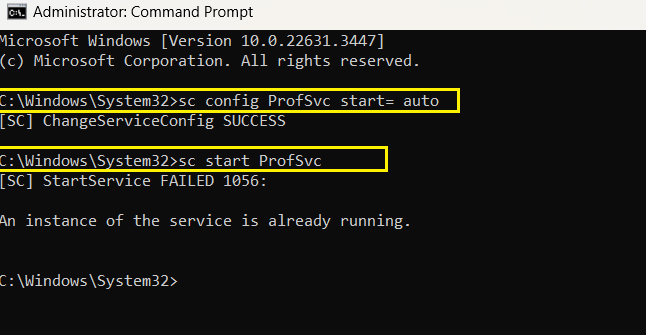
sc config ProfSvc start= auto
sc start ProfSvc
👁 Enable-the-User-Profile-Service-Via-Registry-Settings_2
Step 3: Restart your PC again to exit safe mode.
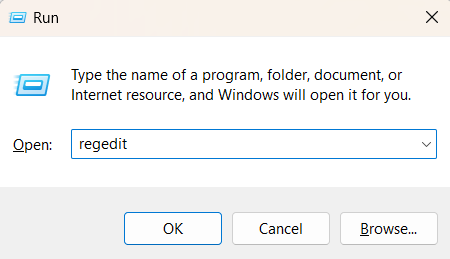
Step 1: Press Win + R and type regedit in the Run dialog box.
👁 Enable-the-User-Profile-Service-Via-CMD_1
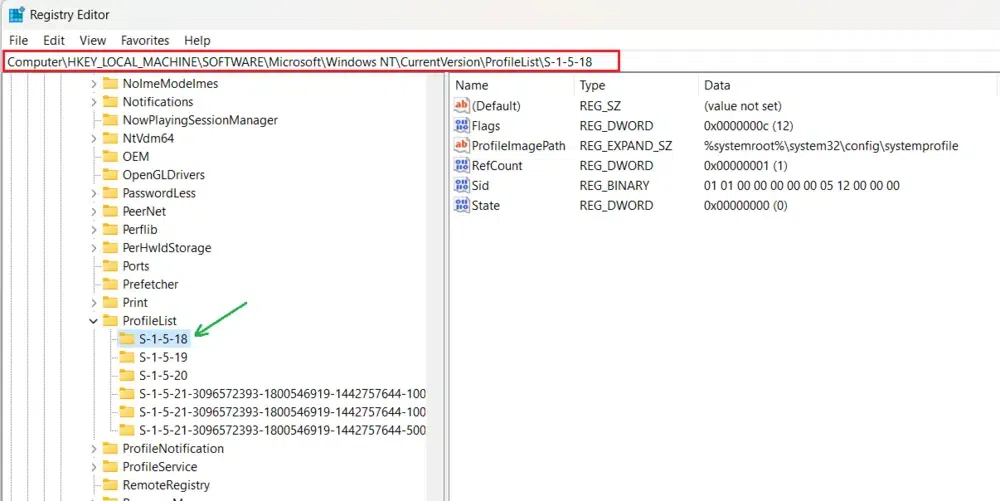
Step 2: Navigate to HKEY_LOCAL_MACHINE > Software > Microsoft > Windows NT > CurrentVersion > ProfileList.
👁 Enable-the-User-Profile-Service-Via-CMD_2
Step 3: Find the corrupted profile by checking each S-1-5 folder's ProfileImagePath to match your profiles.
Step 4: Change RefCount and State values to zero for the corrupted profile, then restart your computer.
By following the steps outlined in this guide, you can effectively fix the 'User Profile Service Failed the Logon' error in Windows. This will restore access to your user account and help maintain the stability of your system.

.webp)