|
VOOZH | about |
|
VOOZH | about |
If you're experiencing missing background apps in Windows 11, you're not alone. Many users have encountered this issue, where certain apps stop running in the background or are completely unavailable. Fortunately, you can take steps to restore background apps in Windows 11 and get them functioning again. In this guide, we'll walk through various methods to fix missing background apps in Windows 11, including adjusting Windows 11 background app settings and permissions to ensure your system operates smoothly.
Table of Content
There are numerous reasons why the background app missing on Windows 11. Most of the time, the issue occurs with the faulty Windows Update. However, there are many other reasons as well that can be addressed like the following.
To Get Back Background Apps on Windows 11, the following methods should be executed one by one. We will start with the process of the Group Policy.
Group Policy Editor is a tool in Windows used to manage system settings i.e. enable or disable features. To enable background app permissions using Group Policy Editor, follow these steps.
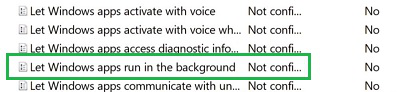
Step 1: Open Group Policy by searching, then follow the below-mentioned path by expanding them. Now, right-click on the option Let Windows Apps Run In The Background Policy.
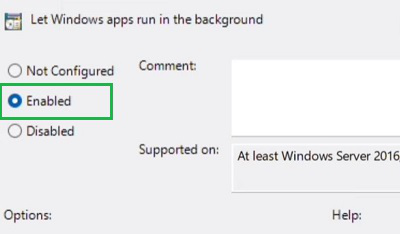
Path: Computer Configuration\Administrative Templates\Windows Components\App PrivacyStep 2: Click on the Enable button & then select Apply to make the changes.
Registry Editor is a Windows tool that allows adjusting settings related to app permissions. You can use Regedit to change app permission i.e. to enable or disable background apps in Windows 11.
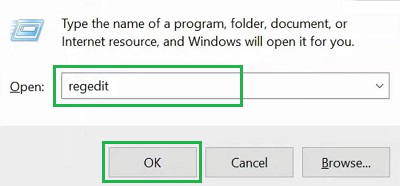
Step 1: Open Registry Editor with the Run Window. Press the Windows + R & then execute the command regedit.
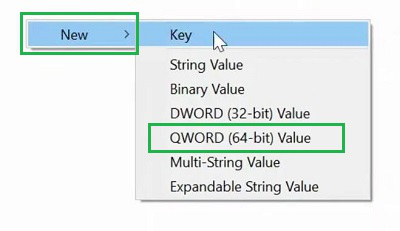
Step 2: Follow the following path & right-click on the window. Click on the New Option & then go for the QWORD Value. Make a value like LetAppsRunInBackground. And Save it.
Computer\HKEY_LOCAL_MACHINE\SOFTWARE\Policies\Microsoft\WindowsDisk Health Check means checking and repairing disk health to ensure smooth operation on Windows. It can help to restore missing background apps. Follow the steps to enable missing background apps on Windows.
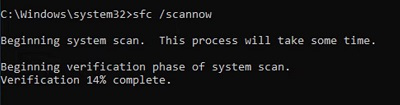
Step 1: Open the Command Prompt and execute the following command. It will scan the Drive Health.
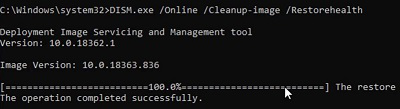
Command: sfc /scannowStep 2: It is time to fix all the issues that the above scan has mentioned. To do so, the following Windows Commands will be used.
Command: DISM /Online /Cleanup-Image /RestoreHealthFrom the above discussion, it should be clear how to restore the background app missing problem on Windows 11. You have to execute all the mentioned methods one by one to permanently resolve the Background Missing App on Windows OS.
Restoring missing background apps in Windows 11 is crucial for ensuring that your system performs efficiently. By adjusting the Windows 11 background app settings and verifying Windows 11 app permissions, you can regain control over your apps and their processes. Whether it's a permissions issue or an accidental disablement, following these steps will help you restore background apps and improve the functionality of your system.
Also Read