|
VOOZH | about |
|
VOOZH | about |
Tool Search: Copy Course Master
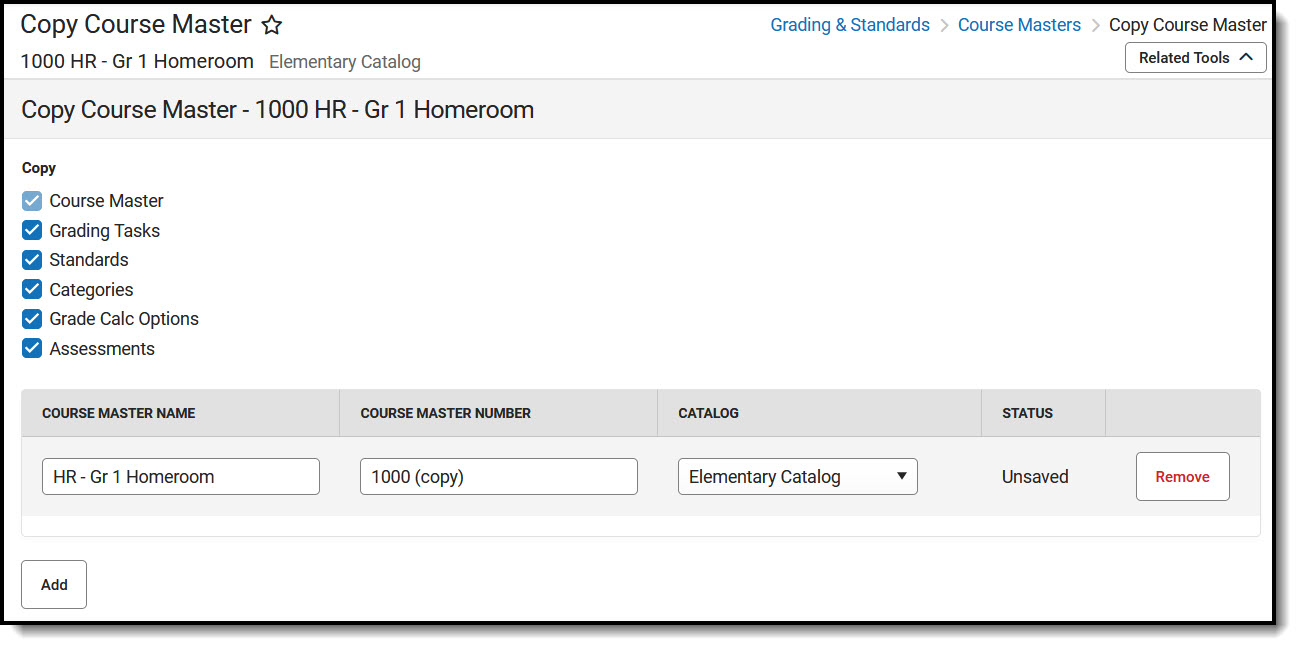
Copy Course Master can be used to copy the selected Course Master from one Course Catalog to another. This option copies everything associated with the selected Course Master - all of the populated fields, all of the associated Grading Tasks, Standards, Categories, Grade Calc Options, and Assessments.
Review the Course Masters Overview article for information on Course Masters best practices and a Course Master Workflow.
To copy just the information on the Course Master (just Grading Tasks, just Standards, etc.), use the Copy feature on those individuals tools.
See the Copy Course Master Tool Rights article for information about rights needed to use this tool.
The Course Master Name and Course Master Number are required entries for the Copy process; the Course Master Number must be a unique value within the selected catalog (meaning a course master must not share the same number as an existing course master).
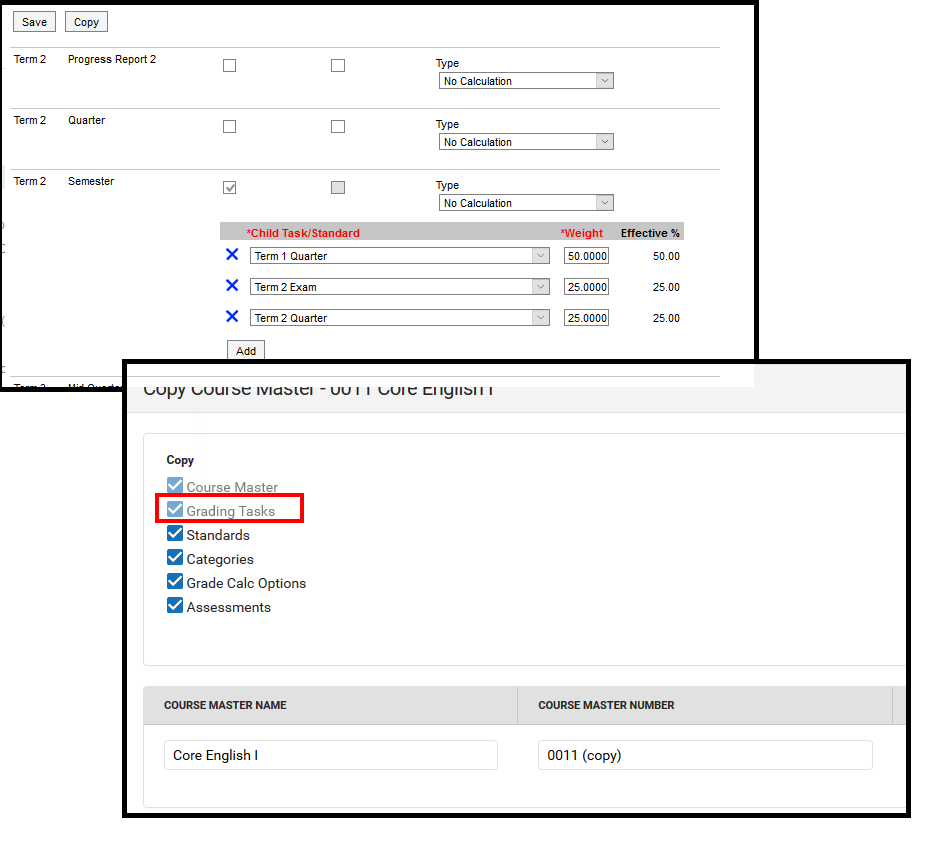
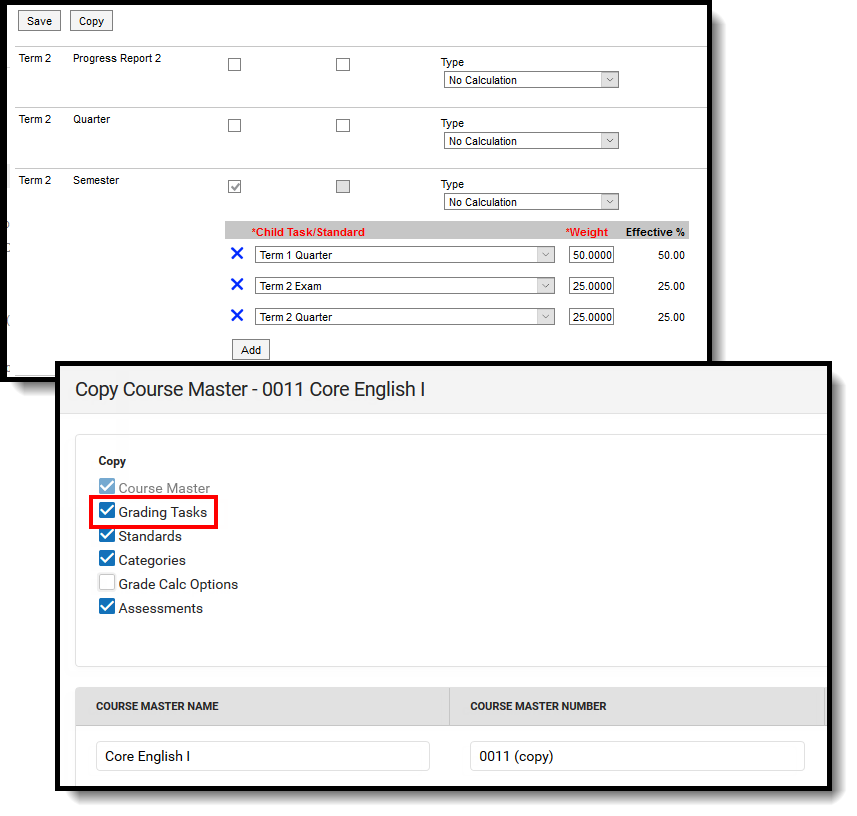
If there is a dependency between the tools, that tool MUST be selected to copy when the other toolis selected. For example, if Grade Calc Options have been established for a Semester Grading task, if the Grade Calc Options tool ischosen to copy, the Grading Task tool must also be selected to copy (the checkbox next to Grading Tasks cannot be unmarked).
In the image first image below, Grade Calc Options are set for the Semester grading task. When copying the course master, the Grading Task checkbox cannot be modified. In the second image, Grade Calc Options are not selected to copy, so even though there is a composite grading calculation established, since it isn't being copied with the Course Master, including the Grading task now becomes a choice.
👁 Two-part screenshot showing the composite grading setup in Grade Calc Options and and the Copy tool with Grade Calc Options marked to copy and Grading Tasks greyed out.
Grade Calc Options, Grading Task Dependency
👁 Two-part screenshot showing the composite grading setup in Grade Calc Options and and the Copy tool with Grade Calc Options not marked to copy and Grading Tasks editable.
No Grade Calc Options, Grading Task Dependency
Dependencies can occur between Grade Calc Options and Grading Tasks, between Grade Calc Options and Standards, between Grade Calc Options and Grading Tasks and Standards.
Error messages display in the Status column in red text.
| Error | Description | Solution |
|---|---|---|
| Course Number already exists | The entered Course Number already exists in the selected catalog. | Change the entered Course Number and try again. |
| Name of tool (Grading Tasks, Standards, Categories, Grade Calc Options, Assessments) failed | The information did not copy. | Click the Remove button, review the entered information for these tools and verify it is correct. Try the copy again. |
| Operation failed. Updates were not saved. | These are errors that are returned from the server indicating that something went wrong inserting the record into the database. | Try the copy again. If the operation fails again, please contact Campus Support. |
| At least one Course Master is required for copy. | The Copy Course Master row was removed. In order for the copy to occur, at least one row must be listed and populated. | Click the Add button to add a row and populate as needed. |