|
VOOZH | about |
|
VOOZH | about |
Tool Search: Recipient Log, Messenger Log
The Recipient Log allows you to review process inbox, email, voice, and text messages that were eligible to be sent to specific recipients from any user within a district. Once you find the message for which you are searching, you can review the message details as well as print a Recipient Report for a specific message.
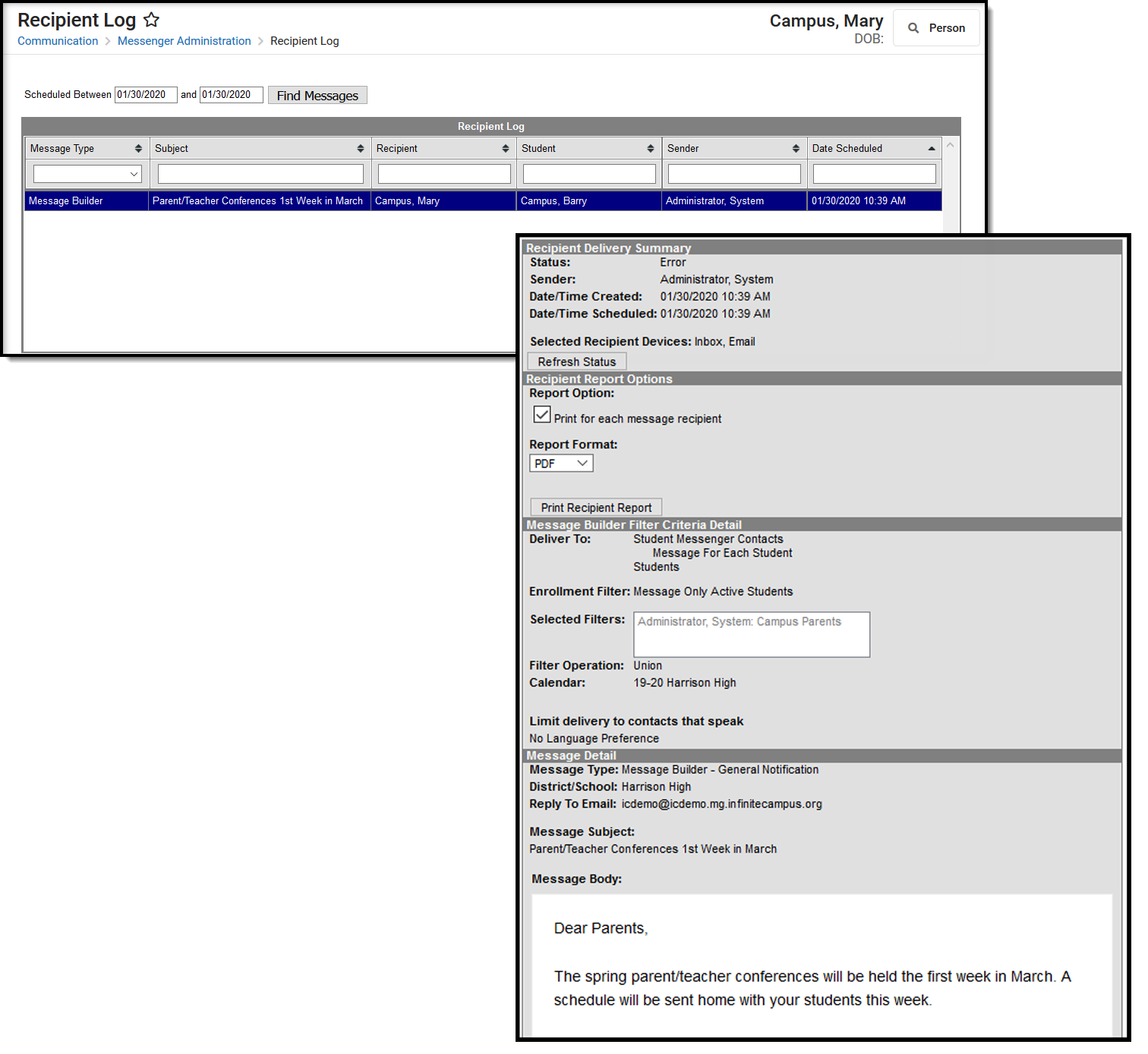
👁 Screenshots of the Recipient Log and a message summary record.
See the Messenger Administration Logs Tool Rights article for information on available tool rights.
To filter results using the Date Scheduled field, you must enter the date in the format in which it displays on the screen: MM/DD/YYYY HH:MM AM (or PM). For example, 10/01/2026 8:30 AM. If you do not know the full date or time, you can enter part of the date or time and the search tool will display dates/times that match the numbers you enter.
Select the message you want to view. The Recipient Delivery Summary, Recipient Report Options, Filter Criteria Detail and Message Detail areas display. See the following Screen Examples and Field Descriptions for details about each area.
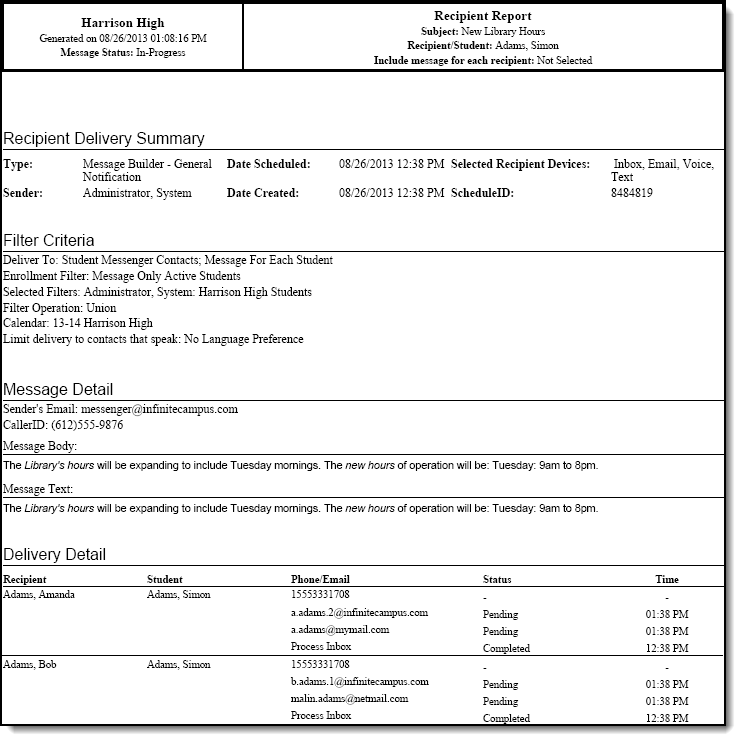
The Recipient Report provides additional details about the delivery of a specific message.
The report includes the following types of information:
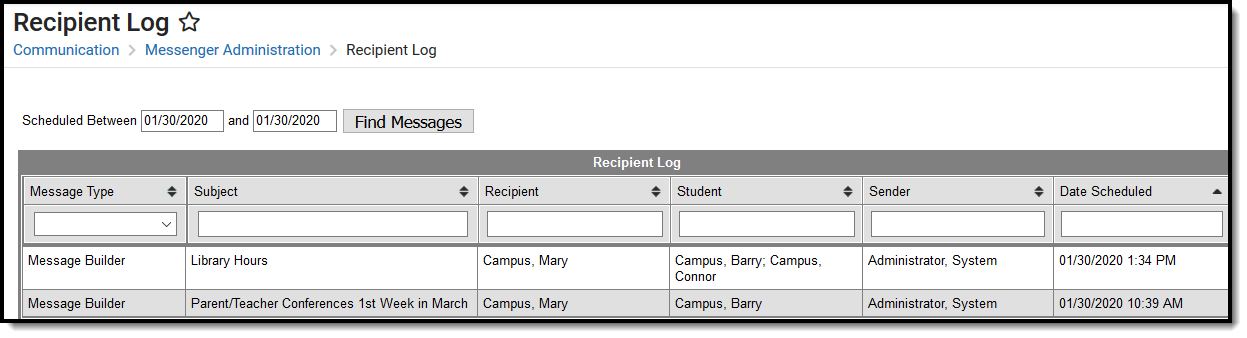
Enter the date range in which the message was created and click the Find Messages button. The Recipient Log displays the messages that fall within the date range you entered.
If you cannot see the message for which you want a report, sort the search results by clicking the column headers or filter the results by selecting an option in a column's dropdown list.
Select the message for which you want a report for message details to display.
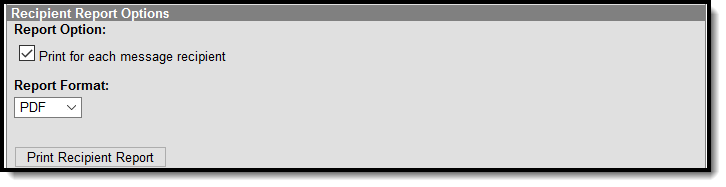
Mark the Print for each message recipient checkbox to print a report for each unique recipient/student message combination if the message was sent to multiple recipients about the same student or regarding multiple students to the same recipient. (optional)
Click the Print Recipient Report button.
Tool Rights control whether you see actual data or just Campus field names on the report. For example, student.firstname may display instead of John.
👁 Screenshot of an example of the printed report.
👁 Screenshot of the recipient log table.
| Field | Description |
|---|---|
| Created Between | The date range in which the message was created. |
| Subject | The subject on the message. |
| Recipient | The recipient(s) of the message. This field contains up to 3 recipient names on 2 rows. |
| Student | The student for whom you are reviewing messages. |
| Account Number | Point of Sale Customers Only The Account Number column displays up to 4 account numbers. If the account is for a Family Account (multiple patrons on a single account), the account number displays once for each patron on the account who received the message. |
| Sender | The user who sent the message. |
| Date Scheduled | The date on which the message is/was scheduled to be sent. To filter results using the Date Scheduled field, you must enter the date in the format in which it displays on the screen: MM/DD/YYYY HH:MM AM (or PM). For example, 10/01/2022 8:30 AM. If you do not know the full date or time, you can enter part of the date or time and the search tool will display dates/times that match the numbers you enter. |
👁 Screenshot of the report options
| Field | Description |
|---|---|
| Print for each message recipient |
Prints a report for each unique recipient/student message combination if the message was sent to multiple recipients about the same student or regarding multiple students to the same recipient.
You must select this option if want to view Campus fields instead of just seeing the field name in the message body. For example, student.firstname displays John on the Recipient Report when it's printed. This feature is only available if you have tool rights for the Recipient Campus Fields . |
| Print Recipient Report | Clicking this button prints the Recipient Report. |
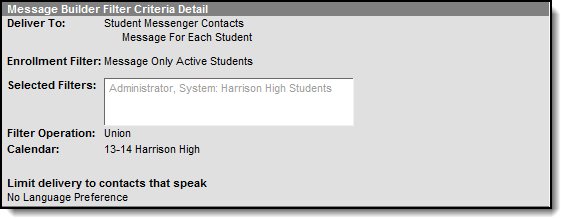
Each Messenger tool displays unique Filter Criteria. The Filter Criteria was selected on the Messenger Template for the message.
This section does not appear for Messenger tools that use a Recipient Selector like Class Messenger or Scheduling Messenger to send messages or non-Messenger tools such as Behavior Referrals and Special Education Process Alerts.
The following screen is an example of the Message Builder Filter Criteria.
👁 Screenshot of the Message Builder Filter Criteria Detail.
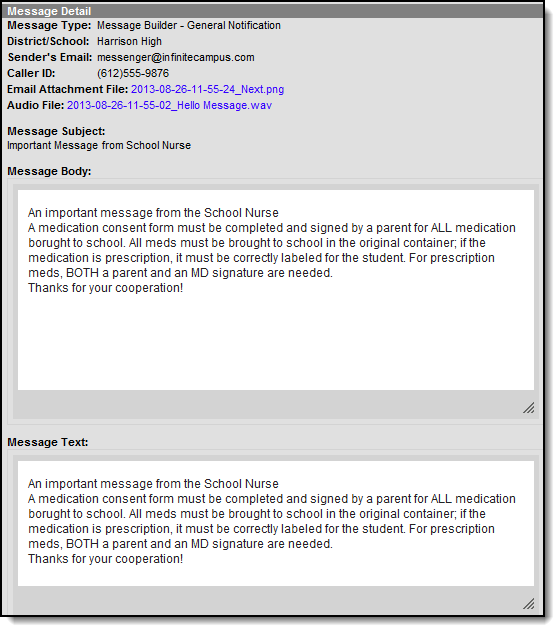
👁 Screenshot of an example of the message detail.
| Field | Description |
|---|---|
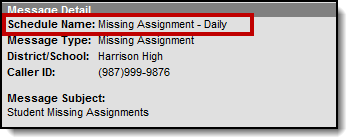
| Schedule Name | If a message is sent via a Messenger Scheduler tool, the Schedule Name appears before the Message Type to indicate the message is scheduled. 👁 Screenshot highlighting the Schedule Name in the message detail. |
| Message Type | Identifies the specific Messenger Tool or other Campus tool that was used to send the message. |
| District/School | The district or school to which the message was sent. |
| Sender's Email | The email address that appears as the sent from address on sent email messages. |
| Caller ID | The caller ID number shown to recipients of phone messages. |
| Email Attachment File | This link allows you to view the attachment sent on the email message. The file is available as long as your system administrator has not deleted the attachment or moved the attachment to another server. |
| Audio File | This link allows you to listen to the audio file that was used for phone messages. The file is available as long as your system administrator has not deleted the attachment or moved the attachment to another server. |
| Message Subject | The subject entered on email messages. |
| Message Body | The content of the email message. |
| Message Text | The content of the text message. |
The Recipient Details section is specific to the device (portal account, phone number called, texted, or email contacted) for each recipient.
| Field | Description |
|---|---|
| Recipient | The person who received the message. |
| Student | The student who is enrolled at the school. |
| Delivery Mode | The Delivery Mode that was selected when the message was created. |
| Status | The status is specific to the device (portal account, phone number called, texted, or email) contacted.
|
| Status Detail | Provides additional context about a recipient’s message status by explaining what occurred during delivery or dispatch. When blank, the Status Detail matches the Status. |
| Time | The time the message was received. |
| Status | Status Detail | Delivery Mode | When this happens |
|---|---|---|---|
| Confirmed | Live person detected | Voice | Call is answered by a live person who confirmed the call by pressing "0." |
| Not Confirmed | Live person detected | Voice | Call is answered by a live person, but no confirmation was recorded. |
| Not Confirmed | Voicemail detected | Voice | Call was picked up by voicemail. |
| Not Confirmed | Fax detected | Voice | Call was answered by a fax machine. |
| Not Confirmed | Answered - Unknown | Voice | Call was attempted and picked up, but no person, voicemail or fax was detected. |
| No-Answer | Unable to connect | Voice | Call was attempted but not connected to recipient or no voicemail was detected or available. |
| Busy | Voice | Call was attempted but received a busy signal. | |
| Canceled | Voice | Call was attempted but canceled at some point during dispatch by the sender. | |
| Failed | Connection error | Voice | Call was attempted but failed at the vendor/carrier handoff. |
| Failed | Dispatch error | Voice | Call was not attempted due to a dispatch error. |
| Restricted | Recipient restrictions | Voice | Call was not attempted due to a restriction setting for the recipient device. |
| Error | System error | Voice | Call was not attempted due to a vendor system error. |
| Error | Bad data | Voice | Call was not attempted due to bad data. Check Census > Demographics for the recipient and ensure all contact information is accurate. |
| Error | Carrier or vendor issue | Voice | Call error occurred at the vendor or carrier. |
| No Call Status | Voice | Call status is unknown. | |
| Sent | Sent to carrier | Text | Carrier has text message and is in process of sending to recipient. This status will update once delivery is confirmed. |
| Delivered | Delivered to recipient | Text | Carrier has confirmed delivery of text message to recipient. |
| Opt Out | Text | Recipient opted out of text messaging by texting STOP and is now on the Text Blacklist. | |
| Failed | Carrier or vendor issue | Text | Text was attempted by vendor, but failed. |
| Failed | Technical error | Text | Text was attempted but failed at the vendor/carrier handoff. |
| Undelivered | Carrier or vendor issue | Text | Text error occurred at the vendor or carrier. |
| Vendor received | Status unknown | Voice/Text | The vendor received the call or text, but campus has not received a status of what happened afterwards. |
| No Device | Voice/Text | Recipient does not have a device but is opted into messaging for that delivery type. Check Census > Demographics for the recipient and ensure all contact information is accurate. |
The statuses provided by Voxology are as follows:
| Successful Statuses | Description |
| Sent | Message was sent and accepted by an upstream carrier |
| Delivered | Message was sent, accepted by and upstream carrier, and also received a delivery confirmation from that carrier. No confirmation was received by recipient.
The timestamp for a text message that has a 'Delivered' status indicates when the carrier responded to Voxology that the text had been delivered. |
| Completed | Call was connected to the recipient and has now ended.
|
| Busy | Call was attempted and received a busy signal. |
| No Answer | Call was attempted, but the timeout value elapsed prior to connect, or the far end did not connect after ringing. |
The Cloud Messaging System in AWS can also opt not to dispatch messages to recipients under certain conditions which map to the following status:
| |
| No Device | Recipient did not have a device available to contact. |
| No Call Status | Statuses for this call or SMS were unable to be returned from the AWS system. |
| No Status | Statuses are unavailable for this email/inbox. |
| Opt-Out | Message could not be sent because recipient Opted-out by replying STOP to a text. |
| OPT in | Recipient texted START to the Shortcode and has opted back into messages.
|
| Error Statuses | Description |
| Failed | Call was attempted but never connected due to a failure in the public switched telephone network (PSTN), which is the physical landline system. |
| Undelivered | Message was sent, but it could not be delivered. This can be returned in cases where the number cannot receive an SMS (like a landline). This comes from the carrier. |
The Cloud Messaging System in AWS can also experience errors when trying to initiate calls/texts to Voxology, which then maps to the following statuses:
| |
| Canceled Statuses | Description |
| Canceled |
Call was stopped. |