|
VOOZH | about |
|
VOOZH | about |
Tool Search: Report
Infinite Campus offers districts the flexibility and control to create custom data elements and establish preferences tailored to their specific needs. Using Report Setup, districts can create and set options that appear on three types of reports: Report Cards, Transcripts, and Schedules. These reports can be saved and made available to users, where data elements do not have to be selected again but simply chosen for generation and printing. Report cards, transcripts, and schedules are specific to the school and calendar.
Refer to the article for information on tool rights.
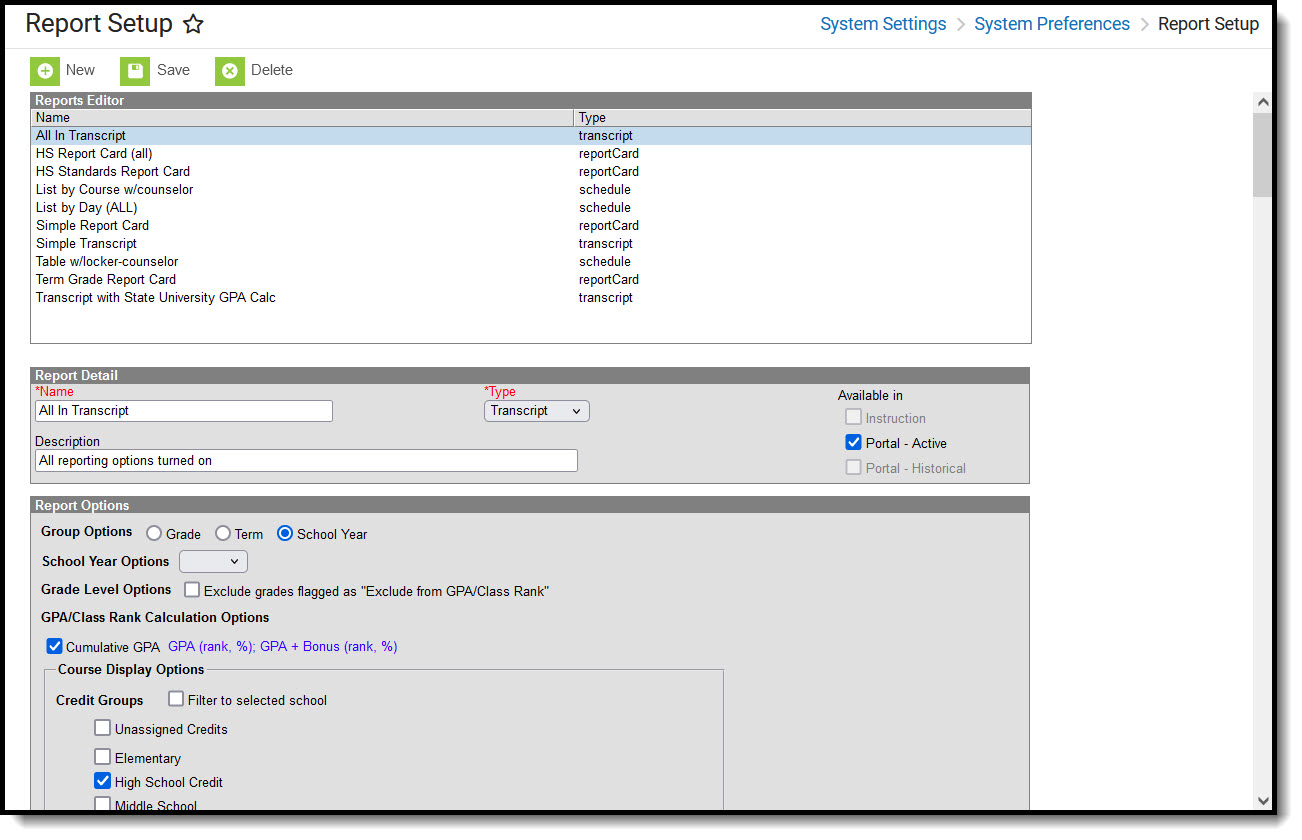
👁 Screenshot of the Report Setup editor.
Report Setup
The Report Setup tool consists of three sections: Reports Editor, Report Detail, and Report Options.
Field Name |
Description |
|---|---|
Name Required |
Displays the Name of the report. This name should be descriptive enough for users to determine the type of report it is. For example, for a standards-based report card in landscape print format, the name could be "Landscape - Standards-Based Report Card." |
Type Required |
Determines the type of report and report options available. Options are:
The selected Type determines which report options display. |
Available In |
Indicates where the report is available:
Note: Access to reports on the Portals is also controlled by the Documents portal display option. |
Description |
Text entered here provides additional information about the report, including who created it, when it was created, and other relevant details. |
Reports created in Report Setup eliminate the need for users to select report options each time a batch report is generated. While that is still an option, school administrators can create and save the reports, allowing other users to quickly select and generate them. The reports created here are displayed in the dropdown list in Student Information on the Schedule, Grades, and Transcript tabs.
Creating reports in the Preferences area provides a more uniform look to the report cards, transcripts, and schedules. The following reports can be created and saved:
The reports can be selected for printing from the following locations:
If a report needs to be deleted, select its name from the Reports Editor list and click the Delete icon.
This action only removes the report, not the grades that would have been displayed in the report.