|
VOOZH | about |
|
VOOZH | about |
Selenium with Java is a tool for automating web application testing across different browsers and platforms. It helps testers build reliable, maintainable and scalable test automation suites.
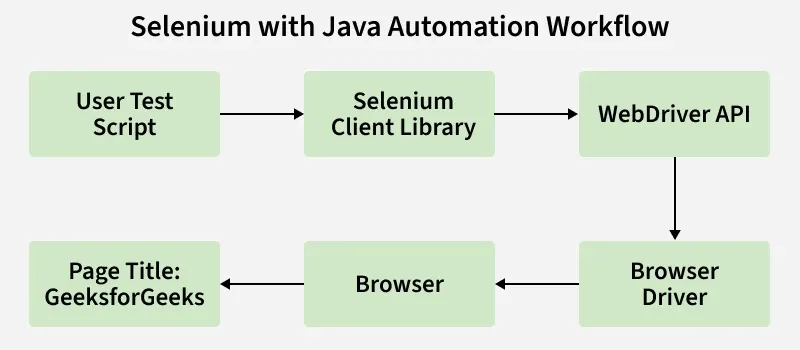
Selenium Automation Workflow describes how Selenium WebDriver communicates between the test script and the web browser to perform automated actions such as clicking, typing, and navigation. It follows a step-by-step process using WebDriver APIs and browser drivers.
First, configure the Java Development Kit on your system.
Verify Installation:
java -version
Now, install an Integrated Development Environment (IDE) such as Eclipse, IntelliJ IDEA or NetBeans.
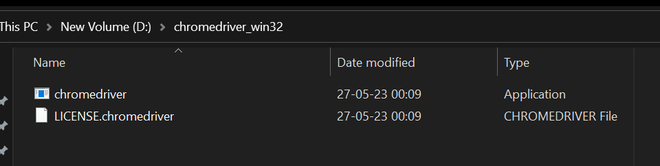
chromedriver.exe file.Example Path:
D:\chromedriver_win32\chromedriver.exe
Modern Selenium versions (Selenium 4.6 and above) include Selenium Manager, which automatically downloads and manages browser drivers such as ChromeDriver and GeckoDriver. In many cases, manual driver setup and system property configuration are no longer required.
WebDriver driver = new ChromeDriver();
Selenium Manager automatically detects the browser version and configures the required driver during execution.
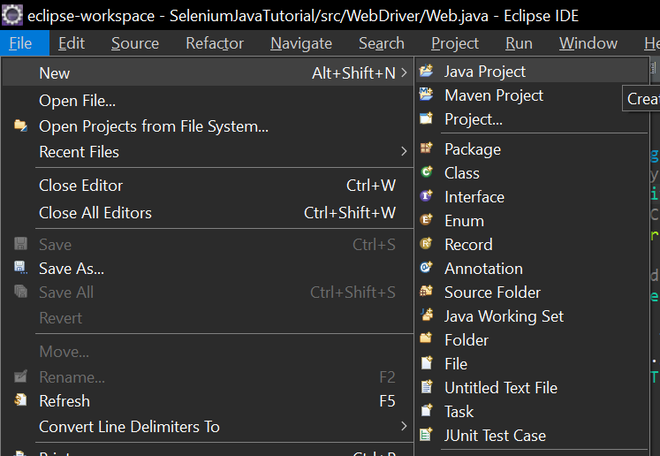
Step 1: Launch Eclipse and select.
File -> New -> Java Project
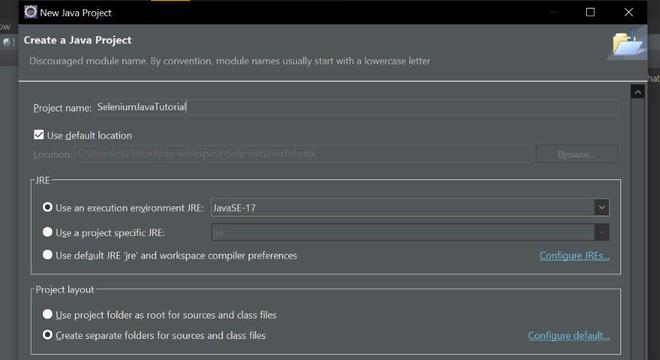
Step 2: Enter a name for your project and click Finish.
👁 Create Java ProjectExample: SeleniumJavaTutorial
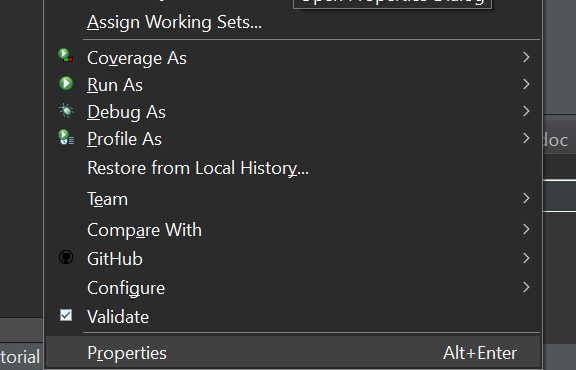
Step 3: Right-click on your project in Package Explorer and select Properties.
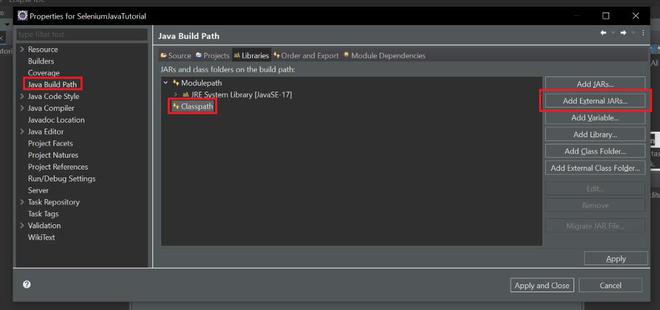
👁 Select PropertiesStep 4: Select Java Build Path from the left panel click on the libraries tab and then select Classpath. Click on Add External JARs and browse to the location where you downloaded the Selenium WebDriver library (e.g., selenium-java-4.1.0.zip).
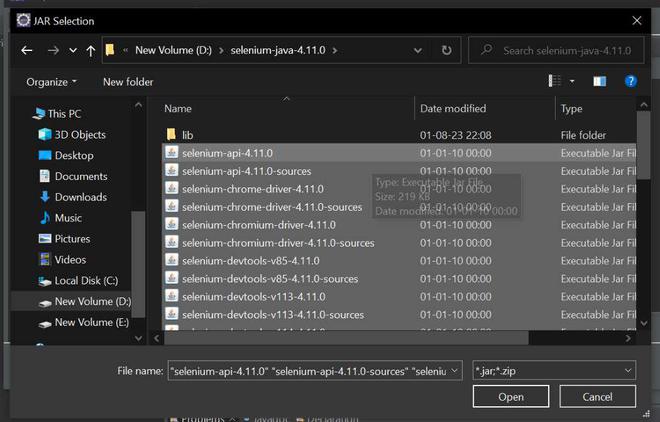
👁 Add External JARsStep 5: Select all the JAR files inside the zip file and click Open and also all the files inside the lib folder.
👁 Select JAR filesD:\selenium-java-4.11.0
D:\selenium-java-4.11.0\lib
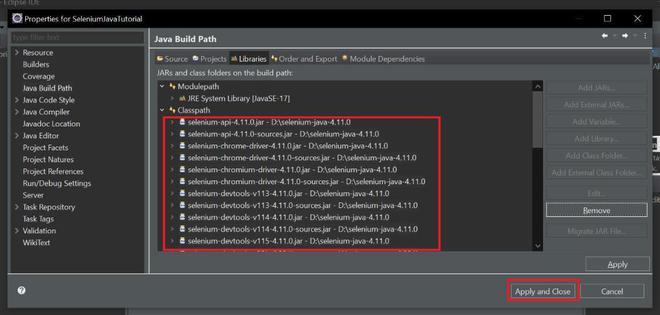
Step 6: Click Apply and Close to save the changes.
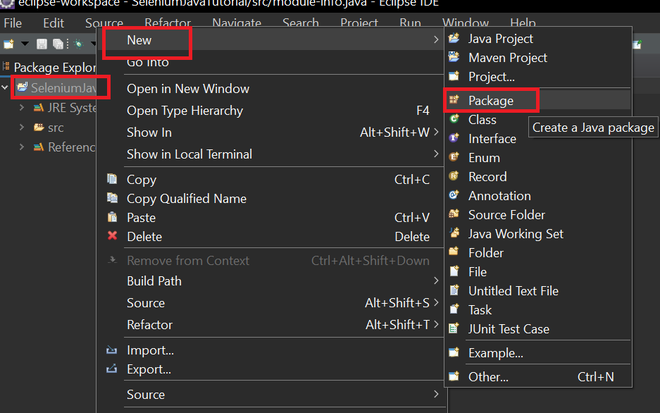
👁 Save changesStep 7: Create a new package under your project by right-clicking on the src folder and selecting New -> Package.
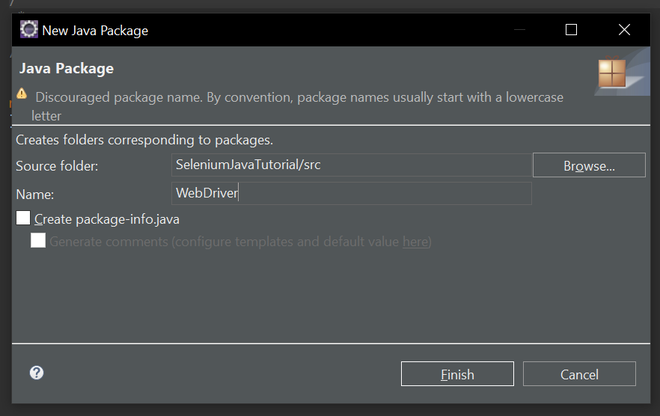
👁 Create New PackageStep 8: Add the name of your package
👁 Add name of PackageExample: WebDriver
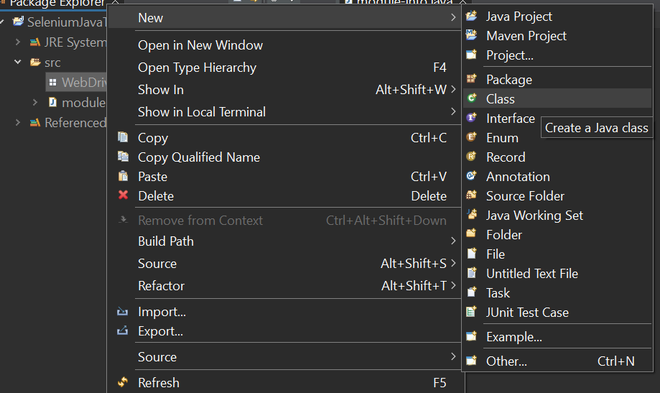
Step 9: Create a new class under your package (e.g., WebDriver) by right-clicking on the package and selecting New -> Class, then Enter a name for your class and click Finish.
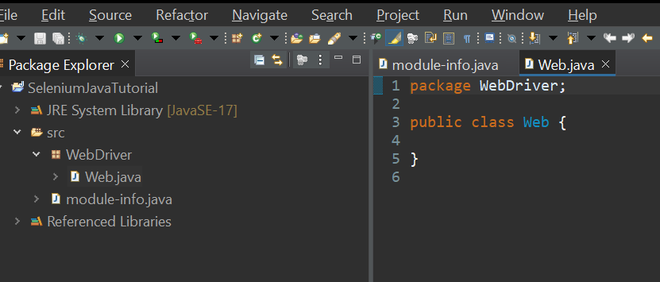
Step 10: After all the steps your file structure looks like this.
👁 File StructureStep 1: Import the required packages at the top of your class:
After importing if still getting errors in import just delete the module-info.java file.
Step 2: Create a main class inside the Web class.
Step 3: Set the system property for ChromeDriver (path to chromedriver executable).
(e.g., D:/chromedriver_win32/chromedriver.exe)
Step 4: Create an instance of ChromeDriver.
Step 5: Navigate to the desired website.
driver.get("https://www.geeksforgeeks.org/");
Step 6: Get and print the page title.
Step 7: Wait for a few seconds.
Step 8: Close the browser.
driver. Quit();
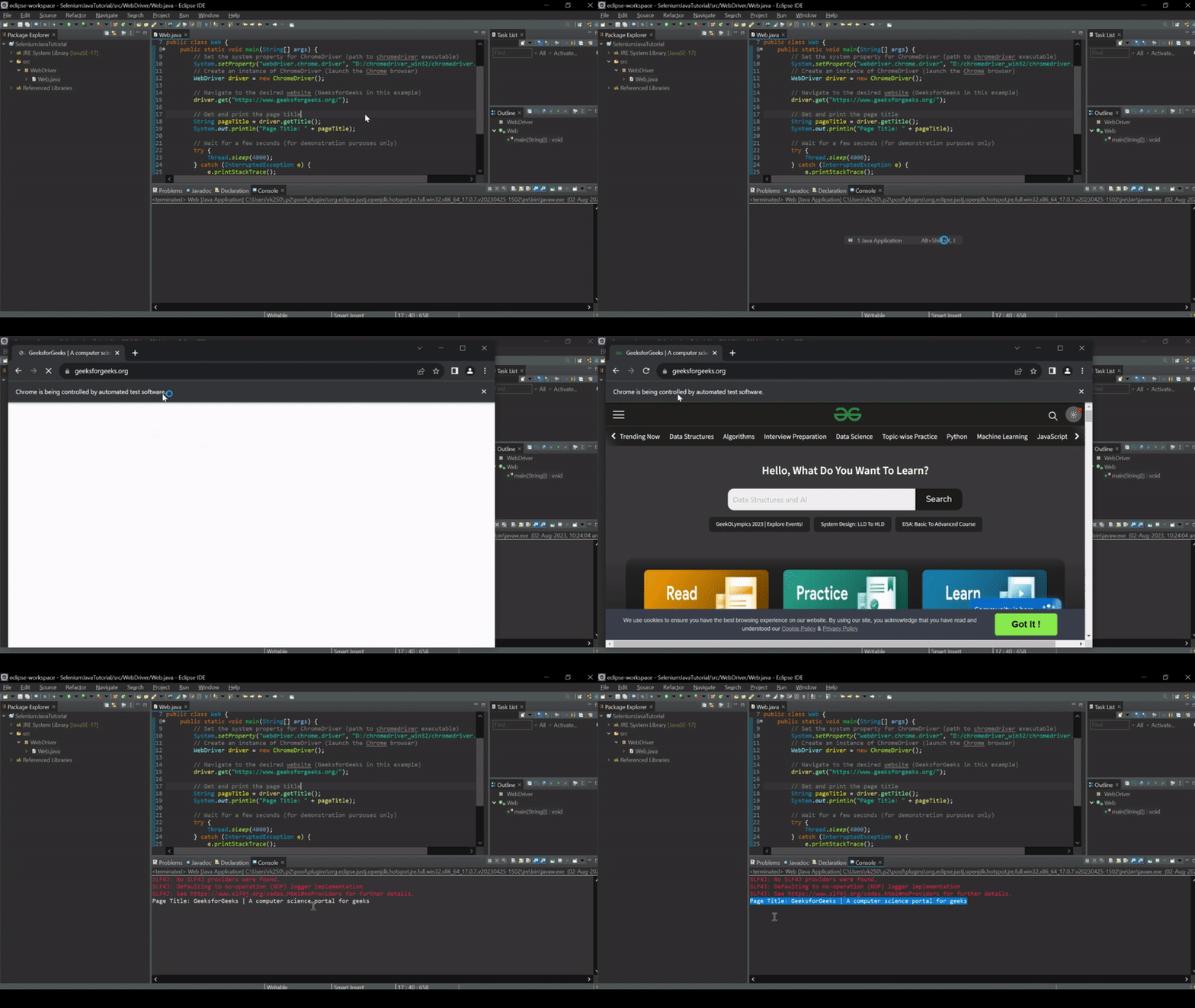
Below is the Java program to implement the above approach:
Output:
👁 ggeks-selium