VOOZH about

URL: https://www.geeksforgeeks.org/python/introduction-to-python-openpyxl/

⇱ Introduction to Python OpenPyxl - GeeksforGeeks


  • Courses
  • Tutorials
  • Interview Prep

Introduction to Python OpenPyxl

Last Updated : 9 Dec, 2025

OpenPyxl is a Python library that provides tools for reading, writing, and manipulating Excel files in the Excel 2010 format (which uses the .xlsx extension). This is a high-level library that abstracts away many low-level details, making it simple to work with spreadsheets programmatically.

  • Read and Write Excel Files: OpenPyxl can be used to both read from and write to .xlsx files.
  • Work with Cells: We can access, modify, and create new cells in Excel sheets.
  • Support for Formulas: OpenPyxl supports the evaluation of Excel formulas.
  • Styles and Formatting: We can modify the look and feel of cells (font, color, borders, etc.).
  • Charting: OpenPyxl also provides the ability to create simple charts in Excel files.
  • Working with Pivot Tables: Though limited, OpenPyxl offers the capability to interact with pivot tables.

Installing OpenPyxl

To use OpenPyxl, we'll first need to install it. We can do this using pip:

pip install openpyxl

Once installed, we're ready to start working with Excel files.

Basic Usage of OpenPyxl

1. Creating a New Excel File

Creating a new Excel file and saving it is quite straightforward with OpenPyxl. Here’s how to create a basic Excel workbook and sheet:

Explanation:

  • Workbook() creates a new Excel file.
  • .active returns the default sheet.
  • .save() writes the file to disk.

2. Writing Data to an Excel File

Let's now populate the Excel sheet with some data:

Output:

πŸ‘ Screenshot-2024-09-27-161643
Writing in a excel file

Explanation:

  • Data is written directly by referencing cell names (e.g., "A1").
  • Creates a simple table with names and ages.

3. Reading Data from an Excel File

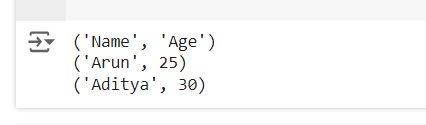
Reading data from an Excel file is equally simple. Let’s read the data we wrote in the previous example:

Output:

πŸ‘ Screenshot-2024-09-27-161847
Reading Excel File in OpenPyxl

Explanation:

  • load_workbook() opens an existing file.
  • iter_rows() retrieves rows as tuples.
  • values_only=True returns only cell values, not cell objects.

4. Modifying an Existing Excel File in OpenPyxl

We can easily modify existing Excel files by loading them and then editing the content:

Output:

πŸ‘ Screenshot-2024-09-27-162047
Modify Excel file in Openpyxl

Explanation: Load an existing file β†’ update cells β†’ save as a new file.

5. Formatting Cells in OpenPyxl

OpenPyxl allows us to apply styles and formatting to cells, such as changing the font size, color, or applying bold formatting:

Output:

πŸ‘ Screenshot-2024-09-27-162313
Format cell in Openpyxl

Explanation:

  • Use Font() to set bold text, size, and color.
  • Formats are applied directly to cell objects.

6. Adding Formulas to Cells in OpenPyxl

OpenPyxl also supports adding Excel formulas. We can assign a formula to a cell just like any other value:

Output:

πŸ‘ Screenshot-2024-09-27-162555
Adding formula to cells in OpenPyxl

Explanation:

  • Assign formulas as plain strings.
  • Excel evaluates the formula when the file is opened.

7. Merging and Unmerging Cells in OpenPyxl

We can merge and unmerge cells in Excel using OpenPyxl. Here's how to merge and unmerge a range of cells:

Comment
Article Tags:
Article Tags: