
Create original images with Image Playground on iPad
In the Image Playground app, you can use Apple Intelligence* to combine concepts, text descriptions, and people from your photo library to create images within seconds. You can also use Image Playground to create images in Messages, Freeform, and more.
Note: Apple Intelligence is not available on all iPad models or in all languages or regions.** To access the most recent available features, make sure you’re using the latest version of iPadOS and have Apple Intelligence turned on.
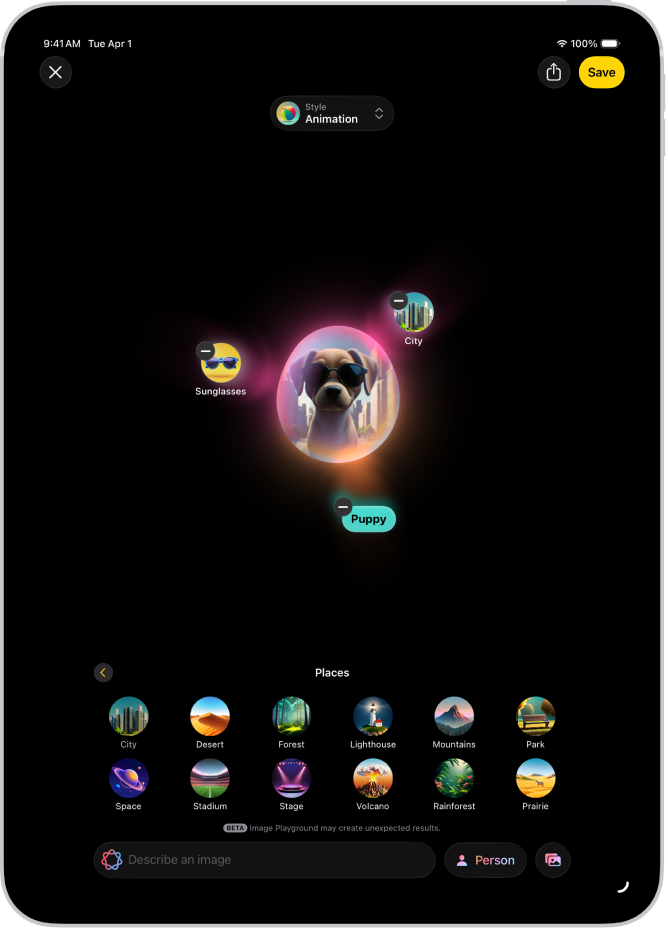
Create or edit an image
Go to the Image Playground app 👁 Image
on your iPad.Do one of the following:
Create a new image: Tap New Image.
Edit an existing image: Tap an image, then tap 👁 the Edit button
.
Add what you want to your image. You can combine up to seven elements to create original images.
Concepts: Swipe left to browse concepts—themes, expressions, costumes, accessories, or places—then tap an option.
A description: Tap “Describe an image,” enter a description, then tap 👁 the Send button
.A person: Tap Person, choose a person from your photo library, then choose a starting point.
To add a person from Photos, you need to name them in the Photos app. If you already added a person and want to change how they look, tap 👁 the Choose Person button
, tap Edit, choose a new starting point, then tap 👁 the Done button
. See Customize a person’s appearance.If you provide a description that’s different from the image you use—for example, the name in Photos doesn’t match the name in your description—your image is personalized based on the photo you selected rather than the text description.
Tip: You can also create an image of a person without using a photo from your library. Tap Person, tap Appearance, choose a skin tone and appearance, then tap 👁 the Done button
.A photo of something—like a pet, nature, or food: Tap 👁 the Photo Browser button
, then choose an option.
Tap Style, then select a style.
Apple Intelligence styles: Select Animation, Illustration, or Sketch, or create Genmoji. When you create Genmoji, they’re saved with your stickers.
ChatGPT styles:*** Tap ChatGPT, then select a style, or choose Any Style to describe what you want. For example, you could enter “a realistic image of a stork” for a baby shower invitation.
Note: Changing the image style creates a new set of previews.
Refine your image by doing any of the following:
See variations: Tap the preview bubble, then swipe left or right.
Remove a concept: Tap 👁 the Delete button
.
When you’re happy with your image, tap Save in the top-right corner to save it to your gallery. If you created a Genmoji, tap Add Emoji to add it with your stickers.
If you’re editing a previously saved image, tap Done—you’re asked if you want to update it or save it as a new image.




To view the image in your gallery, tap 👁 the Exit button
.

In addition to using the Image Playground app, you can also use Image Playground features to create original images in apps like Freeform and Messages. See Create and send original images in Messages and Create original images in Freeform.
Customize a person’s appearance
When you create an image based on a person from your photo library, you can change their appearance by choosing a different photo as a starting point or changing personal attributes like hairstyle, facial hair, and eyewear.
Go to the Image Playground app 👁 Image
on your iPad.Tap New Image, or tap an image, then tap 👁 the Edit button
.Do any of the following:
Choose a different photo: Tap Choose Other Photo, then tap a photo to choose it.
Choose the hairstyle, facial hair, or eyewear: Tap Customize Appearance, then choose options from the pop-up menus.
Tip: If the starting point still isn’t quite right, try entering a description in the “Additional details” field. For example, if you added prescription glasses, but they’re the wrong color, you can enter “blue glasses” or “make the glasses yellow.”
Return to the original starting point: Tap Reset Appearance.
When you’re happy with your starting point, tap 👁 the Done button
.
Copy, share, or save an image
Go to the Image Playground app 👁 Image
on your iPad.Touch and hold an image, then do any of the following:
Copy or duplicate your image: Tap Copy or Duplicate.
Add a caption to your image: Tap Add Caption, enter an image description, then tap Done.
Share your image: Tap 👁 the Share button
, then choose a share option.Save your image to your photo library: Tap 👁 the Share button
, then tap Save Image.

Delete an image
Note: If you delete an image from Image Playground, it’s deleted on all your devices where you’re signed in to the same Apple Account.
Go to the Image Playground app 👁 Image
on your iPad.Tap an image in the gallery, then tap 👁 the Delete button
.

Create and send original images in Messages
You can create images with Image Playground directly in the Messages app.
Go to the Messages app 👁 Image
on your iPad.Start a new message or open a conversation.
Tap 👁 the Apps button
, then tap Image Playground.Do one of the following:
Select an image you previously created: Tap Gallery at the top, select your image, then tap 👁 the Done button
.Create a new image: Tap Create at the top, follow instructions to create an image, then tap 👁 the Done button
.
When you’re ready to send your image, tap 👁 the Send button
.


Create original images in Freeform
You can create images with Image Playground directly in the Freeform app.
Go to the Freeform app 👁 Image
on your iPad.Open a board, or tap 👁 the New Board button
to start a new one.Do one of the following:
Create a new image: Tap 👁 the Insert Media button
in the toolbar, tap Image Playground, then follow instructions to create an image.Use elements from your board: Select up to six images, drawings, text boxes, stickies, or shapes that you want to use, tap them, then tap Add to Playground.
Replace an existing image with an image created in Image Playground: Add an image, select the image, tap 👁 the Modify Image button
, tap Replace, tap Image Playground, then follow instructions to create an image.
Tap 👁 the Done button
to add the image to your board.


You can also use Image Playground in other apps—such as Keynote, Pages, Apple Invites, and supported third-party apps.
You can block access to image creation features, like Image Playground, in Screen Time settings. See Block access to image creation features.