
Magnify or describe things around you with Magnifier on iPad
In the Magnifier app, you can use your iPad like a magnifying glass to zoom in on text or objects around you.
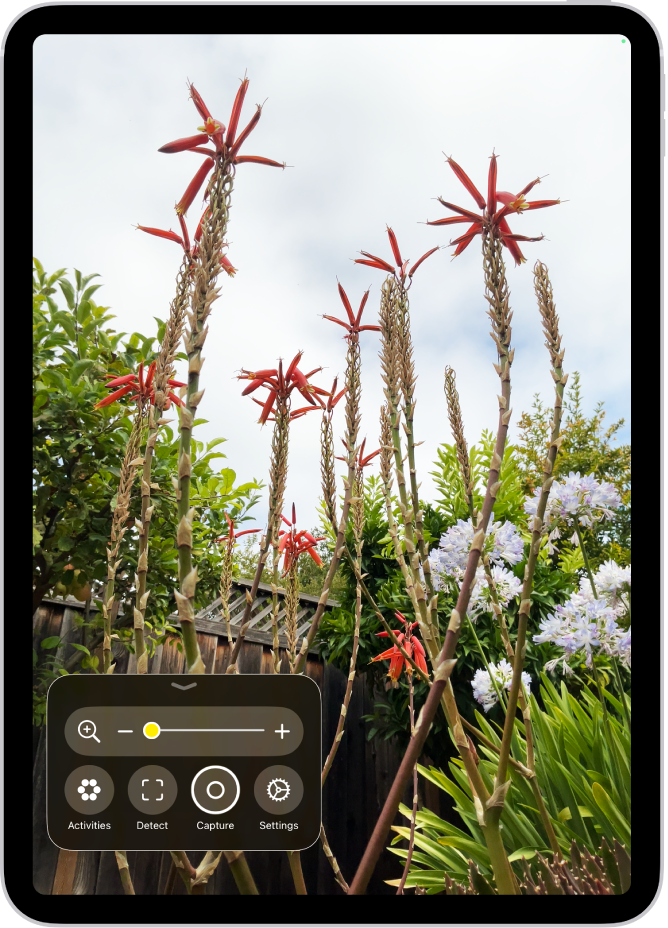
Magnify nearby text or objects
Go to the Magnifier app 👁 Image
on your iPad.Point the iPad camera at the text or object you want to magnify, then drag the slider to zoom in or out.
You can also use any of the following default controls:
Tap 👁 the Activities button
to switch between your default controls and custom sets of controls you’ve defined for recurring tasks or situations (called activities). See Set your preferred controls for an activity.Tap 👁 the Freeze frame button
to temporarily freeze the frame.Tap 👁 the Settings button
to add more controls, including Get live descriptions of your surroundings, or edit activities you’ve created.


Tip: Set up a shortcut to quickly open Magnifier from Control Center or by clicking an iPad button. See Quickly turn accessibility features on or off.
Temporarily freeze the frame
You can temporarily capture what’s in the frame, without saving it to Photos.
Go to the Magnifier app 👁 Image
on your iPad.Tap 👁 the Capture button
, then do one of the following:Take one or more photos: Press and hold 👁 the Capture button
, then select Single Photo or Multi-Photo to take a photo or multiple photos.If you select Multi-Photo, you’ll see a group of photos in the bottom right corner of the screen.
Capture text and reframe it: Press and hold 👁 the Capture button
, then select Document. Follow the written and spoken instructions to get the text in frame or drag the corners of the box that appear around the text, then tap Confirm.After you tap Confirm, tap 👁 the Reader button
to view the text with Accessibility Reader. See view your captured text in a format for easier reading or to listen to your captured text.Customize and listen to text: If you’re magnifying text, tap 👁 the Reader button
to view your captured text in a format for easier reading or to listen to your captured text.Share captured images: Tap 👁 the Share button
for more options, such as sharing the captured frame or saving it to your photos.Stop viewing captured images: Tap 👁 the Close button
to unfreeze the frame and return to the live Magnifier lens.


To reset Magnifier, press and hold 👁 the Capture button
anytime and select Document, Multi-Photo, or Single-Photo.
View your captured text in a format for easier reading
If you magnify a frame that contains text, you can view it in a format adapted for easier reading. You can even adjust fonts, layouts, and background colors.
Go to the Magnifier app 👁 Image
on your iPad.Tap 👁 the Capture button
to capture the frame, then tap 👁 the Reader button
.Magnifier alerts you if no text is detected in the frame you captured.
Tap 👁 the More button
, then tap Customize Reader.Select a theme, then tap Edit.
Do any of the following:
Text Color: Choose a color or tap Custom Color.
Background Color: Choose a color or tap Custom Color.
Text Size: Drag the slider left or right to make the text smaller or larger.
Font: Choose a font.
High Legibility Characters: Turn on High Legibility Characters.
Note: This option is only available when using System Font.
Bold Text: Turn on Bold Text.
Line Spacing: Choose 👁 the Default button
, 👁 the Loose button
, or 👁 the Open button
to customize the space between lines.Word Spacing: Choose 👁 the Default button
, 👁 the Loose button
, or 👁 the Open button
to customize the space between words.Character Spacing: Choose 👁 the Default button
, 👁 the Loose button
, or 👁 the Open button
to customize the space between characters.Readable Content Width: Choose 👁 the Default button
, 👁 the Loose button
, or 👁 the Open button
to customize the text width.Hyperlinks: Turn Show Links on or off. When turned on, you can customize the color.
Playback: Turn Highlighting on or off. When turned on, you can customize the style or highlight color.
Rename: Enter a name for the settings you choose.
Reset to Default: Reset all themes to their default settings.
Tip: Rename a theme with your custom settings so you can easily find it and reuse it later.


You can also use Accessibility Reader to customize the text in apps. See Read or listen to text in apps with Accessibility Reader on iPad.
Listen to your captured text
Go to the Magnifier app 👁 Image
on your iPad.Tap 👁 the Capture button
to capture the frame, then tap 👁 the Reader button
.Magnifier alerts you if no text is detected in the frame you captured.
Do any of the following:
Listen to the text: Tap 👁 the Play button
.Pause the text: Tap 👁 the Pause button
.Skip backward or forward: Tap 👁 the Rewind button
or 👁 the Forward button
.Increase or decrease the speed: Tap 👁 the Speaking Rate One Times button
, then select a speed.Go to a specific time: Drag the slider left or right.
Note: You can hide or show audio controls: Tap 👁 the More button
, then tap 👁 the Hide Audio Controls button
.


Get live descriptions of your surroundings
If you’re blind or have low vision, you can use Detection Mode in the Magnifier app on iPad to scan your surroundings and get live descriptions of the scenes detected in the camera view. Live descriptions are available as text or speech.
Important: Detection Mode should not be relied on in high-risk or emergency situations, in circumstances where you may be harmed or injured, or for navigation.
Go to the Magnifier app 👁 Image
on your iPad.Tap 👁 the Detection Mode button
to start Detection Mode.If you don’t see 👁 the Detection Mode button
, you can add it. See Customize controls.Touch and hold 👁 the Detection Mode button
, select Scenes, then do any of the following:On supported iPad models, detect doors, people, and furniture near you.
On all iPad models, detect text in the camera frame and have it read out loud or point your finger at text to have it spoken.
To temporarily pause detection, double-tap the screen with two fingers. Double-tap again with two fingers to resume detection. To stop Detection Mode, tap 👁 the Detection Mode button
.

If you use VoiceOver, you can turn on Live Recognition from any screen on iPad and get descriptions of your surroundings without going to the Magnifier app. See Get live descriptions of your surroundings with VoiceOver.