
iPad User Guide
- Welcome
-
-
- iPad models compatible with iPadOS 26
- iPad mini (5th generation)
- iPad mini (6th generation)
- iPad mini (A17 Pro)
- iPad (8th generation)
- iPad (9th generation)
- iPad (10th generation)
- iPad (A16)
- iPad Air (3rd generation)
- iPad Air (4th generation)
- iPad Air (5th generation)
- iPad Air 11-inch (M2)
- iPad Air 13-inch (M2)
- iPad Air 11-inch (M3)
- iPad Air 13-inch (M3)
- iPad Air 11-inch (M4)
- iPad Air 13-inch (M4)
- iPad Pro 11-inch (1st generation)
- iPad Pro 11-inch (2nd generation)
- iPad Pro 11-inch (3rd generation)
- iPad Pro 11-inch (4th generation)
- iPad Pro 11-inch (M4)
- iPad Pro 11-inch (M5)
- iPad Pro 12.9-inch (3rd generation)
- iPad Pro 12.9-inch (4th generation)
- iPad Pro 12.9-inch (5th generation)
- iPad Pro 12.9-inch (6th generation)
- iPad Pro 13-inch (M4)
- iPad Pro 13-inch (M5)
- Setup basics
- Make your iPad your own
- Streamline your workflow on iPad
- Do more with Apple Pencil
- Customize iPad for your child
-
- What’s new in iPadOS 26
-
- Change or turn off sounds
- Create a custom Lock Screen
- Change the wallpaper
- Use and customize Control Center
- Record audio and video
- Adjust the screen brightness and color balance
- Keep the iPad display on longer
- Adjust iPad display and text settings
- Change the name of your iPad
- Change the date and time
- Change the language and region
- Change the default apps
- Change your default search engine on iPad
- Rotate your iPad screen
- Customize sharing options
-
-
- Get started with Calendar
- Create and edit events in Calendar
- Send invitations
- Reply to invitations
- Change how you view events
- Search for events
- Change Calendar settings
- Schedule or display events in a different time zone
- Keep track of events
- Use multiple calendars
- Use reminders in Calendar
- Use the Holidays calendar
- Share iCloud calendars
-
- Get started with FaceTime
- Create a FaceTime link
- Take a Live Photo
- Use FaceTime audio call tools
- Use Live Captions and Live Translation
- Use other apps during a call
- Make a Group FaceTime call
- Use SharePlay to watch, listen, and play together
- Share your screen in a FaceTime call
- Request or give remote control in a FaceTime call
- Collaborate on a document in a FaceTime call
- Use video conferencing features
- Hand off a FaceTime call to another Apple device
- Change the FaceTime video settings
- Change the FaceTime audio settings
- Change your appearance
- Leave a call or switch to Messages
- Screen and filter calls
- Block a FaceTime call and report it as spam
-
- Get started with the Apple Games app
- Set up your Game Center profile
- Find and download games
- Subscribe to Apple Arcade
- Connect with friends in the Apple Games app
- Play with friends in the Apple Games app
- Manage your game library
- Connect a game controller
- Change game-related settings
- Report a problem with a game
-
- Get started with Home
- Intro to Home
- Upgrade to the new version of Apple Home
- Set up accessories
- Control accessories
- Use Grid Forecast to plan your energy usage
- View electricity usage and rates
- Adaptive Temperature and Clean Energy Guidance
- Set up HomePod
- Control your home remotely
- Create and use scenes
- Use automations
- Set up security cameras
- Use Face Recognition
- Configure a router
- Invite others to control accessories
- Add more homes
-
- Get started with Mail
- Check your email
- Use categories
- Automatically clean up iCloud Mail
- Set email notifications
- Search for email
- Organize your email in mailboxes
- Use iCloud Mail rules to automatically apply actions to emails
- Change Mail settings
- Delete and recover emails
- Add a Mail widget to your Home Screen
- Print emails
- Use keyboard shortcuts
-
- Get started with Maps
- Set your location and map view
-
- Search for places
- Find nearby attractions, restaurants, and services
- Explore airports or malls
- Get information about places
- View and manage Visited Places
- Add places and notes to your Places
- Share places
- Mark places with pins
- Rate places and add photos
- Explore places with guides
- Organize places with custom guides
- Clear location history
- Delete recent directions
- Report an issue with Maps
-
- Get started with Messages
- Set up Messages
- About iMessage
- Send and reply to messages
- Schedule a text message to send later
- Unsend and edit messages
- Keep track of messages
- Search
- Forward and share messages
- Group conversations
- Share screens
- Collaborate on projects
- Add backgrounds
- Use iMessage apps
- Poll people in a conversation
- Take and edit photos or videos
- Share photos, links, and more
- Send stickers
- Create and send Memoji
- React with Tapbacks
- Format text and animate messages
- Draw and handwrite messages
- Send and save GIFs
- Send and receive audio messages
- Share your location
- Turn read receipts on or off
- Stop, mute, and change notifications
- Screen and filter texts
- Report spam and block senders
- Delete messages and attachments
- Recover deleted messages
-
- Get started with Music
- Get music
- Customize Music
-
-
- Play music
- Use the music player controls
- Play lossless audio
- Play Spatial Audio
- Listen to radio
- Play music together using SharePlay
- Play music together in the car
- Queue up your music
- Transition songs
- Shuffle or repeat songs
- Sing along with Apple Music
- Show song credits and lyrics
- Tell Apple Music what you enjoy
- Adjust the sound quality
-
- Get started with News
- Get News notifications and newsletters
- Use News widgets
- See news stories chosen just for you
- Read and share stories
- Read local news
- Follow your favorite teams with My Sports
- Search for channels, topics, stories, or recipes
- Save stories
- Clear your reading history
- Customize the tab bar
- Subscribe to individual news channels
-
- Get started with Notes
- Create and format notes
- Use Quick Notes
- Add drawings and handwriting
- Enter formulas and equations
- Add photos, video, and more
- Record and transcribe audio
- Scan text and documents
- Work with PDFs
- Add links
- Search notes
- Organize in folders
- Organize with tags
- Use Smart Folders
- Share and collaborate
- Export or print notes
- Lock notes
- Delete and recover notes
- Add or remove accounts
- Change the Notes view
- Change Notes settings
- Use keyboard shortcuts
-
- Use passwords on iPad
- Find your password for a website or app
- Change the password for a website or app
- Remove a password
- Recover a deleted password
- Create a password for a website or app
- Show passwords in large text
- Use passkeys to sign in to websites and apps
- Sign in with Apple
- Share passwords
- Automatically fill in strong passwords
- See websites excluded from AutoFill
- Change weak or compromised passwords
- View your passwords and related information
- View password history
- Find your Wi-Fi password
- Share passwords securely with AirDrop
- Make your passwords available on all your devices
- Automatically fill in verification codes
- Sign in with fewer CAPTCHA challenges
- Use two-factor authentication
- Use security keys
- See your Mac FileVault recovery key
-
- Make a call
- Record and transcribe a call
- Change your Phone settings
- View and delete the call history
- Answer or decline incoming calls
- While on a call
- Have a conference or three-way call
- Set up Voicemail
- Check voicemail
- Change voicemail greeting and settings
- Select ringtones
- Make calls using Wi-Fi
- Set up call forwarding
- Set up call waiting
- Screen and block calls
-
- Get started with Photos
- Browse your photo library
- Browse your photo collections
- View photos and videos
- See photo and video information
- Sort and filter the photo library
- Back up and sync your photos and videos with iCloud
- Delete or hide photos and videos
- Search for photos and videos
- Get wallpaper suggestions
- Make stickers from your photos
- Hide people, memories, or holidays
- Duplicate and copy photos and videos
- Merge duplicate photos
- Import and export photos and videos
- Print photos
-
- Get started with Podcasts
- Find podcasts
- Watch and listen to podcasts
- View podcast transcripts
- Follow your favorite podcasts
- Rate or review podcasts
- Use the Podcasts widget
- Select your favorite Podcasts categories and channels
- Organize your podcast library
- Download, save, remove, and share podcasts
- Subscribe to podcasts
- Listen to subscriber-only content
- Change download settings
-
- Get started with Reminders
- Create reminders
- Make a grocery list
- Add details
- Complete items
- Delete and recover reminders
- Edit and organize a list
- Search your lists
- Organize multiple lists
- Tag items
- Use Smart Lists
- Share and collaborate
- Print a list
- Work with templates
- Add or remove accounts
- Change Reminders settings
- Use keyboard shortcuts
-
- Get started with Safari
- Browse the web
- Search for websites
- See highlights
- Customize your Safari settings
- Change the layout
- Create multiple Safari profiles
- Listen to a webpage
- Mute audio in tabs
- Bookmark a website
- Open as Web App
- Bookmark a website as a favorite
- Save pages to a Reading List
- Find links shared with you
- Download a PDF
- Annotate and save a webpage as a PDF
- Fill in forms
- Get extensions
- Clear your cache and cookies
- Enable cookies
- Shortcuts
- Tips
-
- Intro to Apple Intelligence
- Translate messages and calls
- Create original images with Image Playground
- Create your own emoji with Genmoji
- Use Image Wand with Apple Intelligence
- Use Apple Intelligence with Siri
- Find the right words with Writing Tools
- Use ChatGPT with Apple Intelligence
- Summarize notifications and reduce interruptions
- Apple Intelligence and privacy
- Block access to Apple Intelligence features
-
- Get started with Screen Time
- Protect your vision health with Screen Distance
- Create, manage, and keep track of a Screen Time passcode
- Set schedules with Screen Time
- Block apps, app downloads, websites, and purchases
- Block calls and messages with Screen Time
- Check for sensitive images and videos
- Set up Screen Time for a child
- Respond to a Screen Time request
-
- Power adapter and charge cable
- Use headphone audio-level features
-
- Apple Pencil compatibility
- Pair and charge Apple Pencil (1st generation)
- Pair and charge Apple Pencil (2nd generation)
- Pair and charge Apple Pencil (USB-C)
- Pair and charge Apple Pencil Pro
- Enter text with Scribble
- Draw with Apple Pencil
- Take and mark up a screenshot with Apple Pencil
- Quickly write notes
- HomePod and other wireless speakers
- External storage devices
- Connect Bluetooth accessories
- Play audio from your iPad on a Bluetooth accessory from your iPad
- Apple Watch with Fitness+
- Printers
- Polishing cloth
-
- Intro to Continuity
- Use AirDrop to send items to nearby devices
- Hand off tasks between devices
- Copy and paste between devices
- Stream video or mirror the screen of your iPad
- Allow phone calls and text messages on your iPad
- Share your internet connection with Personal Hotspot
- Use your iPad as a webcam for Apple TV 4K
- Insert sketches, photos, and scans on Mac
- Use your iPad as a second display
- Use one keyboard and mouse to control Mac and iPad
- Connect iPad and your computer with a cable
- Transfer files between devices
-
- Get started with accessibility features
- Use accessibility features during setup
- Change Siri accessibility settings
- Quickly turn accessibility features on or off
- Share your Accessibility settings with another device
-
- Overview of accessibility features for vision
- Read or listen to text in apps with Accessibility Reader
- Zoom in
- View a larger version of text you’re reading or typing
- Change display colors
- Make text easier to read
- Customize onscreen motion
- Use iPad more comfortably while riding in a vehicle
- Customize per-app visual settings
- Hear what’s on the screen or typed
- Hear audio descriptions
-
- Turn on and practice VoiceOver
- Change your VoiceOver settings
- Use VoiceOver gestures
- Operate iPad when VoiceOver is on
- Control VoiceOver using the rotor
- Use the onscreen keyboard
- Write with your finger
- Keep the screen off
- Use VoiceOver with an external keyboard
- Use a braille display
- Type braille on the screen
- Use Braille Access with a braille display
- Customize gestures and keyboard shortcuts
- Use VoiceOver with a pointer device
- Get live descriptions of your surroundings
- Use VoiceOver in apps
-
- Overview of accessibility features for mobility
- Use AssistiveTouch
- Use an adjustable onscreen trackpad on iPad
- Control iPad with the movement of your eyes
- Control iPad with the movement of your head
- Adjust how iPad responds to your touch
- Auto-answer calls
- Change Face ID and attention settings
- Use Voice Control
- Adjust the top or Home button
- Use Apple TV 4K Remote buttons
- Adjust pointer settings
- Adjust keyboard settings
- Control iPad with an external keyboard
- Adjust AirPods settings
- Adjust double tap and squeeze settings for Apple Pencil
-
- Overview of accessibility features for hearing
- Use hearing devices
- Use Live Listen
- Use sound recognition
- Get notified when your name is called
- Set up and use RTT
- Flash the indicator light or screen for notifications
- Adjust audio settings
- Play background sounds
- Display subtitles and captions
- Show transcriptions for Intercom messages
- Get live captions of spoken audio
-
- Control what you share
- Turn on Lock Screen features
- Block contacts
- Keep your Apple Account secure
- Create and manage Hide My Email addresses
- Protect your web browsing with iCloud Private Relay
- Use a private network address
- Use Advanced Data Protection
- Use Lockdown Mode
- Install Background Security Improvements
- Receive warnings about sensitive content
- Use Contact Key Verification
-
- Important safety information
- Important handling information
- Find more resources for software and service
- FCC compliance statement
- ISED Canada compliance statement
- Apple and the environment
- Class 1 Laser information
- Disposal and recycling information
- Unauthorized modification of iPadOS
- ENERGY STAR compliance statement
- Copyright and trademarks
Find group photos and videos on iPad
The Photos app recognizes groups of people and pets who often appear together in pictures and videos, and sorts them into group collections. For example, if you have many pictures of your family or a group of friends, Photos creates a collection for each of those groups.
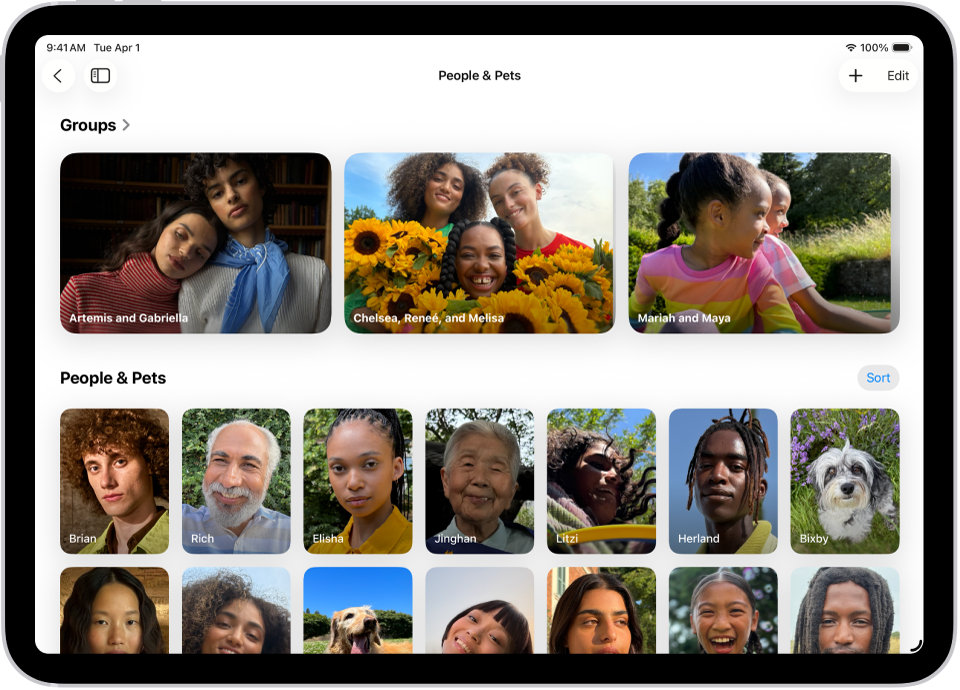
Find group photos and videos
Go to the Photos app 👁 Image
on your iPad.Tap Collections, then tap People & Pets.
Below Groups, swipe to view your groups or tap See All.
Select a group to view all the photos and videos in that group.
Tip: To add someone to the group, tap 👁 the Sort and Filter button
, tap View Options, then tap Other People.


To share the photos of the group, tap 👁 the More button
, then tap Share Photos.

Create a group collection
You can create a group collection with any combination of people and pets from the People & Pets collection.
Go to the Photos app 👁 Image
on your iPad.Tap Collections, then tap People & Pets.
To the right of Groups, tap 👁 the Add button
, then tap Create New Group.Select the people and pets you want in the group, then tap 👁 the Done button
.Optionally, enter a new name for the group or add more people and pets to the group.
Tap Create.


Edit or delete a group collection
Go to the Photos app 👁 Image
on your iPad.Tap Collections, then tap People & Pets.
Below Groups, touch and hold the group you want to edit, then do any of the following:
Rename the group: Tap Edit Name and People, enter a new name, then tap 👁 the Done button
.Add or remove people: Tap Edit Name and People, then tap 👁 the Remove button
at the top-left corner of their picture.Add someone to the group: Tap Edit Name and People, then tap Add People & Pets. Select who you want to add, then tap 👁 the Done button
.Edit the group photo: Tap Edit Name and People, then tap the photo icon in the bottom-right corner of the current group photo. Select a new photo, then tap 👁 the Done button
.Delete the Group: Tap Delete Group.

Change the order of group collections
Go to the Photos app 👁 Image
on your iPad.Tap Collections, then tap People & Pets.
Touch and hold a group, then drag it to a new position.