
iPad User Guide
- Welcome
-
-
- iPad models compatible with iPadOS 26
- iPad mini (5th generation)
- iPad mini (6th generation)
- iPad mini (A17 Pro)
- iPad (8th generation)
- iPad (9th generation)
- iPad (10th generation)
- iPad (A16)
- iPad Air (3rd generation)
- iPad Air (4th generation)
- iPad Air (5th generation)
- iPad Air 11-inch (M2)
- iPad Air 13-inch (M2)
- iPad Air 11-inch (M3)
- iPad Air 13-inch (M3)
- iPad Air 11-inch (M4)
- iPad Air 13-inch (M4)
- iPad Pro 11-inch (1st generation)
- iPad Pro 11-inch (2nd generation)
- iPad Pro 11-inch (3rd generation)
- iPad Pro 11-inch (4th generation)
- iPad Pro 11-inch (M4)
- iPad Pro 11-inch (M5)
- iPad Pro 12.9-inch (3rd generation)
- iPad Pro 12.9-inch (4th generation)
- iPad Pro 12.9-inch (5th generation)
- iPad Pro 12.9-inch (6th generation)
- iPad Pro 13-inch (M4)
- iPad Pro 13-inch (M5)
- Setup basics
- Make your iPad your own
- Streamline your workflow on iPad
- Do more with Apple Pencil
- Customize iPad for your child
-
- What’s new in iPadOS 26
-
- Change or turn off sounds
- Create a custom Lock Screen
- Change the wallpaper
- Use and customize Control Center
- Record audio and video
- Adjust the screen brightness and color balance
- Keep the iPad display on longer
- Adjust iPad display and text settings
- Change the name of your iPad
- Change the date and time
- Change the language and region
- Change the default apps
- Change your default search engine on iPad
- Rotate your iPad screen
- Customize sharing options
-
-
- Get started with Calendar
- Create and edit events in Calendar
- Send invitations
- Reply to invitations
- Change how you view events
- Search for events
- Change Calendar settings
- Schedule or display events in a different time zone
- Keep track of events
- Use multiple calendars
- Use reminders in Calendar
- Use the Holidays calendar
- Share iCloud calendars
-
- Get started with FaceTime
- Create a FaceTime link
- Take a Live Photo
- Use FaceTime audio call tools
- Use Live Captions and Live Translation
- Use other apps during a call
- Make a Group FaceTime call
- Use SharePlay to watch, listen, and play together
- Share your screen in a FaceTime call
- Request or give remote control in a FaceTime call
- Collaborate on a document in a FaceTime call
- Use video conferencing features
- Hand off a FaceTime call to another Apple device
- Change the FaceTime video settings
- Change the FaceTime audio settings
- Change your appearance
- Leave a call or switch to Messages
- Screen and filter calls
- Block a FaceTime call and report it as spam
-
- Get started with the Apple Games app
- Set up your Game Center profile
- Find and download games
- Subscribe to Apple Arcade
- Connect with friends in the Apple Games app
- Play with friends in the Apple Games app
- Manage your game library
- Connect a game controller
- Change game-related settings
- Report a problem with a game
-
- Get started with Home
- Intro to Home
- Upgrade to the new version of Apple Home
- Set up accessories
- Control accessories
- Use Grid Forecast to plan your energy usage
- View electricity usage and rates
- Adaptive Temperature and Clean Energy Guidance
- Set up HomePod
- Control your home remotely
- Create and use scenes
- Use automations
- Set up security cameras
- Use Face Recognition
- Configure a router
- Invite others to control accessories
- Add more homes
-
- Get started with Mail
- Check your email
- Use categories
- Automatically clean up iCloud Mail
- Set email notifications
- Search for email
- Organize your email in mailboxes
- Use iCloud Mail rules to automatically apply actions to emails
- Change Mail settings
- Delete and recover emails
- Add a Mail widget to your Home Screen
- Print emails
- Use keyboard shortcuts
-
- Get started with Maps
- Set your location and map view
-
- Search for places
- Find nearby attractions, restaurants, and services
- Explore airports or malls
- Get information about places
- View and manage Visited Places
- Add places and notes to your Places
- Share places
- Mark places with pins
- Rate places and add photos
- Explore places with guides
- Organize places with custom guides
- Clear location history
- Delete recent directions
- Report an issue with Maps
-
- Get started with Messages
- Set up Messages
- About iMessage
- Send and reply to messages
- Schedule a text message to send later
- Unsend and edit messages
- Keep track of messages
- Search
- Forward and share messages
- Group conversations
- Share screens
- Collaborate on projects
- Add backgrounds
- Use iMessage apps
- Poll people in a conversation
- Take and edit photos or videos
- Share photos, links, and more
- Send stickers
- Create and send Memoji
- React with Tapbacks
- Format text and animate messages
- Draw and handwrite messages
- Send and save GIFs
- Send and receive audio messages
- Share your location
- Turn read receipts on or off
- Stop, mute, and change notifications
- Screen and filter texts
- Report spam and block senders
- Delete messages and attachments
- Recover deleted messages
-
- Get started with Music
- Get music
- Customize Music
-
-
- Play music
- Use the music player controls
- Play lossless audio
- Play Spatial Audio
- Listen to radio
- Play music together using SharePlay
- Play music together in the car
- Queue up your music
- Transition songs
- Shuffle or repeat songs
- Sing along with Apple Music
- Show song credits and lyrics
- Tell Apple Music what you enjoy
- Adjust the sound quality
-
- Get started with News
- Get News notifications and newsletters
- Use News widgets
- See news stories chosen just for you
- Read and share stories
- Read local news
- Follow your favorite teams with My Sports
- Search for channels, topics, stories, or recipes
- Save stories
- Clear your reading history
- Customize the tab bar
- Subscribe to individual news channels
-
- Get started with Notes
- Create and format notes
- Use Quick Notes
- Add drawings and handwriting
- Enter formulas and equations
- Add photos, video, and more
- Record and transcribe audio
- Scan text and documents
- Work with PDFs
- Add links
- Search notes
- Organize in folders
- Organize with tags
- Use Smart Folders
- Share and collaborate
- Export or print notes
- Lock notes
- Delete and recover notes
- Add or remove accounts
- Change the Notes view
- Change Notes settings
- Use keyboard shortcuts
-
- Use passwords on iPad
- Find your password for a website or app
- Change the password for a website or app
- Remove a password
- Recover a deleted password
- Create a password for a website or app
- Show passwords in large text
- Use passkeys to sign in to websites and apps
- Sign in with Apple
- Share passwords
- Automatically fill in strong passwords
- See websites excluded from AutoFill
- Change weak or compromised passwords
- View your passwords and related information
- View password history
- Find your Wi-Fi password
- Share passwords securely with AirDrop
- Make your passwords available on all your devices
- Automatically fill in verification codes
- Sign in with fewer CAPTCHA challenges
- Use two-factor authentication
- Use security keys
- See your Mac FileVault recovery key
-
- Make a call
- Record and transcribe a call
- Change your Phone settings
- View and delete the call history
- Answer or decline incoming calls
- While on a call
- Have a conference or three-way call
- Set up Voicemail
- Check voicemail
- Change voicemail greeting and settings
- Select ringtones
- Make calls using Wi-Fi
- Set up call forwarding
- Set up call waiting
- Screen and block calls
-
- Get started with Photos
- Browse your photo library
- Browse your photo collections
- View photos and videos
- See photo and video information
- Sort and filter the photo library
- Back up and sync your photos and videos with iCloud
- Delete or hide photos and videos
- Search for photos and videos
- Get wallpaper suggestions
- Make stickers from your photos
- Hide people, memories, or holidays
- Duplicate and copy photos and videos
- Merge duplicate photos
- Import and export photos and videos
- Print photos
-
- Get started with Podcasts
- Find podcasts
- Watch and listen to podcasts
- View podcast transcripts
- Follow your favorite podcasts
- Rate or review podcasts
- Use the Podcasts widget
- Select your favorite Podcasts categories and channels
- Organize your podcast library
- Download, save, remove, and share podcasts
- Subscribe to podcasts
- Listen to subscriber-only content
- Change download settings
-
- Get started with Reminders
- Create reminders
- Make a grocery list
- Add details
- Complete items
- Delete and recover reminders
- Edit and organize a list
- Search your lists
- Organize multiple lists
- Tag items
- Use Smart Lists
- Share and collaborate
- Print a list
- Work with templates
- Add or remove accounts
- Change Reminders settings
- Use keyboard shortcuts
-
- Get started with Safari
- Browse the web
- Search for websites
- See highlights
- Customize your Safari settings
- Change the layout
- Create multiple Safari profiles
- Listen to a webpage
- Mute audio in tabs
- Bookmark a website
- Open as Web App
- Bookmark a website as a favorite
- Save pages to a Reading List
- Find links shared with you
- Download a PDF
- Annotate and save a webpage as a PDF
- Fill in forms
- Get extensions
- Clear your cache and cookies
- Enable cookies
- Shortcuts
- Tips
-
- Intro to Apple Intelligence
- Translate messages and calls
- Create original images with Image Playground
- Create your own emoji with Genmoji
- Use Image Wand with Apple Intelligence
- Use Apple Intelligence with Siri
- Find the right words with Writing Tools
- Use ChatGPT with Apple Intelligence
- Summarize notifications and reduce interruptions
- Apple Intelligence and privacy
- Block access to Apple Intelligence features
-
- Get started with Screen Time
- Protect your vision health with Screen Distance
- Create, manage, and keep track of a Screen Time passcode
- Set schedules with Screen Time
- Block apps, app downloads, websites, and purchases
- Block calls and messages with Screen Time
- Check for sensitive images and videos
- Set up Screen Time for a child
- Respond to a Screen Time request
-
- Power adapter and charge cable
- Use headphone audio-level features
-
- Apple Pencil compatibility
- Pair and charge Apple Pencil (1st generation)
- Pair and charge Apple Pencil (2nd generation)
- Pair and charge Apple Pencil (USB-C)
- Pair and charge Apple Pencil Pro
- Enter text with Scribble
- Draw with Apple Pencil
- Take and mark up a screenshot with Apple Pencil
- Quickly write notes
- HomePod and other wireless speakers
- External storage devices
- Connect Bluetooth accessories
- Play audio from your iPad on a Bluetooth accessory from your iPad
- Apple Watch with Fitness+
- Printers
- Polishing cloth
-
- Intro to Continuity
- Use AirDrop to send items to nearby devices
- Hand off tasks between devices
- Copy and paste between devices
- Stream video or mirror the screen of your iPad
- Allow phone calls and text messages on your iPad
- Share your internet connection with Personal Hotspot
- Use your iPad as a webcam for Apple TV 4K
- Insert sketches, photos, and scans on Mac
- Use your iPad as a second display
- Use one keyboard and mouse to control Mac and iPad
- Connect iPad and your computer with a cable
- Transfer files between devices
-
- Get started with accessibility features
- Use accessibility features during setup
- Change Siri accessibility settings
- Quickly turn accessibility features on or off
- Share your Accessibility settings with another device
-
- Overview of accessibility features for vision
- Read or listen to text in apps with Accessibility Reader
- Zoom in
- View a larger version of text you’re reading or typing
- Change display colors
- Make text easier to read
- Customize onscreen motion
- Use iPad more comfortably while riding in a vehicle
- Customize per-app visual settings
- Hear what’s on the screen or typed
- Hear audio descriptions
-
- Turn on and practice VoiceOver
- Change your VoiceOver settings
- Use VoiceOver gestures
- Operate iPad when VoiceOver is on
- Control VoiceOver using the rotor
- Use the onscreen keyboard
- Write with your finger
- Keep the screen off
- Use VoiceOver with an external keyboard
- Use a braille display
- Type braille on the screen
- Use Braille Access with a braille display
- Customize gestures and keyboard shortcuts
- Use VoiceOver with a pointer device
- Get live descriptions of your surroundings
- Use VoiceOver in apps
-
- Overview of accessibility features for mobility
- Use AssistiveTouch
- Use an adjustable onscreen trackpad on iPad
- Control iPad with the movement of your eyes
- Control iPad with the movement of your head
- Adjust how iPad responds to your touch
- Auto-answer calls
- Change Face ID and attention settings
- Use Voice Control
- Adjust the top or Home button
- Use Apple TV 4K Remote buttons
- Adjust pointer settings
- Adjust keyboard settings
- Control iPad with an external keyboard
- Adjust AirPods settings
- Adjust double tap and squeeze settings for Apple Pencil
-
- Overview of accessibility features for hearing
- Use hearing devices
- Use Live Listen
- Use sound recognition
- Get notified when your name is called
- Set up and use RTT
- Flash the indicator light or screen for notifications
- Adjust audio settings
- Play background sounds
- Display subtitles and captions
- Show transcriptions for Intercom messages
- Get live captions of spoken audio
-
- Control what you share
- Turn on Lock Screen features
- Block contacts
- Keep your Apple Account secure
- Create and manage Hide My Email addresses
- Protect your web browsing with iCloud Private Relay
- Use a private network address
- Use Advanced Data Protection
- Use Lockdown Mode
- Install Background Security Improvements
- Receive warnings about sensitive content
- Use Contact Key Verification
-
- Important safety information
- Important handling information
- Find more resources for software and service
- FCC compliance statement
- ISED Canada compliance statement
- Apple and the environment
- Class 1 Laser information
- Disposal and recycling information
- Unauthorized modification of iPadOS
- ENERGY STAR compliance statement
- Copyright and trademarks
Get started with Preview on iPad
Learn how to use the Preview app 👁 Image
to fill out and sign PDF forms, scan documents, and make changes to PDF documents and images.

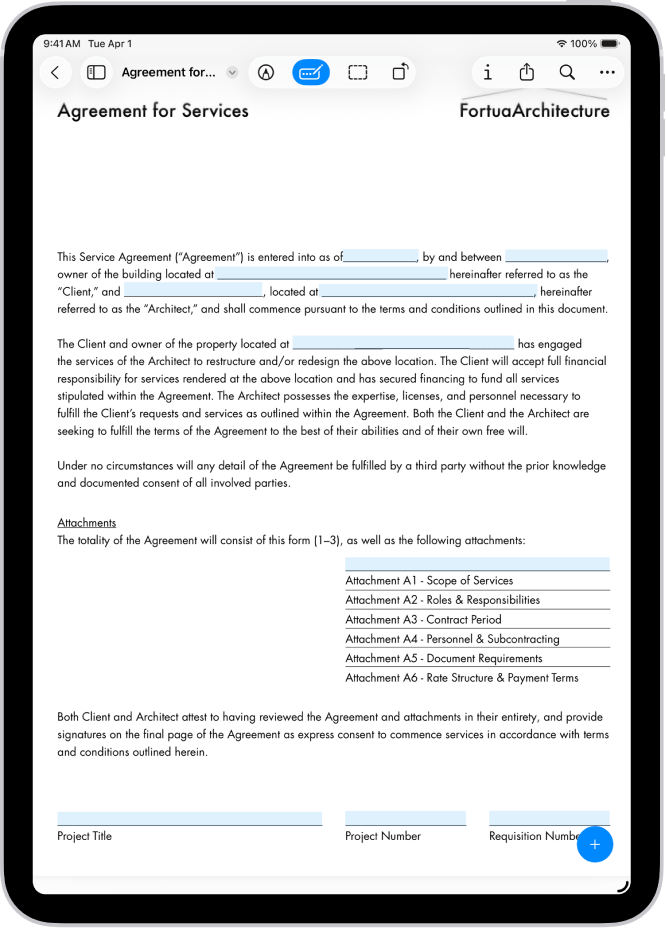
Fill out PDF forms
To fill out a PDF form in Preview, tap 👁 the AutoFill button
at the top of the screen, then select a field. Enter text, or tap a suggestion that appears above the onscreen keyboard. Use your finger or Apple Pencil to add a signature.

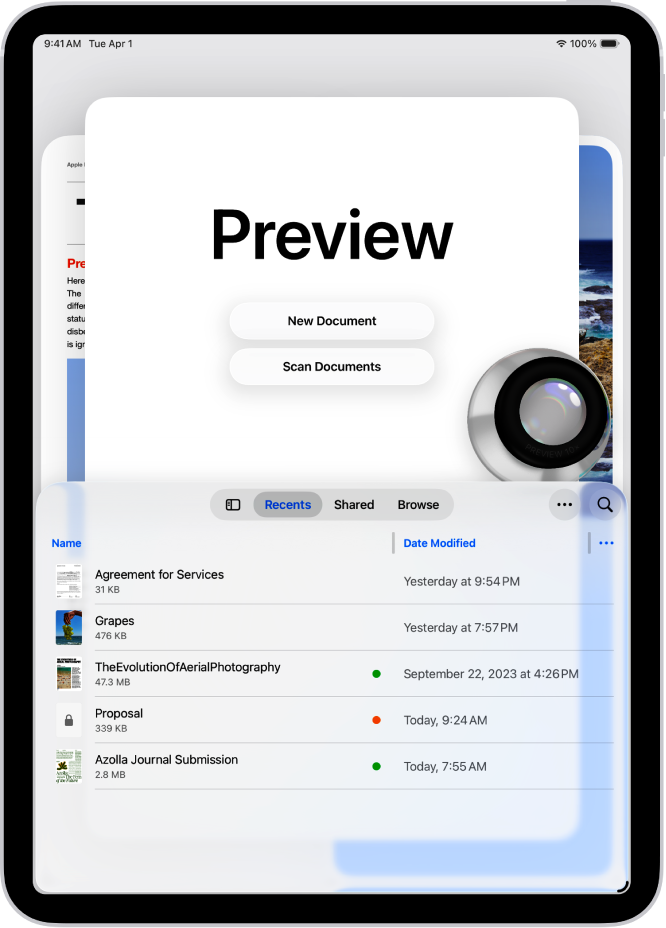
Scan and save documents to create a PDF file
Tap Scan Documents, then position the iPad camera to capture document pages. You can crop, rotate, and adjust colors before saving the scanned document as a searchable PDF.
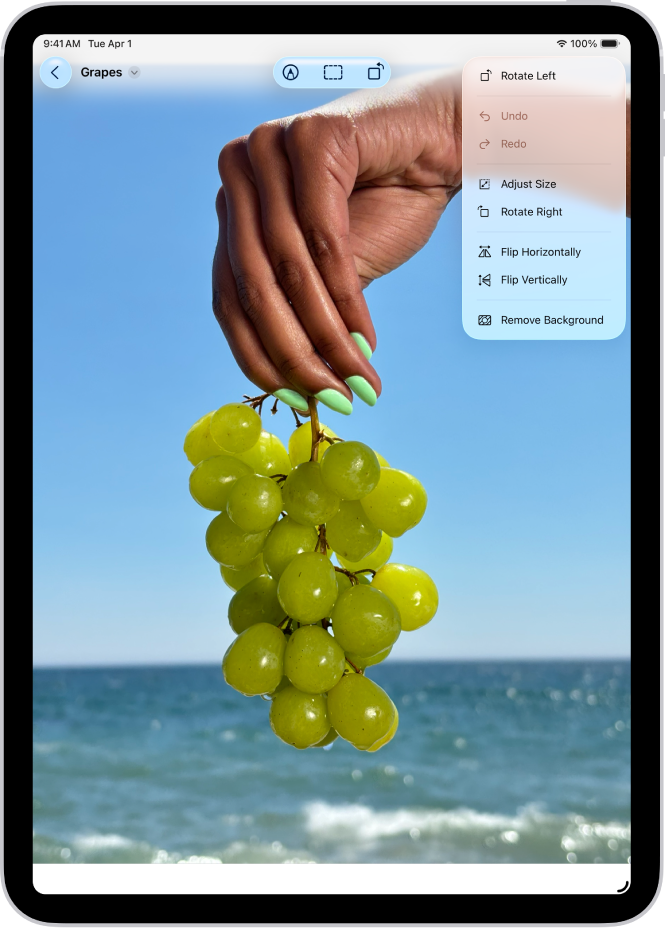
Remove the background from an image
You can remove image backgrounds to focus on what’s important. Tap 👁 the More button
at the top of the screen, then choose Remove Background.

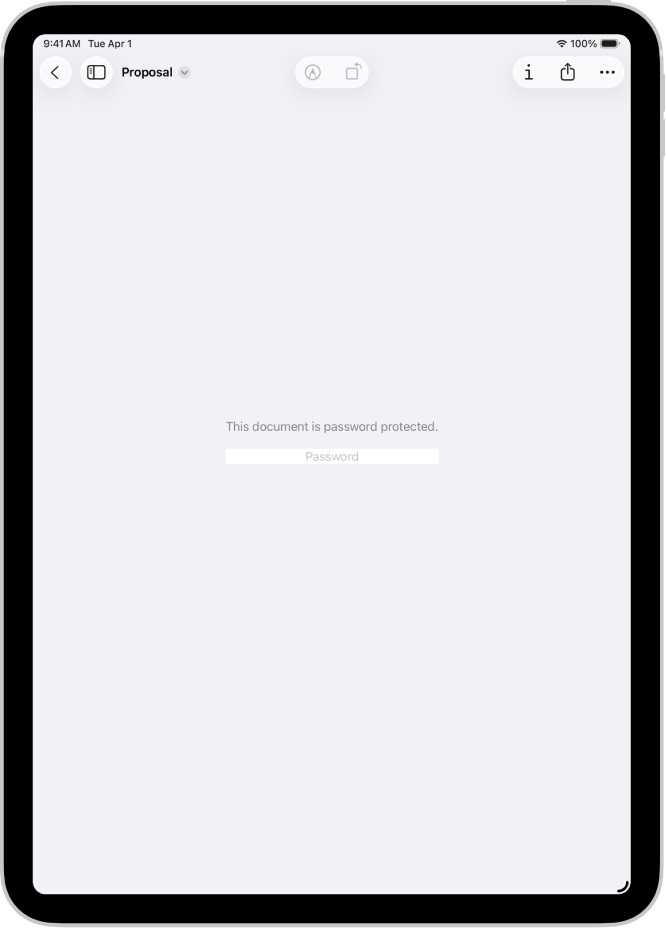
Protect a PDF document with a password
You can lock a PDF with a password. Open a PDF, tap 👁 the Actions Menu button
next to the filename, then tap Lock. Turn on Require Password, then enter a password in the Password and Verify fields.

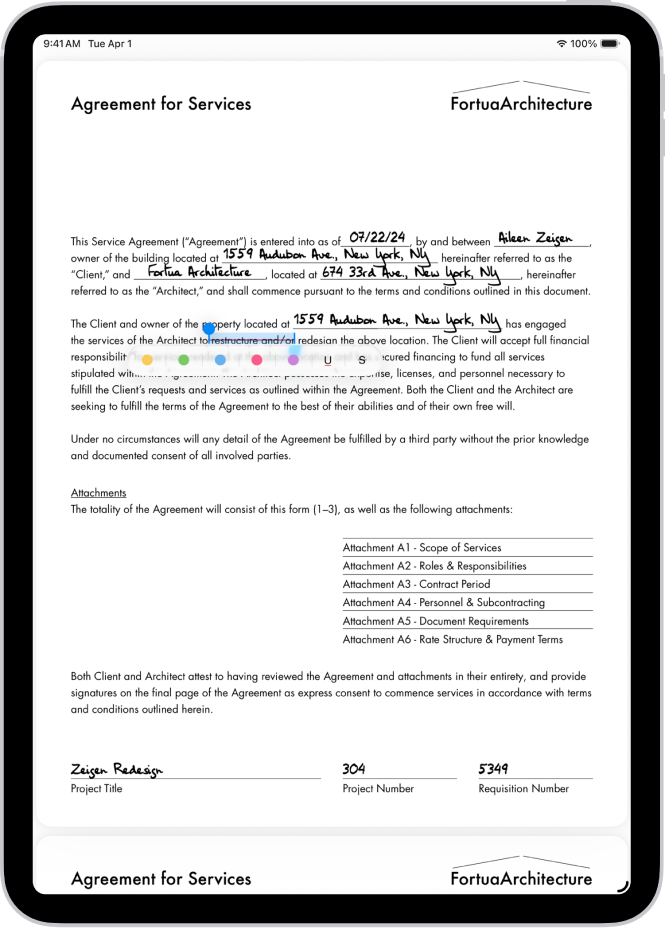
Highlight, underline, or strike through text
You can highlight, underline, or strike through text in a PDF. Open a PDF, then select text. Tap Highlight, then tap a highlight color, the underline button, or the strike through button.
Want to learn more?