|
VOOZH | about |
|
VOOZH | about |
Matplotlib is a Python library used for creating static, animated and interactive data visualizations. It is built on the top of NumPy and it can easily handles large datasets for creating various types of plots such as line charts, bar charts, scatter plots, etc.
Pyplot is a module in Matplotlib that provides a simple interface for creating plots. It allows users to generate charts like line graphs, bar charts and histograms with minimal code. Let’s explore some examples with simple code to understand how to use it effectively.
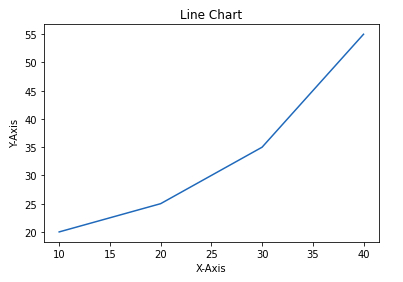
Line chart is one of the basic plots and can be created using plot() function. It is used to represent a relationship between two data X and Y on a different axis.
Syntax:
matplotlib.pyplot.plot(x, y)
Parameter: x, y Coordinates for data points.
Example: This code plots a simple line chart with labeled axes and a title using Matplotlib.
Output
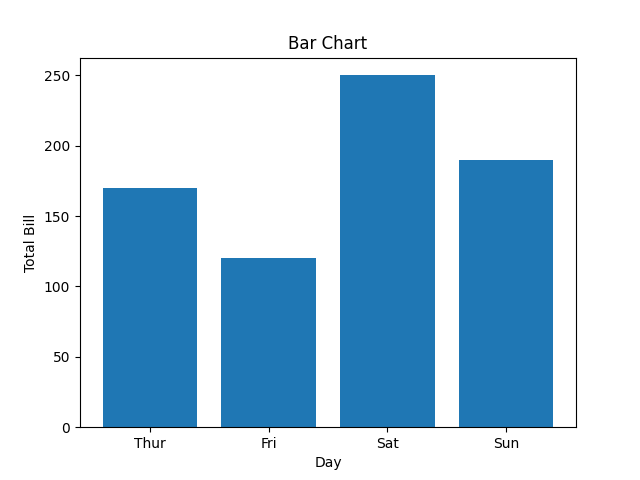
Bar chart displays categorical data using rectangular bars whose lengths are proportional to the values they represent. It can be plotted vertically or horizontally to compare different categories.
Syntax:
matplotlib.pyplot.bar(x, height)
Parameter:
Example: This code creates a simple bar chart to show total bills for different days. X-axis represents the days and Y-axis shows total bill amount.
Output
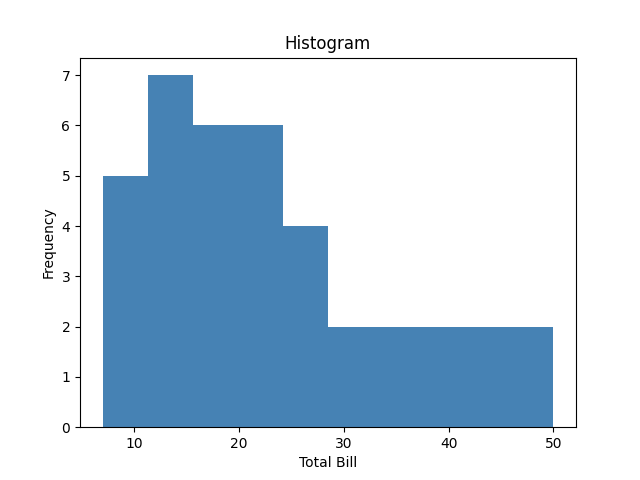
Histogram shows the distribution of data by grouping values into bins. The hist() function is used to create it, with X-axis showing bins and Y-axis showing frequencies.
Syntax:
matplotlib.pyplot.hist(x, bins=None)
Parameter:
Example: This code plots a histogram to show frequency distribution of total bill values from the list x. It uses 10 bins and adds axis labels and a title for clarity.
Output
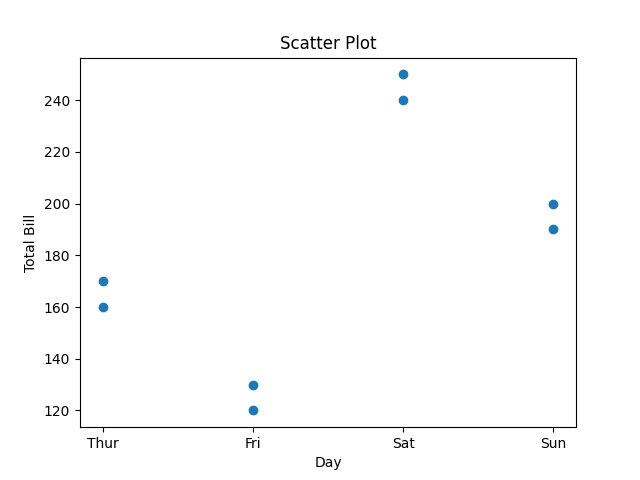
Scatter plots are used to observe relationships between variables. The scatter() method in the matplotlib library is used to draw a scatter plot.
Syntax:
matplotlib.pyplot.scatter(x, y)
Parameter: x, y Coordinates of the points.
Example: This code creates a scatter plot to visualize the relationship between days and total bill amounts using scatter().
Output
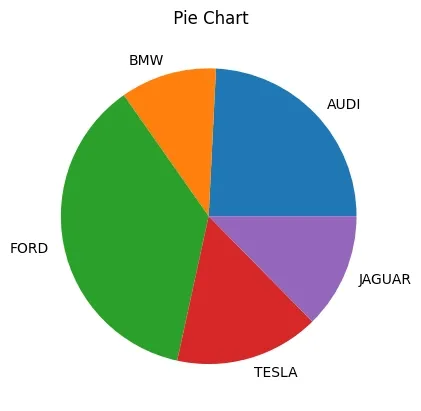
Pie chart is a circular chart used to show data as proportions or percentages. It is created using the pie(), where each slice (wedge) represents a part of the whole.
Syntax:
matplotlib.pyplot.pie(x, labels=None, autopct=None)
Parameter:
Example: This code creates a simple pie chart to visualize distribution of different car brands. Each slice of pie represents the proportion of cars for each brand in the dataset.
Output
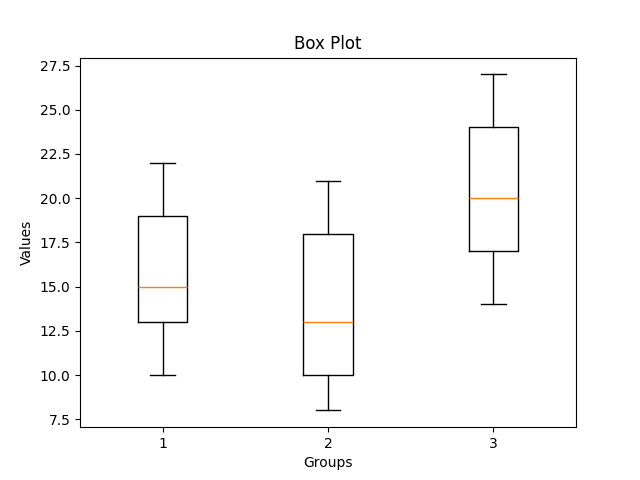
Box plot is a simple graph that shows how data is spread out. It displays the minimum, maximum, median and quartiles and also helps to spot outliers easily.
Syntax:
matplotlib.pyplot.boxplot(x, notch=False, vert=True)
Parameter:
Example: This code creates a box plot to show the data distribution and compare three groups using matplotlib
Output
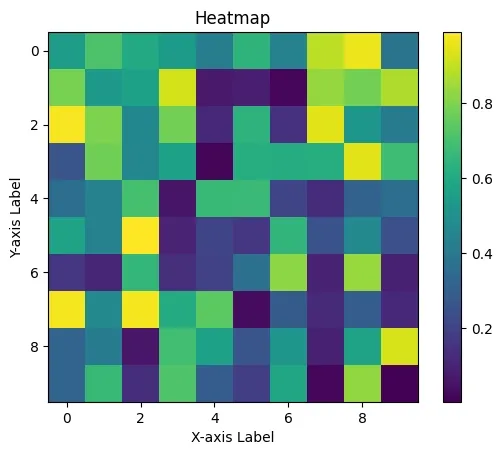
Heatmap is a graphical representation of data where values are shown as colors. It helps visualize patterns, correlations or intensity in a matrix-like format. It is created using imshow() method in Matplotlib.
Syntax:
matplotlib.pyplot.imshow(X, cmap='viridis')
Parameter:
Example: This code creates a heatmap of random 10×10 data using imshow(). It uses 'viridis' color map and colorbar() adds a color scale.
Output
Explanation:
Customization in Matplotlib allows you to improve look and clarity of plots by adjusting elements like colors, styles, labels, titles and gridlines. It helps make visualizations more informative and visually appealing for better data communication. Let’s explore different ways to customize visualizations:
Line charts can be customized using various properties:
Example: This code creates a customized line chart with a green dashed line, thicker width, large circular markers and labeled axes and title.
Output
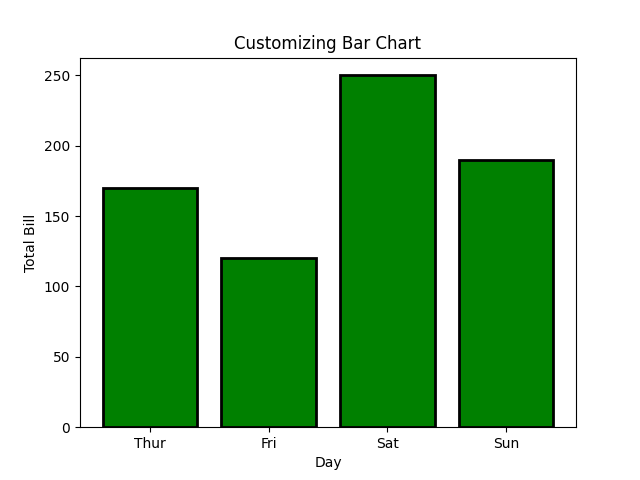
Bar charts can be made more informative and visually appealing by customizing:
Example: This code creates a customized bar chart with green bars, blue edges, thicker border lines and labeled axes and title.
Output
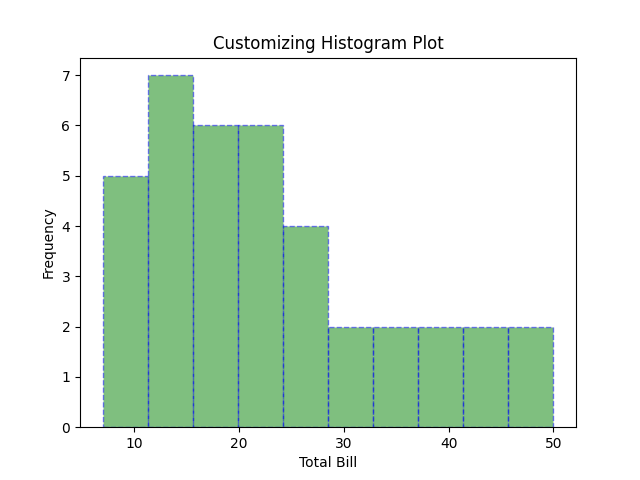
To make histogram plots more effective various customizations can be applied:
Example: This code creates a customized histogram with green bars, blue edges, dashed border lines, semi-transparent fill and labeled axes and title.
Output
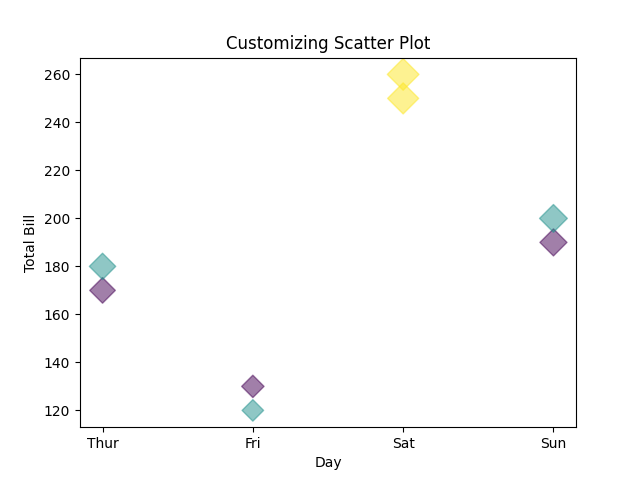
Scatter plots can be enhanced with:
Example: This code creates a customized scatter plot using diamond-shaped markers, where color represents size, marker size reflects the total bill and transparency is added for better visualization. It includes labeled axes and a title.
Output
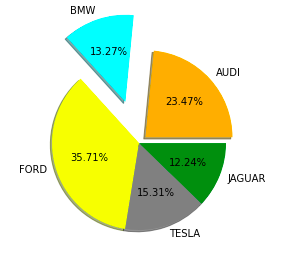
To make pie charts more effective and visually appealing use:
Example: This code creates a customized pie chart with colored slices, exploded segments for emphasis, percentage labels with two decimal places and a shadow effect for better visual appeal.
Output
Before we proceed let’s understand two classes which are important for working with Matplotlib.
The Figure class represents the full drawing area or canvas that can hold one or more plots. It is created using the figure() function and lets user control the overall size, layout and background of the plot window.
Syntax:
matplotlib.figure.Figure(figsize=None, facecolor=None)
Parameter:
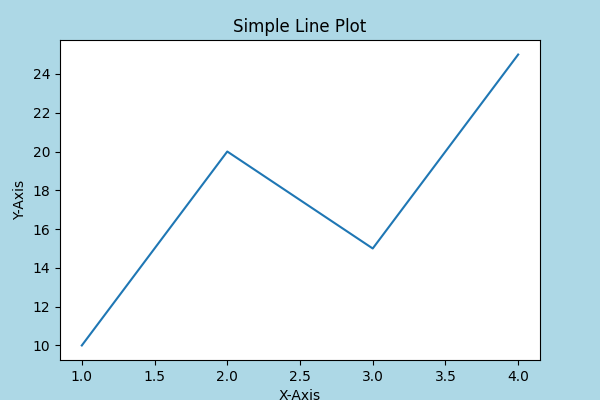
Example: This code demonstrates how to use Figure class to create a simple line plot. It sets figure size and background color, adds custom axes, plots data and labels the axes and title.
Output
Explanation:
Axes class represents actual plotting area where data is drawn. It is the most basic and flexible for creating plots or subplots within a figure. A single figure can contain multiple axes but each Axes object belongs to only one figure. It can create an Axes object using axes() function.
Syntax:
axes([left, bottom, width, height])
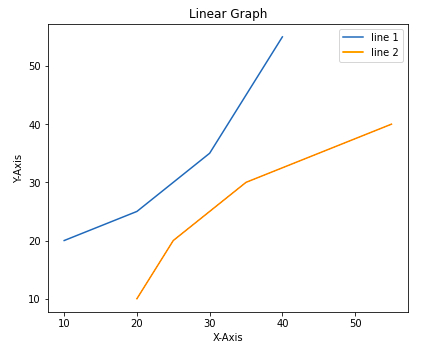
Example: This code creates a figure using Figure class and adds a custom axes area to it. It then plots two line graphs one for x vs y and another for y vs x. The graph includes axis labels, a title and a legend for better clarity and presentation.
Output
We have learned how to add basic parts to a graph to show more information. One method can be by calling the plot function again and again with a different set of values as shown in the above example. Now let’s see how to draw multiple graphs in one figure using some Matplotlib functions and how to create subplots.
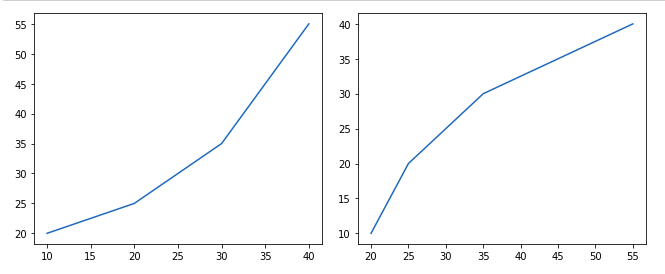
add_axes() method allows us to manually add axes to a figure in Matplotlib. It takes a list of four values [left, bottom, width, height] to specify the position and size of the axes.
Example: This code creates two side-by-side plots using add_axes() one for x vs y and another for y vs x all in a single figure.
Output
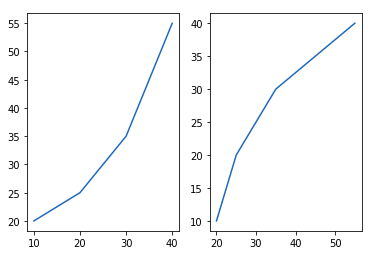
The subplot() method adds a plot to a specified grid position within the current figure. It takes three arguments: the number of rows, columns and plot index.
Example: This code uses subplot() to create two plots side by side one for x vs y and the other for y vs x within same figure.
Output
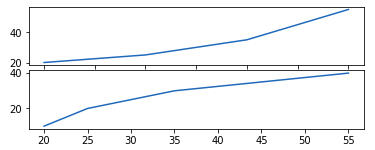
The subplot2grid() creates axes object at a specified location inside a grid and also helps in spanning the axes object across multiple rows or columns.
Example: This code uses subplot2grid() to place two stacked plots in a single figure one on top of the other by defining their positions in a 7-row grid layout.
Output
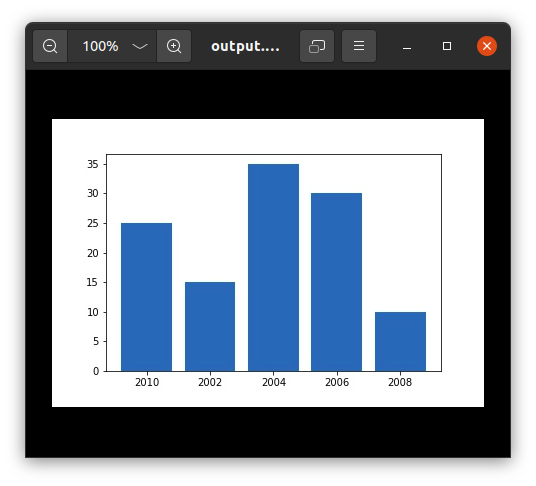
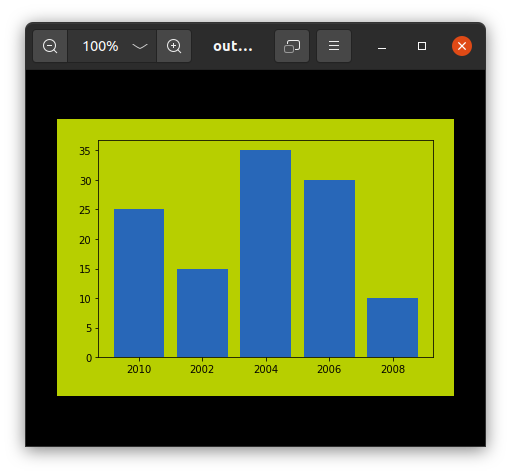
When plots are created using Matplotlib, users may want to save them as image files for use in reports, presentations or sharing. Matplotlib offers savefig() function to save the current plot to a file. By changing file extension, users can store the plot in different formats such as .png, .jpg, .pdf or .svg.
Example:
Output
👁 saving matplotlib plot
👁 matplotlib saving plot