|
VOOZH | about |
|
VOOZH | about |
Hi guys, most of us at some instances of time face a problem with how to start something for a minor or major project. Many of us wish to make a website-based project but do not know how to proceed. To assist all my friends, today I'll walk you through the process of installing and getting acquainted with the WordPress environment. Below I give step by step process along with screenshots to make a website using WordPress. Just follow them and you are done!!
Installing local server: Xampp (https://www.apachefriends.org/index.html)
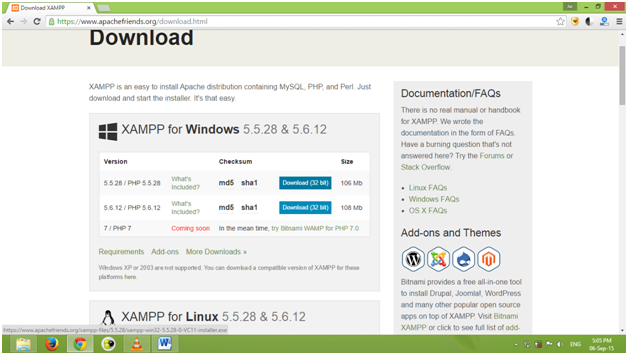
Go to the link: https://www.apachefriends.org/download.html, choose your platform (windows / Linux, mac), and click on download.
👁 after_1
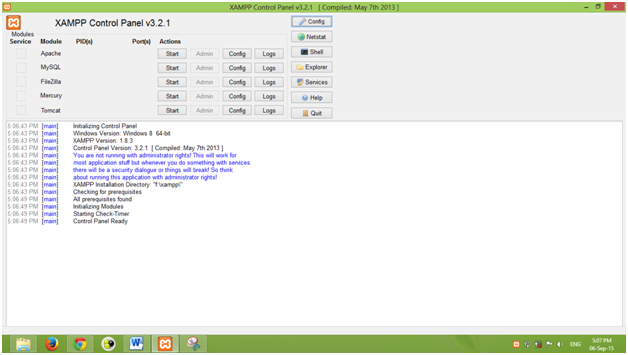
After installing Xampp, go to programs and run it, you should see something like this.
Just click on start in front of Apache and MySQL, this will start your local server.
If you're facing problems with this step, chances are that your port no. 80 is being used by other applications (for example Skype). To resolve this issue, click on config in front of Apache, locate the line "Listen 80" and change it to some other value, say "Listen 1234".
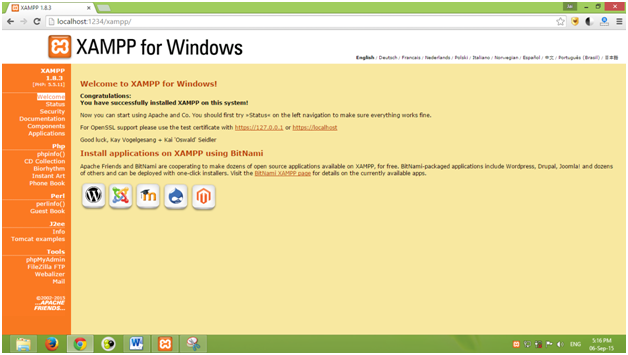
Now that your localhost is running, check it by typing "localhost" in your browser URL (if you changed the port number in 3rd step, then type "localhost:1234" whenever I refer to "localhost"). You should see the following screen.
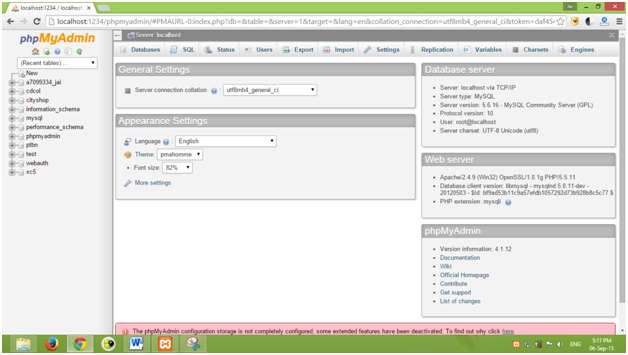
Goto phpMyAdmin is located under "Tools" in the bottom left corner. This is your MySQLdatabase, here all the information on your website (comments, posts, username, password, etc.) is stored. You can run SQL queries here, make tables, etc.
Write any name you want under "Database name" and click on create. Remember this name, this is the name of your site's database.
👁 After_10
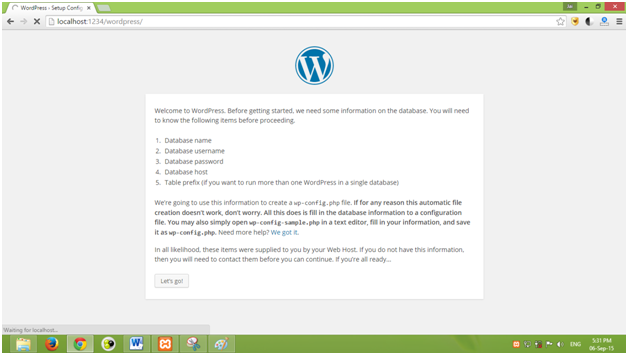
Type the URL "http://localhost/wordpress/" in your browser and you should get this screen.
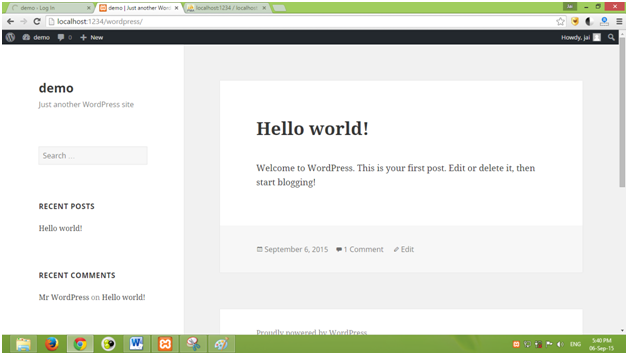
Go to the URL "http://localhost/wordpress/index.php" and you'll see a default homepage something similar to this
👁 After_15
Part 2: How to make a website using WordPress (Part – 2)
References :