|
VOOZH | about |
|
VOOZH | about |
WordPress provides a dedicated section called Media Settings, allowing users to configure how media files, such as images and videos, are stored, displayed, and managed on their websites. Proper configuration of these settings can improve your website's performance, optimize media for various uses, and enhance the user experience.
Media Settings in WordPress control how your media files are stored, displayed, and managed on your website. These settings allow you to define default image sizes, organize your uploads, and optimize how media is used throughout your site. Proper configuration of these settings can significantly impact your site’s performance, load times, and overall user experience.
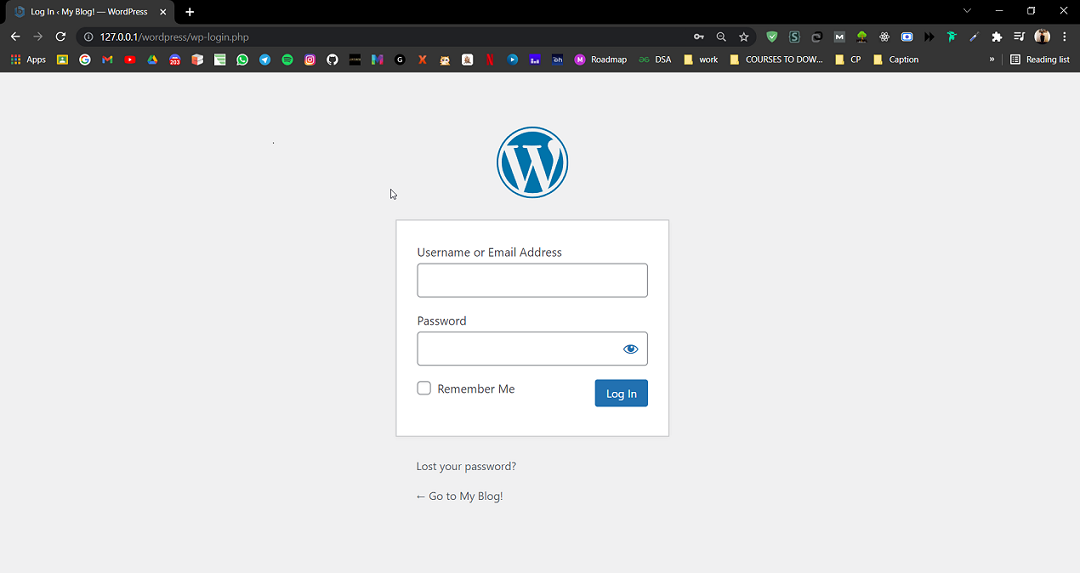
Step 1: Go to the WordPress login panel and enter the username and password to log in to WordPress. You can access the login panel by adding /wp-login.php at the end of your website URL. In my case, it is – http://127.0.0.1/wordpress/wp-login.php
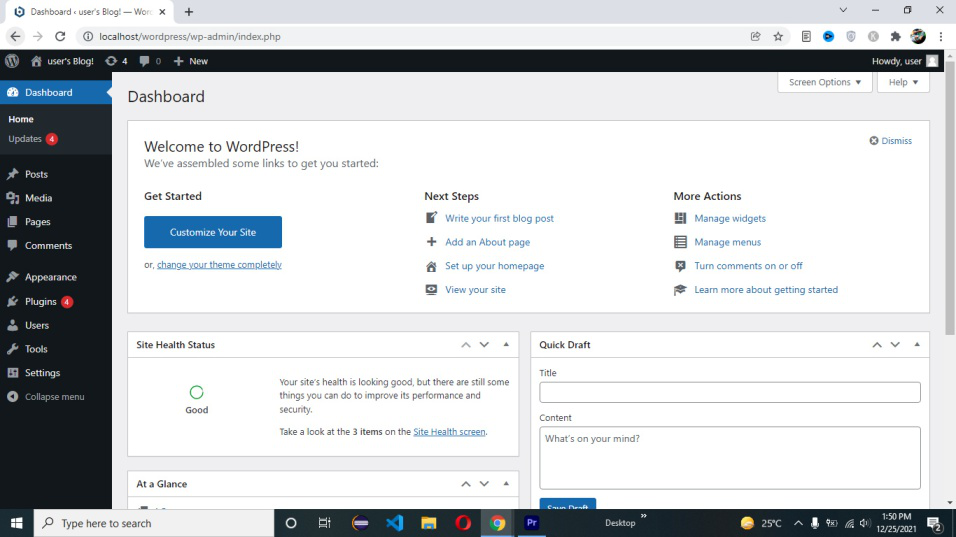
👁 wordpress-media-settingAfter login, you’ll see a similar dashboard like this:
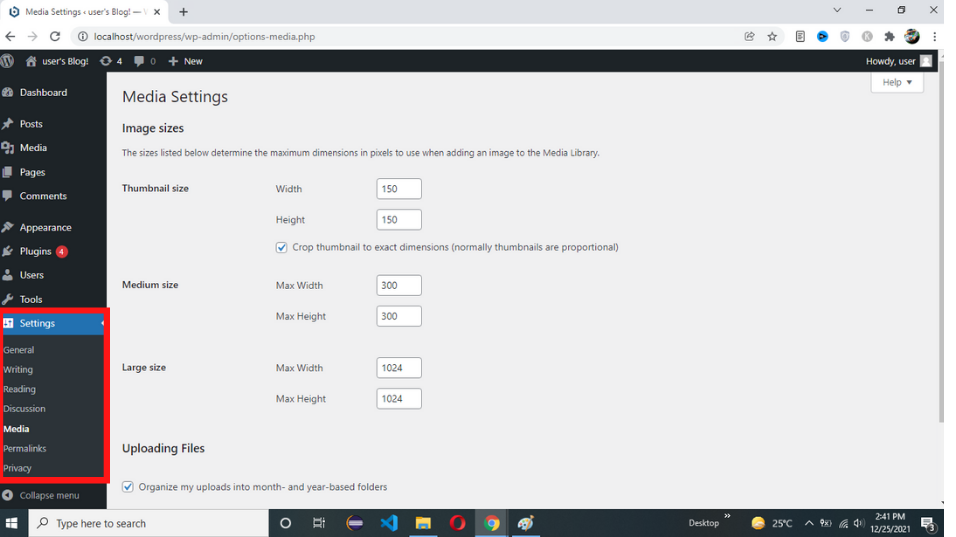
👁 wordpress-media-settingStep 2: Navigate to Media Settings
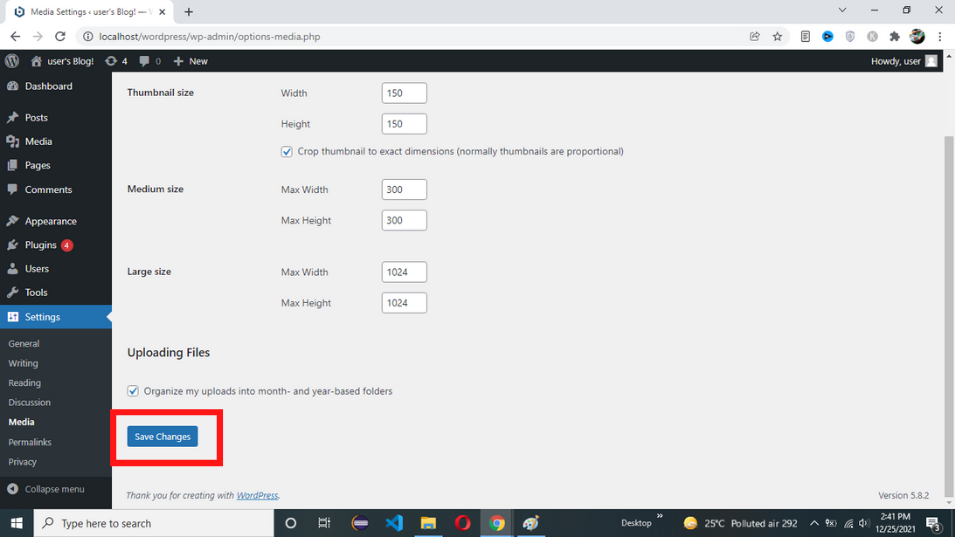
Step 3: Configure Media Settings
People Also Read:
WordPress allows you to set default sizes for images that you upload to your website. Configuring these sizes helps ensure that your images are optimized for different uses, such as thumbnails, blog posts, or full-size displays. Here are the three main image sizes you can configure:
WordPress allows you to organize your media files by uploading them into month- and year-based folders. This option can be found under the Uploading Files section in Media Settings.
Enabling this option will create a structured folder system within your WordPress uploads directory. This can make it easier to manage and locate your media files.
To ensure your media files are optimized and well-managed, follow these best practices:
Optimizing WordPress Media Settings is an integral part of improving your website. By customizing image sizes, using descriptive filenames, adding alt text, and leveraging plugins and advanced techniques like lazy loading and CDNs, you can enhance the performance and visibility of your media.