|
VOOZH | about |
|
VOOZH | about |
WordPress, the world's most popular content management system, is constantly evolving to improve performance, enhance security, and introduce new features. Keeping your WordPress site updated is crucial for maintaining its security and functionality.
Here, we'll explore the two main methods of updating WordPress: automatic and manual. By the end, you'll have a thorough understanding of both processes and be equipped to keep your site running smoothly.
Before you start with the "how-to," it's important to understand the "why." Here are the key reasons for keeping your WordPress site updated:
There are two main ways you can update your WordPress website to the latest version:
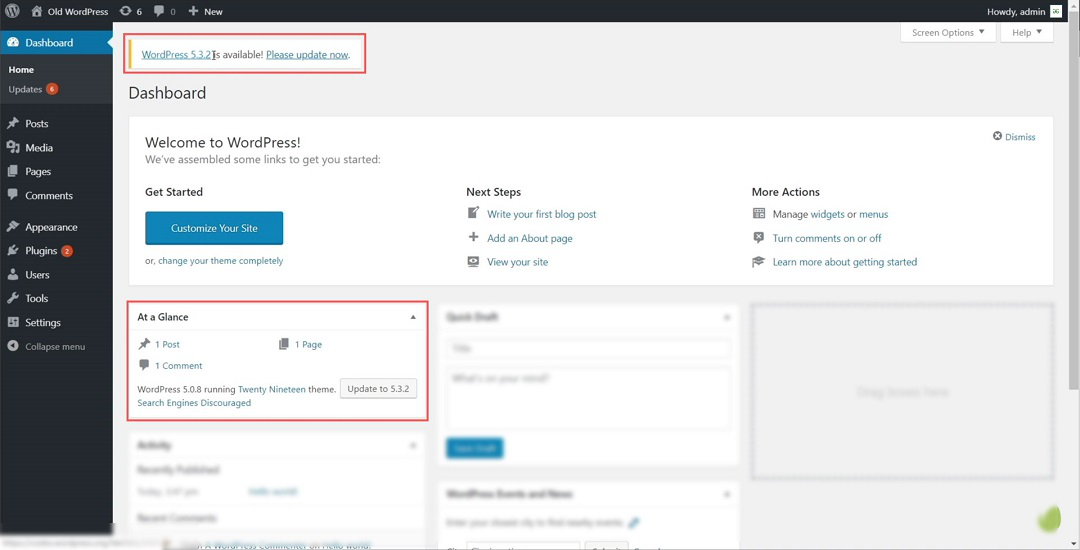
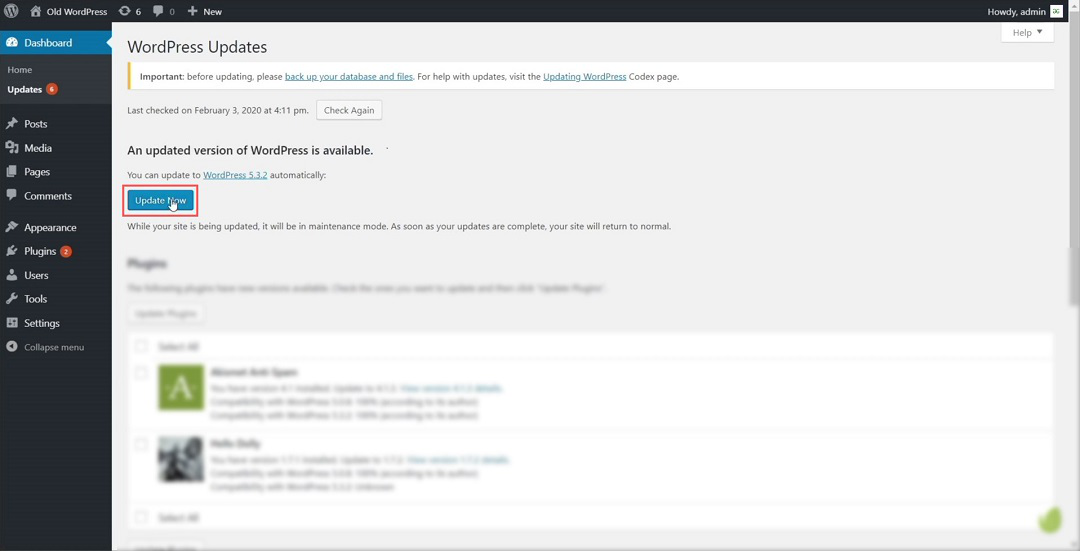
It is an easy way to update your WordPress website. Open Dashboard >> Home, there you’ll find the current version of the WordPress that has been installed on your server on the local system along with the Update button.
It will automatically update to the latest version of WordPress and you are good to go to use all the features that come along.
Follow the given steps to manually update WordPress Version:
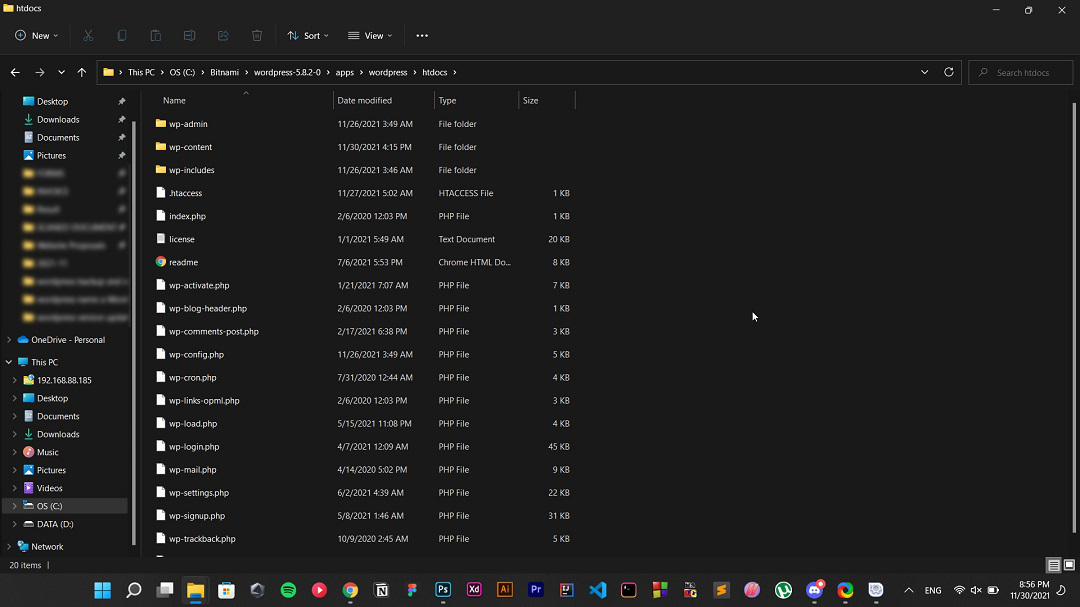
Step 1: You need to Access the WordPress files from the CPanel of your server and go to the WordPress folder. In my case, I am using WordPress locally so I have to go to the local directory of the folders where WordPress is being installed into my system.
There you'll see all the files including:
Step 2: Now, you have to download the latest version of WordPress onto your local computer. For that, go to the WordPress website and click on Get WordPress and then Download WordPress. You'll get a zip file into your download folder.
👁 Download WoedpressStep 3: Delete wp-include and wp-admin folder from the old WordPress directory and copy the new one with same name which you got when downloaded the latest WordPress by following the above step.
👁 WordPress Version UpdateStep 4: Copy wp-content folder from the downloaded folder to the old folder (without deleting the old folder) and click on replace all, if asked.
👁 Copy WordPress Version UpdateStep 5: Copy the rest of the remaining files from the downloaded folder and paste them into the root directory of the installed WordPress folder.
👁 WordPress UpdateStep 6: Now, go to the WordPress Dashboard and refresh it. You may get a popup Database Update Require. If yes, simply click on Update WordPress Database button and click on Continue.
👁 Wordpress Dashboard updateAnd that’s it, you have successfully updated to the latest version of WordPress.
Also Explore:
Keeping your WordPress site updated is essential for security, performance, and functionality. Whether you choose the convenience of automatic updates or the control of manual updates, the key is to ensure updates are applied regularly and carefully. By following the steps outlined in this guide, you'll be well-equipped to keep your WordPress site running smoothly and securely.