|
VOOZH | about |
|
VOOZH | about |
WordPress theme management is a n important aspect of maintaining a professional and visually attractive website. Themes control the layout, design, and overall appearance of your site, making it essential to choose and manage them effectively. This article will walk you through the basics of WordPress theme management, providing easy-to-follow steps and tips to enhance your website's look and feel.
A WordPress theme is a collection of files that dictate the design and functionality of your WordPress website. Themes include templates for different sections of your site, such as the header, footer, and sidebars, as well as stylesheets and custom features.
Selecting the right theme is the first step in creating a successful website. Here are some tips for choosing a theme:
In this section, we will learn about how to include image files, templates, CSS stylesheets, etc. This will help us to make our website looks good.
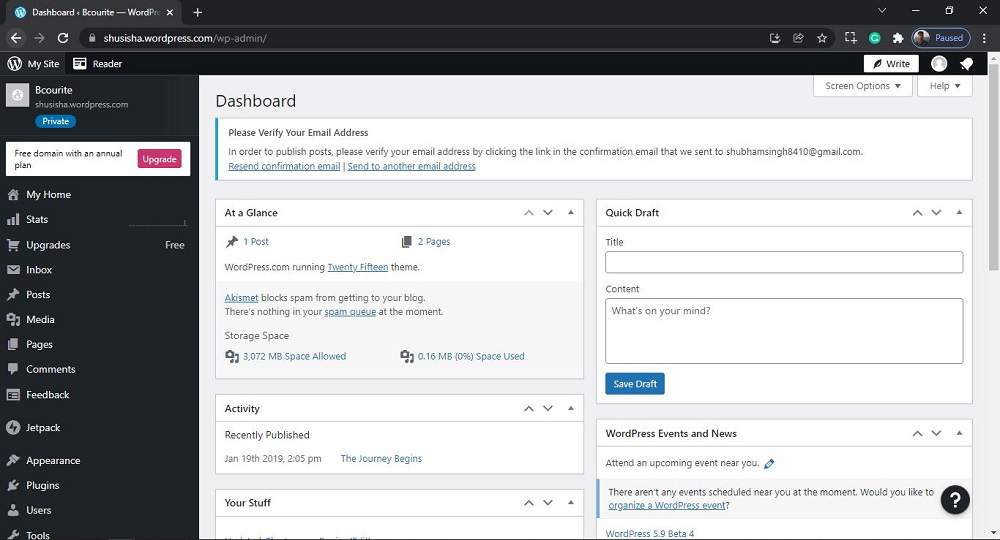
Step 1: Go to the WordPress login panel and provide the username and password to log in to the WordPress Dashboard. You can access the login panel by adding /wp-login.php at the end of your website URL.
After login into WordPress, you will be able to see a dashboard like this:
Step 2: We have to search and open the Themes. For that:
From the menu option on the left side, there are many options. Go to the Appearance >> Themes.
After clicking on Theme, you will see a similar Page like this:
Step 3:Now you just need to hover over any theme and click on the 'Info' Button.
👁 ImageAfter Clicking, you will see a similar window like this. This page is consists of details of the theme. Details like Overview, description, support, etc.
👁 ImageStep 4: To add this new theme to your WordPress page click on the 'Activate this Design' button. And to preview the theme, you can click on the 'Open live demo' button as shown in the above screenshot.
After clicking on the 'Activate this Design' button, a pop window will appear with 'How would you like to use @ThemeName'?.
👁 ImageAfter selecting options click on the 'Activate @ThemeName' Button. 'Thanks for choosing @ThemeName' pop message will appear.
👁 ImageStep 5: Click on the 'Customize Site' Button to customize your theme. After clicking, you will see a similar Page like this:
👁 ImageThe theme's menu is present on the left side of the page. You can use these menu options to customize your theme. A customized page will be displayed on the right side of the page. We will learn more about WordPress Customize Theme in a new article.
Effective WordPress theme management is integral to maintaining a professional, functional, and secure website. By following best practices in theme selection, installation, customization, and maintenance, you can enhance your site's appearance, performance, SEO, and overall user experience. Stay updated with the latest trends and technologies in WordPress themes to continually optimize your website and stay ahead in the competitive online landscape.