|
VOOZH | about |
|
VOOZH | about |
Adding links to your WordPress pages helps connect related content, guides users through your site, and can improve your SEO. Links are essential for guiding visitors, referencing external resources, or highlighting related pages or posts.
Let’s see the steps to Add Links to WordPress Page Easily and Quickly.
Step 1: Go to the WordPress login panel and provide the username and password to log in to the WordPress Dashboard. You can access the login panel by adding /wp-login.php at the end of your website URL.
Step 1: Log in to Your WordPress Dashboard
- Go to your WordPress login panel by typing /wp-login.php at the end of your website’s URL (e.g., www.yourwebsite.com/wp-login.php).
- Enter your username and password to access the WordPress Dashboard.
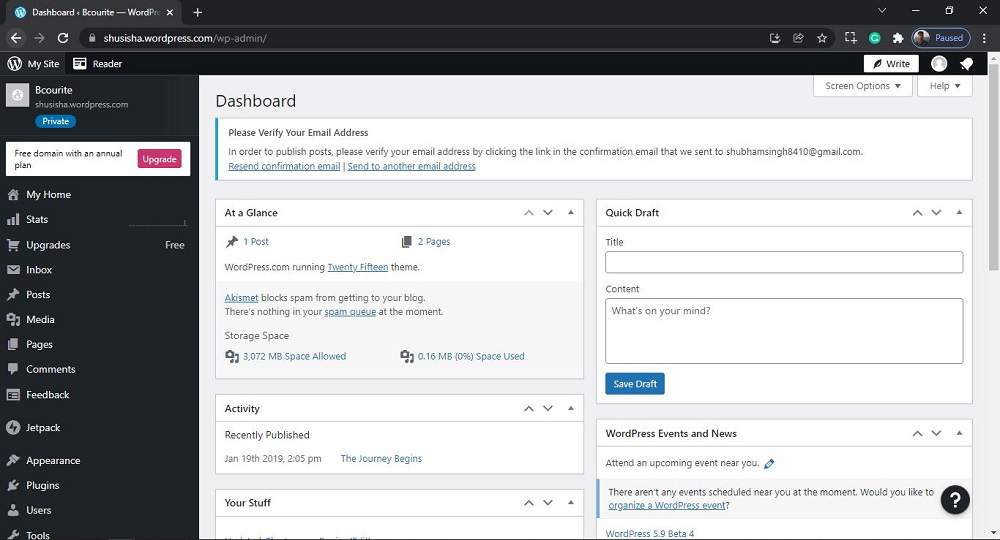
After login into WordPress, you will be able to see a dashboard like this:
Step 2: Navigate to Your Pages
- On the left sidebar, click on “Pages” and then select “All Pages.”
- Here, you’ll see a list of all the pages on your site.
After clicking on All Pages, you will see a similar Page like this:
Step 3: Select the Page to Edit
- Choose the page where you want to add a link by clicking on its title or by selecting the "Edit" option from the dropdown (visible when you hover over the page title).
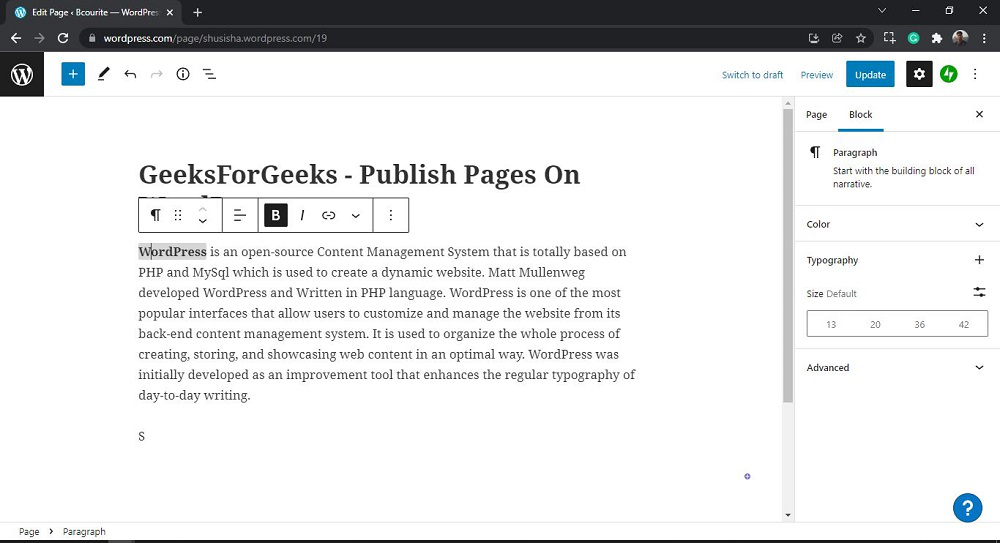
After clicking on Edit, you will see a similar editor as shown in the following screenshot:
For the sample, we will add a link to the word WordPress.
👁 WordPress Add LinksAfter selecting WordPress word, click on Link Button on WordPress editor or command Ctrl + K.
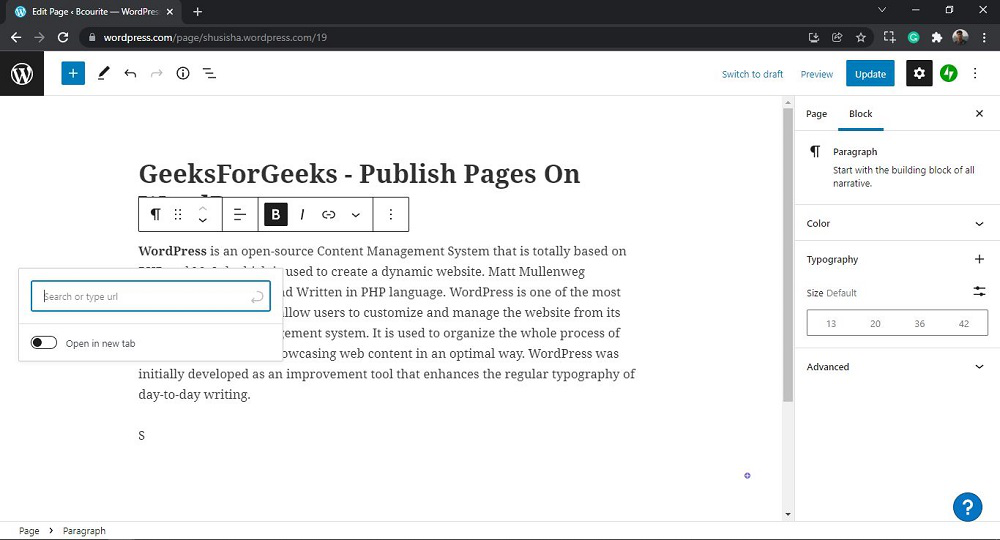
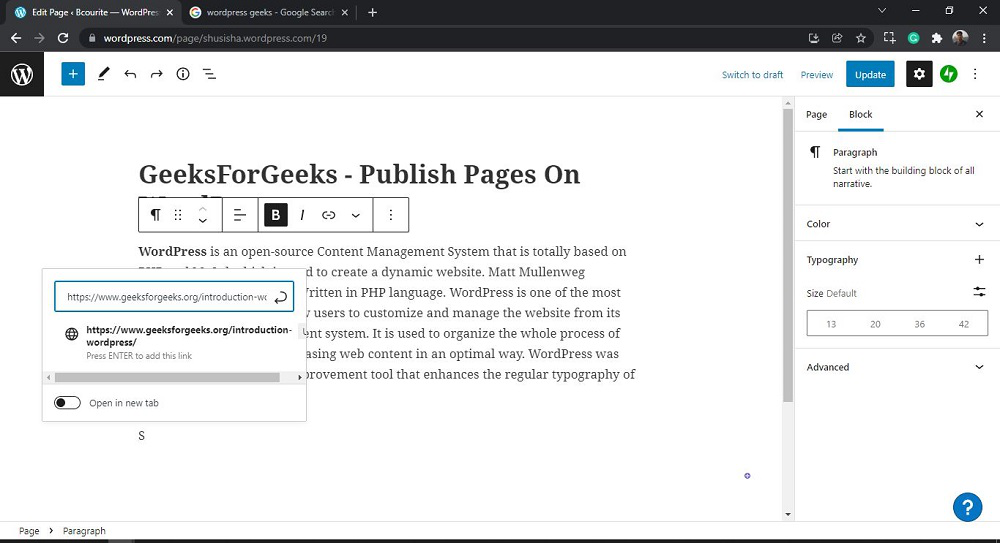
👁 WordPress Add LinksNow type or enter the link in the link box and then press Enter Command. You can also select to open link in the same tab or new tab by clicking on the 'Open in new tab ' Button.
Here I am entering the 'https://www.geeksforgeeks.org/wordpress/wordpress-introduction/' link.
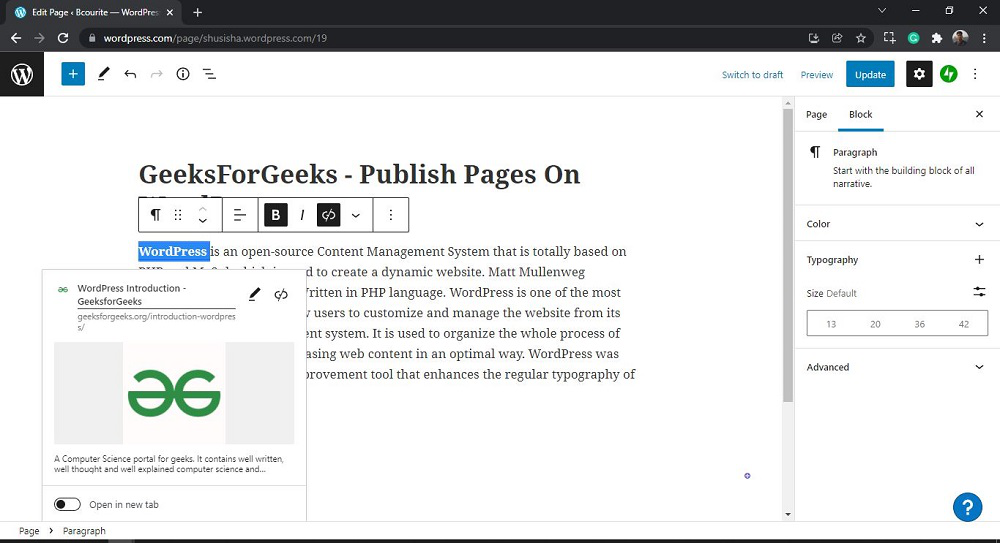
👁 WordPress Add LinksAfter adding a link to word WordPress. If you click on word WordPress similar link description will be shown there.
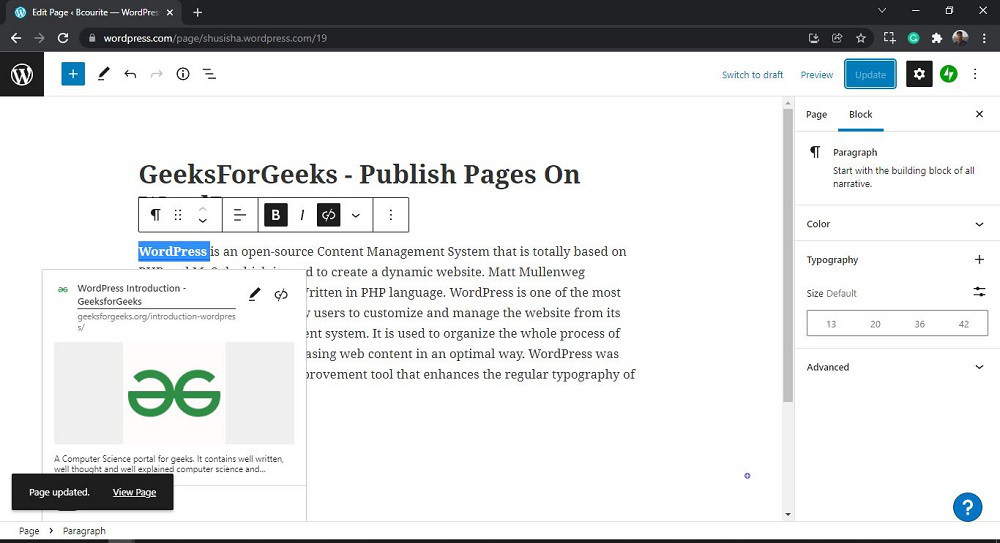
👁 WordPress Add LinksStep 5: Now you just need to click on the Update button on the pages to update the page.
You will get Page updated message with a View page link on the page.
👁 WordPress Add LinksThat’s it, you have now successfully learned how to add links to the WordPress pages from your WordPress website.
Now that, You’ve successfully learned how to add links to WordPress pages. By using links, you enhance the user experience, guide your visitors through relevant content, and can even improve your site’s SEO performance.